
30
January
2023
Ultra Picokeyer User Manual (translation)
17:04

Ultra Picokeyer User Manual (translation)

30 January 2023 17:04

I'm providing my translation of the instructions for the HamGadgets Ultra Picokeyer electronic telegraph key, along with the assembly guide from the kit. I did this translation for myself because I couldn't find the Ultra Picokeyer manual in Russian.

hamgaDGETS[/center]
[Center]Ultra PicoKeyer[/center]
[Center]Electronic telegraph key with memory[/center]

  • The electronic circuit on two CMOP transistors will switch the transmitter voltage to 60V positive or negative polarity
  • A simple and convenient control interface using buttons, with hints of Morze Codes
  • Four 127-symbolic memory cells can be connected to a chain for a long message
  • Works with any two- or single -row telegraph manipulator - "oar", or a vertical key (classic structure)
  • Memory for point and dash, automatic formation of the correct durations of parcels and pauses in the element of the alphabet Morse
  • Easy entry of messages into memory using your telegraph key
  • Easy setting of functions in the menu without using the key
  • Automatic detection of a vertical key, memory cells are available in this mode
  • The "BUG" mode for the automatic insertion of points with manual formation of a dash
  • Transmission speed adjustable from 5 to 60 WPM through the menu or a potentiometer of the speed regulator
  • The speed regulator can be set preferred for you the speed range
  • Double QRS/QRQ speed set allows a quick return to preferred speed
  • Points and dash weight adjustment
  • Adjustment of the tone height for self-control
  • Slow QRSS telegraph mode with points of 1 - 255 seconds
  • Yambic regimes of manipulation “A”, “B”, semi -automatic “BUG” and alternative “UltimaTIC "
  • Adjustment of the distance between letters
  • Mode for setting up an antenna tuner (with 50% or 100% by a working cycle)
  • Beacon mode with a repeat up to 255 seconds and the possibility of automatic start of the message when turning on the power
  • MCW mode for transmitting Morse telegraphy along the sound channel of radio stations for voice negotiations
  • The “pause” command to the possibility of inserting the RST report by the operator and automatic renewal of the message transmission
  • The team for increasing by the unit of the serial number QSO can be built into the message, indicating the number of leading zeros in the radio communications room
  • Inverting the purpose of the levers of the iambic key to transmit points and dash with the left or right hand
  • Compensation QSK (shortening of signs) due to delay in the operation of the transmitter relay
  • Preservation of the contents of memory cells and settings when turning off power
  • Low power supply-2.5-3.5 volts
  • Small consumption current - usually less than 1 ma for manipulation, with an automatic transition to an extreme sleep mode
  • All controls and nests for connection are implemented on one printed circuit board
  • Two Memory Memory Mycall for storing call sign or other information

ULTra_picokeyer

Management ULTra PicoKeyer

Now that you've soldered your Ultra PicoKeyer together, placed it in its enclosure, and installed a battery, it's time to connect your CW keyer, transmitter, or transceiver to it. Take a moment to read this manual to learn how to use your PicoKeyer's features.
ultra-picokeyer00

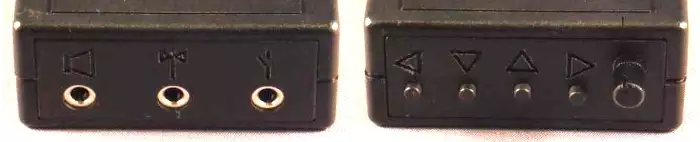
This side is for your PicoKeyer's connections. The center 3.5mm jack is for the CW keyer (input); the right 3.5mm jack is the ON/OFF output for keying the transmitter or transceiver (output). On the left is a low-power audio output, such as for earbuds or headphones.

This side to manage your Picokeyer.
The transmission speed control handle is on the right, the memory/settings buttons - on the left. Buttons with the symbols of the triangle ◄, ▼, ▲ and ► are used in the menu settings system. These buttons are not marked with numbers, but are numbered from 1 to 4 from left to right for Memory memory.[/Columns]

Speed ​​regulator

This control element, you will probably be used most often. The rate of transfer of the Morse code can be changed from 5 words per minute (WPM) to 30 words per minute, with a simple turn of the speed control knob. The upper and lower limits can be set using the settings menu points described later in this guide. The values ​​of the upper and lower speed limit by default are 5 words per minute and 30 words per minute, but you can make them anywhere, between 5 WPM and 60 WPM.
You could notice that when the handle is turning counterclockwise, the transmission speed initially smoothly decreases to 5 words per minute, and then sharply jumps to 13 words per minute. This special feature is known as “double speed”.

Two settings of the ABC Morsa are available for your use. The current speed is the speed with which a telegraph key works, regardless of whether this speed is obtained from a speed or menu potentiometer. The preserved speed is stored in the internal energy -dependent memory of the microcircuit and is used when the speed potentiometer is turned into a minimum position. At any time, you can use a smooth speed setting to set any speed between the lower and upper limits. Speed ​​setting using a potentiometer does not affect the preserved speed, which is always available with a simple turn of the potentiometer counterclockwise to the stop. This opportunity can be very useful. For example, you can maintain the set speed at a constant, favorite speed in order to be able to quickly QRS/QRQ to answer fast or slow stations. Or you can simply ignore the saved speed and always use a potentiometer to control the speed - you decide.

We note two things. First, you can set the preserved speed of any, in the range from 5 to 60 words per minute, and it does not have to be within your smooth speed adjustment range. You can also set the speed control range so that it is acceptable for you. The second, if you set the saved speed and lower speed limit for the speed controller are the same, so you completely turn off the double speed function - you will have a constant range of the speed regulator. Watch the commands of the range (RL and RH) in the chapter "Team of the Settings Menu".

Button switches

Mark: if when trying to convey something with the help of the key you get an unexpected result, you may be in the settings menu. To exit the setting menu, press the 3 and 4 buttons at the same time (▲ and ►). If you hear the Dit Dit signal, then you returned to normal operation.

ULTra PicoKeyerIt has four memory cells controlled by four buttons on the front panel. The handling of these buttons is simple and direct, and their use is what you can expect from a modern electronic device.

Reproduction of a previously recorded message

A single press and immediate release of any of the four buttons (“pressing” the button) triggers the transmission of the message saved with this button, if it was recorded. If you want to stop playing the message, click on any lever of a telegraph manipulator.

Using the special key capabilities

There are several functions that can be used at the same time by pressing several buttons.

  • To enter the adjustment mode, press the 1 and 3 (◄ and ▲) buttons at the same time. Being in the adjustment mode, you can touch the manipulator lever with a dash to send a stable supporting one, or touch the lever with dots to send an endless series of points. Touch any manipulator lever to stop sending. Press any button to get out of the settings mode. In the adjustment mode, the tone of self-control is always turned on, regardless of setting up the tone of self-control in the menu, to remind you that you are a program.
  • To reduce the QSO meter by a unit, click the buttons 1 and 2 (◄ and ▼) at the same time. The key will give out two “points” only using the tone of self-control in order to inform you that the QSO counter was reduced by one.
  • To find out the current transmission speed, press the 2 and 4 buttons (▼ and ►) at the same time. The key will announce with the help of the ABC Morsa your current speed of words transmission per minute WPM, using only the tone of self-control.
  • To convey the contents of the MYCALL cell, press two external buttons 1 and 4 (◄ and ►) at the same time.
  • To start the detection of a straight key, press the 2 and 3 (▼ and ▲) buttons at the same time. The electronic key will check whether any of the manipulator entrances is grounded, and if so, it will consider another entrance as direct key . If none of the inputs is grounded, the key will assume that the manipulator is used. The electronic key will declare the letter “K” about its readiness for the normal operating mode.
  • To enter the setting mode, press the 3 and 4 buttons (▲ and ►) at the same time. See the chapter “Settings mode” on how to change the settings. When you finish the settings, just click the 3 and 4 buttons together again to exit.

Record, review and conservation in memory of messages

Do not let yourself deceive the next description - recording, review and saving messages are very simple and intuitive! The demonstration will take less time than reading these very instructions. Buttons on your ULTra PicoKeyer- Powerful things, and very easy to use.

To record the message: Press and hold one of 4 buttons to start recording a message related to this button. Just hold the button (about two seconds) until you hear the letter of the ABC Morse "K" - an invitation. Now you are in recording mode . Write down your new message using a telegraph manipulator. When you finished the recording, click again and hold the same button to save a new message. The electronic key will notify you with the letter “R” that the message is written.

To get out without saving the changes: if you have determined that you made an error when entering the message and want to start from the beginning, or you just looked through the existing message, or you accidentally entered the record mode, just click any button, except for the one that you just pressed, to stop the record and return to the usual mode without saving the message. The key will notify you “NR” that he did not record the message.

Review the text of the message and adding to it new: if you want to listen to what you have saved in any cell for messages, just go into the recording mode (hold the button pressed until you hear “k”), then release the button. Now touch the same button to play the text of your message. This works either before the start of the recording of a new message (to revise the already saved), or when you have already recorded the message, and you want to make sure that you entered the text correctly, before saving. After listening to the message “pointer” in the memory is not discarded to zero - in other words, if you view the message and start the record, then what you transmit, the end of the message will be added.

Removing the existing message: If you want to erase the message that you have preserved in one of the specific places, is simple. Enter the recording mode (hold the button until you hear “K”, then release). Now click again and hold the button until you hear “R”. This will delete the entire text of the message that was stored in this memory cell.
Let's go along typical cases of using memory buttons. First, suppose you want to record a new message in the memory cell No. 1.

  1. Hold the button 1 until you hear the “K”, then release the button.
  2. Send your message using a telegraph manipulator. You can pause between words as long as long.
  3. If you want to view what you have already handed over, click the No. 1 button.
  4. When you are satisfied with the message, click and hold the No. 1 button until you hear “R”.

Now suppose that you think that you have a message stored in the M1 cell, but you are not sure what it is. You want to view the message and, perhaps, change it, but do not want to turn on the transmitter for this. That's what you would do:

  1. Hold the button 1 until you hear the “K”, then release the button.
  2. Click button 1. The key will reproduce the saved message (if any) without issuing it to the transmitter.
  3. If you want to add something to the end of the existing message, you can do this by simply typing the text using a telegraph manipulator before you go out.
  4. If you want to leave the message “as is”, just click any other button: 2, 3 or 4. The key will answer “NR” - notrecorD. If you have changed the message and want to write it in memory, hold the button 1 until you hear the "r".

Now suppose you want to replace this message No. 1 with a new one:

  1. Press and hold button 1, as before, until you hear “K”.
  2. If you want to record a new message _part the old, just use your telegraph manipulator to enter a new message over the old.
  3. To check the newly transmitted text, press button 1 again. Now, you can add the text to FINAL of the message.
  4. If you are satisfied with the message, click and hold the button 1 until you hear the “r”. Now you have finished recording and got out of the recording mode.

Suppose you just want to delete the message No. 1.

  1. Click and hold button 1, as before, until you hear “K”.
  2. Click and hold the button again until you hear the “R”. The message is now erased; In other words, you just recorded an empty message.

Messages mycall is a special case: they should be recorded using the settings menu, and can contain up to 63 signs instead of 127. Otherwise, they work in the same way as the other four messages.

Special teams in messages

The messages may use several special built -in commands. All commands begin with a oblique line, behind which one or two characters follow. When reproducing a message in the settings mode, you will hear the command itself, and not its action - a chain of messages or QSO number, a pause or a beacon mode that are inactive in message adjustment mode. For example, you will hear /R instead of repetition of the last word. To write a symbol of the oblique line in the message, save it as two oblique features //. For example, if I want the message for sending to be n0xas/b, I will save it in memory as n0xas // b.

  • /R will repeat the last word, including a gap after it. This will help maintain a lot of memory space, because each combination /R takes only two places for symbols in memory. For example, to convey 3x3 CQ, you can simply save “CQ/R/RDE (call sign) /R/R K”. This will save a lot of free space in memory.
  • /1, /2, /3 and /4 can be used for “appeal to”, or inserts of another message as part of this message that you write down. The specified message will be immediately reproduced when the commands of the command are met, then the current message will continue.
  • /P will pause the message. This will make the electronic key wait until you manually send the information, such as a signal report or other comment. The message will be automatically resumed after the word input and the termination of the input from the manipulator. Hint: if you use /P, save it immediately after previous characters without a gap. In other words, keep “Ur RST/P ...” instead of “UR RST /P ...”. This will prevent the cessation of macro transmission at the beginning of entry from the manipulator during a spacecraft reproduction between words, which will be perceived by the key as a complete interruption of the transmission. If you want to complete the message, while it is paused, and so that it does not continue, just click on one of the messages for messages.
    *So that your message is automatically repeated after certain intervals, insert the command /b (Beacon) at the end of your message. This is to force the key to dwell on the specified number of seconds specified for parameter B (see instructions for the tuning menu) before re -sending the message. You can stop working on the Beacon by touching the manipulator or any button. This is especially useful for a general CQ call or for using your PicoKeyer to control a radio beacon to study passing or for managing the fox transmitter.
  • чThe transfer of messages from cell No. 1 began Automatically when the power supply is supplied to the electronic key, save the command /a as the first two characters of message No. 1. This is useful for the automatic start of transmission when the radio station is turned on - the Lisa Beacon. Remember that you must, however, use the /b command at the end of the message if you want it to be repeated.
    To transfer the radio number number and add one to the QSO counter, send /Qi (QSO & IncremEnt).
    To send the QSO radio communications number, and do not add unit to it, send /qn (QSO & No IncremEnt).
    To convey the last (previous) number QSO, Send /QR (QSO Repeat). This is useful during the competition if you need to transfer the control number for “filling out”.
    To temporarily increase the speed of the telegraph by 1 WPM, transmit /SU (Speed ​​Up). Please note that this command, like /SD, acts immediately and retains its effect until the end of the message. You can save several commands /SU or /SD to change the speed by more than 1 WPM - for example, /SU/SU will increase the transmission speed by 2 WPM, etc. ..
    To temporarily reduce the transfer speed by 1 WPM, send /SD (Speed ​​Down). This team acts just like /SU. Teams /S or /S0 will restore normal speed.
    To temporarily set special speed, transmit /Snn where "nn" is the desired speed, WPM. Teams /S or /S0 will restore normal speed. For example, in order to quickly transfer the 599 report at a speed of 30 WPM and return to your normal speed, use /S30 599/s0.
    *To enable the slow Beacon mode qrss , send /sqnn , where NN is the duration of the point in seconds. Teams /S or /S0 will stop QRSS. Example: /sq3 de n0xas/s0 will transmit “de n0xas” with 3-second points.
  • To change the pauses between letters (method farnwoth), send /Fn where n – is one digit from 0 to 9. This will work as a setting in the menu "Letter Spacing." For example, you might want to add a little extra space between the letters in your callsign in a CW message. You could save, "CQ /R/R DE /F2N0XAS /R/R K /F0/B ".
    To insert an additional “gap” between the words in your message, pass the professional sign “1m” (i.e. a point with six dashes :.-------).
    To insert a continuous carrier, use the /cn command, where n is the number of seconds (from 1 to 9) that you want to transmit the supporting.
    *To insert the contents of the message mycall, place the commands /y, /y1 or /y2. Where /y or /y1 will transmit Mycall #1; /Y2 will transmit Mycall #2.

Battery and external food

Pay attention to the fact that ULTra PicoKeyerIt does not have a power switch! The microprocessor “brain” of the key will go into sleep mode with low consumption current about a second after the termination of the input from the manipulator, or pressing any of the buttons. In the sleeping mode, the key chip consumes so little current - only a few microamper that the built -in battery may be enough for years. As soon as you touch the manipulator lever, the chip will instantly “wake up” and continue its normal work. You cannot notice when the key goes into sleep mode; The transition from the energy conservation regime to the operating mode is instant and does not require any action from you.
Batteries in your ULTra PicoKeyerIt should be enough for a long time - from several months to several years. Autonomous work time depends on several factors:

  • Frequency of use. Obviously, the more you use the key, the shorter the battery life will be. Even with regular use, you do not have to replace the battery more than once a year or so.
  • Ton self-control. The speaker for the tone of self-control consumes more energy than all other key functions. The use of dynamics for the tone of self-control reduces the life of the battery. All you need to replace it - but you still have to replace it only from time to time.
  • Fire of the Beacon. The key does not go into sleep mode between messages, being in the beacon mode. If you use your Picokeyer to constant Beacon control, you should use an external power source. It can be as simple as a couple of alkaline elements of the AA or AAA series. Do not forget to extract the CR2032 element from the “monetary” before connecting an external power source and never allow the voltage of the external source to exceed 3.3 V - and, of course, twice check the polarity before supplying the power!

The battery replacement is obvious-just turn out the two screws from the lower part of the case, remove the printed circuit board of the keyboard from the housing, remove the battery from the “Monettime” holder and install a new battery. All your settings and messages will be saved even in the absence of a battery charge.

If you need to replace the battery, you need a lithium element CR2032 or a similar one. They are very common and are used in many devices - from openers of garage gates to automobile remote controls, thermometers and medical monitors. You can order high -quality CR2032 elements from www.hamGadgets.com. Do not use batteries or power sources with a voltage of more than 3.3 volts.

Direct key mode

The Ultra PicoKeyer can detect and use a properly connected direct keyer. During its power-up routine, the PicoKeyer checks whether any of the keyer inputs is grounded. If one input is shorted, the other input is assumed to be a direct keyer. Therefore, you can connect a direct keyer to a mono jack and use it without any modifications or adjustments. Keep in mind that while the setup menu will still function and you can send messages, you will not be able to record messages when using a direct keyer.

Of course, removing the battery to switch between the keyer and direct keyer is not always convenient.

To detect a keyer or direct keyer, simply press buttons 2 and 3 (the two middle buttons) simultaneously. It will automatically rescan for input signals from the keyer and determine whether a direct keyer is connected. If you are using a direct keyer with a stereo jack, you may find it more convenient to switch between the keyer and direct keyer using the K menu setting.

The tone of self-control

The PicoKeyer's sidetone is a square-wave signal generated by a microprocessor. The sidetone can be turned on or off, and the audio frequency can be changed in the setup menu. The built-in piezo speaker's response has a very noticeable peak at approximately 2 kHz; if your PicoKeyer is installed in a plastic case, you'll likely want to locate this peak to hear it when assembled. The default setting should be at this audible peak.

Using headphones for self-control

If you prefer, you can use a 3.5 mm stereo connector to connect an external device for a self-control tone. This will lead to a disconnection of the built -in speaker. PIC processor chip used in ULTra PicoKeyer, can manage small headphones with an impedance of 32 Ohms or more. Phones with a low impedance will lead to a very low volume of tones or to their absence. For larger speakers or headphones with low impedance, you will need to use an external amplifier. Inexpensive active speakers for PCs can work well, or they can become a possible basis for building a low -power sound amplifier.

The LM386 amplifier chip is well suited for this, as well as for many other types.

You will need to use the stereo plug for external audio equipment. If you need to use a mono plug, cut the printed circuit board on the bottom of the printed circuit board under the connector for the phones. The dotted line, which passes between the two most external contacts of the nest. This refinement will work perfectly with monophonic headphones and will give you a tone of self-control in the same ear with stereo headphones.

БУДYou are careful when using inserts or headphones! Some inserts or headphones can be unpleasant loud or even loud enough to damage your hearing. Never put on a headset or headphones directly on your ears until you know how loud the tone of self-control will be. If it is too loud, you can try to install a smaller capacitor in place C3. You can also connect an external variable resistor for use as a volume control.

Telegraph manipulation by the transmitter

You can connect any solid -state, tube or hybrid transmitter or receiver to Picokeyer, which use the control voltage of 60 V or less, both positive and negative.

Your transmitter or acceptor may need a mono or stereo-cable. This is determined by an amateur radio station; Check out the user management to get more detailed information about connecting a direct key to your transmitter. The Picokeyer exit behaves like a straight key, so you will use the method of connecting for a direct key. Do not forget to disconnect the internal electronic key if she has in the transceiver.

If you plan to use the PicoKeyer with an amateur radio station that requires grid blocking voltage or cathode-controlled keying voltage greater than 60 V, you will need a separate high-voltage keying adapter. The universal input adapter, Adapter-3, available from N0XAS at www.hamgadgets.com, is optically isolated and will work with solid-state, grid, or cathode-controlled transmitters with voltages up to 400 V. Of course, you can always make your own!

Methods of transmitting telegraph (what is “Mode A”, “Mode B” and Ultimatic ??)

There were several different operating modes on the Yambic Manipulator, which have developed over the years. The difference between the A and B modes only when the electronic key checks the pressing of levers. In the iambic mode A, the electronic key checks the entry from the manipulator after the end of each point or dash. On the contrary, in iambic mode B the electronic key will check the entry from the manipulator during a point or dash.

In practice, this may mean that you get “extra” or “fallen” points or dash at the end of the sign, depending on the iambic mode you transmit. If you find that the electronic key often misses the last point or dash in the sign, or you often get an additional point or dash at the end of the sign, try to switch between A and B modes and look which one is more suitable for you. I found that the B mode is best works for me when using a manipulator with one spatula, while the A mode A works best with a double -leaf telegraph key.

The Ultimatic mode is a different control method for iambic telegraph. In modes A and B, if the electronic keyer sees both paddles together, it will send dots and dashes alternately. Ultimatic, on the other hand, will send only dots or dashes, depending on which paddle was last pressed. For example, to send the letter "P" in mode A or B, you would press the dot lever, release the dot lever, then press the dash lever and hold it for two dashes, then release the dash lever and press the dot lever for the last dot. In Ultimatic mode, you would close the dot lever and, while holding it closed, hold down the dash lever for two dashes, then release it for the last dot. Some letters are easier to send in this mode and require less effort when using Ultimatic mode. This is a small adjustment compared to the regular iambic mode; It took me a couple of hours of practice to get used to it.

Choosing an input mode (A, B, or Ultimatic) is largely a matter of personal preference. There's no one "right" way that works for everyone; find the one that works best for you.
The Ultra PicoKeyer offers two additional input modes. "Bug" mode (select G in the setup menu) offers automatically generated dots and manual dashes, simulating a mechanical semi-automatic "Bug" key (Vibroplex). Direct Key mode (select S in the setup menu) allows you to send data completely manually, treating each lever as a direct key input. This can also be used in the same way as using a "lousy" key—two direct keys placed side by side.

Keep in mind that you can always send saved messages, but you won't be able to record messages in "Bug" or "Direct Key" modes.

Using your electronic key with a portable World Cup (“MCW”-mode)

One of the unique features of your Ultra PicoKeyer is its MCW (Modulated Continuous Wave) mode (select "M" for MCW in the "T" sidetone menu item). In this mode, the electronic keyer output can be used to activate the PTT input of a VHF or UHF portable radio or a mobile FM radio, allowing you to use your FM amateur radio to transmit Morse code. This is not CW (Continuous Wave) modulation, nor is it true MCW (Modulated CW) mode—in fact, it's regular FM transmission, with the audio Morse code tone transmitted in place of voice. This is a good way, however, to establish a CW practice network using your local repeater—subject to the repeater owner's blessing, of course—or on a simplex frequency. Participation in this mode does not require HF privileges or shortwave equipment to learn and practice Morse code on the air. It's impossible to provide detailed instructions for connecting your electronic keyer to every amateur radio station on the market. Different transceivers, even from the same manufacturer, may require different approaches for proper operation. Consult your transceiver's user manual to determine how the audio and PTT signals from the keyer should be connected. A good place to start is by looking for connection tips for a TNC packet radio. Incorrect connections can very likely damage your radio and/or electronic keyer! Consult your radio's operator's manual for specific instructions on using the transmit and audio signals.

Scheme & nbsp; Connections K  Transiver Description
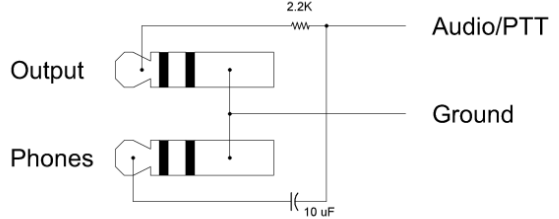
Yaesu In Figure 1, we see the most common method, which will work with many portable transceivers from Alinco, Yaesu, Icom, and others that use a similar PTT/voice control circuit. The 10 µF capacitor value is not critical and can be several times smaller or larger. A 2.2 kΩ or 2.7 kΩ resistor (3.9 kΩ for some ICOM portables) is used in series with the PTT line to the radio. In most cases, ground is connected to the barrel of a 2.5 mm stereo plug, and PTT/voice is connected to the tip—but again, be sure to consult the user manual.
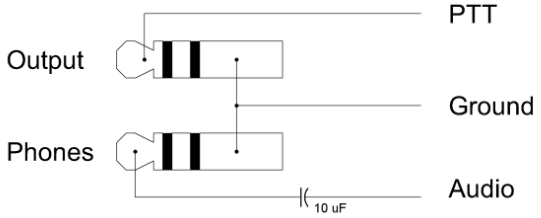
Other Figure 2 shows how to use separate audio and PTT lines. Consult your radio's user manual for the correct connection method and connector pin assignment.

The use of the MCW mode is highly likely to entail the need to manufacture a special cable to connect the outputs of the electronic key “Tone of self-control” and “Transfer” to your World Cup. Depending on your radio, you may need to install a jumper (jamper) to the conclusions of the C3 capacitor, and/or you will need to use an external variable resistor to control the sound volume level of the entering your transceiver.

Settings mode

Just remember: Entering and exiting the setup mode is done by simultaneously pressing buttons 3 and 4 (▲ and ►). Use the left and right buttons ◄ and ► to navigate the menu; use the down and up buttons ▼ and ▲ to change parameter values. The "question mark" “?” signal means you are in the setup mode, and two dots “did dit” indicate that you have returned to normal operation.

Using the ULT setting modera PicoKeyerVery simple and intuitively understandable, you need to remember only a few very simple things.

  • To Enter in or Get out from the settings mode, press the ▲ and ► (3 & 4) buttons at the same time. The key will convey the question mark "?" Giving you to understand that you are in the settings or “Dit Dit” mode, reporting that you have left the settings mode.
  • The buttons ◄ and ► (1 and 4) are moved forward or backward along the menu items. The menu is “looped”, which means you can move along the menu in any direction. The order of the menu items is shown in the table below. You can move around the menu items in any direction using the buttons left and right.
  • The buttons ▲ and ▼ (2 and 3) will change the installation of the selected menu item. The selected values ​​are also moved in a circle, with some exceptions about which will be discussed below.
  • Hold any button to scroll the menu items until you release the button. Retention ◄ or ► will voice the menu items; The retention ▼ or ▲ will send a point or dash for each addition or decrease the configuration of the selected menu item.
  • In order to Reset the value of the menu item to its initial “factory setting by default”, press and release two average buttons (▼ and ▲) at the same time.
  • To convey the contents of My Call #1, if it is set, press two external buttons (◄ and ►) at the same time.

Many operators will consider settings Ultra PicoKeyer by default, satisfactory for normal work. However, some people like it when everything is arranged a little differently. There are many settings that you can change in accordance with your speed, style or equipment. Probably the most common changes are the settings of the range of speed and default speed control.

Most people do not often use the settings mode, and an attempt to remember all the teams may be a difficult task. Others often change the settings and, perhaps, want the work with the menu to be fast and effective. For this reason, you have a choice between the two menu modes - we will call them “long” and “short”. In the “long” mode, each menu item is indicated by a short word, such as Speed, Weight or Cut Num. In the “short” mode, the selected menu items are sent only in the form of one or two letters, such as S, W or X. To quickly switch between two modes, you can use the ◄ button to quickly choose a item with the name Menu (► will bring you there as easily, but not so fast). The choice of Menu will always be registered regardless of the selected menu mode, in case you have chosen a short mode, but for some time you did not use the menu. When you chose the Menu item, click ▼ or ▲ to switch between “l” (“long” - long) and “s” (“Short” - short) modes.

For example, let's check the item S (Speed ​​- speed installation). When you are in the settings mode, click 4 to go to the “Speed” item. The electronic key will announce the current set speed. Now you can press 2 to reduce the speed by 1 WPM, or button 3 to increase it. Holding any button will continuously increase or decrease the speed, while the point or dash will be sent at a new speed for each step. When the button is released, the keyboard will again report the current speed setting. The speed can be set from 5 WPM to 60 WPM. If you want to return to the default value of 13 WPM, just press and release buttons 2 and 3 at the same time.

Long version Short version Description of the menu item
Speed​​
(Default: 13 WPM)
S Speed: The electronic key will announce the stored speed in WPM. Use buttons 2 and 3 for Lower/Higher.
QSO Num
(SUSTENTION: 1
q number QSO : the key will send the Morze with the ABC the current QSO number. You can use the ▲ and ▼ buttons to any number from 1 to 65535. To reset QSO number 1, just click ▲ and ▼ ▼ ▼ ▼ ▼ buttons.
range l
(silence: 5 WPM)
rl Lower range : The item sets the lower speed limit for the potentiometer. Installation is carried out in the same way as for a preserved speed.
range h
(default: 30 wpm)
rh Upper range: Installation of the upper speed boundary for a potentiometer. Installation is carried out in the same way as for the lower speed limit.
Cut num
(Default: 0/9)
x Reduced numbers: The reduction of numbers is often used in competitions in transmitting the serial number of the contact or signal evaluation. The most often used abbreviated numbers 0 and 9 . For this point, the 2 ▲ button switches zero installation, and the 3 ▼ button switches the installation for nine numbers. You can make a choice: do not reduce the numbers ( 0 9 ); reduce zeros ( t 9 ); reduce nine ( 0 n ); Or reduce both numbers ( t n ). Note that this setting affects only the method that is transmitted by numbers in QSO (during the competition - approx. Transl.). Other numbers in saved messages, or by hand transferred by hand, are not affected. The default value is not to reduce the numbers.
ltr spc
(default: 0)
L Automatic width of the letters : When choosing a point, the key will announce the current installation. The automatic width of the letters has the effect on the messages transmitted from the memory, as well as to messages handed by manually using the manipulator. 0 - disconnects the automatic width of the letters. In this mode, you can control the distance between letters. This is a default setting; This mode in which most electronic keys work and most operators are used to it. 1 - includes an automatic distance between letters. The interval between the bees is added automatically if the key detects the absence of input from any of the levers at the end of the gap after a point or dash. Installations from 2 to 9 turn on the automatic distance between letters for a large duration. For example, choice 2 will add a length of one point between the symbols to the gap. Choosing 3 will insert the interval into an additional 2 points, etc. .. Note that the automatic addition of the intervals between letters is ignored in the settings mode.
ldg 0
silence: n
z Leading zeros : just like in several other menu settings, any button can be used to switch between two settings. Select “Y” to send numbers in stored messages with the number of zeros to two inclusive (1 transmitted as 001, 99 is transmitted as 099, 123 transmitted as 123, 1000 transmitted as 1000). When choosing “n” , radio communications will transmit numbers without leading zeros. Like the Cut Num setting, this only affects QSO numbers and does not affect any numbers saved in messages or handed over by hand. Default value - N.
Bcn
(silence: 15 s)
b Delay before the beacon repetition . The key will send a message through a delay equal to the value of the parameter in seconds. Use buttons to set the delay between the lighting gear in seconds from 0 to 255.
Weight
(default: 5)
w Weight. The key reports the current weight. The buttons can be used to reduce or increase the weight value. The weight can be installed by any in the range from 1 (50% "light"), 5 (normal) up to 9 (50% "heavy"). Default value 5.
side tn
(silence: y)
t The tone of self-control: The key announces the current tone of self-control. You can use the buttons for switching between “n” (the side tone is turned off), “y” (side tone is turned on) and “m” (MCW mode). In MCW mode, an output for controlling the transceiver from the key is active while sending the code and within two spaces after releasing the key. This can be used to control the PTT FM transmitter line. Regardless of setting up the tone of self-control, the lateral tone is always used in tuner settings.
key
(Default: A)
K Key Mode: Key sends the current key mode setting: "A" or "B" for A or B iambic key modes, "U" for Ultimatic, “G” for BUG or “S” for a direct key. You can use buttons to switch between modes. In “BUG” mode, the points are automatically made with the correct intervals and a length of one point when pressing one lever, while the duration of the dash is provided by the operator manually using the second “oars”. If the direct key mode is turned on when using the manipulator, any of the manipulator's shoulder blades will turn on the transmitter.
Padl P The choice of the manipulator lever for points: This setting allows you to invert lever in manipulators with improper connection of blades or for left -handed operators. Just hit the shoulder blade that you will use for points. There is no need to disassemble your manipulator! After choosing this menu, the electronic key will announce “dit” . Click the lever that you would like to use for points; This setting will come into effect immediately after leaving the settings mode.
Audio
(Default: near 2 kHz)
a The height of the sound of sound : the electronic key will send a dash at the selected sound frequency of the self-control tone, each click of the 2 or 3 button. The default value is approximately 2000 Hz, which provides the most loud sound from the built -in speaker.
Delay
(default: 0)
D Compensation for delaying the operation of the transmitter relay : Some transmitters tend to shorten the elements of the ABC Morsa when used in QSK mode. This parameter can be used to lengthen the elements of the ABC Morse and reduce spaces for compensation. Settings can be from 0 to 50 milliseconds. This is similar to Weight, except that it does not depend on speed. Weighing reduces or lengthens elements at a certain percentage; The delay lengthens the elements by the indicated amount of milliseconds. Keep in mind that this can cause problems when using large delays and high speeds.
mycall y Messages for storing the call sign “Mycall” . Being in this menu item, the two central buttons (▼ and ▲) will be written down and lose two MYCALL messages up to 63 signs. To write down the message Mycall #1, press and hold the ▼ button; To listen to the button, press and release. The ▲ button works in the same way for Mycall #2.
menu
(Default: L)
MENU Menu Mode: Long - In "long" mode, the key sends the name and value of each selected menu item in words. Short is a “short” mode in which the key sends one or two letters of the name of the item. The Menu item is always transmitted in long mode, despite the configuration.
Vers v Firmware version: The key sends the version of the version of its internal firmware program. This information cannot be changed.


Assembly Instructions

before you start

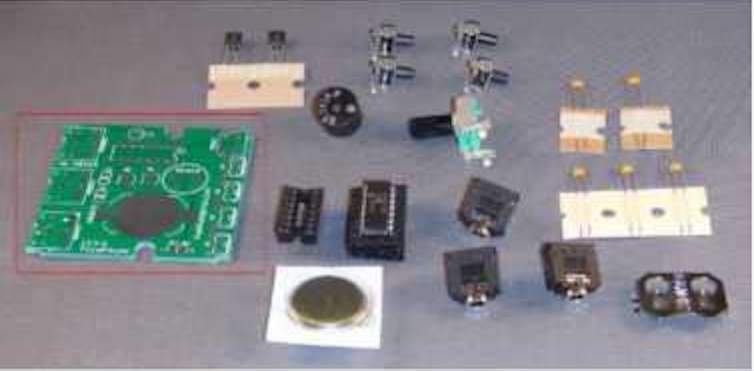
Your set ULTra PicoKeyerIt was developed taking into account the needs of novice collectors from sets. With little caution and practice, even a novice designer from the kit can complete the project in a relatively short time. You will need to collect several tools and consumables together before starting to assemble your set. Here's what you need:

  • Clean, even, free from static electricity, a working area with good lighting. A wooden table with a workbench is good. If you work at the kitchen table, do not forget to spread the newspaper or something else so that spray of solder and sharp ends of the wires does not damage the table surface.
  • Soldering iron. A soldering iron in the form of a ballpoint pen, low power (25-35 W) is ideal. Avoid larger models with a pistol handle. You can find inexpensive solderingrs in the local store radio components. You will need a small pointed tip or tip of the “screwdriver” type designed for electronics. Be sure to use a stand or a soldering iron holder so that the hot sting does not damage the working surface. If you plan to assemble more sets, I recommend that you purchase a high -quality soldering station with a temperature regulator, such as a Weller WES or WLC series. You will be glad of what you did! Follow the instructions of the manufacturer of the soldering iron on the tower of the tip and hold a wet sponge on hand to keep the tip clean.
  • Solder suitable for working with electronics. Use a high -quality solder with a resin core of a small diameter designed to assemble electronics. The tin-sincer solder 63/37 is perfect for working with electronics, but the immovable solder will also be suitable. Do not use acid solder!
  • Small sprouts and a pair of small diagonal or flush of nippers. The smaller they have, the better. Again, you can find manual tools designed to work with electronics in the Radio Personal stores.
  • Strutzine or small vice to keep the board is a good idea. I use panaVise, but you can also make a holder for a board of wooden scraps and stationery gum. If you use conventional workshop vice, use soft pressure and something to soften the sponges of the vice.
  • Pencil to celebrate every step when you finish it.

As soon as you collect all your tools and consumables, you will be ready to start work. Warm up your soldering iron while you take out the parts from the bag and lay them out on the work surface. We will start with small details and go through each component, marking them in the list as they move.
To install such a component as a resistor or capacitor, follow the following actions:

  1. Keep or carefully clamp the printed circuit board with the components up. The side with the white seal is called the "side of the parts" or the upper part; The side without white inscriptions is called the "side of the rations" and is a bottom.
  2. If necessary, bent the outputs of the component wires so that they correspond to the distance between the openings on the printed circuit board. Pass the conclusions through the holes in the printed circuit board. On the bottom of the printed circuit board, bend the findings at an angle of about 45 degrees so that the part is held in place.
  3. Working from the bottom of the PCB, solder the leads into place. Be sure to place the tip of the soldering iron where the wire passes through the hole in the PCB so you heat both the wire and the hole simultaneously. Wait a few seconds for the lead to heat, then touch the solder to the lead and the pad without touching the soldering iron tip. The solder should flow into the joint. Remove the solder and iron, and hold the board still for a few seconds until the solder cools. If you're using tin-lead solder, the joint should look smooth and shiny. If it looks dull or rough, touch the tip of the iron to the joint to re-melt the solder.
  4. If a drop of solder has fallen on the board, use the “wick” (dismantling braid) or suction suction to collect it to remove it; If necessary, re -plot the connection. The compounds of the immoval rations will not look brilliant, but should be smooth and without cracks.
  5. Be careful: do not leave the soldering iron in the connection too long and do not use too much solder. Electronic components and printed circuit boards can be damaged by too strong heating for too long. If you have never sold electronic components before, it would be nice to first find a few defective parts and printed circuit boards and practice them. In addition, this is a great idea to find someone more experienced to help you learn this skill!
  6. When the part is on the spot, and the solder has cooled down, use a couple of pointed cutters to cut off the unnecessary conclusions of the component next to the printed circuit board.

With normal use, the attached battery should work at least a year or two (possibly longer). If you want to use external power source (in fact, it is only necessary for the work of the Beacon), next to the angle of the board there are a pair of contact sites marked + and - for a power source not exceeding 3.3 volts. Under no circumstances, do not connect an external power source without preliminary extraction of the battery! Connecting an external power source with a tanned battery can lead to damage to the components and even to overheating, fire or explosion of the “tablet” type battery.

step -as assembly instructions

Description of the action Photo & nbsp; Stages & nbsp; assemblies
Find a printed circuit board (PCB). Place, a printed circuit board, if you look at it from above, by the side of the elements (side with white marks) up and with the inscription ULTra Picokeyer справа. pcb
Find and install the battery clamp. Make sure that the open side of the battery clamp is facing the edge of the board. You will not be able to install the battery if you solder it backwards. The battery clamp supplied with your kit is a part for installation in a through hole on the printed circuit board. You can simply solder him in place, like any other detail. AM may require the use of a small clamp or clothespin to hold the part on the spot during soldering. The clip of batteries will be hot during soldering, so do not try to hold it with your fingers! Adhesive tape or rubber tapes to keep the part are probably also not a good idea, as they can melt or smoke. ! [clip](clip.jpg? Lightbox &resize=300,200&classes=img-zoomaBle "clip")
There is no need to apply a solder to the upper side of the board. The drawings on the right shows a version of the battery for a surface installation, which was supplied with only a few earliest sets. It is enough just to solder the pins to the lower part of the board, as well as to any other through part. ! [clip2](clip2.jpg? Lightbox &resize=300,200&classes=img-zoomaBle "clip2")
НAyita in your set of paper strip with three the same ceramic capacitors. They look like small rectangular parts with two parallel conclusions. All of them with a capacity of 0.01 PF (designation 103). Install two capacitors in places shown for C1 and C2. Ceramic capacitors used in your set are not sensitive to polarity (this means that you cannot install them the other way around). ! [Cond](Cond.jpg? Lightbox &resize=300,200&classes=img-zoomaBle "Cond")
Now find a 14-pin connector for the microcircuit. At one end of the “crib” there is a recess indicating that this side belongs to “Contact 1”. Place the socket so that the jagged end coincides with the marking of silk -screen printing. Comers and insert contacts into the printed circuit board. Make sure all the contacts entered the openings on the board. You may have to bend the contacts in any two diagonally opposite corners to the lower part of the printed circuit board so that the connector is retained in place during soldering. Sold all fourteen contacts to the place. Be careful not to use too much heat or too much solder. ! IC-ocket
Уbecome two field CMOP transistor 2N7000 to places marked Q1 and Q2. Make sure that the flat side of each transistor is facing the side indicated by a stencil contour. Do not try to push them too far. Leave the gap of about 3 mm between the printed circuit board and the lower part of the transistor case to avoid excessive loads on the conclusions. ! [Q1Q2](Q1Q2.jpg? Lightbox &resize=300,200&classes=img-zoomaBle "Q1Q2")
Find the speaker and install it in place with the inscription SPKR. The speaker is marked with a sign + on the one hand. Do not worry about polarity, as it can be installed in any case. Before soldering, make sure that the speaker is completely inserted into the holes. Do not bend the wires of the dynamics; You can use a little adhesive tape to hold it in place during soldering. Do not waste too much time on the soldering of the speaker, otherwise it can be damaged. ! SPkr
НAyita button switches from S1 by S4. Install the switches at one in the marked places. Make sure that each switch is completely installed, and the metal base of each switch is directly and flush with the board. It is important to properly align them so that the buttons are smooth into the holes of the front panel of the case. ! [Pushbuttons1](Pushbuttons1.jpg? Lightbox &resize=300,200&classes=img-zoomable "pushbuttons1")
pushbuttons2
Install the potentiometer of the speed regulator to a place marked Speed. Like the button switches, this part should be completely inserted into the printed circuit board so that the lower part of the metal bracket fits tightly to the printed circuit board. Even a slight inconsistency here can later lead to problems with the adjustment of the case, so check your work twice. After you solder it in place, completely turn the axis of the regulator counterclockwise. ! [Pot](Pot.jpg? Lightbox &resize=300,200&classes=img-zoomaBle "Pot")
Install three stereo connectors in the places indicated on the side of the components on the printed circuit board. Make sure that they are sitting tightly in their places and adjust the board. At the bottom there are plastic pins that are inserted into the openings on the printed circuit board when they are completely inserted. Again, it is important to make sure that they are installed correctly and directly. If they are not aligned correctly, you will have problems with installing a board in a plastic case. ! Stereo
КThe C3 Outdenerator is used to limit the amount of sound supplied to the headphone jack. Install one of the remaining capacitors in the place C3. You can leave it not soldered until you have the opportunity to test it with headphones or headphones. The capacitor 0.047 PF (marking 473) gives good results with many headphones. If you need more sound, try the capacitor 0.1 PF (indicated 104). If this is too loud even with a 0.047 PF capacitor, you may have to try less, for example, 0.01 PF (marked 103). Be careful when testing! Too much sound can damage your hearing. If you are going to use headphones or headphones, try to take them out of your ears first. & nbsp;
Almost ready! Find the chip Picokeyer and remove it from the protective anti-static foam. Locate the end of pin 1—this end will be marked with a notch and/or dot. If you hold the chip so you can read the markings from above, pin 1 is on your left. Orientation is important here! Insert the chip into the socket so that the notch and/or dot on the chip is at the same end as the notch in the socket and the outline of the notch on the PCB—the end closest to the SPEED potentiometer. ic
Now find the battery and remove it from protective packaging. Please note that the flat side is marked with a plus sign (+). This side will be at the top when the battery is inserted into the battery holder. Insert the battery into the battery holder. If you did everything right, you must hear how the key sends the “73” by the ABC Morse through the speaker. Congratulations! Your kit is ready. ! battery
Now is the time to install your key in the case. The fee is supported in the office with protrusions and the speed control shaft. You may have to cut pins sticking out of the lower part of the board so that everything is right. Take your time and pay attention to the fact that everything is correctly built before closing the box. You may have to cut the conclusions of the cutting component slightly closer to the board so that everything comes correctly. ! [Done](done.jpg? Lightbox &resize=300,200&classes=img-zoomaBle "Done")

This article is a translation of instructions from English into Russian and visa versa and is not an advertisement! The transfer of the text does not fall under the federal law No. 274 dated 06.24.2023 "On Amendments to the Code of Administrative Offenses", paragraph 16 of the Law (administrative liability: for failure to provide information on Internet advertising in Roskomnadzor). The law comes into force on September 1, 2023