20
January
2023
What Linux Mint 21.1 XFCE looks like
14:31

What Linux Mint 21.1 XFCE looks like

20 January 2023 14:31

The article shows the analysis of improvements to Linux Mint 21.1 XFCE.

Reference of appearance is available when choosing a desktop XFCE. If the LXQT desktop is included, there is no change in appearance.

1. Linux Mint 21.1 received a new appearance.

The operating system looks cleaner and more modern. It is also more customizable and comes with many topics.

1.1. All windows have rounded corners.
Linuxmint-21.1

1.2. Large icons when switching active applications by pressing Alt+Tab
icons

1.3 Windows can be separated between two three or more monitors and assigned which of them will be opened on the main monitor.
Fix_window

1.4 New sets of desktop icons
Application icons look more fresh.
iconpack

1.5 Windows throw shadows on the desktop.
freshlook

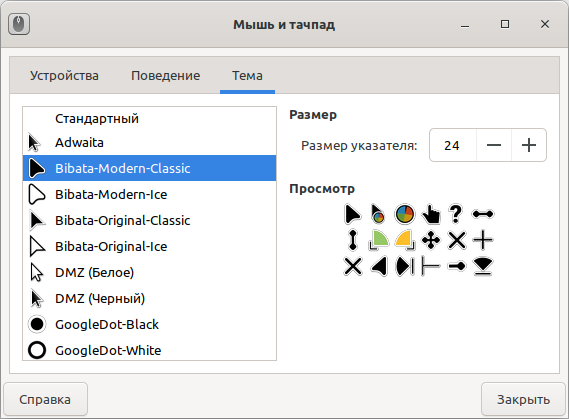
1.6 in the Internet browsers and on the page of the initial entrance to the system ("Helling Screens") a new mouse of the "triangle" type called "BIBata".
mouse_ponter
This pointer can also be set in other windows ( Start - Settings - Mouse and touchpad - Theme ).
Bibata

2. Desktop

2.1 changed the set of desktop icons

The desktop was put in order and now shows only the basic elements: the installation icon, the elements that you throw on the desktop, files placed in ~/desktop and hinged devices.

This is how the icons of removable devices and basket look:
traSh_bin

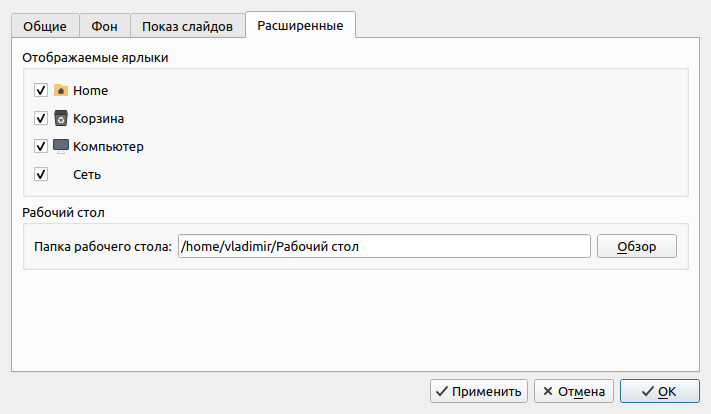
Also (from the desktop) the icons "Computer", "Basket" and "Network" were removed.

This "improvement" can be canceled, i.e. Turn on the desktop systems that are disabled during the transition from version 20.3 to 21.1: Start - Settings - Desktop (change the wallpaper and behavior of the manager of the desktop):
B.ringback
Turn on:
B.ringback

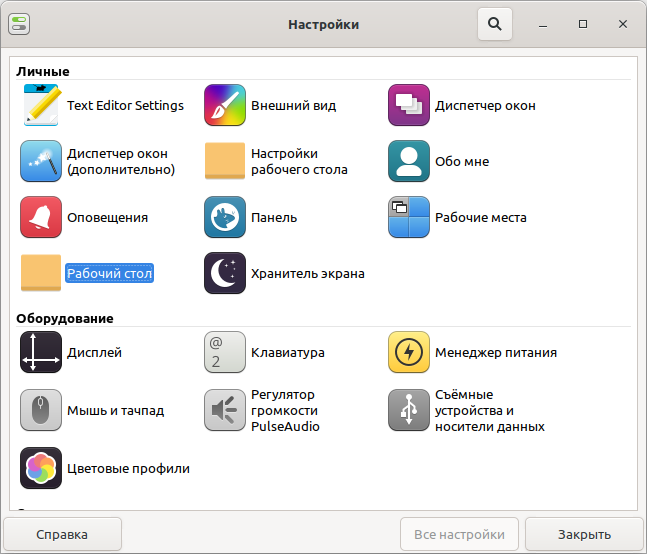
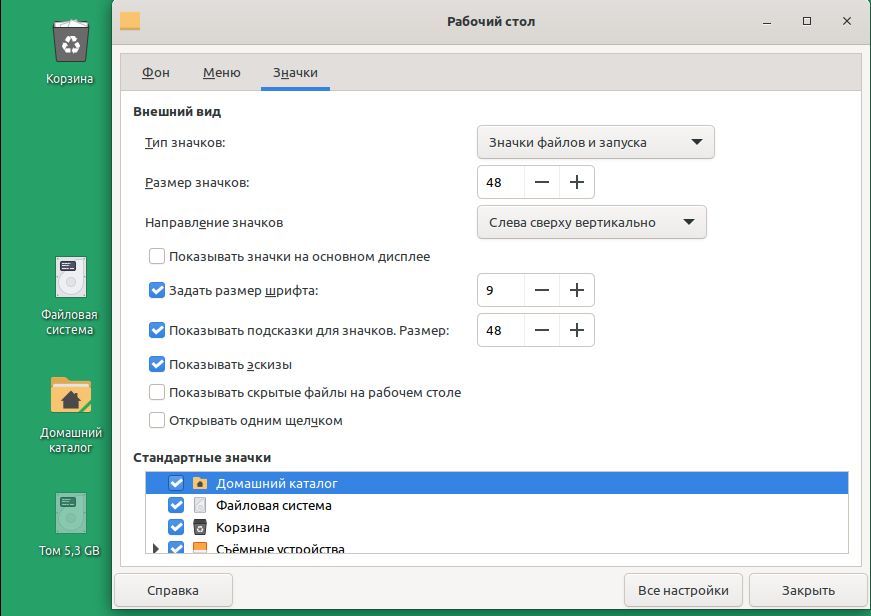
You can enable two additional icons - file system and home directory in the menu
Part - settings manager (the icon below is indicated by the arrow)
Dispatcher

At the control center, select the "desktop"
Control_center
-> sign -> standard badges .
additional_icons
In this menu, you can turn off or turn on the icons of the removable devices.

2.2 added and changed tema of the desktop icons:

The themes of the icons for shift icons can be changed in
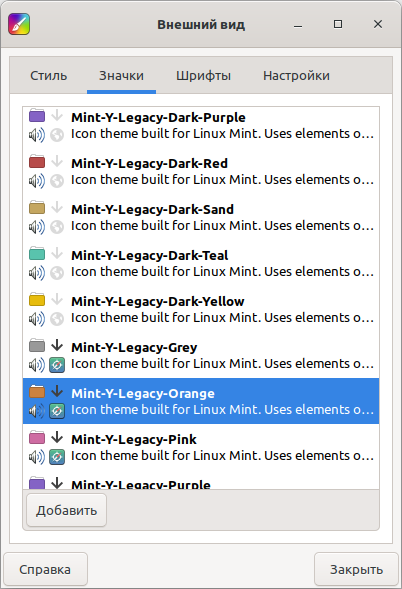
Part - settings - appearance - icons .
iconpack2

We removed the use of accent flowers on the panel, in the menu and switched to yellow folders. So, now you see only a little greenery. We do not need to look green to be Linux Mint. We are Linux Mint, no matter what, and we want to use a color that looks attractive from the box.

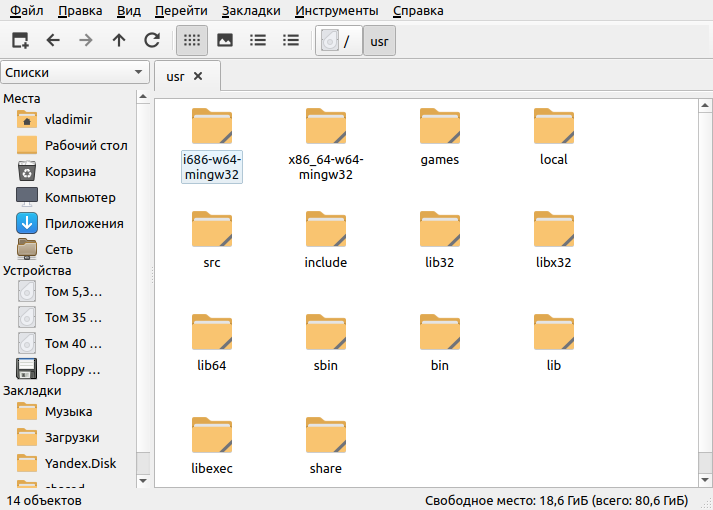
An example of the appearance of the asset from the new topic "Mint-y-Grey":
examPle

Appearance with the old theme of the design "Mint-y-legacy".
Legacy

If the user has changed the window manager Metacity на xwm4, настройка цветов иконок производится не в меню "Настройки" - "Внешний вид", а в программе "Настройки" - "Диспетчер окон" (xfwm4-Settings).

3. Colors (design topic)

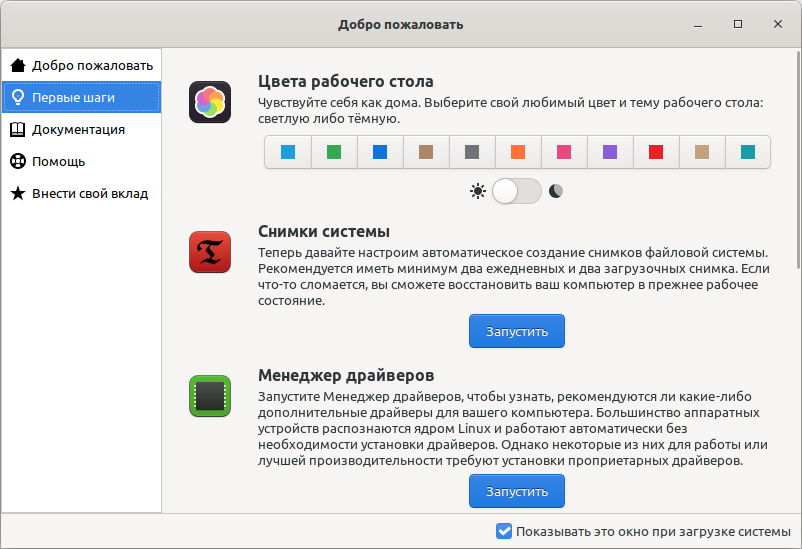
In the first launch window, which can also be launched in the "Start" menu -
"Settings" - "Screen of greeting" , you can set the color accent of the desktop.
White
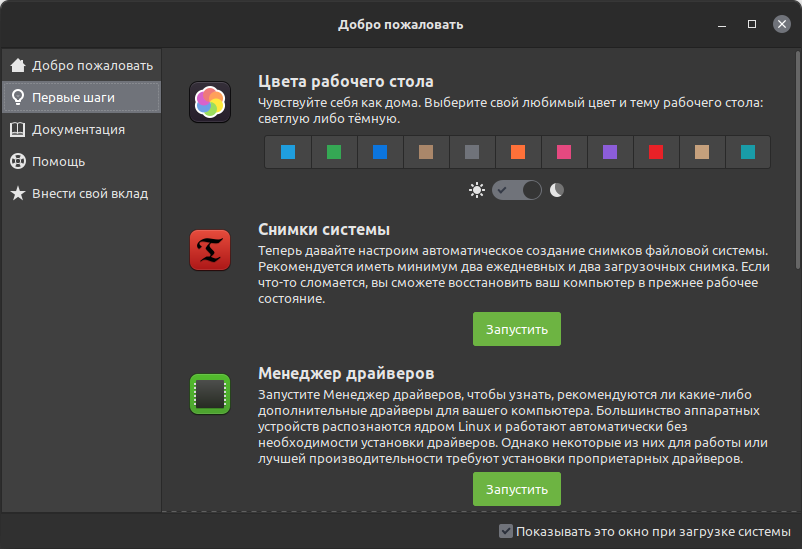
And set by clicking on the switch the dark theme of the design .
BLack

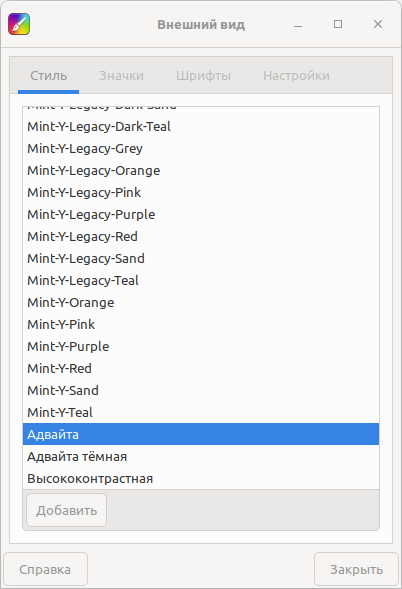
Restore colors - for example, return the light theme of flowers "AdWaita", or change to one of the new topics,
you can on the menu: "Start" - "Settings" - "appearance" - "style" ,
or in the menu Start - settings manager - appearance - style
(This one settings are one and the same, but caused by two different ways).

adwaita

Interestingly, the topic when setting a new set of colors changes in Linux Mint instantly.
The user can choose between new topics, or the usual Legacy.
For example, Mint-y-legacy-Darker:
mint-y-legacy-darker

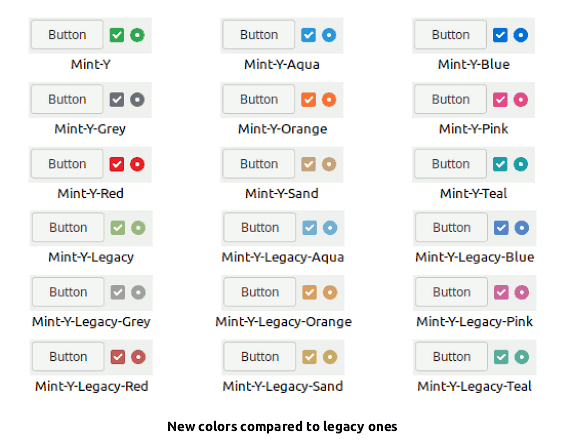
Comparison of the theme of flowers with Legacy Topics:
ComparE.
It can be seen that Legacy The topic is more calm and restrained, and the new one has a higher color saturation.

Color of the desktop in Linux Mint
You can also set a background color and background pattern in two ways:
1) Start - Settings - Desktop
2) Start - settings manager - desktop.

The color of the desktop is used if the wallpaper is not set (the wrong translation of the "badge" - "no badges" instead of "wallpaper" - "no wallpaper").

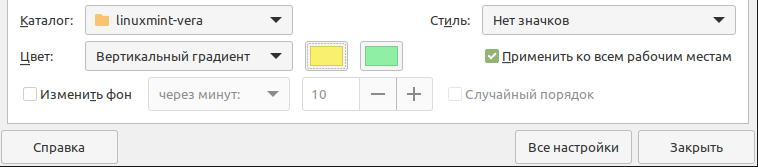
Also, you can easily create a vertical or horizontal gradient for the background of the desktop.
GraDIENT
Result:
GraDient2

Background drawings of the desktop are contained in folders:
/usr/share/backgrounds
/usr/share/wallpapers

Wallpaper can be taken as from this version, "VEra", так и от предыдущих версий Linux Mint "Sarah", "Sylvia", "Ulyssa", "Uma":
*W.allpaperS.Zip - архив обоев Linux Mint (217 МиБ),

Window manager and window composition

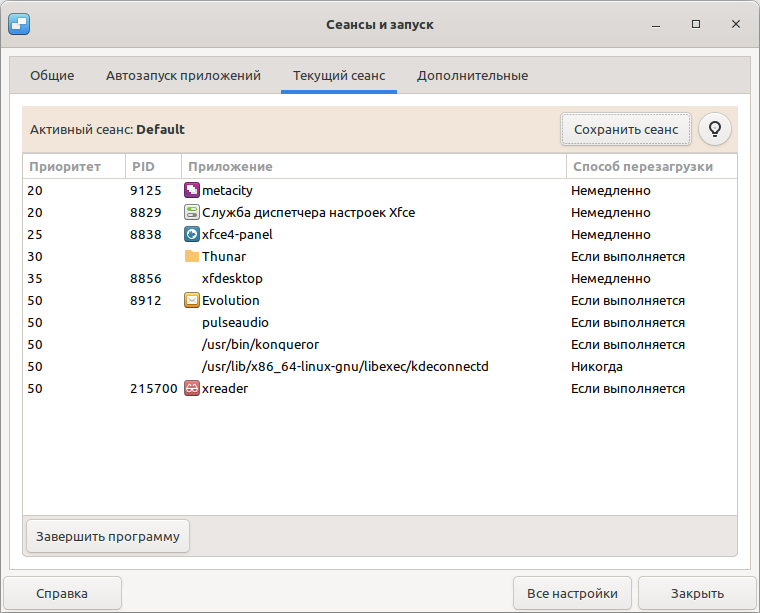
By default, Linux Mint 21.1 uses the environment of the XFCE desktop with a light window manager METACITY на основе библиотеки GTK.

Composing
System desktop panels are served by the XFCE-Panel application:
metaCity

Special beauties, for example, animated windows, as in Compiz, here, in Metace.
To temporarily include windows similar to jelly, you need to execute the command in the command line

compiz --replaCE

Setting Compiz производится в меню Пуск - Настройки - CompizConfig Settings Manager, where you can enable, for example, the effect "Verbal windows" , etc.

To return back tometaCity, enter the team in the terminal

metacity --replaCE

Managermetacity не имеет настроек. Но его можно сменить на менеджер окон xfwm4 или Compiz.

How to turn onmatacity, xfwm4 или compiz on constantly?

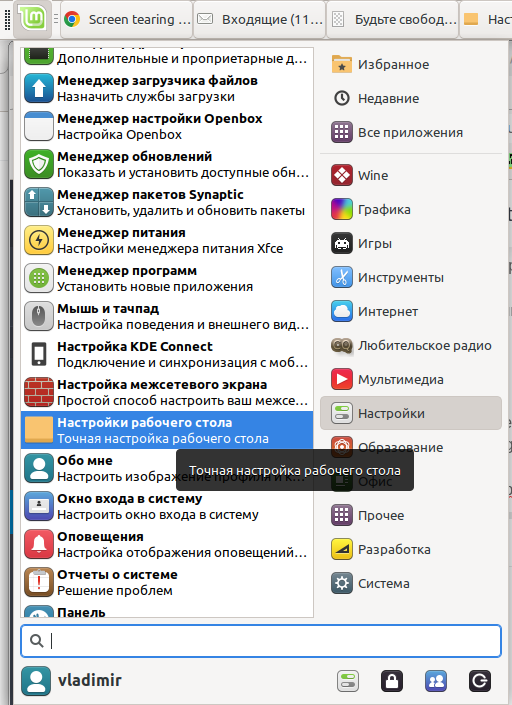
Start - settings - settings of the desktop
Change-deskTop
By default, " METACITY + Window composition "
Change-deskTop
Can be changed to " xwm4 + window composition ".
Change-deskTop

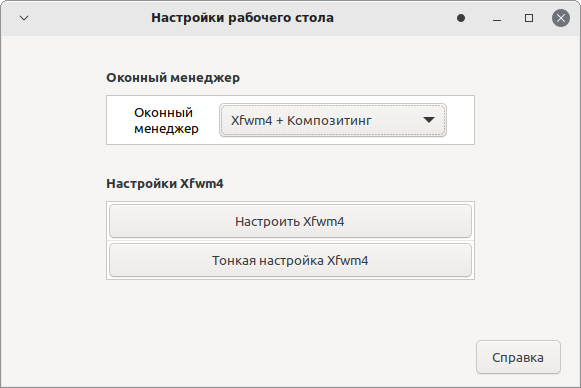
Two programs are responsible for setting windows in the XFCE shell:

1) The settings of the window manager XFWM4 are available in the "desktop settings" , or from the command line:

xfwm4-settings

Here in the XFWM4 settings, you can set the theme of the window headers (color, the method of leveling the heading) and sticking the window to other windows.
XFWM4-SETTINGS

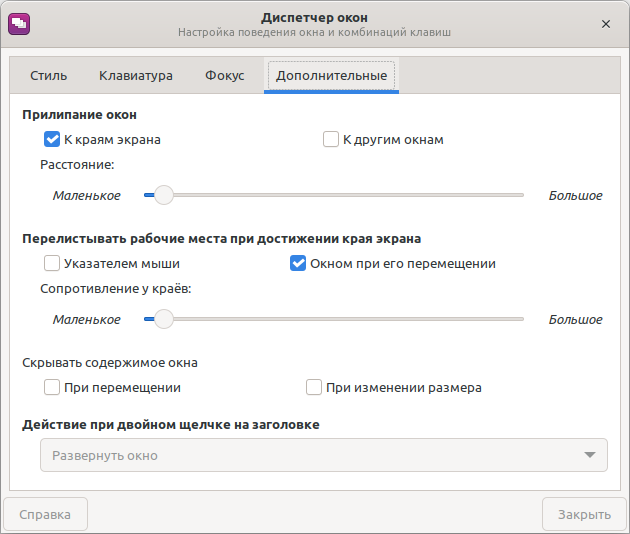
2) extended settings of the window manager XFWm4 доступны по кнопке "Точная настройка Xfwm4 " by the button nearby, or using the command in the terminal:

xfwm4-tweakS-Settings

XFWM4-SETTINGS-2

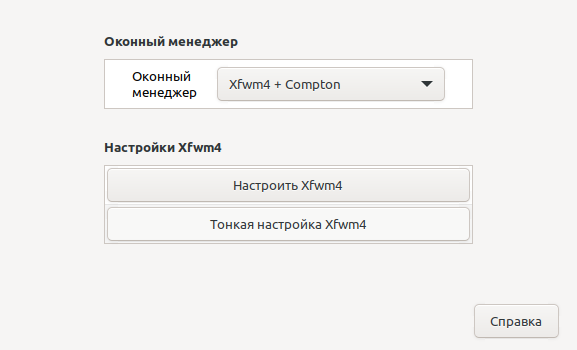
Also, the setting of a window manager affects the so -called "SCreen tearing" — случайные разрывы кадров при воспроизведении видео, когда частота кадров видео 25 Гц не совпадает с обновлением дисплея 60 Гц. В этом случае, для видео помогает дополнительный компонент: Comption. Его можно выбрать там же: xfwm4 + ComPTON :
XFWm4+comPTON

4. Menu "Start"

In the "Start" menu on the right side, a tree from items and subparagraphs of the menu for launching programs is available.
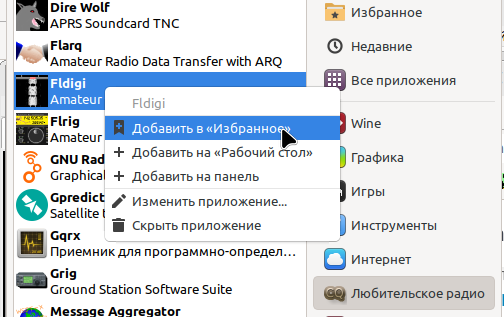
You can add programs to the "Favorite" (right -click) to the left part of the "Start" menu.

Favorites

The result of adding a FLDIGI program to favorites:
result


Sources:
New Features Linux Mint 21.1 Xfce - ImprovemENTS
Linux Mint 21.1 XFCE Edition - InstituteallaTion