
19
January
2023
Transition to a new version of Linux Mint 21.1 "Vera"
16:06

Transition to a new version of Linux Mint 21.1 "Vera"

19 January 2023 16:06

At the end of December 2022, a new version of Linux Mint 21.1 "Vera".
I decided to make a transition from the previous version 20.3 "Una".

Transition plan:

1) mark the section of the second (backup) hard drive for Timeshift
2) using Timeshift, take a picture of the working operating system on the backup hard drive.
3) updating the Linux Mint operating system using the standard function in the “Update Manager” application.

1. Marking второго жесткого диска в файловую систему EXT4 для TimeShift

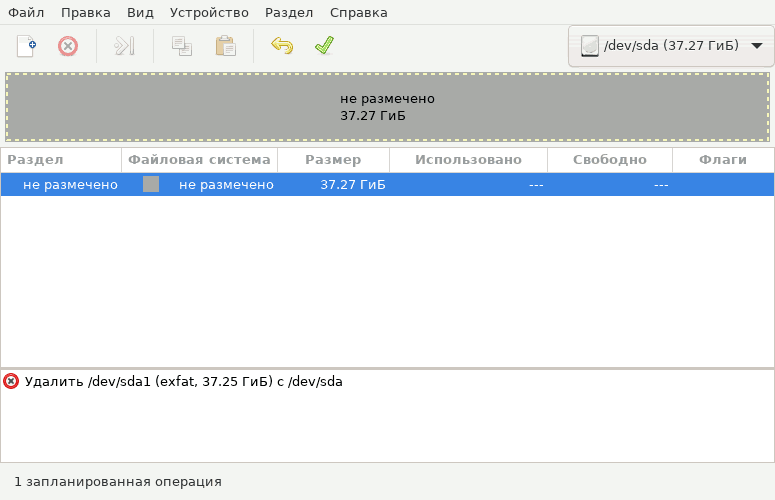
Previously, I planned to use the section for copying files (disc backUp), therefore, the file system format was not Ext4, but another. I had to format the section on the reserve disk in Ext4.

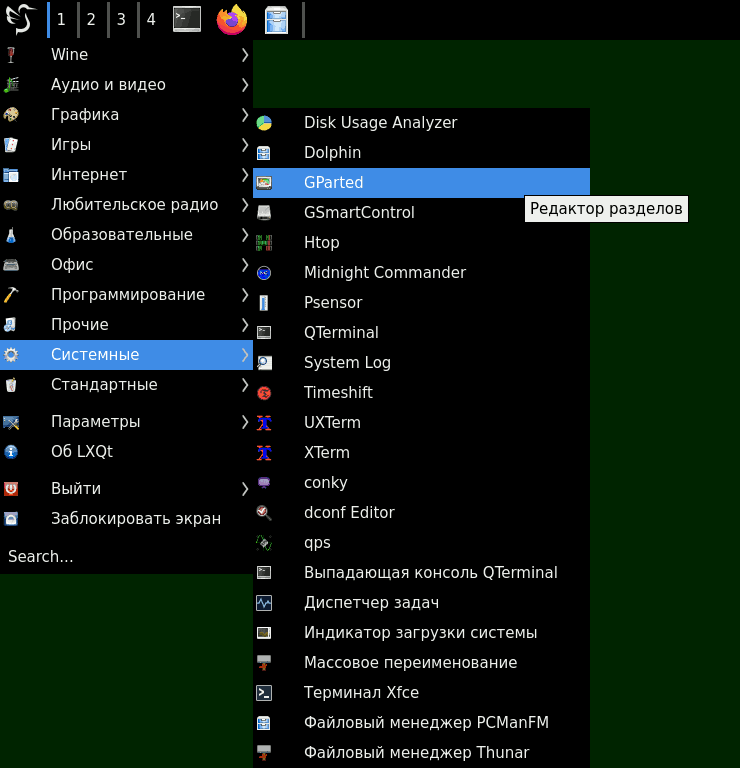
1) launch GParTed
Launch GParTED in the Start menu - Systemic
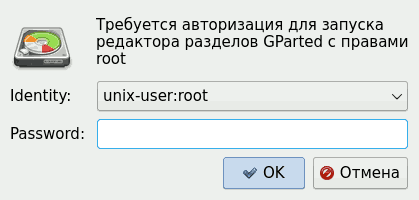
Password entering Root:
Passwordroot для gparTed
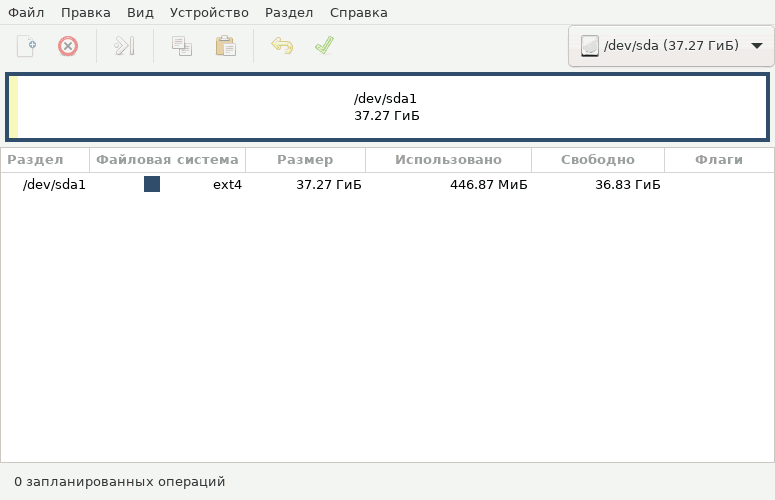
The main GP windowarTed

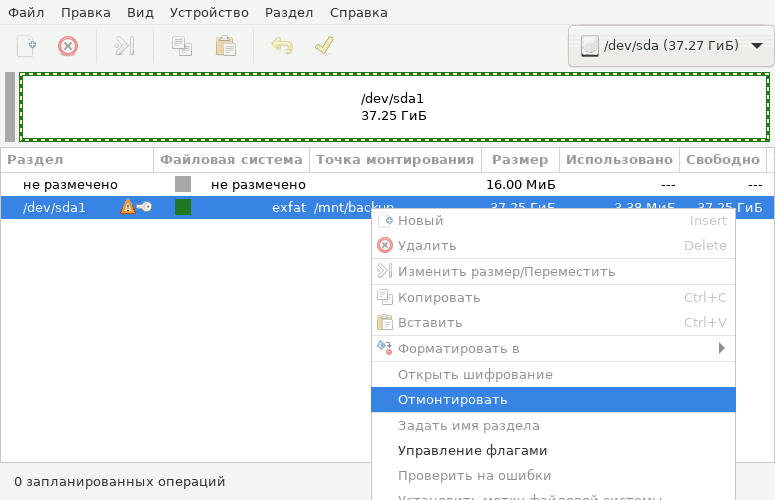
2) I defeated the disk that I used with a mounting point //mnt/backUp.
(Other users may not be blocked by the second disk - then we miss the step).
I will shake the disk

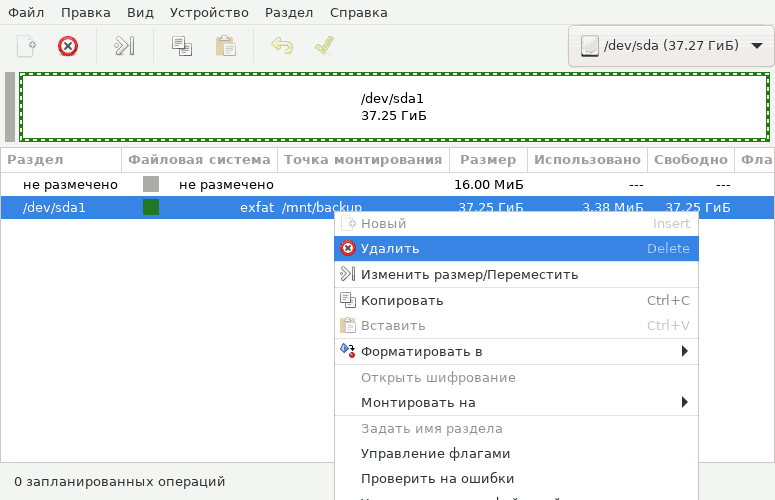
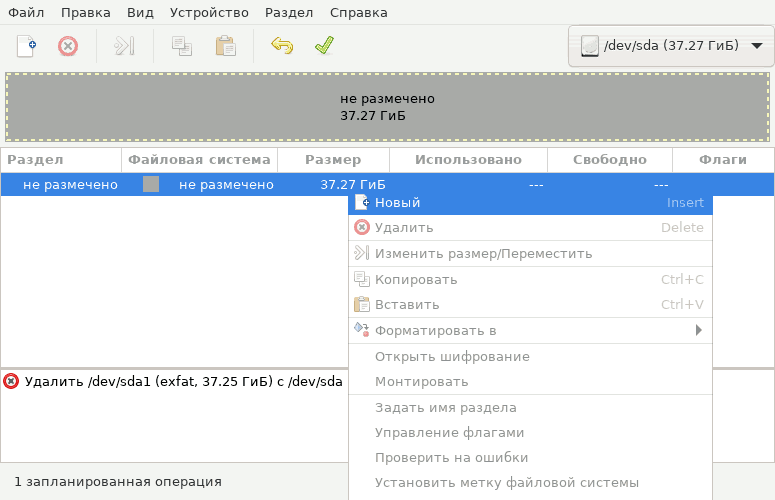
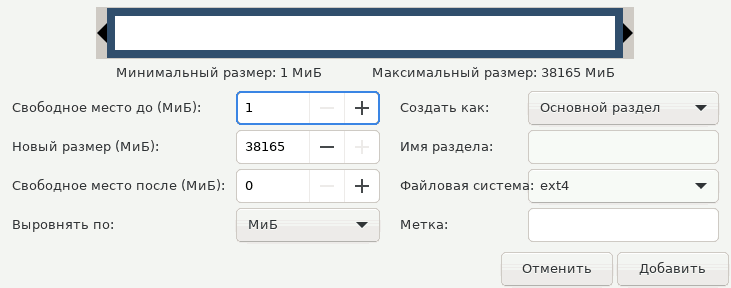
3) At the next steps, I deleted the Exfat section and created Ext4.

Changing the section in GParTed

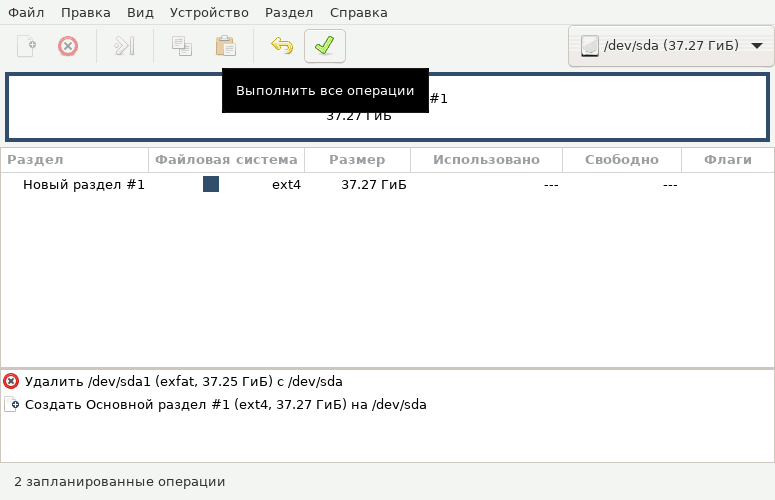
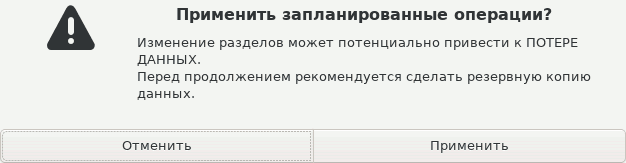
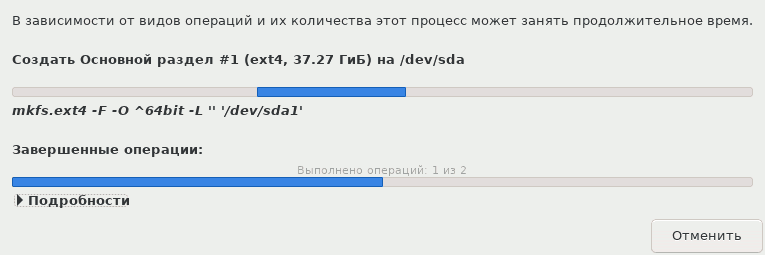
4) agreed to change the file system and waited for the completion of the execution.
Application of changes in GParTed

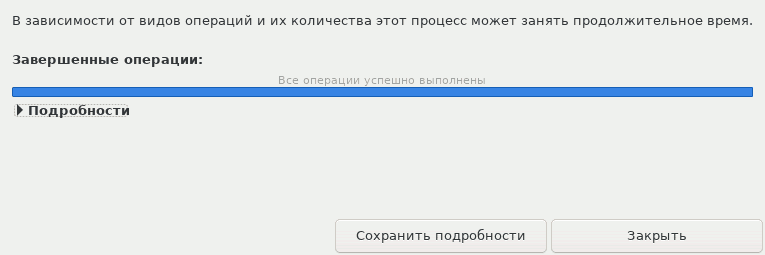
5) All changes are applied to the second hard drive. I close the window.
All changes in GParTED applied

2. Using Timeshift to create a picture of the operating system

To be able to return the PC to its original state, I used the Timeshift utility.

"Start - System - Timeshift"

Pictures can be created either on the working section, or on another disk with the Ext2, Ext3 or Ext4 (Linux) file system.

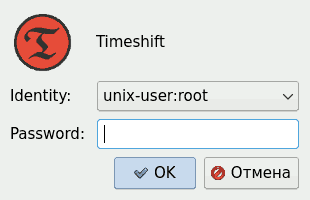
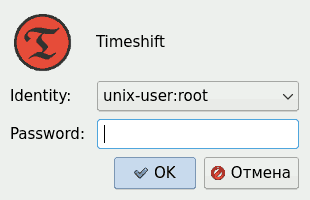
I enter the Root password
TimeShift - первое действие это ввод пароля rOOT

Creating an OS picture in Timeshift

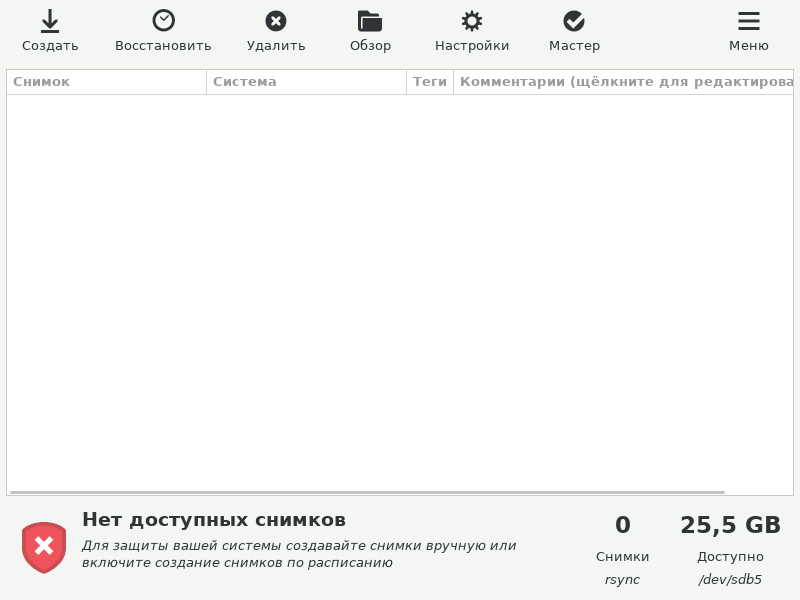
  1. The main window Timeshift:
    The main window Timeshift

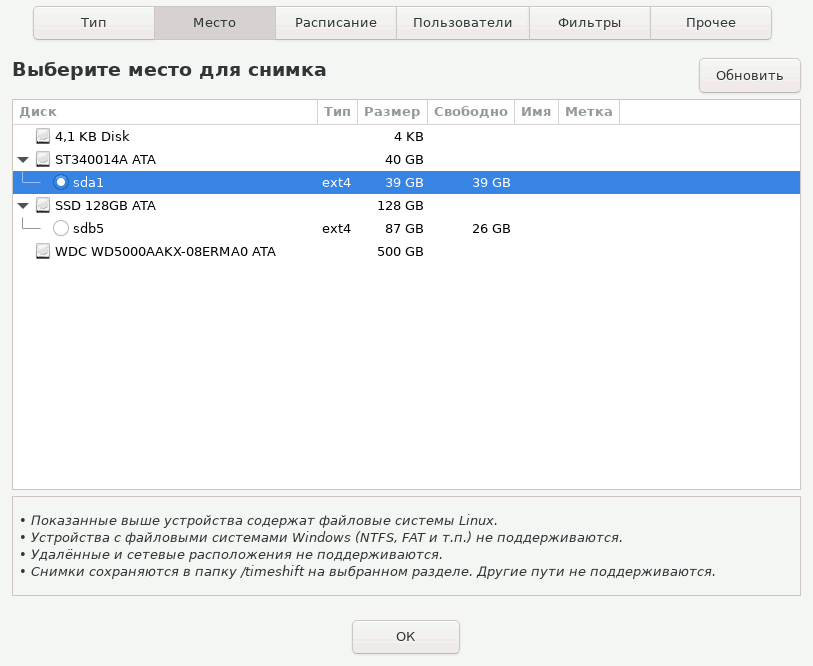
  2. In Timeshift in the "Settings" menu I chose a place for storage - the second hard drive
    The main Timeshift window is the setting of the place where the system pictures will be stored

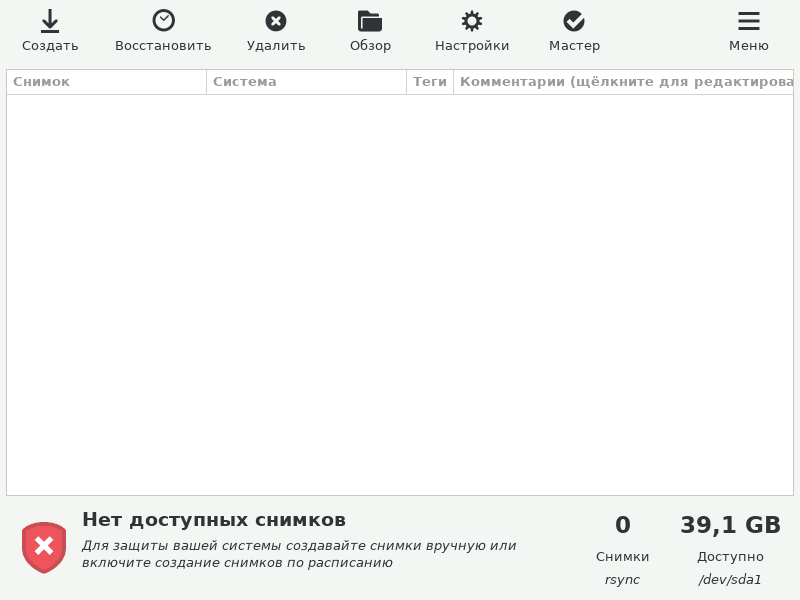
  3. Now everything is ready to create an image. I start!
    The main Timeshift window is readiness
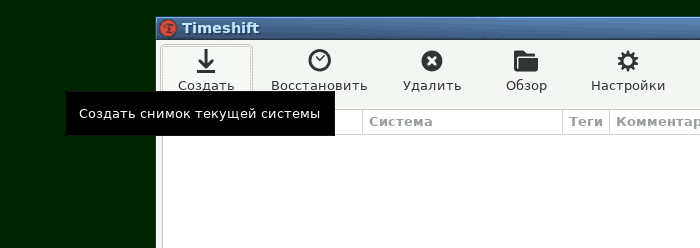
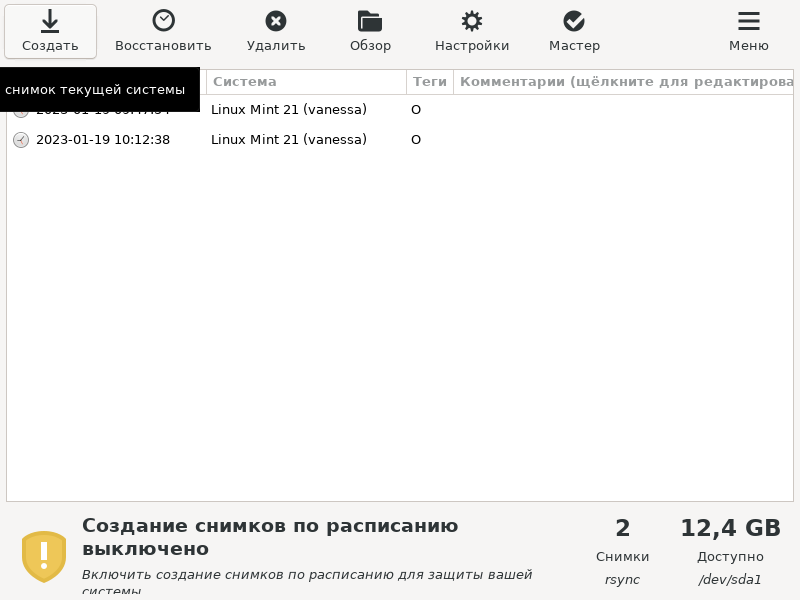
    Press the "Create" button
    The main Timeshift window is to create a picture

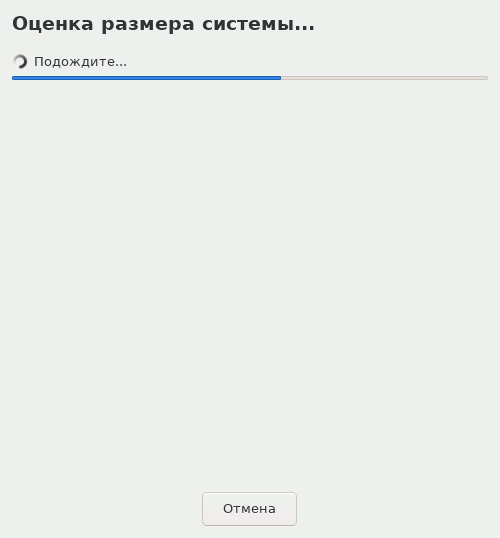
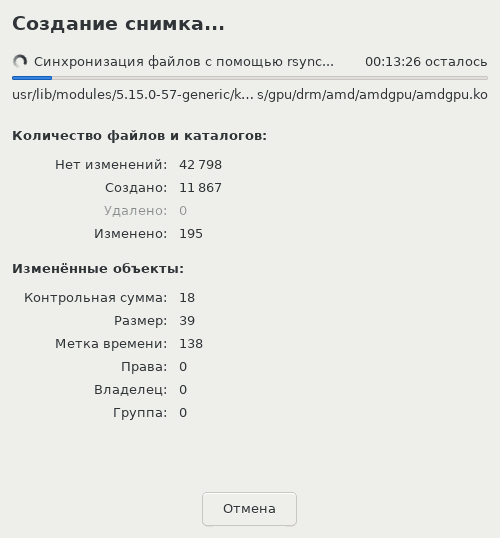
  4. Wait for the end of the execution
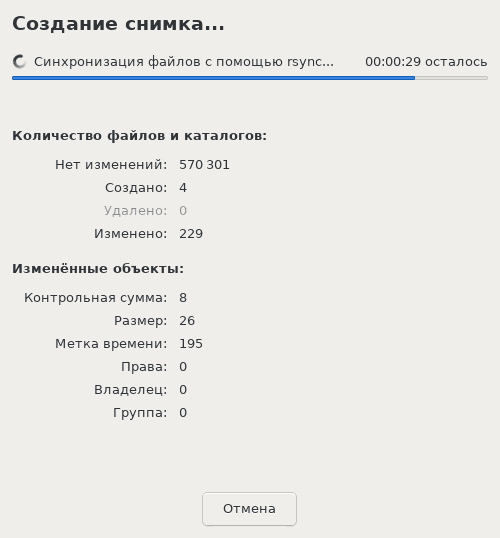
    The process of creating a system image
    Start:
    The process of creating a system of the system - beginning
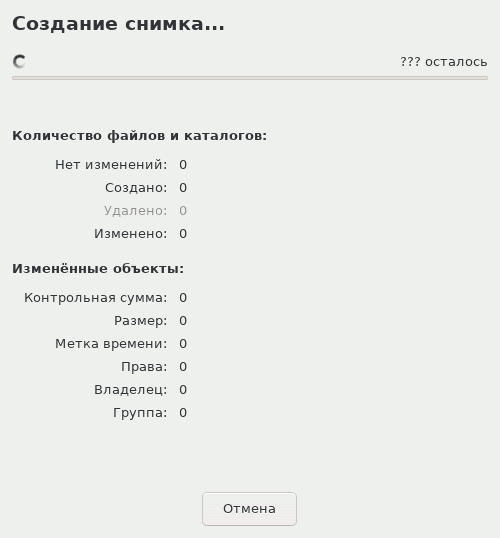
    Continuation:
    The process of creating a system of the system - continuation

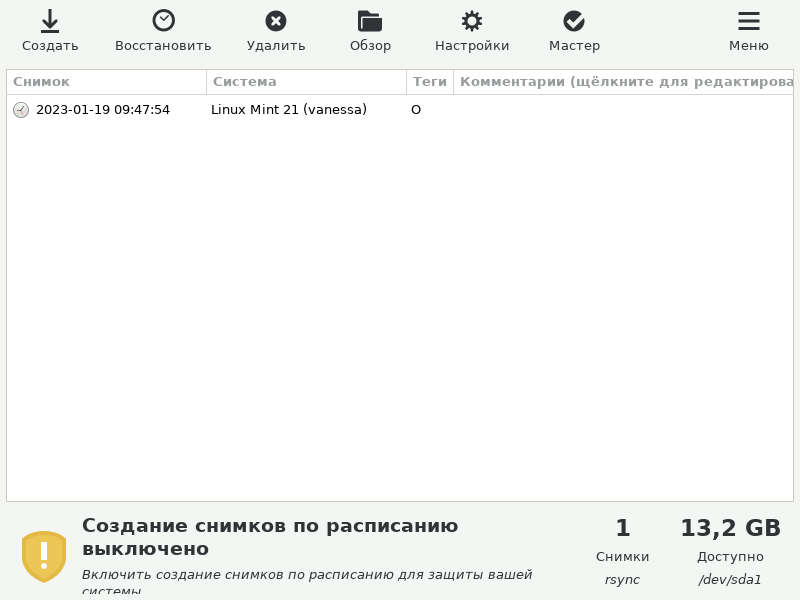
Ending of work. A picture of the system in Timeshift is created.
The process of creating a system of the system - the picture was created

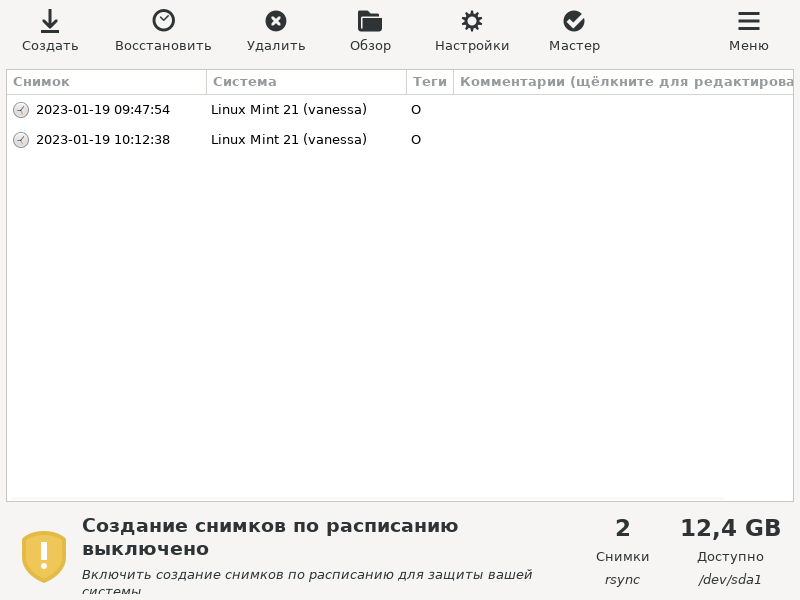
The first Timeshift picture is on 24 GB disk.

3. Linux Mint update until the next version

1. Preparation.

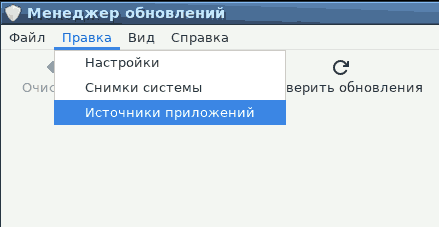
It is advisable to turn off the PPA-re-repositories, because When updating, an error may be issued.

"Start" - "parameters" - "update manager"

![ПPreparation Step 1 - Application Sources

It is advisable to turn off the PPA-REPROSITION TEELG hereram
![ПPreparation Step 2 - Disconnecting PPA -Roosuriums
A third-party PPA-Ro-Posterior is also used for the source of the Apache web server application.

Otherwise, there will be a warning in the process of updating the version, the next type (see step 16).

2. Update

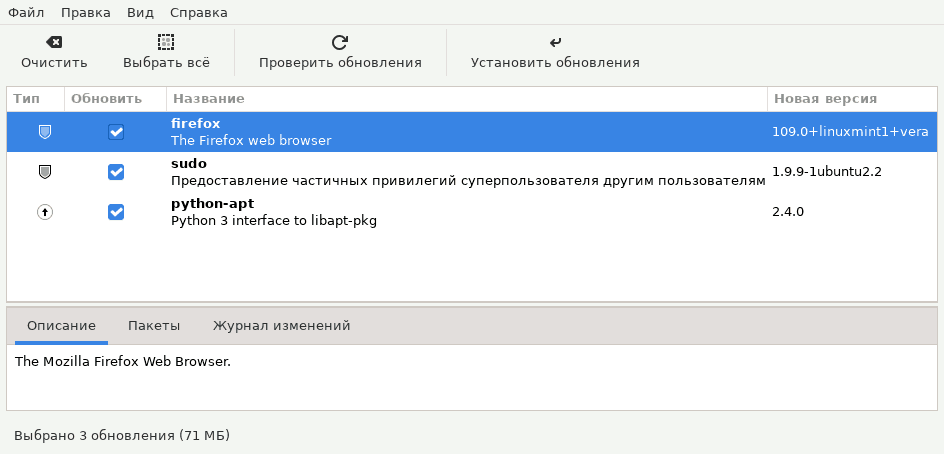
Step 1. Before switching to the version, be sure to install all package updates in "Start - Settings - Update Manager"
Update process - step 1: update all packages
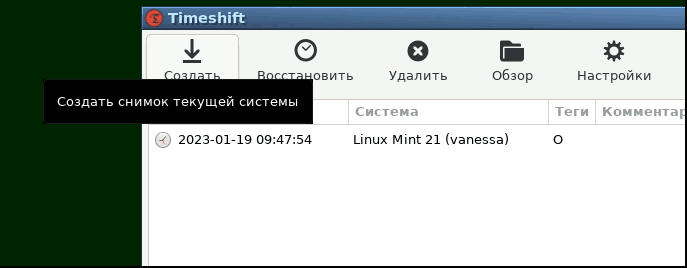
Step 2. Take a snapshot of the current system in TimeShift
Update process - Step 2: Creating a picture in Timeshift
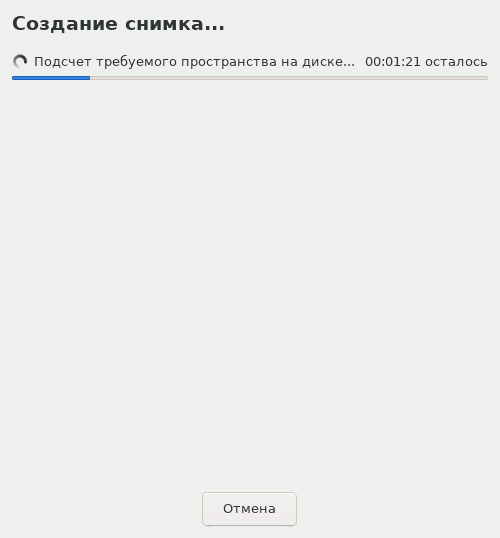
Step 3.
Update process - step 3
Step 4.
Update process - Step 4
Step 5. Snapshot created. (Size is 24 GB)
Update process - Step 5
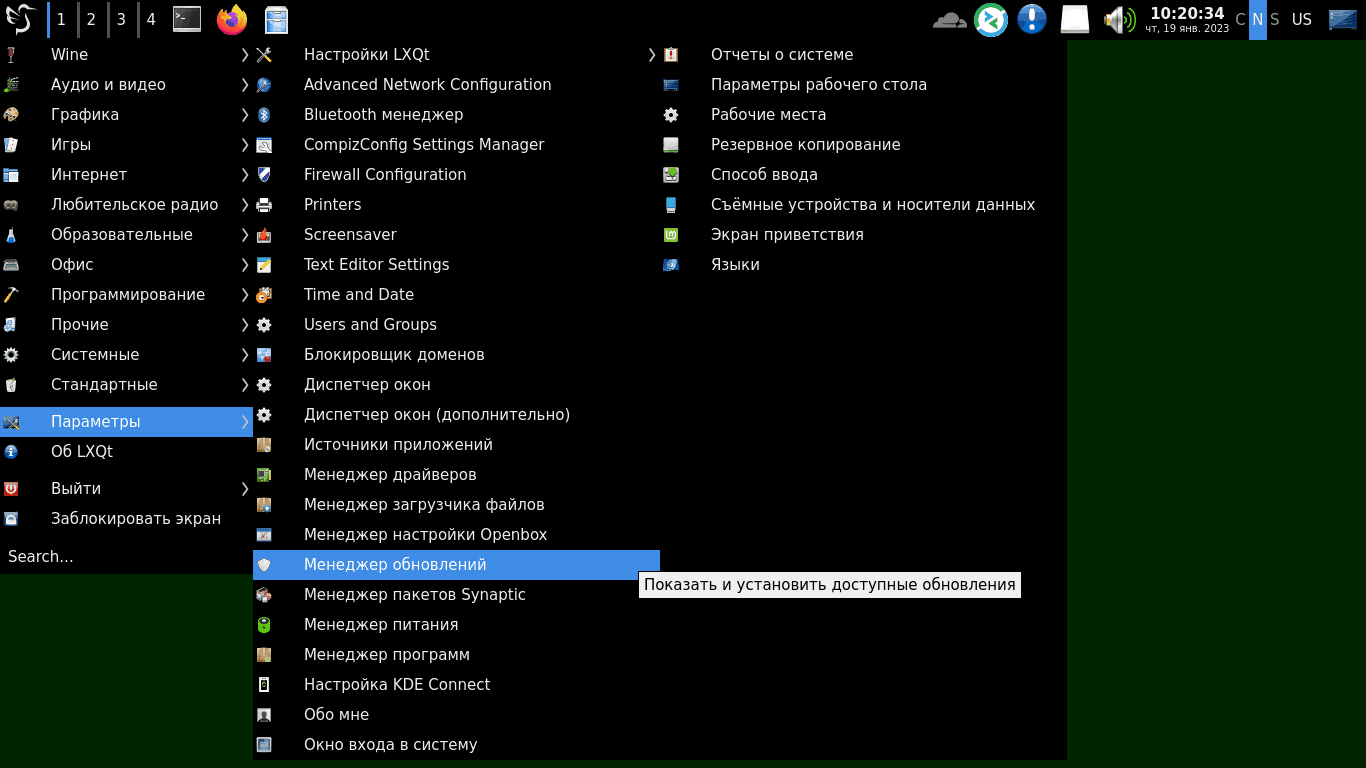
Step 6. Launch the update manager in "Start - Settings - Update Manager"
Update process - Step 6
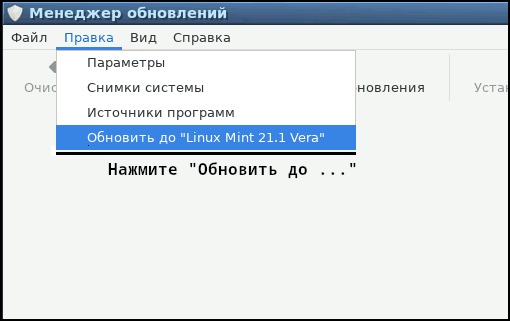
Step 7. Select the menu item "Edit" - "Update to Linux Mint 21.1 Vera"
Update process - Step 7
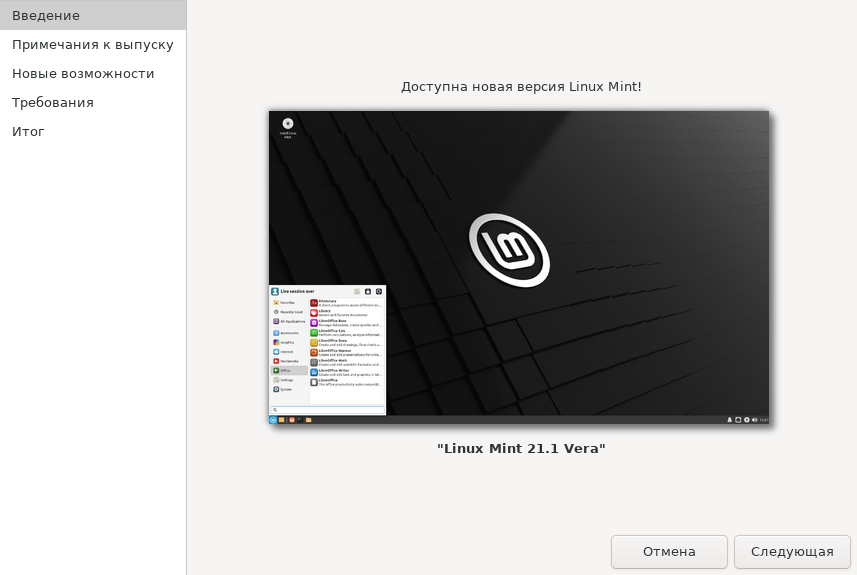
Step 8. Start the update process. Welcome screen.
Update process - step 8
Step 9. Start the update process. Greeting
Update process - Step 9
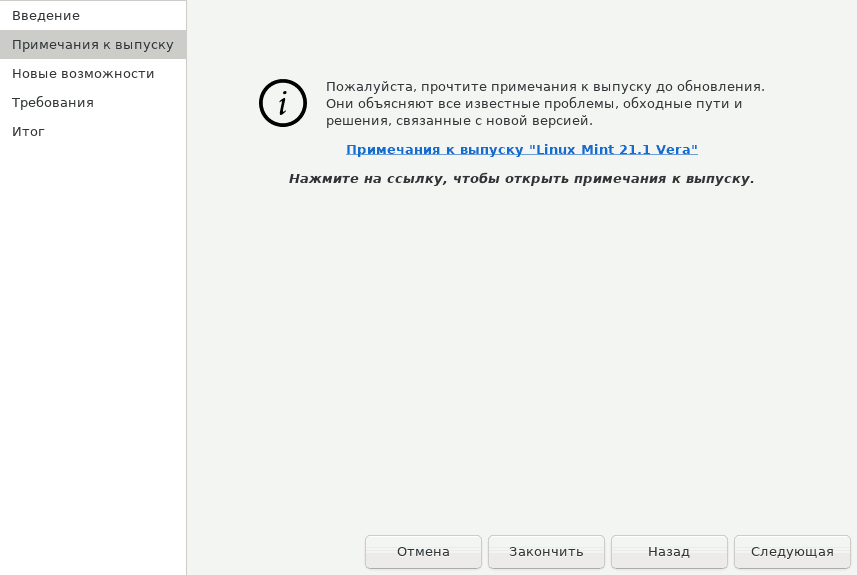
Step 10: On the next window you can read the release notes.
Update process - step 10
Step 11: Read the release notes (opens in browser)
Update process - step 11
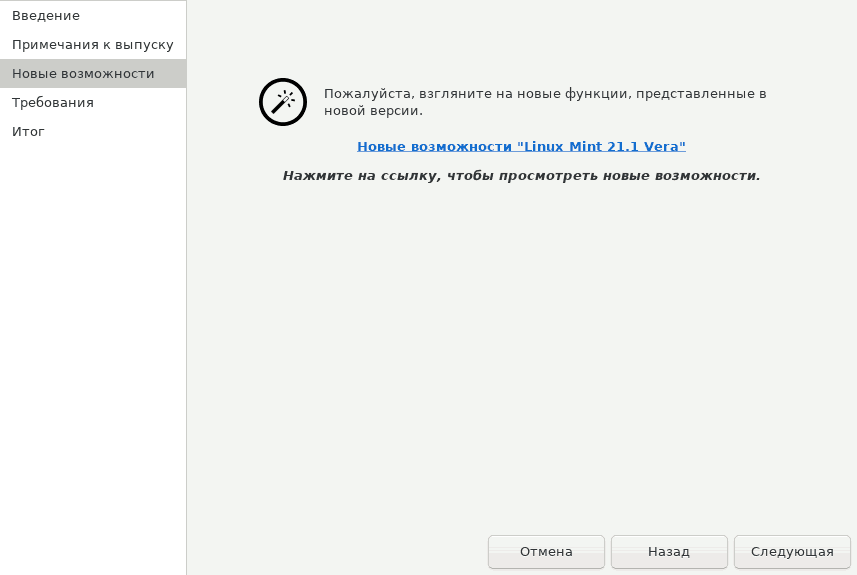
Step 12. I continue reading "What's New" and close the browser.
Update process - step 12
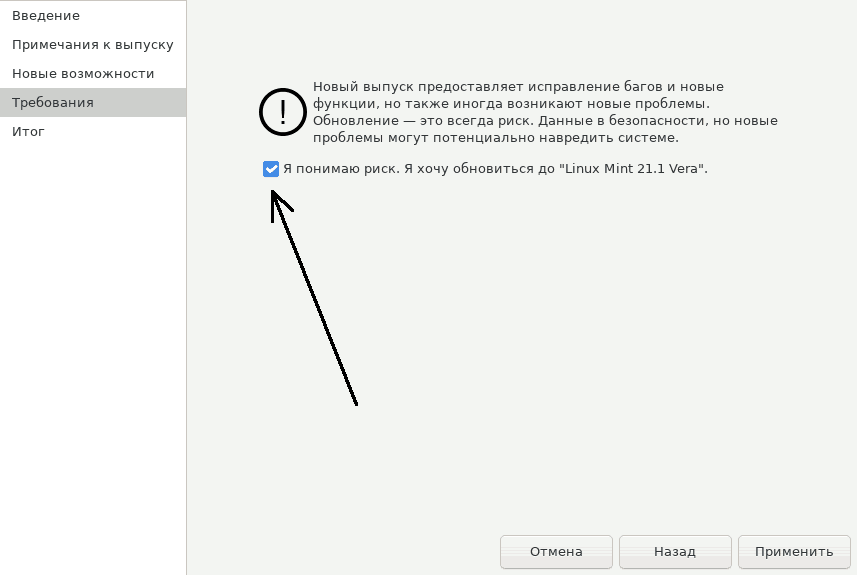
Step 13. Start the upgrade process: check the box "I accept the risk. I want to upgrade to ..."
Update process - Step 13
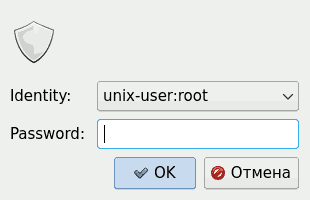
Step 14. For administrative actions related to the update, you need to enter the root password
Update process - Step 14
Step 15. The update process is in progress
Update process - step 15
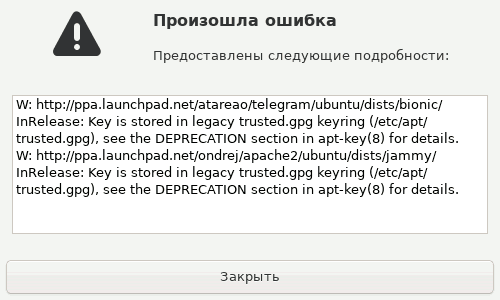
Step 16. A warning may be displayed if PPA repositories are not disabled
Update process - step 16
This error like "W - warning", so the update process will be long.
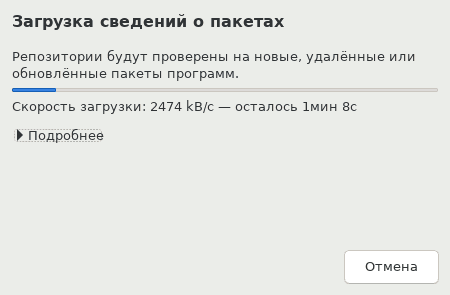
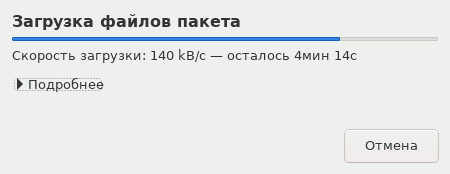
Step 17. The update process begins with downloading packages
Update process - Step 17
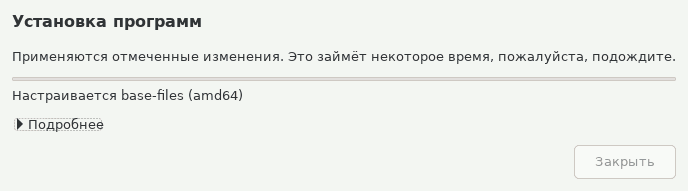
Step 18. Progress of the operating system update process
Update process - Step 18
Step 19. Progress of the operating system update process
Update process - step 19
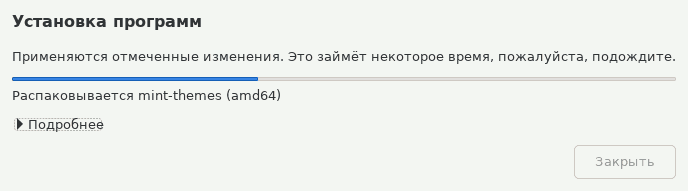
Step 20. Progress of the operating system update process
Update process - step 20
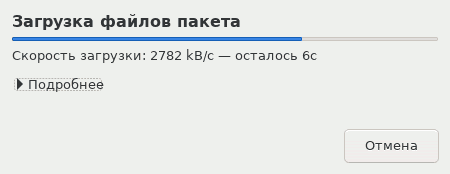
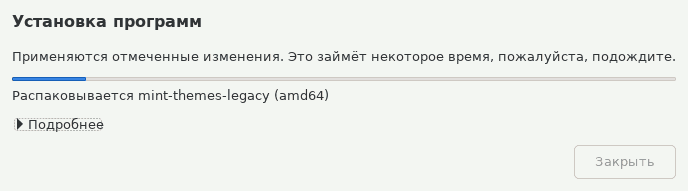
Step 21. Progress of the operating system update process
Update process - Step 21
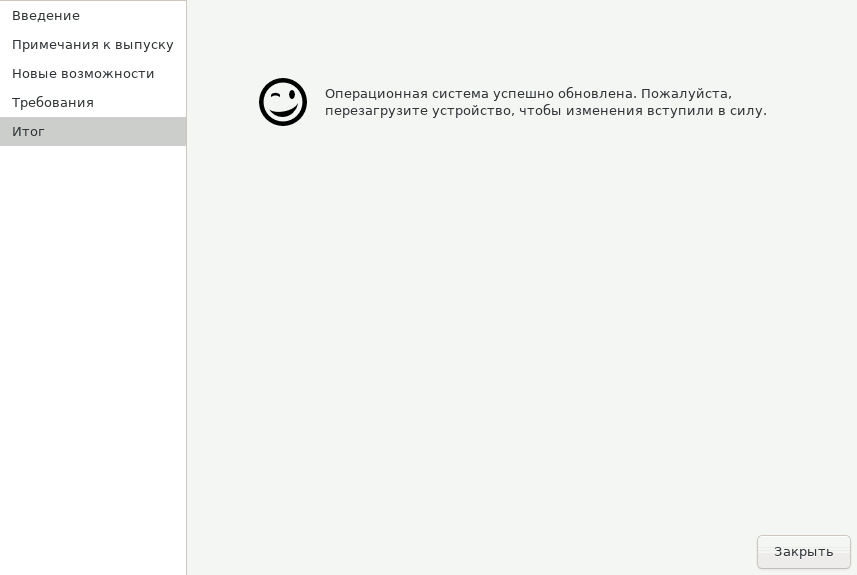
Step 22. Completing the Linux Mint operating system update
Update process - Step 22

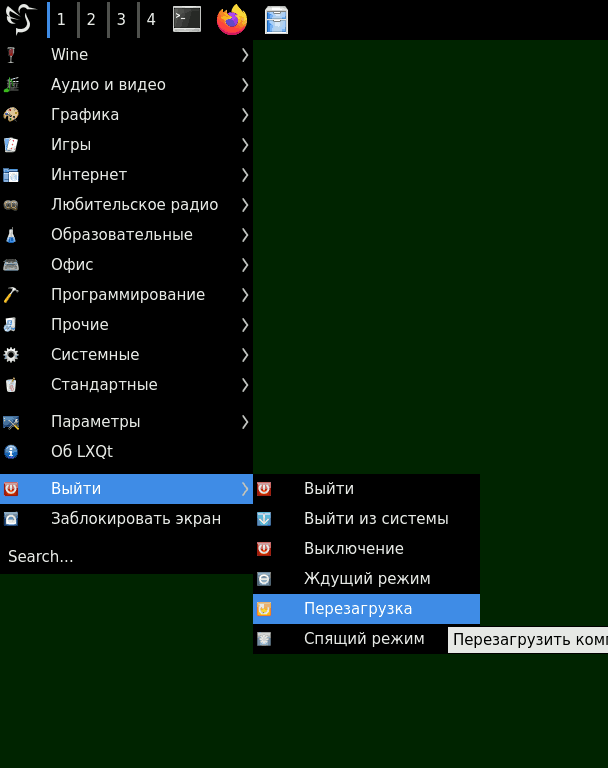
The update is completed. We reload the computer

Step 23. Reboot the OS
Update process - step 23

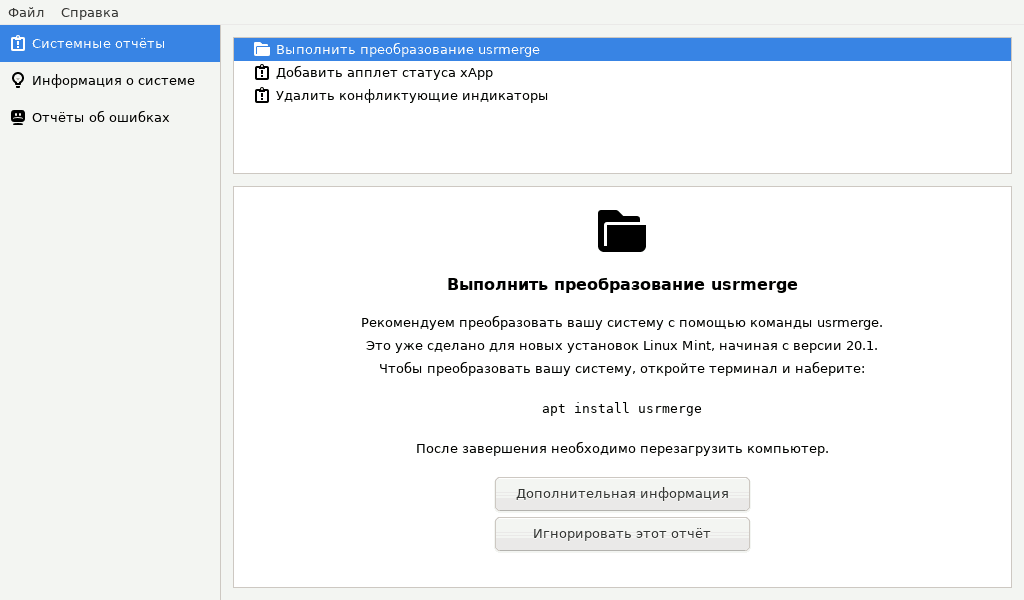
After the update I decided to perform usrmerge - a program that separates the directories /bin and /usr/bin

Step 24.
Update process - step 24

sudo apt install usrmerGE

Preparing to unpack …/usrmerge_25ubuntu2_all.deb …
Unpacking usrmerge (25ubuntu2) …
Configuring usrmerge package (25ubuntu2) …
Smartmatch is experimental at /usr/lib/usrmerge/convert-usrmerge line 172.
The system has been successfully converted.

Step 25. Creating a system image in TimeShift
Update process - step 25
Step 26. TimeShift - 1
Update process - step 26
Step 27. TimeShift - 2
Update process - step 27
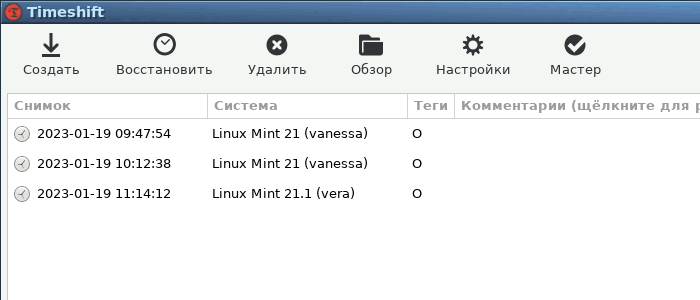
Step 28. TimeShift - OS snapshot creation after update completed
Update process - step 28

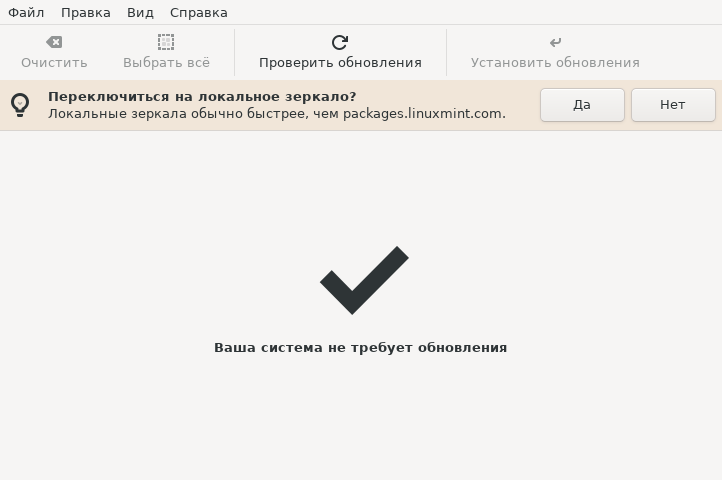
It remains only to switch to a faster local mirror in the program
"Start - Parameters - Update manager"

Step 29. Updating version. Switching to local mirror
![ПUpdate process - step 29


After the transition to a new version, problems with OS or programs did not occur, everything works as before.

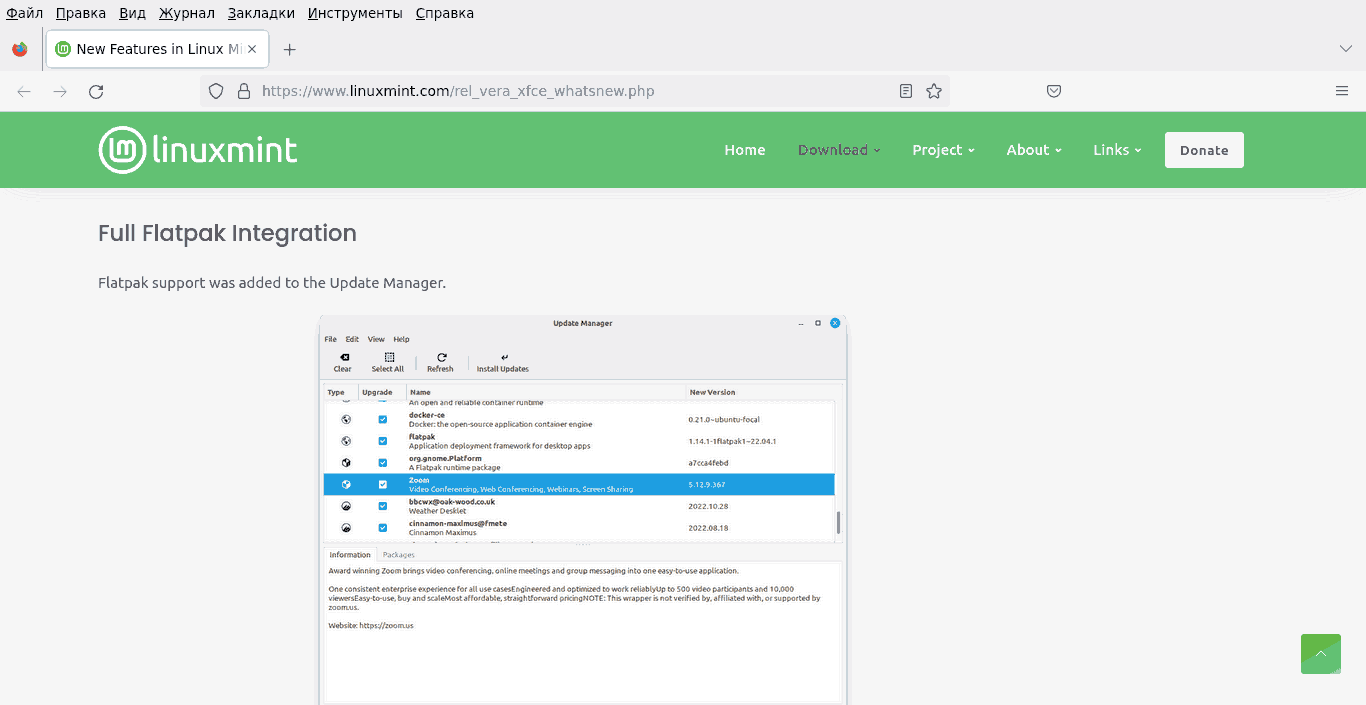
Full list of changes in the new version of Linux Mint 21.1 "Vera"Contained in the PDF: file
New_Features_in_Linux_Mint_21.1_Vera.pdf
The main differences:

  • Linux 5.15 core, Ubuntu package base 22.04, shell XFCE 4.16.
  • Complete integration into the distribution of the FL packages control systematpak
  • Driver manager allows you to add Dummy "Package for testing
  • changed the mouse pointer to the triangle Bibata (but you can leave the usual arrow mouse pointer)
  • New customization of the desktop - color change in the XFCE shell
  • The theme of icons Mint-y-legacy-The classic topic mines is preserved
  • The computer, the garbage basket and the network environment are removed for a more "clean" and modern type of desktop. They can be called through a file manager.


Related publications

