

31
July
2026
Linux Cinnamon Desktop Applets for Listening to Internet Radio Stations
16:35

Linux Cinnamon Desktop Applets for Listening to Internet Radio Stations

31 July 2026 16:35

How to add the ability to listen to Internet radio stations in Cinnamon.

Note

This article does not relate to the topic of amateur radio. Although you can add any MP3 broadcast address to Favorites or playlist, i.e. stream a radio station to the Internet (for example, from your SHOUTcast or Icecast server), the article mainly talks about setting up listening to popular music radio stations on a PC in Linux OS.

Introduction

The Cinnamon desktop has a unique feature: the ability to install desktop add-ons in the profile of the current Linux user, which are mini-applications in JavaScript and JSON that run from the moment the user profile is loaded in the background in the system tray area next to the clock. Such applications are called applets (from the English word "application" - application).

Internet radio stations and as an alternative to regular radio

To listen to news broadcasts I use a regular radio in the car and at home, most often Business FM. For religion there are “Radio Vera”, “Grad Petrov” (operating on 73.1 MHz in St. Petersburg), “Radonezh” and “Radio Maria”. Broadcasting of many radio stations that interest me in the FM range missing, so I have to use a smartphone on which I run a program for listening to Internet radio.

On a computer running OS Linux you can install and run the applet to listen to Internet radio either in the background. Or you can turn your PC into a music center if you connect it to a high-quality speaker system or headphones. Of course, you can buy a branded receiver for Internet radio stations, for example Ocean Digital (https://www.oceandigitalshop.com/internet-radio). There are two "buts":
1) from a computer with an external sound card and headphones or speaker system (speakers) you can get higher sound quality than from a desktop receiver.
2)subscription internet radio station not only requires money, but payment is difficult depending on the country. Whereas “Favorites” on a PC or smartphone can be created completely free of charge.

What are the ways to listen to Internet radio on Linux?

1)autonomous applications for listening to Internet radio stations for Linux. Such as Goodvibes,Shortwave.
2)command line, for example:celluloid URL или tizonia URL.
3)web browser(opening the URL of a stream or a website web page with a JavaScript player).
4)applets for the Cinnamon desktop.

How to find internet radio stations

1) Many programs have a built-in search for Internet radio stations by name, country, genre of music.

2) For programmatically obtaining URIs or URLs of Internet radio stations and their descriptions, there are two sources:

*api.radiodb.fr*- in France,
de1.api.radio-browser.info (или all.api.radio-browser.info**) - in Germany.

For these resources there are description and examples requests to them in various programming languages.

3) The radio station URL can be copied from applets that receive names and links from the software service and display them in input forms on the PC screen:

  • Radio++,
  • Radio3.0.

4) Sites with collections of addresses of Internet radio stations:
*https://fmstream.org/country.htm.

5) Reverse engineering by studying web pages, debugging web applications and traffic.

6) Collection of radio stations allStations.json applet Radio++(~/.local/share/cinnamon/applets/radio@driglu4it/4.6/allStations.json).
7) Collection of radio stations allStations.json project minghoe888.

allStations.json file formats are different!
To convert from the minghoe888 format to the Radio++ applet format, I wrote a Python script:

import json
# Read from file and parse JSON
with open("allStations.json", "r") as f:
    data = json.load(f, strict=False)

thislist=data.get("stations")
otherlist=[]
for x in thislist:
    thisname=x["radio_name"].lstrip()
    thisurl=x["radio_url"]
    otherlist.append([thisname, thisurl])

with open("allStations2.json", "w") as file:
    json.dump(otherlist, file, indent=2)

8) Short list of links to Christian radio stations broadcasting on the Internet.

What are Cinnamon applets (add-ons)

Applets are mini-applications written in the JavaScript and (sometimes) sh programming languages. The database and settings are stored in JSON files. Such applications are executed from the context of a given user when the profile is loaded, before the end of the user's Linux session.

Applets can be installed either using Cinnamon - "Applets", or by simply copying them to a folder

~/.local/share/cinnamon/applets

Which contains folders of Cinnamon applets named:

  • applet1@developer1
  • applet2@developer2
  • applet3@developer3

Applets can be controlled in any Linux OS from the menu Start - Settings
applet_system
Select an item "Applets".

Or right-click on the system tray -Applets.

How to install applets (add-ons) using Cinnamon

Firstly, to install applets you need a Cinnamon desktop:

sudo apt update
sudo apt install cinnamon

Some applets require additional packages.

Radio++ requires MPV player:

sudo apt install mpv mpv-mpris

For Radio 3.0 - MPV player and some libraries and utilities:

sudo apt install mpv libmpv-dev sox libsox-fmt-all pulseaudio-utils at libnotify-bin ffmpeg ffmpegthumbnailer python3-polib python3-brotli

Secondly, you need to end the session and select the Cinnamon desktop in the login prompt window.

Thirdly, in a Cinnamon desktop session fix the Applets module.

Fourth, download the applet from the Internet in Start - Settings - Applets -Loading "or transfer its folder from another PC by copying (see section " manually installing the applet" below).

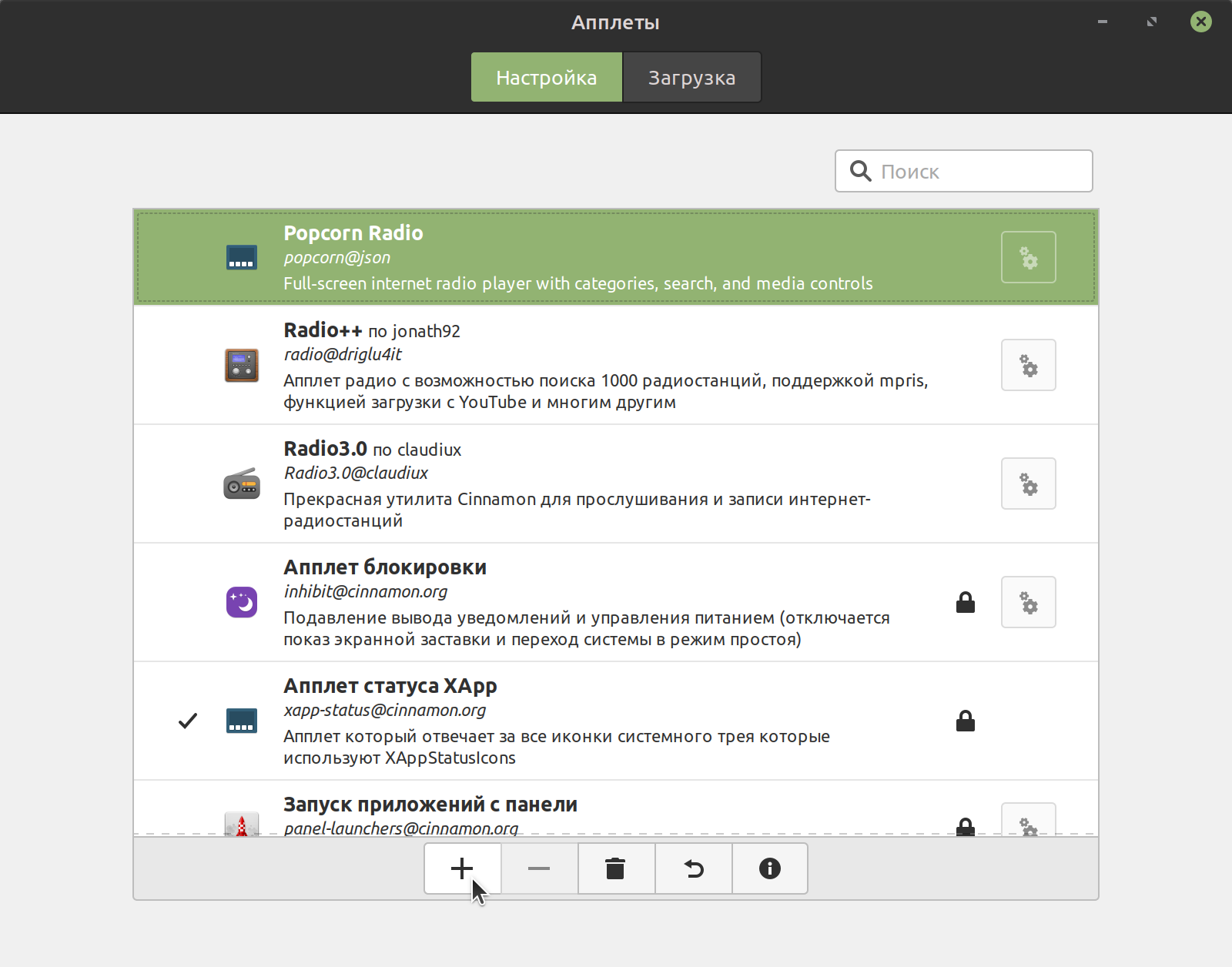
Fifthly, when the applet is downloaded from the Internet, installed by copying, enable them in the Start menu - Settings - Applets - press the button "+ (plus)" to add to the Cinnamon desktop panel.

How to install Cinnamon applets from an archive or by copying

For example, applet Popcorn radio needs to be installed manually. Why do you need, for example:

  • download the popcorn.tar.gz archive from store.kde.org.
  • create a folder for the applet in ~/.local/share/cinnamon/applets. For example, "popcorn@json".
  • extract all files from the archive into the applet folder.

To transfer to another computer, you need to transfer the applets folder ~/.local/share/cinnamon/applets to another PC.

Where are Cinnamon applet settings stored?

Different applets have different

  • for FM radio - in ~/.fm-radio и ~/.config/cinnamon/spices/FM-Radio@hylyxx
  • Radio++ from driglu4it in the folder ~/.config/cinnamon/spices/radio@driglu4it
  • for Radio3.0 - in ~/.config/Radio3.0 и ~/,config/cinnamon/spices/Radio3.0@claudiux
  • at Popcorn Radio ~/.config/cinnamon/spices/popcorn@json

As you can easily see, the main storage location is the directory ~/.config/cinnamon/spices/.
Folders starting with a dot (.) are hidden in Linux Explorer. Enable right-click to show hidden files.

Applet "FM radio" by hilyxx

icon-fmradio
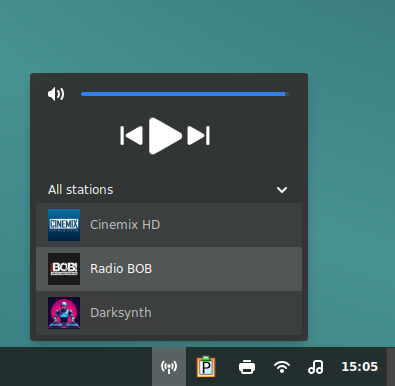
The applet has basic functions sufficient for listening to Internet radio stations. By default, there are 3 radio stations in the drying list that work.
window1-fmradio window2-fmradio [/columns]

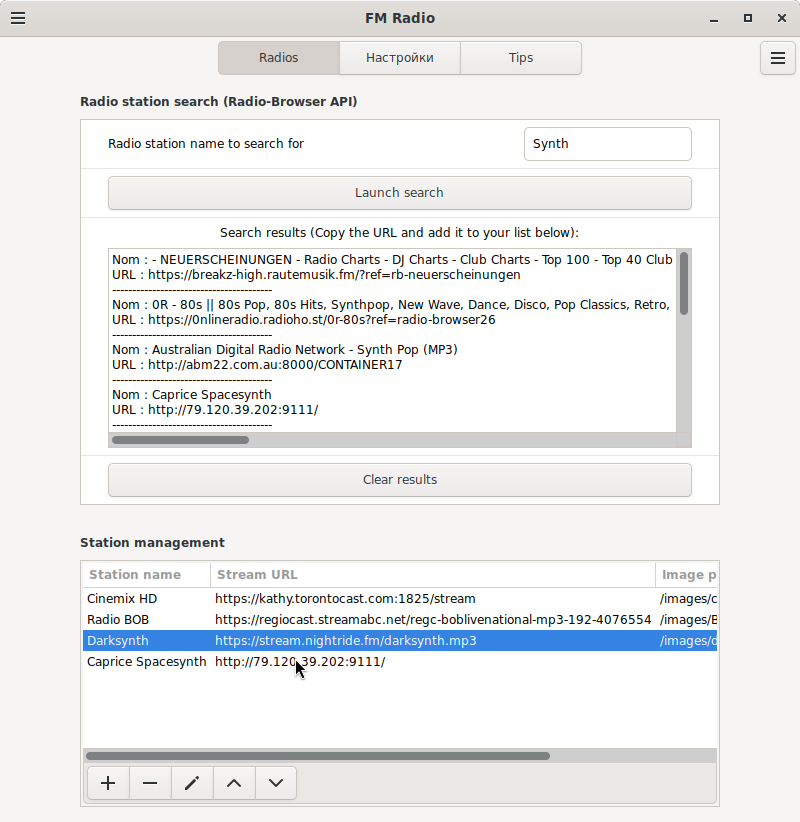
In the "Settings..." menu, which is called up by right-clicking, you can search for radio stations on the Internet by name. which is produced through the site API de1.api.radio-browser.info.

(Click to enlarge:)
FM radio6

Window for adding a radio station
FM radio5

Adding a found radio station - by copying its URL and adding and adding it in the "Station Management" section.
The logo for the radio station can be specified from a folder on the local disk.

The "FM radio" applet can be used both on this PC and to search and copy URIs of radio stations for another PC on which the program is installed Goodvibes in the XFCE or lxqt desktop.

The "FM radio" applet is also convenient for compiling a small (up to 20) list of Internet radio stations.

Applet "Radio++" (radio++@driglu4it)

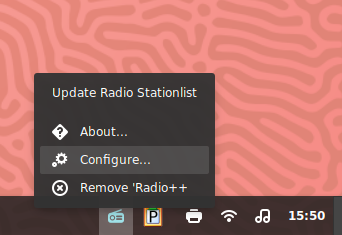
This applet was developed by jpnath92it and is in many ways similar to the FM radio from hilyxx described above: the same minimalistic interface.
icon_radio_pp
window1_radio_pp
The difference is that the search for stations occurs from a local database. Which, however, can be updated from the Internet from a resource.
window2_radio_pp
window3_radio_pp
window4_radio_pp
Icons for radio stations are not supported.

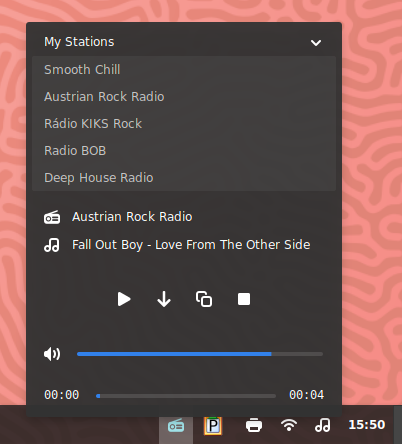
The “Find a station” menu displays a long list of all radio stations, from which you can search by name to find the desired station, or select visually and add using the “Add to my stations” button.

Favorite stations are located in the My Stations menu. Like FM radio from hilyxx, you can copy the URIs of radio stations to the clipboard.
But there is also a “Show in list” checkbox, which allows you to shorten the list of radio stations displayed when you click the mouse button, without removing all radio stations from the list.

It is possible to copy the playing composition to the clipboard (the “copy” icon).

I do not recommend installing yt-dlp together with Radio++, because... Pressing the "load" button may cause the process to freeze in memory, because The YouTune website is not available in the Russian Federation through many Internet providers.

Applet "Radio3.0" by claudiux

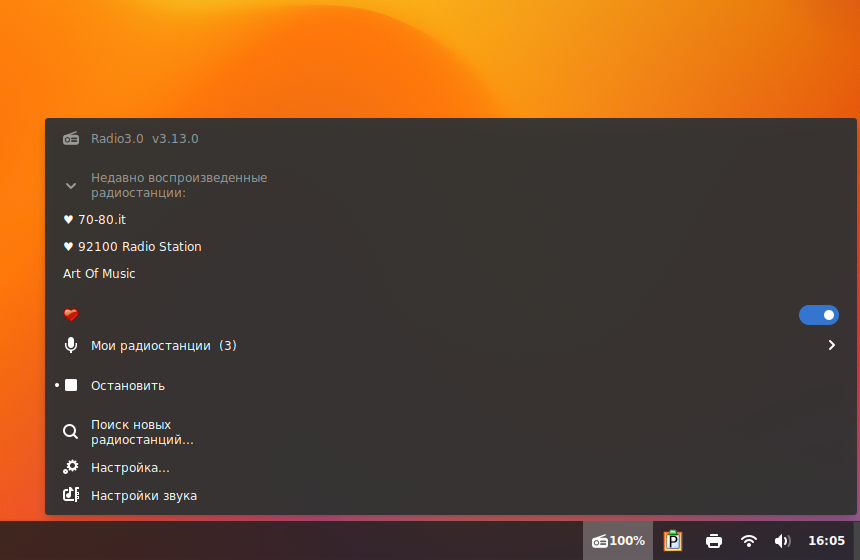
icon_radio3
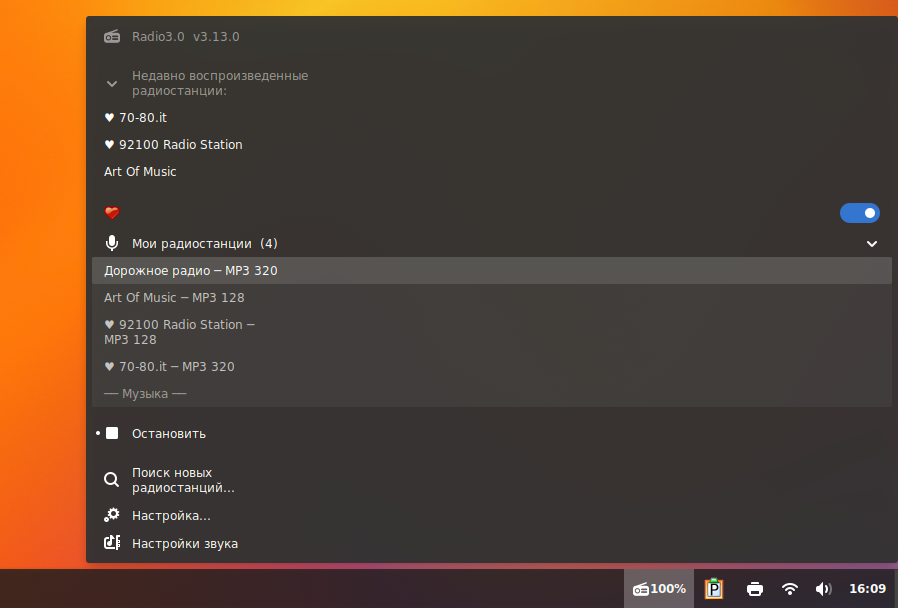
The most difficult of all, although it has a translation into Russian. Allows you to add them by category after searching for radio stations. To add a category, enter the name of the radio station without a link (URL).
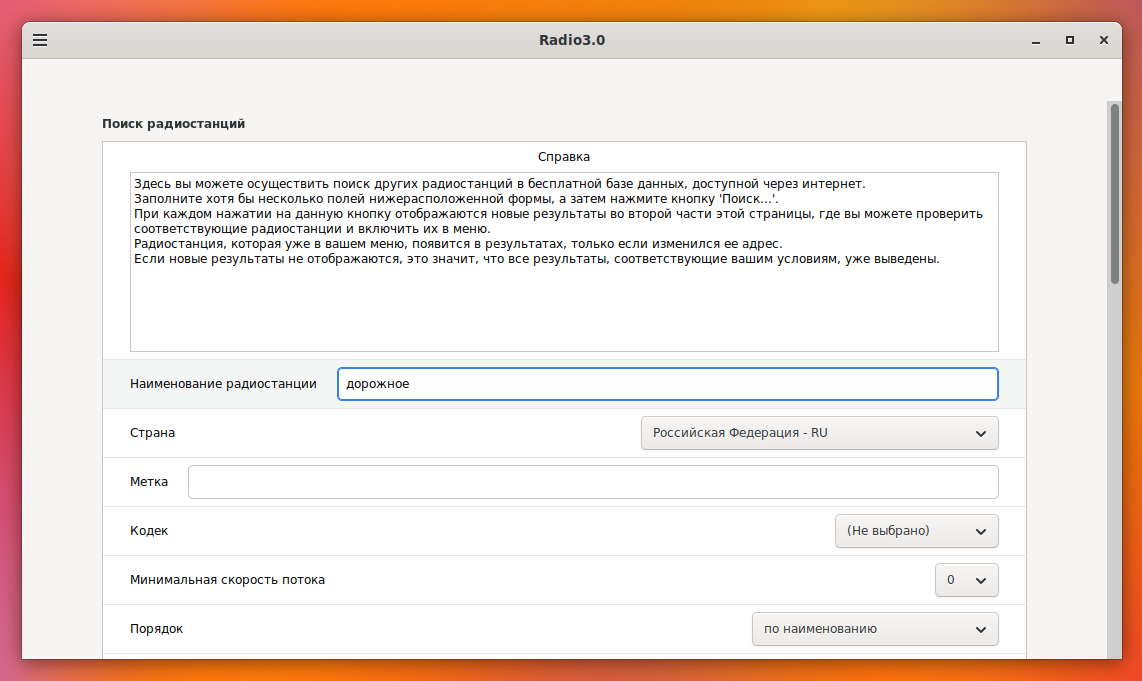
window2_radio3
Also, the Radio3.0 applet has advanced search capabilities. For example, by country, name, or flow rate of the radio station.
window3_radio3
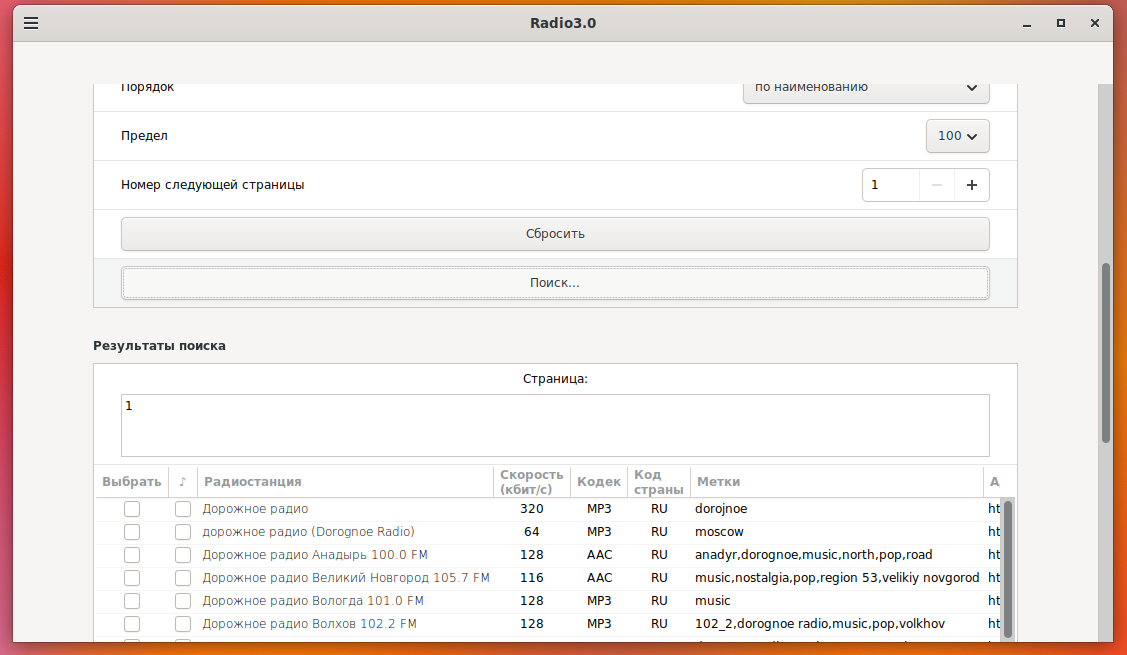
Adding radio stations is done by checking the “Show in menu” checkbox on the left and clicking the “Add” button:
window4_radio3
The author has provided an intermediate stage - familiarization with the radio station (the adjacent checkbox is listen and the "listen" button) - so as not to add everything in a row.
The radio station will be shown in the menu using the left mouse button:
window6_radio3
You can use the mouse wheel to adjust the volume when you hover over the Radio3.0 icon.

Applet "Popcorn Radio" by Brahimsalem

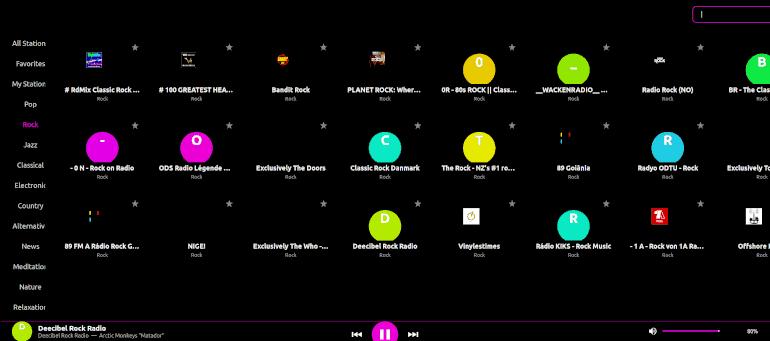
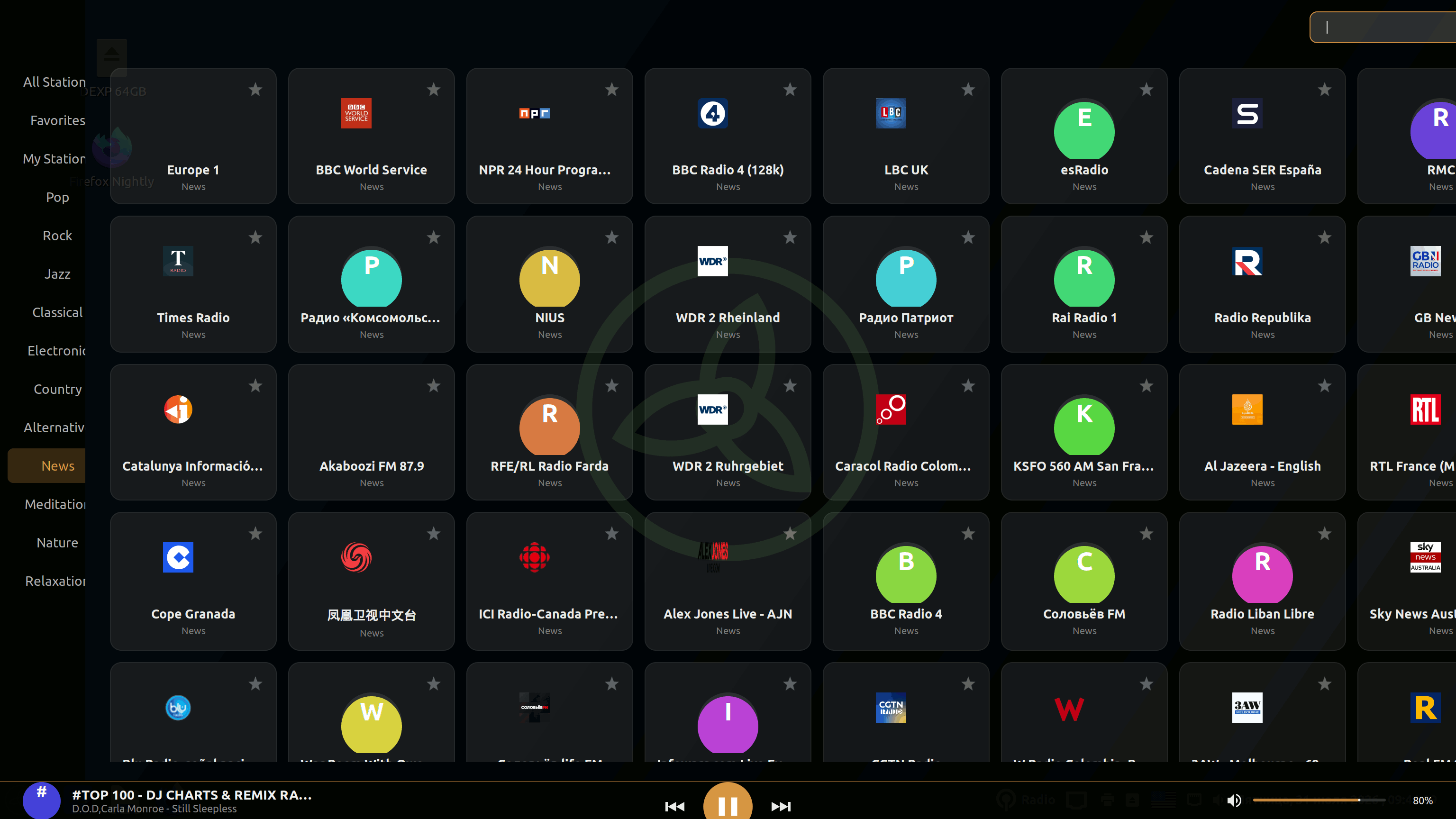
Graphically, the applet's appearance is rich and modern, but it may seem overloaded to some. The player is similar to a menu of applets for a TV. The "Click and Listen" approach has a downside - there is no way to view and copy a link to a radio station to the clipboard, or edit the "Favorites" list.

You can install it if you download its archive from the website https://store.kde.org/s/Opendesktop/p/2363996.

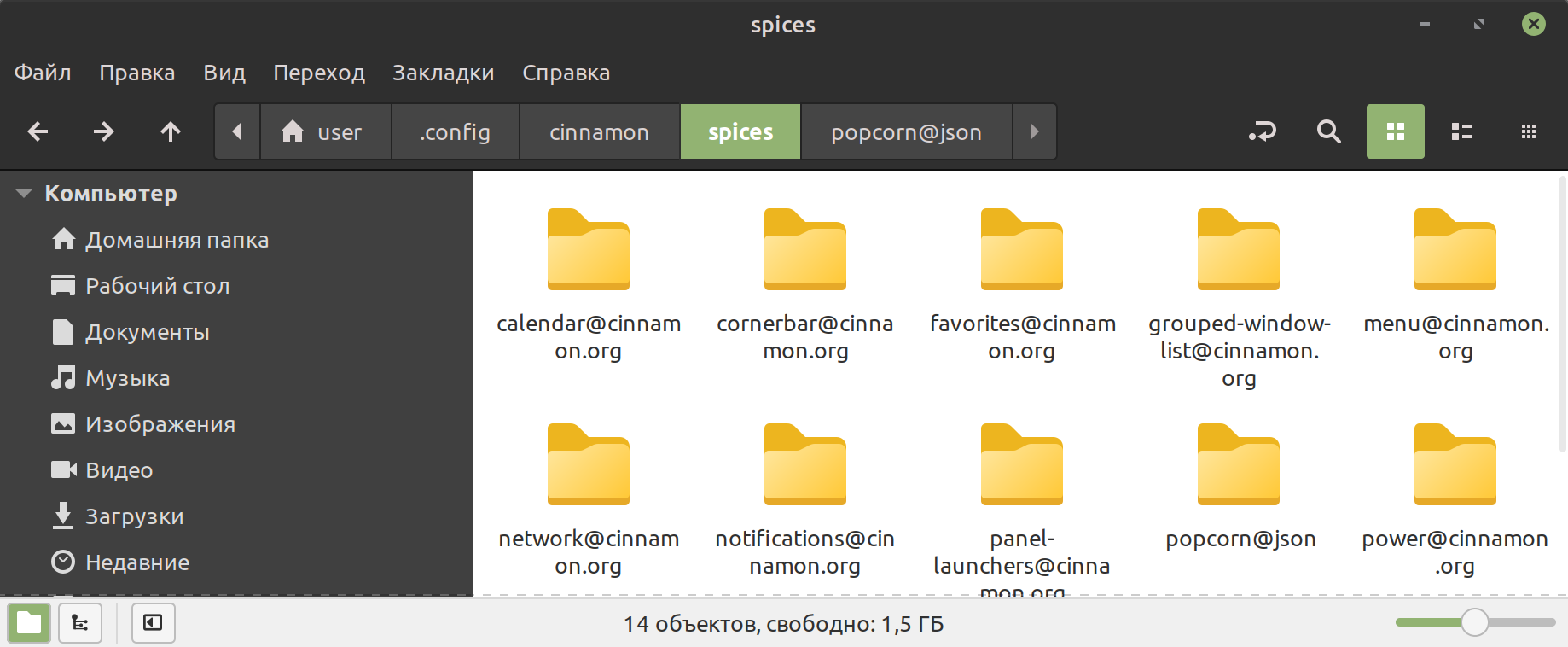
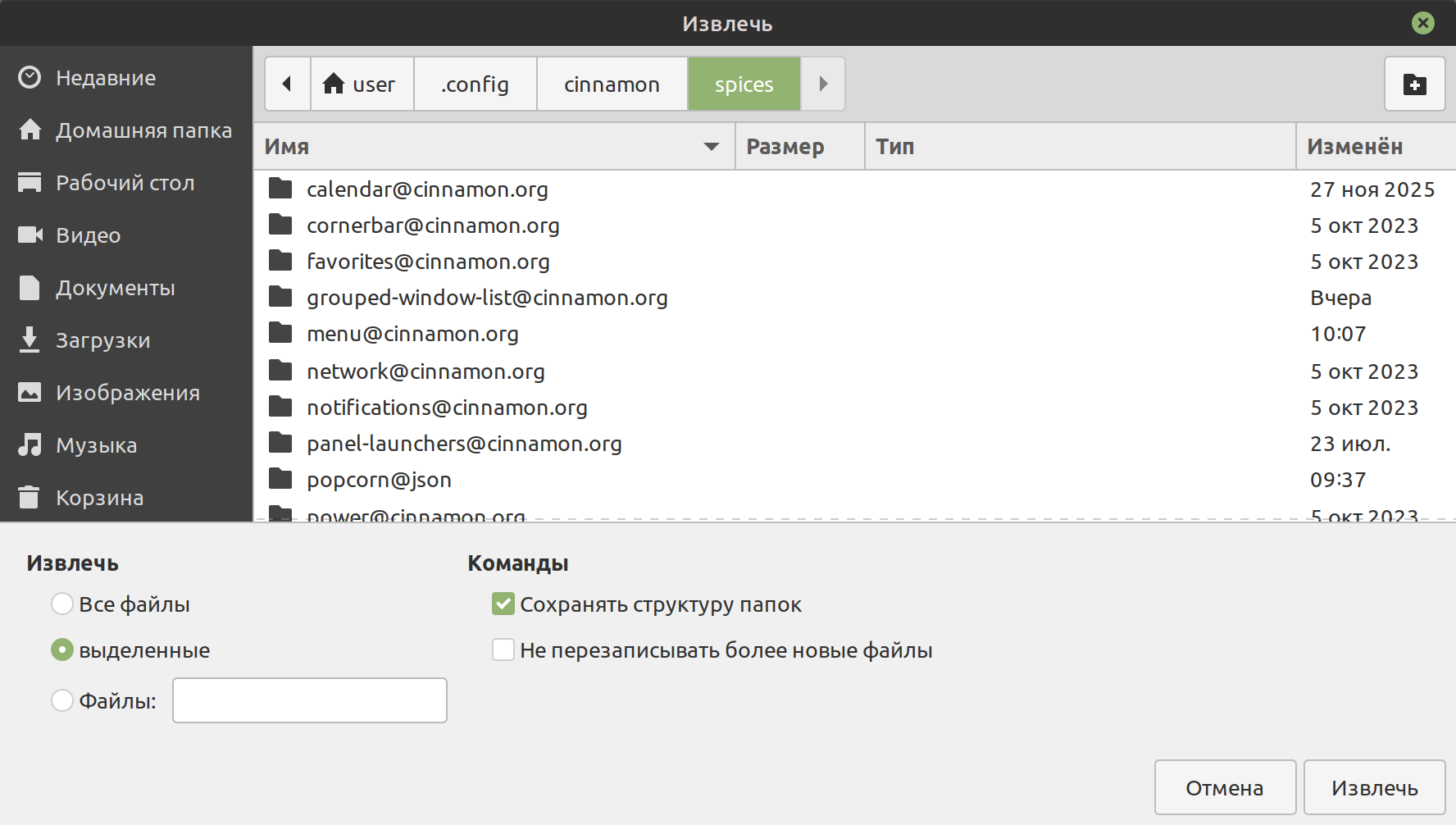
Unzip while maintaining the directory structure from the file popcorn.tar.gz в папку ~/.config/cinnamon/spices/
popcorn_setup
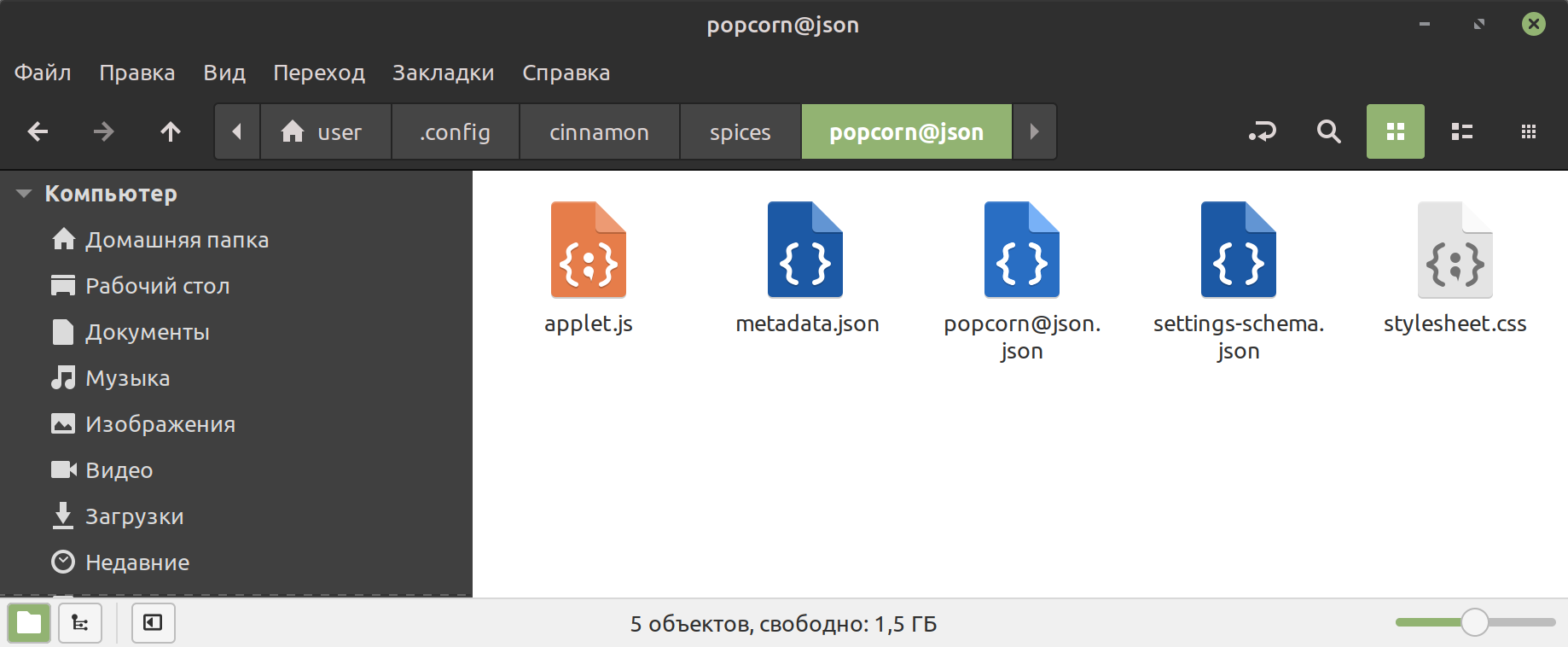
A popcorn@json folder will be created with the necessary files.
popcorn_setup2
popcorn_setup3
Adding to the taskbar:
popcorn_setup4

Popcorn Radio Icon:
icon_popcorn

Popcorn radio appearance:
popcorn_radio2


To improve (correct) the sound, you can set equalizer, one of the following, depending on the sound server that is used:
PulseAudio Equalizer
PipeWire Equalizer


Related publications