
15
March
2024
Installing Internet radio "Shortwave" from Snap
12:47

Installing Internet radio "Shortwave" from Snap

15 March 2024 12:47

The program for listening to Internet radio stations is called "Shortwave".

0. Features of installing snapd in Linux Mint 22.04 and higher

Addition from 04/04/2024:

As of Linux Mint 20, the nosnap.pref file must either be moved or removed from /etc/apt/preferences.d/ before Snap can be installed.

This can be done from the command line, and the following command (for example) will move nosnap.pref to a renamed nosnap.backup file in the Documents directory:

sudo mv /etc/apt/preferences.d/nosnap.pref ~/nosnap.backup

Source:article on installing snapd in Linux Mint on snapcraft.io.

1. Start the snapd service

To use the snap app store, you first need to have the snapd service running.

sudo apt update
sudo apt install snapd
sudo systemctl enable --now snapd.socket
sudo systemctl enable --now snapd.service
sudo systemctl status snapd.service

The output of information about Snap Daemon should contain the following lines:

  • Loaded: loaded
  • Active: inactive (dead)
  • TriggeredBy: snapd.socket

Why "loaded inactive"? This means that the "core" package is not loaded, i.e. No snap programs have been installed, and the critical snap package "core" is missing.

Installing the first program:

sudo snap install hello-world

This program will install the required core package and the standard hello world test application. Now let's run the check:

hello-world

Answer:

Hello World!

I don't have any errors. If there is an error, run with debugging:

SNAP_CONFINE_DEBUG=yes hello-world

Now I'm looking for a shortwave package,

snap search shortwave

Название Версия Издатель Примечание Описание
shortwave 3.2.0 alexmurray✪ - Find and listen to internet radio stations

The program is available in the snap store. Installing shortwave from snap from the command line.

2. Installing the application from snap

Basic command to install shortwave application from snap:

sudo snap install shortwave

The program will download the necessary dependencies and the shortwave application package,
at the end, the message “Automatically connect valid plugs and connectors of the “shortwave” binding” and others will play for a long time.

After 1-2 minutes a message will be displayed

shortwave 3.2.0 от Alex Murray (alexmurray✪) установлен

3. Executing an application installed from snap

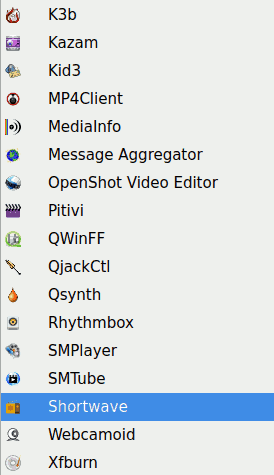
Launch an application from the Start menu

*Start - Audio and video - Shortwave

or from the command line:

shortwave

The advantage of installing a program using snap is that in many distributions the application will be automatically added to the main menu of the operating system.

start-menu
shortwave2 [/columns]

Desktop file shortwave_shortwave.desktop находится в папке /var/lib/snapd/desktop/applications.

The contents of the file are generated automatically:

[Desktop Entry]
X-SnapInstanceName=shortwave
Name[en_GB]=Shortwave
Name=Shortwave
Icon=/snap/shortwave/87/usr/share/icons/hicolor/scalable/apps/de.haeckerfelix.S>
Exec=env BAMF_DESKTOP_FILE_HINT=/var/lib/snapd/desktop/applications/shortwave_s>
Terminal=false
Type=Application
StartupNotify=true
Categories=GNOME;GTK;Audio;AudioVideo;
Keywords[en]=Radio;Shortwave
Keywords[ru=Radio;Ràdio;Shortwave

### 4. If the application shortcut is not in the Start menu (Linux Mint 22.04, etc.)

1) First of all, you need to end the user session (logout and login). A shortcut to the program will appear in the Start menu

2) Manually creating a shortcut to the Snap program (if the first method did not help):

Find out where the program is

    whereis shortwave

The answer contains the path:

 `/snap/bin/shortwave` 

Created a shortcut: - file ~/.local/share/applications/shortwave.desktop

    nano ~/.local/share/applications/shortwave.desktop

Its contents::

[Desktop Entry]
Name=Shortwave Radio
Comment=Listen to Internet radio stations
Exec=/snap/bin/shortwave
Type=Application
Categories=GNOME;GTK;Audio;AudioVideo;
Terminal=false
Icon=/snap/shortwave/87/usr/share/icons/hicolor/scalable/apps/de.haeckerfelix.svg
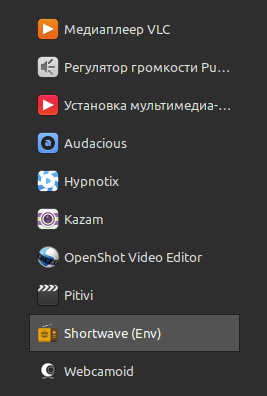
Save Ctrl+O, Ctrl+X. After creating the shortwave.desktop file, close the session and log in again. The application appeared in the Start menu in the Audio and Video section under the name **Shortwave (Env)**: Now you can launch Shortwave from the "Start" - "Other" menu using the "mouse". ### 5. Turn on, search and listen to Internet radio stations in Shortwave In the main menu of the program, press **"Discover new stations"**. That's where I usually choose **"Classic Vinyl HD"**, because she's on the first screen. If desired, you can find and select other radio stations. For example,**"Radio Russia"**: ![shortwave-main-window](shortwave-main-window.png?lightbox=1200&classes=img-zoomable "shortwave-main-window") **Search for an Internet radio station:** ![radio-rossii](radio-rossii.png?lightbox=1200&classes=img-zoomable "radio-rossii") ### 5. Addition. Snap Store To install apps from the GUI instead of the command line, you can install the Snap Store: **Installing and launching the Snap Store app store:** sudo snap install snap-store snap-store ![snap store](snapstore.png?lightbox=1200&classes=img-zoomable "snap store")


Related publications