30
September
2022
Restoring DCOM on Windows
15:02

Restoring DCOM on Windows

30 September 2022 15:02

I have not seen a description of the default settings for the DCom system on the Internet, so I decided to write an article.

Warning

Changing access permissions, as well as launch and activation permissions, can affect the launch of applications and the ability of users and administrators to function normally. Improper management of access rights lists for DCOM components using dcomcnfg.exe can cause applications or components that communicate using DCOM technology to fail. Overriding the default DCOM settings that are created during Windows installation is generally not necessary, so you do not need to change them. If the goal is to enhance security beyond what is provided by default, ensure that users have Launch and Activation permissions. If launch and activation rights are not granted globally, you will have to change the launch permissions ACL for a specific application to grant activation rights to the appropriate users. I do not recommend editing the rights of system user groups that Windows set during installation.

Reasons for DCOM failures

    1. DCOM components operate using a transport system ORPC(Object Remote Procedure Call). Service RPC is one of the most important, because Windows, which also uses DCOM to run most components, depends on it. I have seen in practice that, being carried away by disabling “unnecessary” Windows services, a user prohibited the start of the RPC service. As a result, the computer refused to boot after rebooting. The loading took place “a teaspoon at a time”, the operating system did not respond to actions. So the RPC service should be running. Unlike DBUS on Linux, which uses messages, DCOM on Windows uses bitstreams (packed calls) created using "Marshalinga", i.e. the process of serializing objects to transfer them to the target process.
  1. Access to DCOM components is based on systems of rights, which are specified using ACL- Access Control Lists. The description of the dcomcnfg.exe snap-in, which is used to configure the settings, is poor. Microsoft simply recommends not changing the default settings, because... they can disrupt the system. The settings themselves are not mentioned anywhere.

There are 2 permission settings:

  • Access right (which can be local or remote)
  • Activation right - i.e. launch components.

Also, in the DCOM setting there are two limits (restrictions)

  • Access limit
  • Activation limit
  1. FireWall- on the terminal server 1c uses a single RDP port 3389 which should be open.

If a terminal server is not used, the network version of 1c Enterprise uses TCP ports that need to be opened to the outside.

On the server in the firewall, create a rule for incoming connections - allow TCP ports:1540, 1541, 1560-1591.

Open ports on a PC can be displayed with the command netstat -an

  1. Group policies. Users running DCOM remotely use server resources. The default settings allow DCOM to operate in this mode, but increasing security can accidentally affect users' right to remote launch, in Computer Configuration - Administrative Templates - System - Distributed COM Model(Computer Configuration - Administrative templates - System - Distributed COM).

  2. Properties and Permissions specific DCOM application in the Component Services snap-in: Control Panel -> System and Security -> Administrative Tools -> Component Services -> Computers -> My Computer -> DCOM Settings -> Application Name -> Properties -> Security.

  • Launch and Activation Permissions - Default
    *Access Permissions - Default
    General - Authentication Level - Default.
    Identity - Launching user.
    Hosting - Run the application on this computer.
  1. An antivirus can also monitor ports if it has a built-in firewall.

Quickly restore default DCOM permissions settings

This item needs to be performed only if the DCOM system has stopped working completely or partially.

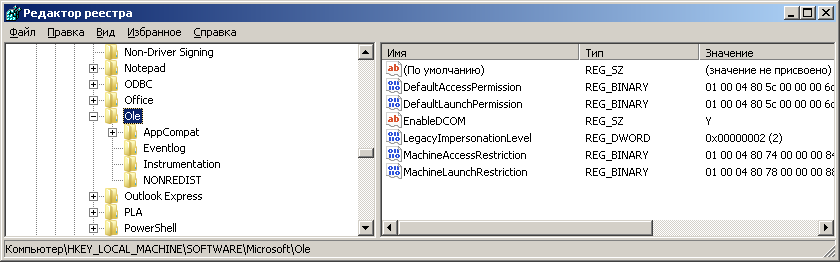
First, DCOM must be enabled and the impersonation level is "Define" (numeric value - 2).

HKEY_LOCAL_MACHINE\Software\Microsoft\Ole

Key "ENABLE_DCOM"- string REG_SZ - value "Y".

Key "LegacyImpersonationLevel" - DWORD - value 2.

register

Secondly, To restore the rights to their original form, you need to delete 4 registry keys in the registry editor REGEDIT.EXE:

HKEY_LOCAL_MACHINE\Software\Microsoft\Ole

*DefaultAccessPermission*
DefaultLaunchPermission
MachineAccessRestriction
MachineLaunchRestriction**

These keys can be safely deleted; they will be created again. This will remove all non-standard DCOM access rights settings made by the administrator, and launch and activation permissions, limits and DCOM user groups will return to the original values ​​that were immediately after installing the OS. As a result, normal operation of the DCOM system will be restored.

Default access rights settings in the dcomcnfg.exe utility

Below are the default DCOM settings for Windows 8-10.

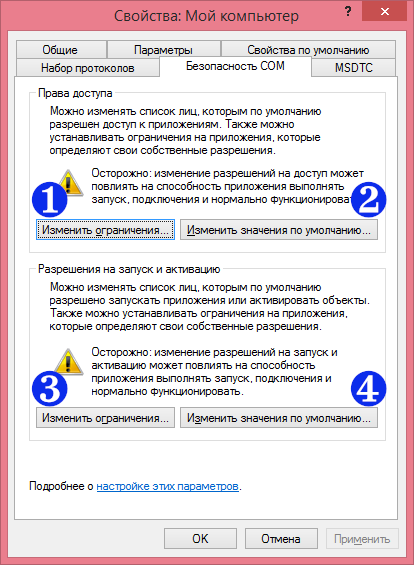
DCOMCNFG.EXE -My Computer Properties-COM Security

Default properties:
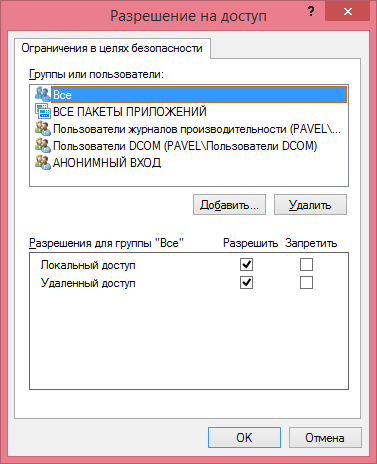
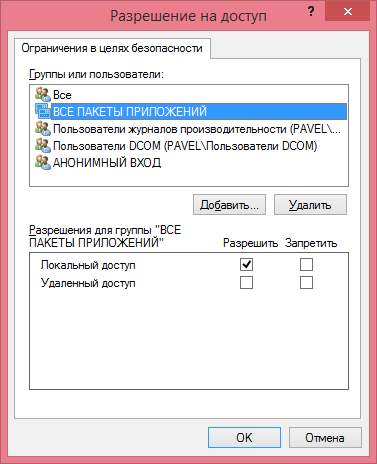
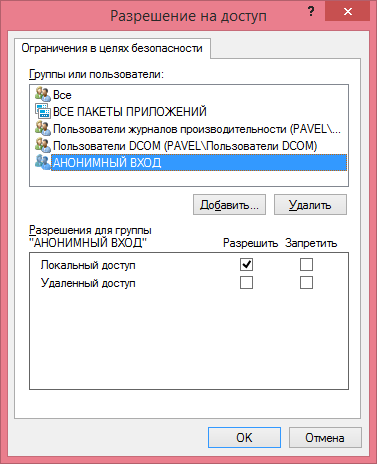
1234

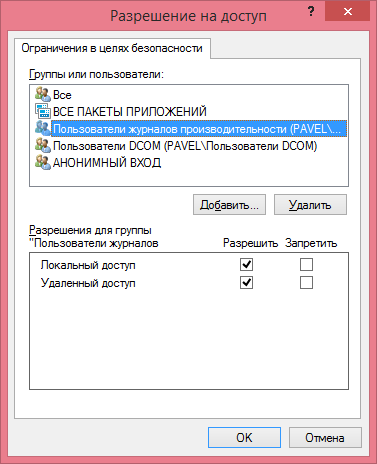
1 Access rights - Restrictions (Limits)
11
12
13
14
15

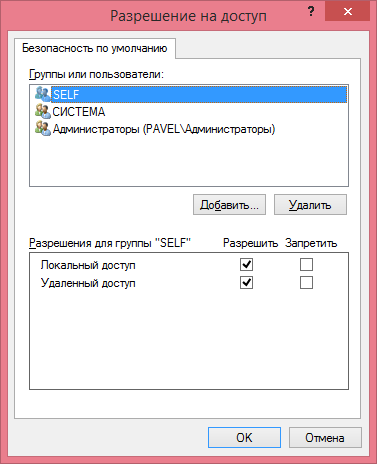
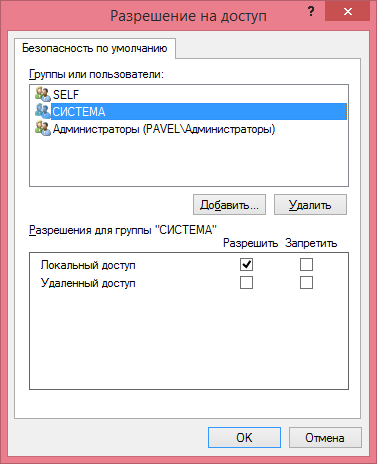
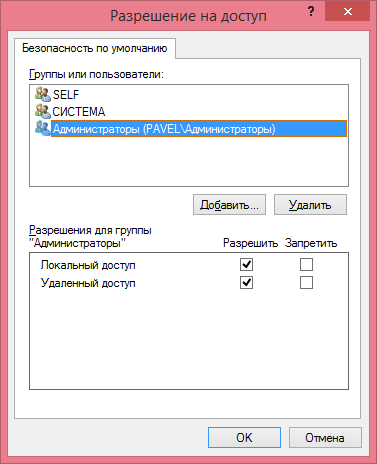
2 Access rights - Default values
21
22
23

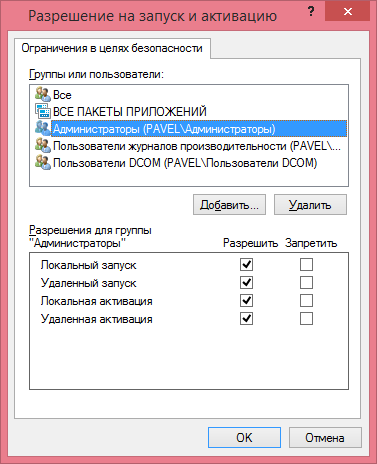
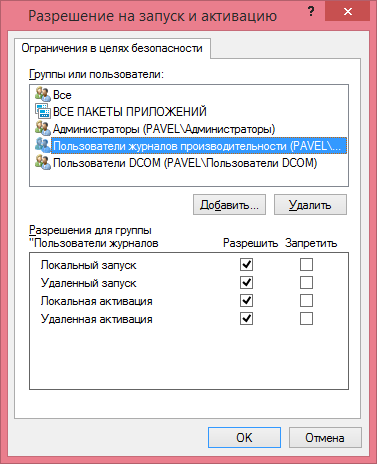
3 Permissions to launch and activate - Restrictions (Limits)
31
32
33
34
35

4 Launch and Activation Permissions - Default Values
41
42
43

Default DCOM table permissions (ACL):


1 Access rights - Restrictions (Limits)

Group Local access Remote access
All Allow Allow
ALL APPLICATION PACKAGES Allow -
Performance Log Users Allow Allow
DCOM Users Allow Allow
ANONYMOUS LOGIN Allow -


2 Access rights - Default values

Group Local access Remote access
SELF Allow Allow
SYSTEM Allow -
Administrators Allow Allow


3 Permissions to launch and activate - Restrictions (Limits)
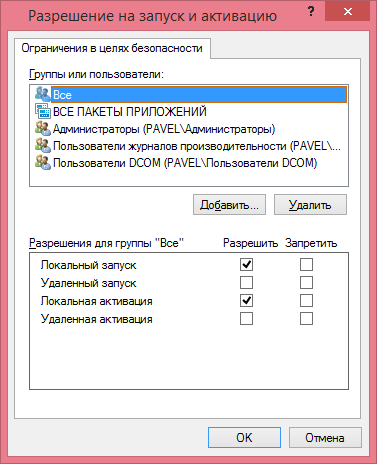
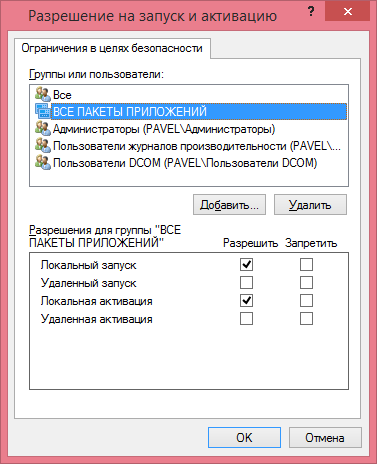
Group Local launch Remote start Local activation Remote activation
All Allow - Allow -
ALL APPLICATION PACKAGES Allow - Allow
Administrators Allow Allow Allow Allow
Performance Log Users Allow Allow Allow Allow
DCOM Users Allow Allow Allow Allow


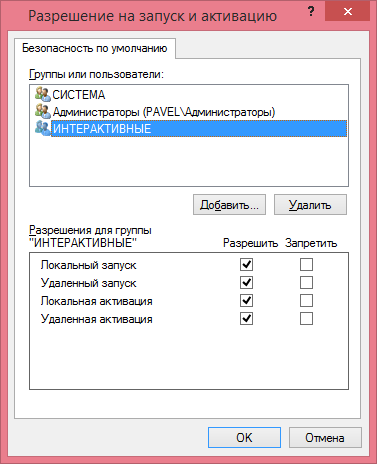
4 Launch and Activation Permissions - Default Values
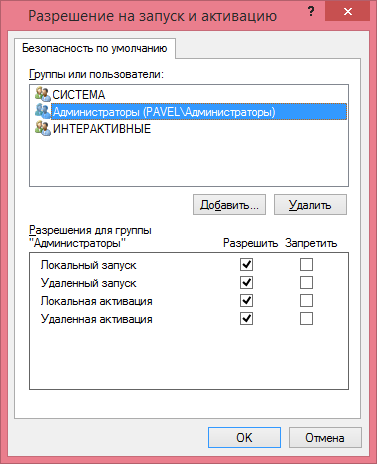
Group Local launch Remote start Local activation Remote activation
SYSTEM Allow Allow Allow Allow
Administrators Allow Allow Allow Allow
Interactive Allow Allow Allow Allow


User group "DCOM Users"

You need to add users to the "DCOM Users" group who should be able to run DCOM components, both remotely and locally. That is, not all users, but only those who actually work with DCOM.


Related publications