

11
October
2022
Installing LXLE OS on an Eee PC netbook
17:49

Installing LXLE OS on an Eee PC netbook

11 October 2022 17:49

LXLE is an Ubuntu-based distribution for low-end computers. Advantages: low use of RAM by the operating system (280 MB), built-in LibreWolf browser, non-standard external design.

The antiX OS that I installed on the netbook earlier was accidentally rendered unusable: I included an update of antiX to the unstable version of sid in /sources.list.d, but forgot to uncomment the anti-sid in the debian.conf file. As a result, the OS was not completely updated and apt required a new version of the glibc 2.34 library, which is not in the operating system, and to install it, you need to run apt (vicious circle). For the future: when updating to the sid version, you need to remove comments against#deb in all files in the /etc/apt/sources directory.

I decided to reinstall the OS on my netbook. I chose the distribution using the site distrowatch.com LXLE, which has a DEB package base and is intended for older computers.

Brief description of LXLE

  • Linux OS x64, x86
  • System requirements: Intel P-III or P4, 512 MB RAM.
  • Package base: DEB (LXLE is based on Ubuntu 20.04 LTS)
  • Desktop: LXDE
  • Window manager: LightDM or Openbox
  • Service management; SystemD
  • Design in the style of Japanese comics, about 100 backgrounds for your desktop
    *Russian language is present
  • Security: Screen saver, Activity log, Firewall, LibreWolf browser
  • LibreOffice
  • Hardware support for controlling the screen backlight (hot keys work).
  • Support Bluetooth, Wi-Fi
  • There is a "Y PPA Manager": for third-party repositories it compares favorably with Debian, where there is no PPA by default.

Installing LXLE OS

1) Download ISO image. The current LXLE is posted on the page https://www.lxle.net/download/. An option suitable for older PCs - 64 bit under the name "LXLE Focal 64Bit" leads to the site

*SourceForge - LXLE-Focal-Release.iso download

The LXLE image file size is 1756 MB.

2) Record the image - in the usual way, using the utility dd

sudo dd id=LXLE-Focal-Release.iso of=/dev/sdd bs=1M

3) Download from Live-USB and install. There are three main options for running LXLE from installation media:

  • Live launch
  • OS installation
  • OEM installation for computer manufacturers.

If the hard drive is partitioned in GPT, I recommend the first “Live launch”, or the second option: “OS Installation”.

If the disk has been used before and is partitioned in MBR, it is better to use the first item “Live launch”. Because you will need to give commands after installation (more on this below).
The third option - "OEM" installation is similar to the second item, "OS Installation", but a temporary user is created and there is a program in the menu "Control - Settings -Prepare for shipping to end user".

When installing the OS, the following steps are performed:

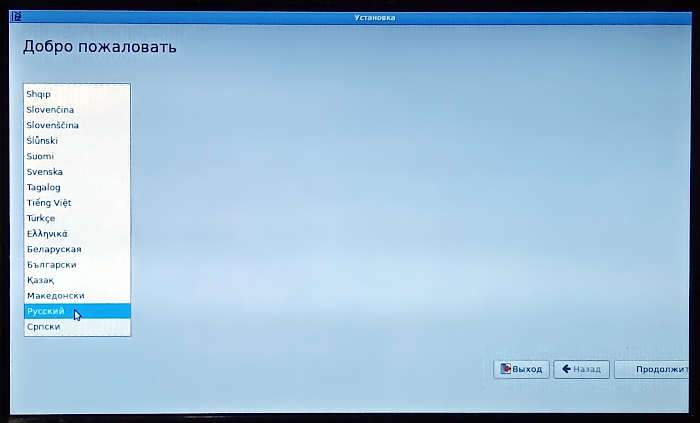
ШStep 1. Selecting the installer language
lxle01

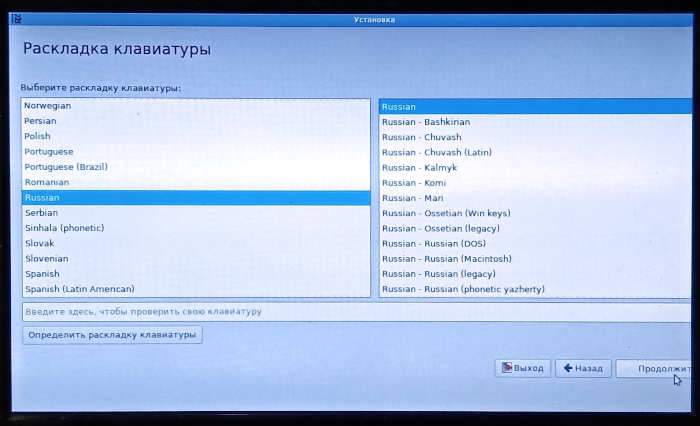
Шstep 2. Choosing a keyboard layout
lxle02

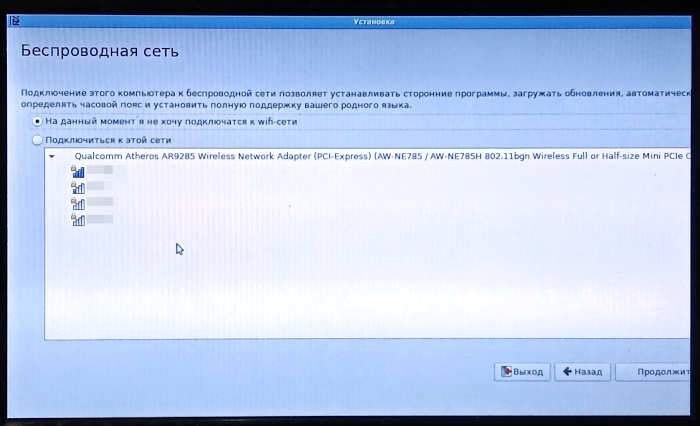
Шstep 3. Selecting a Wi-Fi network- skip:
At the moment I don't want to connect to a Wi-Fi network
lxle03

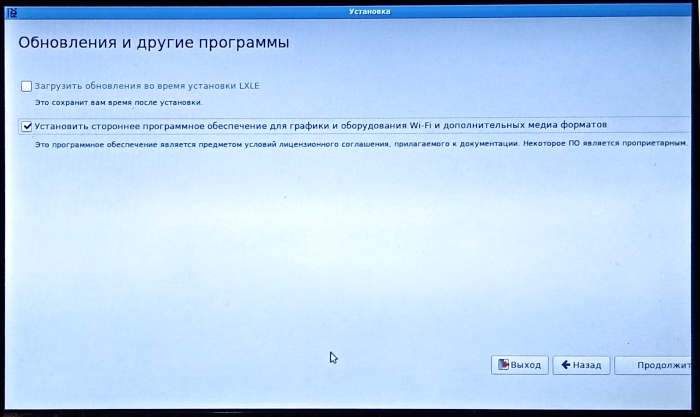
Шstep 4. Updates and other programs
Install third-party software for graphics and Wi-Fi equipment and additional media formats.
lxle04

Шstep 5. Installation type- another option.
We select “another option” if we are going to partition the disk manually - or the hard drive was previously partitioned for another operating system, and we want to install the OS on the existing partitions. On the new disk, you can select "Erase disk and install LXLE".
lxle05

Шstep 6. Disk partitioning- change.
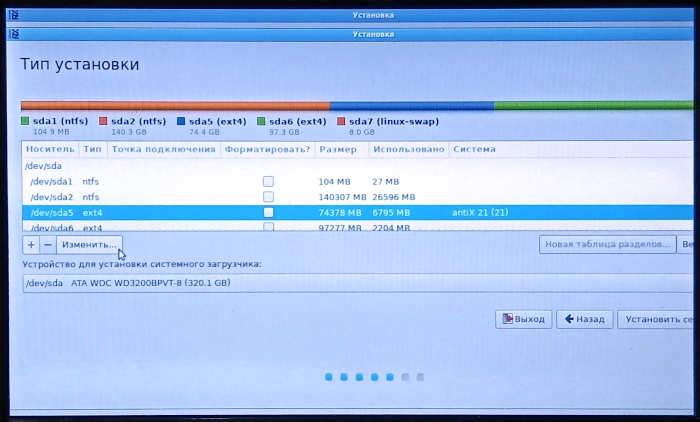
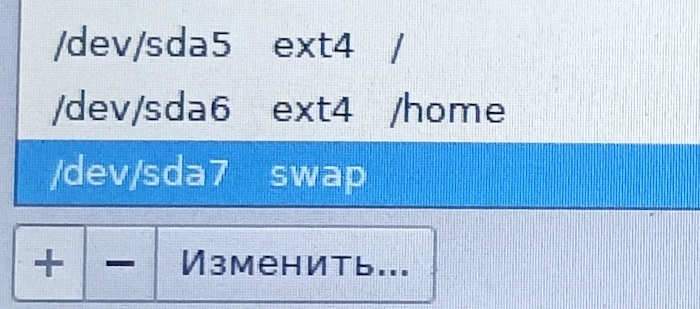
In this case, the first two partitions are allocated for Windows - the System Restore system partition /dev/sda1 and the main Windows partition /dev/sda2.

The remaining three partitions are Linux, left over from the previous OS. previously installed:

  • /dev/sda5 - main Linux partition (EXT4 file system)
  • /dev/sda6 - home section - user files (EXT4)
  • /dev/sda7 - SWAP

    lxle06
    To format the partition and assign a mount point ("/"). click "Change".

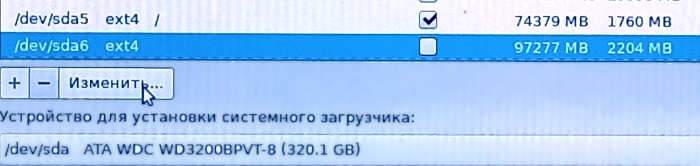
For the first Linux partition we indicate "Format partition", file system type -EXT4 "mount point is root" /".
lxle07

Change the parameters of the next section - the "Change" button
lxle08

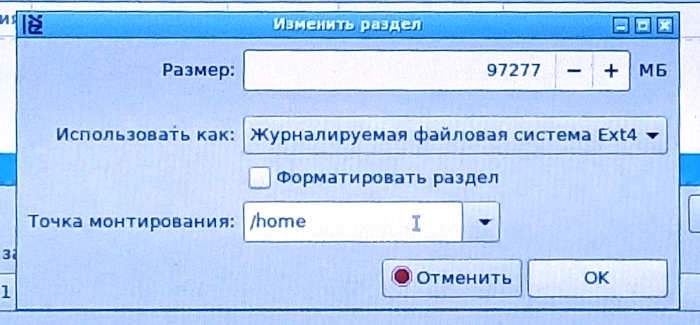
The next partition has the same parameters, but the mount point is "/home".
lxle09
If your profile contains valuable data, do not check the “Format” checkbox. Otherwise, or for initial installation on a new PC, it is better to use partition formatting to remove junk files from the user profile.

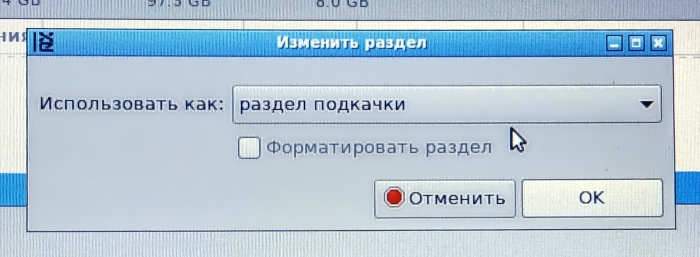
Don't forget to specify the type of the very last partition - "Swap file", which will be the partition for SWAP.
lxle10

All partitions for Linux installation are assigned.
lxle11

Press the button "Install Now".
lxle12

If the disk partition style is MBR, then a window will be displayed with a message that the EFI partition was not found and the operating system will not boot as expected: "No EFI System Partition was found. This system will likely not be able to boot successfully, and installation process may fail. Please go back and add EFI System Partition, or continue on your own risk."- buttons "Back" and "Continue".
lxle13
If a modern PC with UEFI instead of BIOS, and the disk partition style is GPT, then an EFI partition is needed, it should be created (at least 550 MB in FAT16 or FAT32). In my case, this section is not needed, because... An older style of MBR partitioning is used, in which part of the GRUB2 boot loader is stored at the beginning of the disk in the MBR sector, and the rest in the Linux partition in the /BOOT folder.
So I pressed the button "Continue".

Since I have the MBR partition style, a second warning was displayed stating that there is no partition for the boot loader in EFI mode: "It is normally required for you to create separate partition for boot loader code in order to boot your system in EFI mode. This partition should be marked for use as an " EFI boot partition "" and should be at least 35 MB in size. Note that this is not the same partition as /boot.

If you do not go back to partitioning menu and correct this error, boot loader installation may fail later, although it may be still possible to install the boot loader to a partition."

lxle14

As said earlier, in my case this is the system’s reaction to the MBR partitioning - I ignore it and continue by pressing the button "Continue".

The last warning is displayed in Russian. It states that changes to the partition table will be written to disk: "If you continue, the changes listed below will be written to disk. Or you can make all the changes manually.

ATTENTION! This operation will destroy all data on the partitions being deleted, as well as on those partitions on which the file system is to be created.

The following partitions will be formatted..."

"Back" and "Continue" buttons. To continue installing Linux, click "Continue".
lxle15

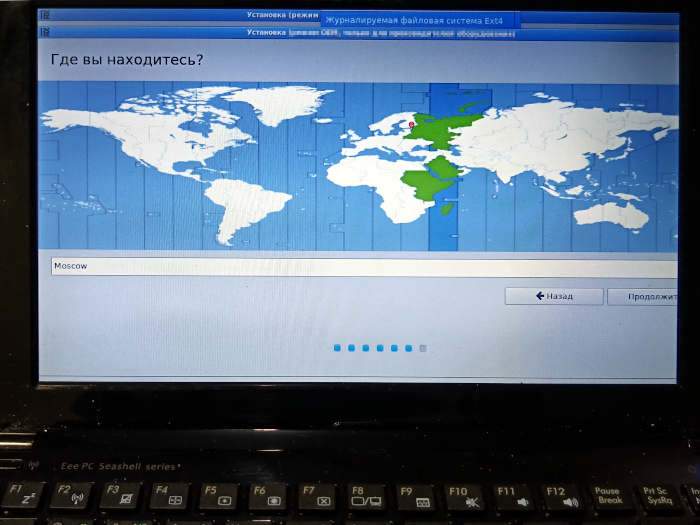
Шstep 7. Specifying the time zone

"Where are you?" -Moscow (click on the world map for your time zone).
lxle16
(This dialogue should be familiar to those who have installed Ubuntu).

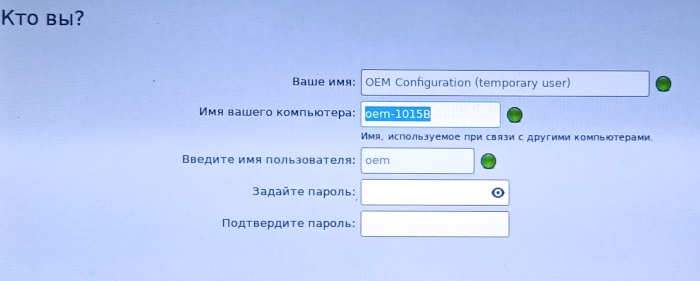
ШStep 8. Creating a user

Who are you? - enter your user name, computer name and set a login password.
In case of OEM installation. You cannot specify a user name - a temporary default user is created with the name "oem".
lxle17
The main thing is to remember the password, because... it will be needed when logging in, unlocking the screen when the guardian is triggered

tap and when performing administrative actions.

Until you have entered your password and password confirmation, the "Continue" button in the lower right corner is not available.
lxle18
When we click it, the final stage of installation will begin.

Шstep 9. System installation and reboot

Copying files takes 30-40 minutes. In the end, the program will try to install the bootloader and fail.

"The command grub-install /dev/sda failed"
This is an uncorrectable error."

Reboot.

ШStep 10. Manual installation of the GRUB2 boot loader

This item only applies to installation on an HDD with MBR partitioning.

After the reboot, you need to boot into Live-USB again and execute from the terminal ("Control Menu" - "Utilities" - "Sakura") commands.

As we remember, the main partition, which contains linux files (I have /dev/sda5).

Or execute the command sudo fdisk -l and look at the name of the main Linux partition.

sudo mount /dev/sda5 /mnt
sudo grub-install --root-directory=/mnt /dev/sda
sudo umount /mnt

where sda5 is the name of the Linux partition.

We reboot. After this, the system will display the bootloader prompt:

grub>

This problem is a consequence of a previous error. The situation arises only with MBR partitions, since the LXLE distribution is designed for GPT (EFI). Solution - see next paragraph.

ШStep 11. Initial system boot from the Grub menu

In the GRUB2 menu you need to run the following commands:

ls

root=(hd0,msdos5)

linux /boot/vmlinuz (press TAB and select the kernel name) root=/dev/sda5

initrd /boot/initrd.img

boot

The system is loading.

ШStep 12: Dual boot Linux and Windows

After loading the LxLE system, as it turned out, the command sudo update-grub no need to perform
because The operating system finds all boot partitions on its own during the first boot
and begins to take them into account during subsequent downloads. That is, LxLE registered all the found operating systems in the Grub menu without any action on my part.

Therefore, step #12 is not required. Sound and Wi-Fi worked immediately. Automatic mounting of USB Flash too.

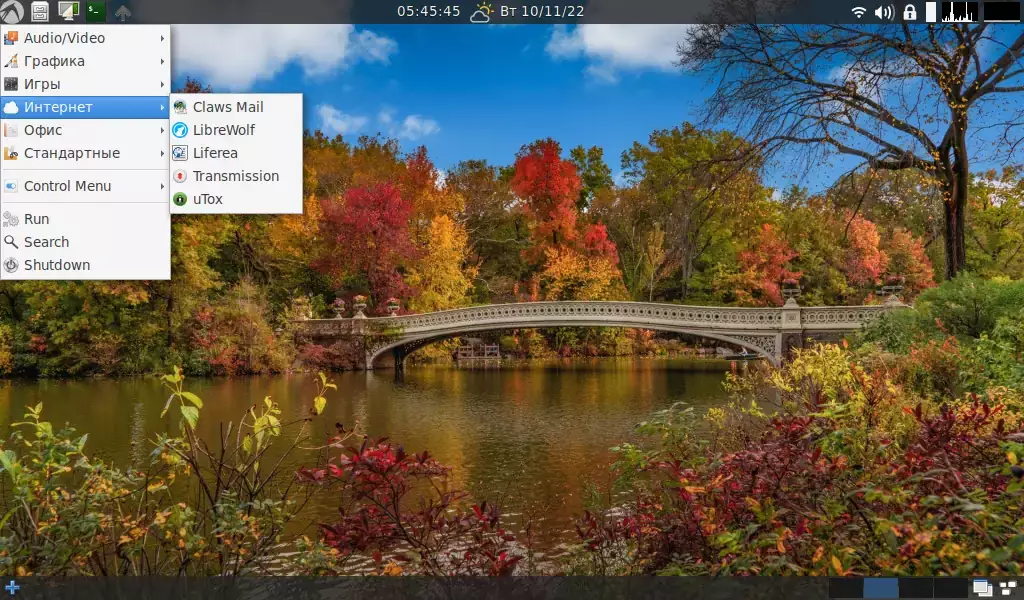
The desktop background can be changed as desired (there are many pictures in the "Images" folder.
desktop


Related publications

