
12
October
2023
Yandex Teleconference in Linux
18:32

Yandex Teleconference in Linux

12 October 2023 18:32

Yandex Telemost is a new video conferencing application, a Russian replacement for the Zoom service.

0. Introduction

The Teleconference program is a replacement for the American Zoom; it works well even on weak PCs of the Intel Atom / Intel Celeron / AMD E-350 (2-core) level. It has one drawback - it officially supports only Windows and MacOS operating systems.

It turns out that the program launches and runs on Linux OS.

1. Download the complete package for installing Yandex Telemost - Setup Pack

Since I encountered a problem when installing Yandex Teleconference even on Windows (an error occurred):

The support service sent a link to the Yandex Telemost distribution in a response letter:

https://webdav.yandex.ru/share/dist/TelemostSetupPack.exe

File TelemostSetupPack.exe downloaded to a local PC (distribution size 217.4 MB).

2.Wine

To run a Windows program you need Wine. I have a version wine-6.0.3(Ubuntu 6.0.3~repack-1), with which Telemost launched (see note below in point 5). Examination:

wine --version

In the new OS Ubuntu 22.04 "Jammy" or Linux Mint 21.2 "Victoria" and Debian 12 "Bookworm" the wine program must be the latest version.

To install the latest version of wine-devel (from the word Development - development), you need to run the commands:

sudo dpkg --add-architecture i386
wget  -qO- https://dl.winehq.org/wine-builds/winehq.key | gpg --dearmor | sudo tee /etc/apt/trusted.gpg.d/winehq.gpg  > /dev/null
sudo apt-add-repository 'https://dl.winehq.org/wine-builds/ubuntu/ main'
sudo apt update
sudo apt install --install-recommends wine
sudo apt install --install-recommends wine-stable

sudo apt install --install-recommends wine-devel

sudo apt upgrade

So I now have the latest stable version of Wine installed.

whereis wine
/opt/wine-stable/bin/wine --version

wine-8.0.2

3. Installation of the program

After the Wine version has become 8.0.2, you can begin installing the Yandex.Telemost program.
This instruction has been tested on Linux Mint 21.2 "Victoria" OS and LxLE OS based on Ubuntu 20.04 "Focal".

Installation of "Yandex Telemost" is done by right-clicking on the file TelemostSetupPack.exe and choice.

  • Open with -> Custom command -> Browse -> File system -> opt -> wine-stable -> bin -> wine

But it’s easier to enter the path to the program wine manually or copy and paste from the clipboard:
/opt/wine-stable/bin/wine
And click OK.

First you will be asked about installing the component."wine-mono"- We agree.
wine-mono

The Wine configuration will then begin updating. As a result, the Telemost installer will launch:

setup-telemost

A message appears "Your version of Windows 7 is out of date. Update your system to install Yandex Teleconference. Click OK to find out more", click OK.

4. Winecfg - change the Windows OS version and continue installation

Using the utility winecfg you need to switch the Windows version from 7 to 8.1:

/opt/wine-stable/bin/winecfg

Setting up winecfg - changing Windows version from 7 to 8.1

On the "Applications" tab, you need to change the Windows version in the list at the bottom of the window from "Windows 7" to "Windows 8.1" and click "OK".

Click on the file again TelemostSetupPack.exe-> right mouse button -> open with ->/opt/wine-stable/bin/wine

The installation will begin. Depending on the performance of the PC, you need to wait from 20 seconds to 5 minutes while the Yandex.Telemost program is installed.

A shortcut to launch “Teleconference” will be added to the Desktop and menu "Start" - Wine - Programs - Yandex.Teleconference.

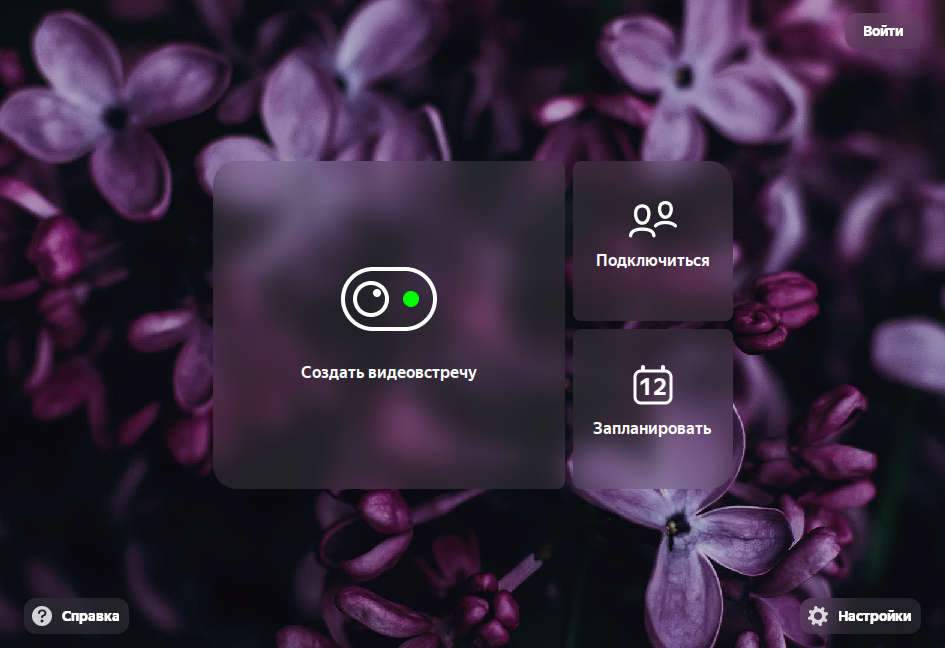
At the end of the installation, the Telemost program will launch. In its window, you only need to log in to Yandex using your email account (the “Login” button in the upper right corner of the screen).

run-telemost

The program will ask you to install the Gecko component (a built-in web browser like WebView).
wine-gecko

The Yandex.Telemost program works on Linux!

linux-telemost

5. Using Yandex.Telemost on Linux and working around problems

Problem #1:
The Desktop file on the Desktop contains a program call wine, тогда как нужна другая версия: /opt/wine-stable/bin/wine.

To solve the problem,corrected file on the Desktop using a text editor (right-click):

[Desktop Entry]
Name=Yandex.Teleconference
Exec=env WINEPREFIX="/home/vladimir/.wine" /opt/wine-stable/bin/wine C:\\users\\vladimir\\Application\ Data\\Yandex\\YandexTelemost\\1.0.50.1350\\YandexTelemost.exe -desktoplink
Type=Application
StartupNotify=true
Comment=Yandex.Teleconference
Icon=3E13_YandexTelemost.0
StartupWMClass=yandextelemost.exe

That is I replaced "wine C:" with "/opt/wine-stable/bin/wine C:"

Problem #2: when installing with a double click, it was installed in Wine 6.0.3. The teleconference worked until the PC was rebooted. After rebooting, in wine 6.0.3 it says "Failed to log in to Teleconference. Try again or log in another way through your browser."


I solved the problem using method No. 1 - launching using the corrected Desktop file.

On the first launch, the wine configuration was updated and the problem went away. The program asked for a security question.

Information:
When installing the WineHQ repository, the installer places Wine in the directory
/opt/wine-stable/bin/wine
The YandexTelemost.exe program is located in the hidden folder "~/.wine/drive_c" along the path:
C:\users\username\Application Data\Yandex\YandexTelemost\1.0.50.1350\YandexTelemost.exe

From the corrected “shortcut” on the desktop, pointing to wine 8.x in the /opt directory, launching and logging into “Teleconference” via Yandex-ID occurs without errors.

telemost-linux-new-wine

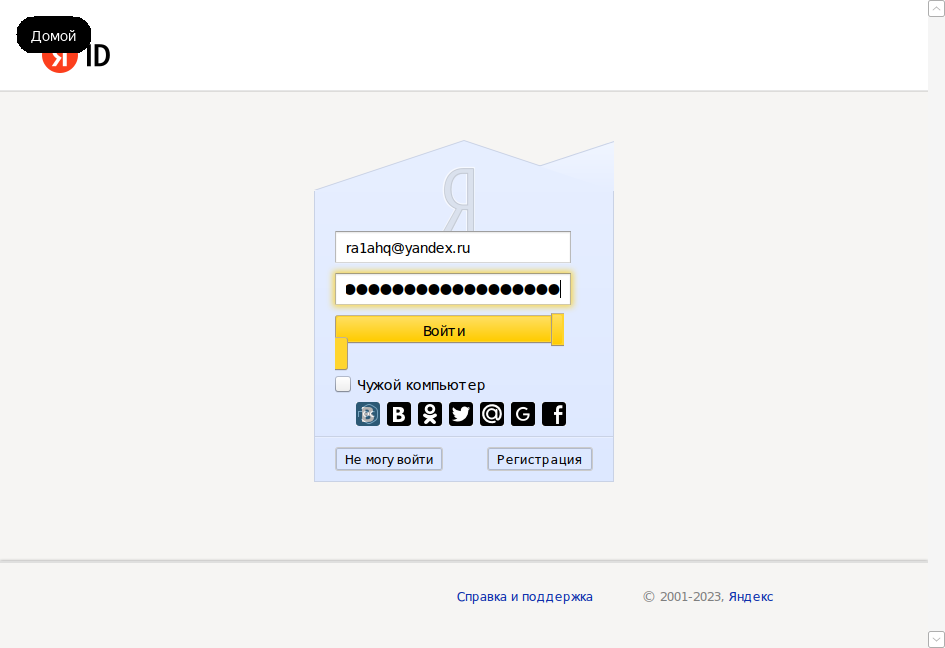
Problem #3: Login security question

The program first asked me a security question (the answer to which I knew and entered into the input field to the right of the security question)

telemost-linux-new-wine
telemost-linux-new-wine2
The program threw out a message "cannot post / redirect" with the Home button on top of it.
telemost-linux-new-wine3
Closed the program. Launched it from the desktop shortcut again. Clicked “Login” again.
The screen changed to a normal login using Yandex.ID without a password. Selected an account to log in.
telemost-linux-new-wine4
This time the login was successful - the “Login” inscription was replaced with a profile image:
telemost-linux-new-wine5

Пproblem #4. There is a screen demo. But the chat doesn't work!
This problem has not been resolved. Attention: when you start the chat, the program freezes!
To print explanatory messages, if there is no microphone, you can use the “Text Editor” as in the figure above.

Пproblem #5. The webcam does not work on a netbook running LXLE (Ubuntu 20.04)

"The video could not be turned on. The camera is not working or is being used by another application."

The problem with the webcam has not yet been resolved. The same camera worked in the TrueConf program (albeit very poorly), so there is some kind of incompatibility with the Eee PC netbook.

Web USB2.0 UVC VGA WebCam: USB2.0U is visible, but in the Yandex.Teleconference settings in Linux it is not selected, nothing happens.
"I was unable to enable video from a webcam in Linux using Wine."

!Addition: how to check webcam in Linux? In applications guvcview и cheese. Также: ffplay /dev/video0 или celluloid /dev/video0.

Пproblem #6. On a netbook with a low screen resolution, the "Settings" button is located below the bottom edge of the screen (out of view)"

The solution is to resize the Linux interface:

xrandr -q
xrandr --output LVDS --scale 1.1x1.1

7. Conclusions

  1. The result of installing Yandex.Telemost version 1.0.50.1350 on Ubuntu Linux 20.04 and 22.04 is positive.

  2. In the program on the PC of the meeting initiator, you can enable screen sharing, and on other PCs you can watch the screen of the conference organizer.

    Desktop PC running Linux Mint OS
    telemost_1
    Image on a Windows laptop(same image on Linux clients).
    telemost-2

  3. Based on pulseaudio/pulseaudio audio source/sink, the system sound should be working.
    pulseaudio

I checked that there is sound and image on the remote computer!

  1. The webcam does not work on the Asus Eee PC netbook, possibly due to incompatibility with Wine. But you can take part in the conference - there is image and sound from the computer of the conference organizer.

  2. Yandex.Teleconference works on Linux in version wine 8.0.2.

  3. Teleconference is not a native Linux application. I hope that the program will be rewritten for Linux OS and soon it will be possible to run it without Wine.

8. Web version of Yandex.Telemost

It is possible to use Yandex.Telemost as a web application, that is, without installation on a PC.

https://telemost.yandex.ru

Chromium-Gost or Mozilla Firefox. The only requirement is that you need a fairly powerful processor, since, for example, ASUS Eee PC, the video delay during broadcast is up to 5-6 seconds.

Links:


Related publications

