---
title: 'Solving the problem "Could Not Find Command-not-found database"'
url: 'https://ra1ahq.blog/en/reshenie-problemy-could-not-find-command-not-found-database'
markdown: 'https://ra1ahq.blog/en/reshenie-problemy-could-not-find-command-not-found-database.md'
lang: en
date: '2023-10-11'
description: 'The "Command-not-found" stub program is triggered when a user mistakenly enters in the terminal a non-existent command name, such as "foobar". In some cases, the command-not-found program doesn''t work. How can I fix it? Introd'
taxonomy:
archives_month:
- oct_2023
archives_year:
- '2023'
---
# Solving the problem "Could Not Find Command-not-found database"
11
October
2023
16:44
### Solving the problem "Could Not Find Command-not-found database"
11 October 2023 16:44
The "Command-not-found" stub program is triggered when a user mistakenly enters in the terminal a non-existent command name, such as "foobar". In some cases, the command-not-found program doesn't work. How can I fix it?
### Introduction
As you know, the programs are contained in packages, and the packages are managed by the **apt** command based on the contents of the file `/etc/apt/sources.list` and files \*.list in subfolder `sources.list.d`. When changing the composition of the repositories, the **"command-not-found"** program database, which is located along the path `/var/lib/command-not-found/`, should be automatically updated. The symptoms of the problem I have encountered are the following:
1\) When performing an incorrect command, a message is displayed
`...
Could not find command-not-found database. Run 'sudo apt update' to populate it.
... : command not found`
2\) There is no database for the command, which is the fact:
```
ls -l /var/lib/command-not-found/
```
0 files
### Cause
After the call of utility `apt-get update` worked out, a Bash script must run: **`/etc/apt/apt.conf.d/50command-not-found`**. Linux LXLE doesn't have such a file, but Linux Mint does. The LXLE developers forgot to include the file `50command-not-found`?
### Solution: Method No. 1
Copy the file `/etc/apt/apt.conf.d/50command-not-found` from Linux Mint to LXLE or create it manually.
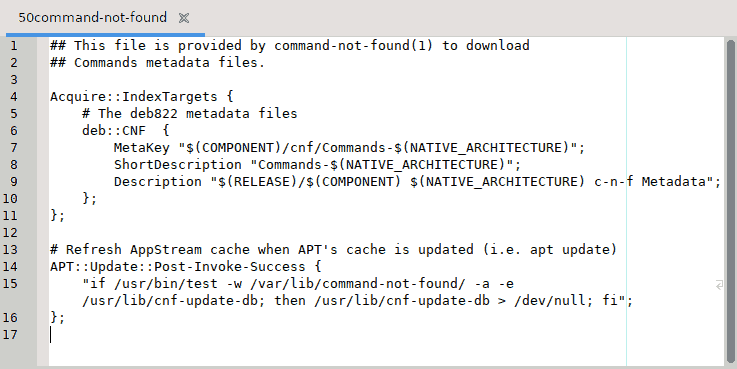
The source text is 50command-not-found:
[50command-not-found.zip](https://ra1ahq.blog/en/reshenie-problemy-could-not-find-command-not-found-database/50command-not-found.zip)
After that, update the cache by calling **`apt update`**. It will also create SQLite database files for the **"command-not-found"** program in the `/var/lib/command-not-found/` directory. The files "commands.db" and "commans.db.metadata" are created by the Python script `/usr/lib/cnf-update-db`. (To do this, Python 2.7 or higher must be installed on the operating system - the condition in Linux LXLE is fulfilled).
### Solution: Method No. 2
Nach der Aktualisierung der Pakete **`apt update`** müssen Sie die folgenden 2 Befehle im Terminal manuell mit den Rechten von `sudo` ausführen:
```
sudo rm -f /var/lib/command-not-found/*.*
sudo /usr/lib/cnf-update-db
```
### Non-working solution (from the Internet)
– can be suitable for other distributions
Reinstalling the utility:
sudo apt purge command-not-found
sudo apt install command-not-found
sudo apt update
### Testing
Check the presence of files `commands.db` and `commands.db.metadata`:
```
ls -l /var/lib/command-not-found/
```
` Total 3156
-rw-r--r-- 1 root root 3223552 окт 11 15:53 commands.db
-rw-r--r-- 1 root root 3260 окт 11 15:53 commands.db.metadata
User@host:~$`
Führen Sie den „falschen“ Befehl aus, zum Beispiel „Appt“:
```
appt
```
`The Appt command was not found. Perhaps you meant:
command 'ppt' from deb bsdgames (2.17-29)
command 'apt' from deb apt (2.4.10)
command 'aapt' from deb aapt (1:10.0.0+r36-3)
Try: sudo apt install `
Message *"Could not find command-not-found database. Run 'sudo apt update' to populate it."* it is no longer displayed.' That's fix.
[ Backward](https://ra1ahq.blog/en/kak-uznat-model-videokarty-v-linux-i-ustanovit-draivery-grafiki-v-ubuntu-mint-debian "Previuous page")
[ Forward ](https://ra1ahq.blog/en/yandex-telemost-v-linux "Next page")
## Languages
- [Русский](https://ra1ahq.blog/posts/reshenie-problemy-could-not-find-command-not-found-database)
- [English](https://ra1ahq.blog/en/reshenie-problemy-could-not-find-command-not-found-database)
- [Deutsch](https://ra1ahq.blog/de/posts/reshenie-problemy-could-not-find-command-not-found-database)
- [Français](https://ra1ahq.blog/fr/posts/reshenie-problemy-could-not-find-command-not-found-database)
- [中文 (简体) (cn)](https://ra1ahq.blog/zh-cn/posts/reshenie-problemy-could-not-find-command-not-found-database)
## Theme
## RSS feeds
[ Atom 1.0](https://ra1ahq.blog/en/.atom) [ RSS](https://ra1ahq.blog/en/.rss)
## Popular tags
[APRS](https://ra1ahq.blog/en/tag:APRS) [CW](https://ra1ahq.blog/en/tag:CW) [DX](https://ra1ahq.blog/en/tag:DX) [FM](https://ra1ahq.blog/en/tag:FM) [Linux](https://ra1ahq.blog/en/tag:Linux) [VHF](https://ra1ahq.blog/en/tag:VHF) [antennas](https://ra1ahq.blog/en/tag:antennas) [firefox](https://ra1ahq.blog/en/tag:firefox) [morse](https://ra1ahq.blog/en/tag:morse) [soundtrack](https://ra1ahq.blog/en/tag:soundtrack) [video](https://ra1ahq.blog/en/tag:video) [windows](https://ra1ahq.blog/en/tag:windows) [youtube](https://ra1ahq.blog/en/tag:youtube) [КВ](https://ra1ahq.blog/en/tag:%D0%9A%D0%92) [ТВ](https://ra1ahq.blog/en/tag:%D0%A2%D0%92) [УКВ](https://ra1ahq.blog/en/tag:%D0%A3%D0%9A%D0%92) [антенны](https://ra1ahq.blog/en/tag:%D0%B0%D0%BD%D1%82%D0%B5%D0%BD%D0%BD%D1%8B) [безопасность](https://ra1ahq.blog/en/tag:%D0%B1%D0%B5%D0%B7%D0%BE%D0%BF%D0%B0%D1%81%D0%BD%D0%BE%D1%81%D1%82%D1%8C) [длинные волны](https://ra1ahq.blog/en/tag:%D0%B4%D0%BB%D0%B8%D0%BD%D0%BD%D1%8B%D0%B5%20%D0%B2%D0%BE%D0%BB%D0%BD%D1%8B) [путешествия](https://ra1ahq.blog/en/tag:%D0%BF%D1%83%D1%82%D0%B5%D1%88%D0%B5%D1%81%D1%82%D0%B2%D0%B8%D1%8F) [религия](https://ra1ahq.blog/en/tag:%D1%80%D0%B5%D0%BB%D0%B8%D0%B3%D0%B8%D1%8F) [соревнования](https://ra1ahq.blog/en/tag:%D1%81%D0%BE%D1%80%D0%B5%D0%B2%D0%BD%D0%BE%D0%B2%D0%B0%D0%BD%D0%B8%D1%8F) [спутники](https://ra1ahq.blog/en/tag:%D1%81%D0%BF%D1%83%D1%82%D0%BD%D0%B8%D0%BA%D0%B8) [средние волны](https://ra1ahq.blog/en/tag:%D1%81%D1%80%D0%B5%D0%B4%D0%BD%D0%B8%D0%B5%20%D0%B2%D0%BE%D0%BB%D0%BD%D1%8B) [схемы](https://ra1ahq.blog/en/tag:%D1%81%D1%85%D0%B5%D0%BC%D1%8B) [тесты](https://ra1ahq.blog/en/tag:%D1%82%D0%B5%D1%81%D1%82%D1%8B) [трансивер](https://ra1ahq.blog/en/tag:%D1%82%D1%80%D0%B0%D0%BD%D1%81%D0%B8%D0%B2%D0%B5%D1%80) [управление](https://ra1ahq.blog/en/tag:%D1%83%D0%BF%D1%80%D0%B0%D0%B2%D0%BB%D0%B5%D0%BD%D0%B8%D0%B5) [фотографии](https://ra1ahq.blog/en/tag:%D1%84%D0%BE%D1%82%D0%BE%D0%B3%D1%80%D0%B0%D1%84%D0%B8%D0%B8)
## Random post
[ I'll be lucky!](https://ra1ahq.blog/en/random)
## Archive of posts
- [ October 2026 ✒ 4 ](https://ra1ahq.blog/en/archives_month:oct_2026)
- [ September 2026 ✒ 9 ](https://ra1ahq.blog/en/archives_month:sep_2026)
- [ August 2026 ✒ 6 ](https://ra1ahq.blog/en/archives_month:aug_2026)
- [ July 2026 ✒ 13 ](https://ra1ahq.blog/en/archives_month:jul_2026)
- [ June 2026 ✒ 8 ](https://ra1ahq.blog/en/archives_month:jun_2026)
- [ May 2026 ✒ 2 ](https://ra1ahq.blog/en/archives_month:may_2026)
- [ April 2026 ✒ 6 ](https://ra1ahq.blog/en/archives_month:apr_2026)
- [ March 2026 ✒ 3 ](https://ra1ahq.blog/en/archives_month:mar_2026)
- [ February 2026 ✒ 7 ](https://ra1ahq.blog/en/archives_month:feb_2026)
- [ January 2026 ✒ 8 ](https://ra1ahq.blog/en/archives_month:jan_2026)
- [ December 2025 ✒ 12 ](https://ra1ahq.blog/en/archives_month:dec_2025)
- [ November 2025 ✒ 9 ](https://ra1ahq.blog/en/archives_month:nov_2025)
- [ October 2025 ✒ 8 ](https://ra1ahq.blog/en/archives_month:oct_2025)
- [ September 2025 ✒ 5 ](https://ra1ahq.blog/en/archives_month:sep_2025)
- [ August 2025 ✒ 8 ](https://ra1ahq.blog/en/archives_month:aug_2025)
- [ July 2025 ✒ 6 ](https://ra1ahq.blog/en/archives_month:jul_2025)
- [ June 2025 ✒ 10 ](https://ra1ahq.blog/en/archives_month:jun_2025)
- [ May 2025 ✒ 4 ](https://ra1ahq.blog/en/archives_month:may_2025)
- [ April 2025 ✒ 4 ](https://ra1ahq.blog/en/archives_month:apr_2025)
- [ March 2025 ✒ 4 ](https://ra1ahq.blog/en/archives_month:mar_2025)
- [ February 2025 ✒ 11 ](https://ra1ahq.blog/en/archives_month:feb_2025)
- [ December 2024 ✒ 8 ](https://ra1ahq.blog/en/archives_month:dec_2024)
- [ November 2024 ✒ 2 ](https://ra1ahq.blog/en/archives_month:nov_2024)
- [ October 2024 ✒ 8 ](https://ra1ahq.blog/en/archives_month:oct_2024)
- [ September 2024 ✒ 3 ](https://ra1ahq.blog/en/archives_month:sep_2024)
- [ August 2024 ✒ 5 ](https://ra1ahq.blog/en/archives_month:aug_2024)
- [ July 2024 ✒ 9 ](https://ra1ahq.blog/en/archives_month:jul_2024)
- [ June 2024 ✒ 6 ](https://ra1ahq.blog/en/archives_month:jun_2024)
- [ May 2024 ✒ 7 ](https://ra1ahq.blog/en/archives_month:may_2024)
- [ April 2024 ✒ 5 ](https://ra1ahq.blog/en/archives_month:apr_2024)
- [ March 2024 ✒ 5 ](https://ra1ahq.blog/en/archives_month:mar_2024)
- [ February 2024 ✒ 5 ](https://ra1ahq.blog/en/archives_month:feb_2024)
- [ January 2024 ✒ 6 ](https://ra1ahq.blog/en/archives_month:jan_2024)
- [ December 2023 ✒ 7 ](https://ra1ahq.blog/en/archives_month:dec_2023)
- [ November 2023 ✒ 4 ](https://ra1ahq.blog/en/archives_month:nov_2023)
- [ October 2023 ✒ 8 ](https://ra1ahq.blog/en/archives_month:oct_2023)
- [ September 2023 ✒ 7 ](https://ra1ahq.blog/en/archives_month:sep_2023)
- [ August 2023 ✒ 4 ](https://ra1ahq.blog/en/archives_month:aug_2023)
- [ July 2023 ✒ 7 ](https://ra1ahq.blog/en/archives_month:jul_2023)
- [ June 2023 ✒ 7 ](https://ra1ahq.blog/en/archives_month:jun_2023)
- [ May 2023 ✒ 5 ](https://ra1ahq.blog/en/archives_month:may_2023)
- [ April 2023 ✒ 6 ](https://ra1ahq.blog/en/archives_month:apr_2023)
- [ March 2023 ✒ 5 ](https://ra1ahq.blog/en/archives_month:mar_2023)
- [ February 2023 ✒ 2 ](https://ra1ahq.blog/en/archives_month:feb_2023)
- [ January 2023 ✒ 5 ](https://ra1ahq.blog/en/archives_month:jan_2023)
- [ December 2022 ✒ 7 ](https://ra1ahq.blog/en/archives_month:dec_2022)
- [ November 2022 ✒ 8 ](https://ra1ahq.blog/en/archives_month:nov_2022)
- [ October 2022 ✒ 6 ](https://ra1ahq.blog/en/archives_month:oct_2022)
- [ September 2022 ✒ 9 ](https://ra1ahq.blog/en/archives_month:sep_2022)
- [ August 2022 ✒ 8 ](https://ra1ahq.blog/en/archives_month:aug_2022)
- [ July 2022 ✒ 4 ](https://ra1ahq.blog/en/archives_month:jul_2022)
- [ June 2022 ✒ 9 ](https://ra1ahq.blog/en/archives_month:jun_2022)
- [ May 2022 ✒ 7 ](https://ra1ahq.blog/en/archives_month:may_2022)
- [ April 2022 ✒ 3 ](https://ra1ahq.blog/en/archives_month:apr_2022)
- [ March 2022 ✒ 4 ](https://ra1ahq.blog/en/archives_month:mar_2022)
- [ February 2022 ✒ 6 ](https://ra1ahq.blog/en/archives_month:feb_2022)
- [ January 2022 ✒ 7 ](https://ra1ahq.blog/en/archives_month:jan_2022)
- [ December 2021 ✒ 7 ](https://ra1ahq.blog/en/archives_month:dec_2021)
- [ November 2021 ✒ 7 ](https://ra1ahq.blog/en/archives_month:nov_2021)
- [ October 2021 ✒ 7 ](https://ra1ahq.blog/en/archives_month:oct_2021)
- [ September 2021 ✒ 10 ](https://ra1ahq.blog/en/archives_month:sep_2021)
- [ August 2021 ✒ 6 ](https://ra1ahq.blog/en/archives_month:aug_2021)
- [ July 2021 ✒ 7 ](https://ra1ahq.blog/en/archives_month:jul_2021)
- [ June 2021 ✒ 7 ](https://ra1ahq.blog/en/archives_month:jun_2021)
- [ May 2021 ✒ 7 ](https://ra1ahq.blog/en/archives_month:may_2021)
- [ April 2021 ✒ 4 ](https://ra1ahq.blog/en/archives_month:apr_2021)
- [ March 2021 ✒ 4 ](https://ra1ahq.blog/en/archives_month:mar_2021)
- [ February 2021 ✒ 3 ](https://ra1ahq.blog/en/archives_month:feb_2021)
- [ January 2021 ✒ 4 ](https://ra1ahq.blog/en/archives_month:jan_2021)
- [ December 2020 ✒ 8 ](https://ra1ahq.blog/en/archives_month:dec_2020)
- [ November 2020 ✒ 2 ](https://ra1ahq.blog/en/archives_month:nov_2020)
- [ October 2020 ✒ 3 ](https://ra1ahq.blog/en/archives_month:oct_2020)
- [ September 2020 ✒ 3 ](https://ra1ahq.blog/en/archives_month:sep_2020)
- [ August 2020 ✒ 5 ](https://ra1ahq.blog/en/archives_month:aug_2020)
- [ July 2020 ✒ 5 ](https://ra1ahq.blog/en/archives_month:jul_2020)
- [ June 2020 ✒ 8 ](https://ra1ahq.blog/en/archives_month:jun_2020)
- [ May 2020 ✒ 10 ](https://ra1ahq.blog/en/archives_month:may_2020)
- [ April 2020 ✒ 4 ](https://ra1ahq.blog/en/archives_month:apr_2020)
- [ March 2020 ✒ 2 ](https://ra1ahq.blog/en/archives_month:mar_2020)
- [ January 2020 ✒ 1 ](https://ra1ahq.blog/en/archives_month:jan_2020)
- [ December 2019 ✒ 2 ](https://ra1ahq.blog/en/archives_month:dec_2019)
## Search
## Weather forecast
[На 14 дней](https://world-weather.ru/pogoda/russia/saint_petersburg/14days/)
[world-weather.ru](https://world-weather.ru/)
---
## Navigation
- Parent: [RA1AHQ](https://ra1ahq.blog/en/index.md)
- Previous: [Yandex Teleconference in Linux](https://ra1ahq.blog/en/yandex-telemost-v-linux.md)
- Next: [How to find out your video card model in Linux and install graphics drivers in Ubuntu/Mint/Debian](https://ra1ahq.blog/en/kak-uznat-model-videokarty-v-linux-i-ustanovit-draivery-grafiki-v-ubuntu-mint-debian.md)