18
July
2025
Installing Flatpak and Snap app shortcuts in LXDE menu
17:17

Installing Flatpak and Snap app shortcuts in LXDE menu

18 July 2025 17:17

Solution to the problem: after installing applications from FlatPak and Snap, there are no shortcuts to launch them in the LXDE shell in the Start menu.

Background

The LXLE operating system is a lightweight distribution for old or slow PCs.
LXLE is based on the LXDE desktop, written in C and the GTK library.
This OS is the only one based on Ubuntu that makes the Eee PC 1015B laptop quite responsive (AMD C-30 @1200 MHz processor). The Windows 7 x86 that came from the factory is outdated and does not support 8 GB of RAM.

To check which desktop your Linux session is using, enter in Terminal:

echo $DESKTOP_SESSION

If this echo command outputs "LXDE" (or "Openbox" for Linux RUNTU LITE - note dated 08/07/2025), this article is for you.

On my laptop I use two web browsers: Google Chromium and Mozilla Firefox. Just for fun, I installed the Firefox browser from the jammy/universe repository (command sudo apt install firefox), and from Flatpak (see point 1.1 below).
(The option of installing chromium from snap is experimental, I do not recommend using it because it slows down the PC).

1. Installing FireFox and Chromium web browsers from Flatpak and Snap

1.1 Installing Firefox and Chromium from Flatpak

Previously, I installed Flatpak and two applications from FlatPak, which is described at the end of the article about updating 20.04 to 22.04, in the section about flatpak:

On many desktops, Flatpak appears in the Start menu after installation, but not on LXDE.

1.2 Installing Chromium from Snap

In this version, Chromium is installed from the Snap store. Team:

sudo apt update
sudo apt install chromium-browser

I do not recommend installing Snap this way due to the subsequent slowdown in startup of the operating system.
The best option for installing Chromium is from Flatpak, see.paragraph 1.1 above.

2. Add Flatpak App Shortcuts to LXDE Start Menu

On Linux, the *.desktop shortcut files for system applications are located in the folder /usr/share/applications.
The Flatpak application is a user application and its shortcut must be in the current user's folder ~/.local/share/applications.

Requiredcopy Flatpak *.desktop files from folder /var/lib/flatpak/exports/share/ в локальную папку профиля пользователя ~/.local/share/applications/:

cp /var/lib/flatpak/exports/share/applications/*.desktop ~/.local/share/applications/

After you log out and log back in, shortcuts to launch applications appear in the Start menu.

A small problem is that the application icons ("icons") are gray squares. How to fix this shortcoming?

3. Solving the problem with displaying Flatpak application icons in the Start menu of the LXDE shell

The *.desktop files for launching Start menu applications in LXDE are located in the ~/.local/share/applications/ folder.
Of which files that start with org correspond to Flatpak. You need to edit the Flatpak shortcut test files.

Before doing this, you need to find the paths to the icon source files in PNG format.

Graphic files of application icons ("icons") are located in the /var/lib/flatpak/exports/share/icons/hicolor subdirectory 128x128/apps!

3.1. Getting full paths to Flatpak icon files

clear
for f in $(ls /var/lib/flatpak/exports/share/icons/hicolor/128x128/apps/*.png); do echo $f; done

The result of the command is a list of full paths to *.PNG files with a size of 128x128 pixels.

To display a list of 64x64 icons:

for f in $(ls /var/lib/flatpak/exports/share/icons/hicolor/64x64/apps/*.png); do echo $f; done

The optimal icon size for the LXDE menu is 16x16 pixels. Only Mozilla FireFox has this size, 16x16, so you have to use larger Flatpak app icons.

/var/lib/flatpak/exports/share/icons/hicolor/64x64/apps/org.chromium.Chromium.png

/var/lib/flatpak/exports/share/icons/hicolor/64x64/apps/org.mozilla.firefox.png

The text listing the files must be selected with the mouse and copied to the clipboard - Ctrl + Shift + C.

For convenience, text from the clipboard can be pasted into the MousePad editor window, but you can get by with just the clipboard if you have only 1-2 FlatPak applications installed.

In my case, in Flatpak browsers Chrome and FireFox: - two lines for PNG icon files.
Copied lines with file paths to the clipboard. Click on the image, release your finger and hold to enlarge:
paths
There is no difference in performance between 64x16 and 128x128 icons.

3.2 Editing text files *.*.desktop: specifying paths to icon files in the “Icon” items

I went to the folder with desktop files ~/.local/share/applications/ . There are two files in the directory starting with "org." - from Flatpak.
(If there are no org.*...desktop files, see point 2 - you need to copy the .desktop files).

Listing org*.desktop files:
cd ~/.local/share/applications/
ls -l org*.desktop

Editing the first file - shortcut to launch Mozilla Firefox:

cd ~/.local/share/applications/
nano org.mozilla.firefox.desktop

In the “Icon” line, I deleted “org.mozilla.firefox” and pasted the text via the clipboard:

Icon=/var/lib/flatpak/exports/share/icons/hicolor/128x128/apps/org.mozilla.firefox.png

Also, the line Name[ru]=Firefox replaced with Name[ru]=Firefox FP to distinguish the Flatpak version from the regular one from the DEB package.

and saved and exited "Ctrl+S", "Ctrl+X".

I did the same with the second file - the Chromium shortcut:

cd ~/.local/share/applications/
nano org.chromium.Chromium.desktop

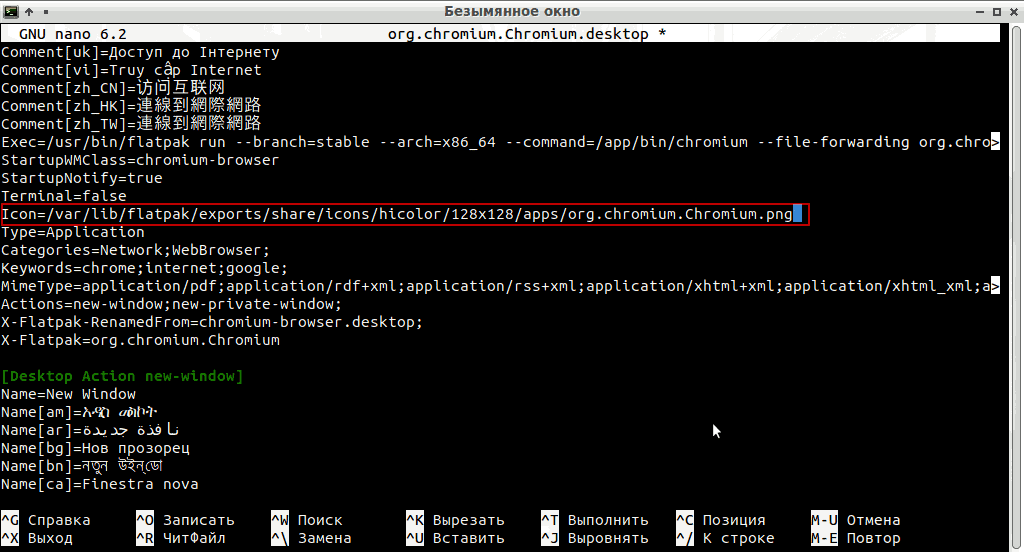
The 'Icon' line is located about 1/3 of the way from the beginning of the file. In it I replaced org.chromium.Chromium with a different path (Ctrl+Shift+V)

Icon=/var/lib/flatpak/exports/share/icons/hicolor/128x128/apps/org.chromium.Chromium.png

See screenshot (press and hold 1 finger to enlarge):
nano editor

Replaced the application name at the very beginning of the file with Name=Chromium на Name=Chromium FP, to distinguish it from the Chromium version that was installed from a DEB package.

Once you save the .desktop shortcut file, the changes are applied immediately.

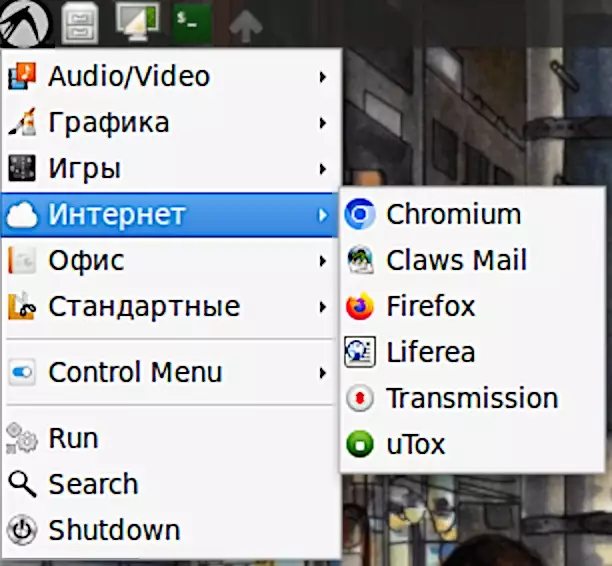
The icons have been replaced. LXDE Start menu icons updated instantly!

See screenshot (taken before changing the name in the app shortcut):
screen start menu

4. Solving the problem with displaying application icons from the Snap store in the Start menu of the LXDE shell

After installation, we find out from Snap where the application is located:

whereis chromium

Result:

chromium: /snap/bin/chromium

This shows that the Chromium application was installed from Snap!
Installing chromium-browser from snap causes PC to slow down.

The .desktop files in Snap are in a different directory, namely /var/lib/snapd/desktop/applications:

cd /var/lib/snapd/desktop/applications
ls

As before, copy the .desktop file to ~/.local/share/applications/ and edit the local .desktop file

cp chromium_chromium.desktop  ~/.local/share/applications/
nano ~/.local/share/applications/chromium_chromium.desktop

You can correct the name from Name[ru]=Веб браузер Chromium на Name[ru]=Веб браузер Chromium S, which means "From Snap".
And save the file (Ctrl+S, Ctrl+X).

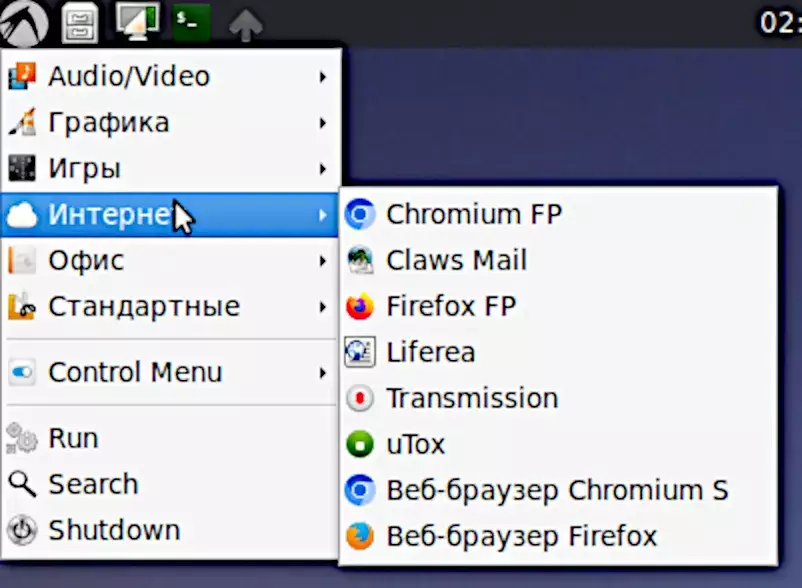
Application icons and names updated successfully:
icons new


Date of last modification: 08/07/2025 - a note about OpenBox in Linux RUNTU LITE.


Related publications