
20
September
2021
Solution of the problem: Linux does not start after cloning HDD disc to the SSD
15:34

Solution of the problem: Linux does not start after cloning HDD disc to the SSD

20 September 2021 15:34

When loading from a disc-clone, the computer "hung" after a BIOS "Verifying DMI pool data".

Background

1) On the main disk, the volume is first installed Windows XP for experiments. Then Linux Mint is installed nearby - the operating system for work. Separate table - MBR. The main section is Windows, and Linux is installed in an additional section.

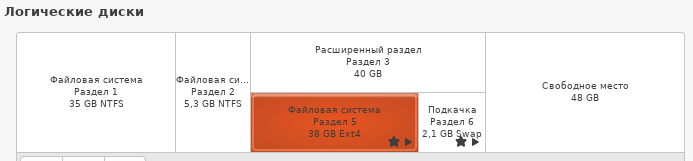
Scheme of sections:

  • partition 1 /dev/sda1 - NTFS/exFAT/HPFS Windows 35 GB - boot loading
  • partition 2 /dev/sda2 - NTFS/exFAT/HPFS data
  • Extended section 3, volume of 40 GB, in which Linux Mint is installed.
    • partition 4 - Ext4 - root partition "/"
    • partition 5 - SWAP

2) At a certain time, the place was missing, and damaged sectors formed on the surface, the speed of launches of “heavy” programs (the mail client ThunderbirD) I did not please. He decided to transfer the operating system and data from the HDD on the SSD method of "cloning".

3) I bought a SSD disc of a larger volume in China - 120 GB. The disk was not marked.

4) using the CR-R booting with the Clonezill programa 2.6.7 x64 (Debian) cloned (mirrored) the source disk to the destination disk, with advanced installation ("Expert Mode"):
-gauto Reinstall Grub in the boot sector of the target hard drive
-e1 auto automatically align the geometry of the file system for the loading section NTFS
-e2 SFDISK uses CHS hard drive with ESD (for non-GRUB bootloader)
-j2 clone data hidden between MBR and the first section
-r change the size of the file system, respectively, the size of the target section
-rescue, when reading a disk blocking error - read the next block.

On the next screen, by default, the option is used:
- Fsck Skip check/restoring the original file system

The penultimate screen before cloning - used the setting:
- use the table of sections from the original disk.

Problem

After cloning the HDD, at the first launch of the computer with new SSD-Disk (the old disc is disconnected) the operating system did not download : after the BIOS message "Verifying DMI pool data" - a blinking cursor on the black screen.

Solution

Since no disk structure related errors were noticed during cloning in CloneZilla, the only reason why the Linux operating system did not boot was due to the Grub2 bootloader. I decided to reinstall Grub2 on the working Linux partition.

On the forum Linux.Stackexchange.com I found the solution which helped me 100%.

Explanation: the bootloader is divided into 2 parts: the first 512 bytes are written in MBR, executed files and scripts - to the catalog /boot/grub. You need to reinstall Grub2.

Installation of the bootloader grub2 using an operating system command grub-install:

1) I connected both disks to the PC - the old HDD and the new SSD.
The first HDD boot device, loading sequence: SSD, HDD.

2) Booted the PC from the old HDD-disk. (At the time of loading there was a small pause associated with the impossibility of starting the system from the SSD-Disk).

3) I looked in the "Office" "Disks" utility Name of the Ext4 section with Linux on the new disk, it turned out to be /DEV/SDA5

(The name of the device can be obtained using the command df -h).

4) launched the terminal and executed the following commands for installing the boother Grub на /dev/sda:

sudo mount /dev/sda5/mnt
sudo mount --bind /dev/mnt/dev
sudo mount --bind /proc/mnt/proc
sudo mount --bind /sys/mnt/sys
sudo chroot /mnt
grub-install /dev/sda
update-grub
exit
sudo umount /mnt/dev
sudo umount /mnt/proc
sudo umount /mnt/sys
sudo umount /mnt
sudo shutdown -h now

5) After the completion of the PC, I turned off the power and disconnected the SATA sheff from the old HDD-disk.

6) turned on the PC - the operating system loaded from the new SSD disk without errors.

The problem is solved.


Supplement: expansion of the root ("/") section of Linux after cloning

1) When booting the LiveCD, I selected Russian and clicked "Try Xubuntu."
2) Launched GParted, a graphical partition management utility.
3) Using the mouse, I selected the extended partition where Linux and SWAP are installed (in my case, "/dev/sda3").
4) Right-click - "Resize/Move."
5) Free Space following (Mib) - set it to 0 MB. The "New size (MiB)" item increased accordingly.
6) Select the SWAP subkey - right-click - "Swapoff."
7) Right-click on the SWAP partition - "Delete."
8) Expand the "/dev/sda5" subkey where the system is installed to almost the entire disk size, leaving 6 GB for SWAP.
9) Create a new partition (right-click) - "Swap" (at the end of the disk) by 6 GB.
10) Check "Apply."

Reboot.

11) Launch GParted, select the SWAP partition in the operating system, right-click, and enable it - SwapOn
12) Check the "Apply" box
13) Edit the "/etc/fstab" file, specifying the same UUID for the SWAP partition as the main drive.

UUID=fd79588f-94ae-4b02-9ec2-47dc0c31b7dd / ext4 errors=remount-ro 0 1
UUID=fd79588f-94ae-4b02-9ec2-47dc0c31b7dd / none swap sw 0 0
/dev/fd0 /media/floppy0 auto rw,user,noauto,exec,utf8 0 0
tmpfs /tmp tmpfs nodev,nosuid,noexec,size=100M 0 0

13) reboot.

The size of the main disk is increased. The new SWAP partition is connected. There are no errors after reboot.


Links:


Related publications

