3
March
2023
Working with DVDs in Linux, ffmpeg program
18:52

Working with DVDs in Linux, ffmpeg program

3 March 2023 18:52

My colleagues occasionally bring DVDs with movies saved from the disc to their PCs and convert them to MPEG4 files. I've tried to address this issue and share my experience with DVDs.

Introduction

This article was written for myself - to summarize the experience of working with DVD video in Linux for applications such as:

  • capture video from finished DVD
  • extract video and sound
  • cutting out fragments
  • translation of video and sound to other formats
  • combining several fragments into one file
  • recording to another disk.
    Section 10 provides commands for working with DVDs.
    The issue of authoring DVDs in DVD design programs is also briefly discussed.

History of DVD Video

Initially, CD-Rs were created that had a low reading speed (150 kbps for 1x speed, 1200 kbps for 8x) suitable for audio playback. The MPEG and MPEG2 video compression algorithms used at that time (1996-2000) did not allow storing broadcast-quality video (D1 or PAL 720x576 at 50 fields per second). After the invention of DVDs, transfer speeds increased. In practice, the minimum reading speed of a DVD disc is 1,385,000 bytes per second (1.352 MB/s), and at the “24th” speed - 33240000 kbit/s or 32.4 MB/s. For comparison, “studio” video quality is 25 Mbit/s, and streams in digital TV multiplexes DVB-T2 (MPEG4) are about 2.4-2.6 Mbit/s. DVD discs on which video is recorded must comply with the DVD video format, which supports not only file storage, but also “covers”, “chapters”, multi-channel audio 5+1 (6) channels and subtitles. A regular DVD disc has a capacity of 4.7 GB, which is significantly higher than 700 MB for a CD-R. High picture quality on household DVD players when using the MPEG2 codec and stereo and multi-channel sound in Dolby AC3 contributed to the rapid spread of DVD players among consumers in the home entertainment industry. The era of “home theaters” has arrived. For travel enthusiasts, Sony camcorders appeared directly on DVDs in a smaller format - 8 centimeters in diameter and 1.46 GB in capacity, from which recordings could be viewed at home on a DVD player or “video deuce” (a TV with a built-in DVD player) without the need for editing. or dubbing. DVD video completely replaced recordings on VHS and VHS-C video tapes by 2000. Currently, there is a plateau in the use of DVDs as high-capacity BlueRay discs for 4K video are distributed slowly due to the high price.

The urgency of the problem of converting DVD to MPEG4 (AVC) / MKV files

The reason why users are switching from DVD videos to storing old movies as MPEG4 files is durability. If we take the original date of the start of DVD video use as 2000, the average shelf life of discs is 20-60 years. In 2023, a certain portion of DVD-R discs may become difficult to read. Also, NFS (network file storage) home storage for home videos, movies and photos has recently become widespread. The advantage of NFS is redundancy and the absence of the risk of losing a CD or DVD disc as a result of mechanical damage (fall, scratch, etc.) Thus, the problem of converting DVD video to other formats in 2023 is relevant.

1. Scheme of working with DVD discs

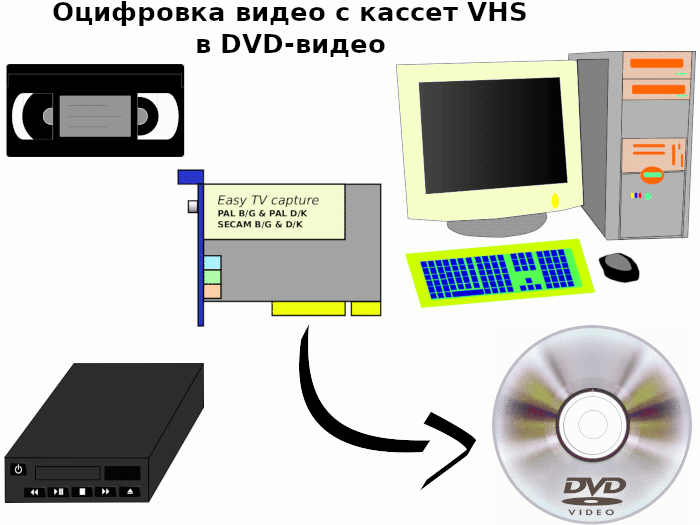
Until 2002, there was a scheme to digitize old videotapes from an analog VHS video recorder.
vhs-scheme

After 2002 and now, after the transition to DVD, old video is not digitized,
processing cycle entirely in digital video using DVD and AVI/MP4/MKV files on PC.

dvd_scheme

All the steps will be explained later in the article. Brief description of the scheme:

  1. On the left side is the original DVD-R or CD-R disc with video.

  2. To remove information from DVD/CD discs, the “ripper” program is used, from the English word “rip” - to rip, tear off, demolish. Instead of using a DVD, you can simply open the disc in Explorer and copy its contents to your local PC.

  3. In the upper right part of the picture, the large square is an AVI "transport" file in MPEG2 format, containing video and audio of the same quality as the original DVD. We will consider this AVI file as source material.

If the user asks to cut a fragment of the video, you can use the utility ffmpeg process the file and save part of the video without changes to the video and audio in a separate file, from the start time to the end time. Video editing can be done in a video editor program openshot(available in the flatpak "FlatHub" application store, and as a system package), and edit the video. In this article, little attention will be paid to the issue of installation.

  1. If the request also involves video transcoding, the original AVI file or a fragment cut from the video will become the source material for the MPEG-4 layer 2 (AVC) converter. In the central part of the picture is the result: the file output from the container is MP4 or MKV with video compressed in MPEG-4 (AVC) and AC-3 audio, for storage in an archive on a PC. Such an MP4 or MKV file is usually significantly smaller in size than the size of a DVD disc. Since compression in MPEG4 AVC is more efficient, with the same quality, you can use a lower bit rate. For example, 90 minutes of video are recorded on a DVD - 4.7 GB, of which 4.2 GB for video and 0.5 GB for sound, which means the video bit rate will be 4.2*8*1024/(1.5*3600)=6.37 Mbit/s, and when compressed in MP4 with a bitrate of 2.4 Mbit/s, the occupied volume is less than 2.4/6.37*4.2=1.58 GB video + 0.5 GB audio = ~ 2.08 GB => i.e. the film will now take up 56% less space.

  2. Burning MP4 directly to DVD as a “data disc” is possible, but it will open ugly - not as a disc, but as a regular folder with a file, like a “flash drive”. To create a beautiful project of a new DVD or CD-R disc with the main menu - the DVD cover, use a software for authoring (DVD workshop) - such as DVDStyler, which was discussed in the previous article. In it you can create the main menu displayed on the TV screen when loading a DVD. The opening menu gives an overall impression of the disc, such as "My Vacation" with a summer landscape in the background, and may contain links or buttons that call up individual chapters of the movie's video. Also, some programs have a built-in video transcoder - a “converter”, which will compress the video to the required media size.

  3. The converter program cannot always be used, but only when you need to transcode video between formats, for example, from MPEG2 to MPEG4 (AVC). The FFmpeg console utility can act as a converter; examples of its use will be discussed in this article.

  4. Burning a DVD project onto a DVD-R or CD-R "blank" can often be done from within the author's program. But in my opinion, it is better to use writing from an ISO image file in a specialized utility for burning ISO to DVD/CD, for example,Xfburn,k3b or Brasero. Burning from an image is also used to release multiple copies of a disc.

Two processing methods - with and without recoding:

  • Recoding if at any stage the video or audio codec changes, recoding takes place, for example, from MPEG2 to MPEG4. As a result, the quality deteriorates, especially in moving scenes and if the source material was recorded at a very high bitrate (studio level 25-50 Mbit/s), and the result at a low one (0.8-1 Mbit/s). Depending on the quality of the source video, the settings of the encoder program, the number of passes (recommended 2), when playing the result of transcoding - an mp4 file, the losses will not be noticeable to the eye at bit rates of 2.5 - 3 Mbit/s. With strong compression of video of full resolution PAL 720x576i, artifacts may appear in the video - loss of clarity, “squares”, “jelly”, etc.

    *Paththrough processing. If no conversion (recoding) of video and audio data is used at all stages, there is no loss of quality. This method is called “path-through”; the data is not distorted, degraded or improved - “as is”. The MPEG2 file will be in the quality of the original DVD. After which, the file can also be burned to DVD without recoding, in MPEG2 format with the same sound as before.

2. Installing packages in Linux for playing DVDs and individual AVI / MP4 files

2.1 Installing video and audio codecs

libavcodec-extra is a metafolder that is responsible for installing the following codecs:

  • Libaom3 - AV1 video codec library
  • Libaribbb24-0-lib for Arib std-b24 decoding (runtime files)
  • Libavutil56 - FFMPEG library with functions to simplify programming - Runtime files
  • Libcairo2 - Cairo 2D vector graphics library
  • libcodec2-1.0 - Codec2 runtime library
  • libdav1d5 - fast and small AV1 video stream decoder (shared library)
  • libgsm1 - Common libraries for GSM speech compressor
  • liblzma5 - XZ-format compression library
  • libmfx1 - Intel Media SDK - Shared Library
  • libmp3lame0 - mp3 encoding library
  • Libopencore -Amrnb0 - AMR speech codec - shared library
  • Libopencore -Amrwb0 - AMR-WB wideband speech codec - shared library
  • Libopenjp2-7 - JPEG 2000 image compression/decompression library
  • Libopus0 - Opus Codec runtime library
  • Librsvg2-2 - Rendering library for SVG files (runtime)
  • Libshine3 - MP3 fixed-point encoding library - runtime files
  • libsnappy1v5 - fast compression/decompression library
  • libspeex1 - runtime library for Speex code
  • libswresample3 - FFMPEG library for audio revision, revision, etc. - runtime files
  • libswresample3 - Theora video compression codec
  • libtwolame0 - Audio MPEG Audio 2 encoding library
  • libva2 - Video Acceleration (VA) API for Linux - runtime
  • libvo-amrwbenc0-encoder library Amr-WB Visualon Amr-WB
  • libvorbis0a - decoder library for the general Vorbis audio compression codec
  • libvorbisenc2 - Encoder library for Vorbis General Audio Codec
  • libvpx7 - VP8 and VP9 Video Codec (shared library)
  • libwebp7 - Lossy compression of digital photographic images (WebP)
  • libwebpmux3 - Lossy compression of digital photographic images
  • libx264-163 - x264 Video encoding library
  • Libx265-199 - H.265/Vide - HEVC stream (shared library)
  • libxvidcore4 - open source MPEG-4 video codec (library)
  • libzvbi0 - Vertical interval-interval decoder (VBI) - Runtime files
  • Zlib1g - compression library - runtime.

As you can see, the package libavcodec-extra through dependencies it will install the most important video codecs MPEG-4, x264, h.265/HEVC and audio codecs MP2, MP3.

1) In Ubuntu and Debian, the "libavcodec-extra" package is responsible for codecs.

sudo apt install libavcodec-extra

2) In Linux Mint, DVD codecs are installed using the following command

sudo apt install mint-meta-codecs

If the PC running Linux Mint is not connected to the Internet, you need to download the codec package (apt download mint-meta-codecs), unpack the archive "mint-meta-codecs.tgz" on a machine without the Internet and run "sudo dpkg -i *.deb"

To view commercial scrambled discs (if sessions are protected by CSS). It is not necessary to install the following packages if you will only be using consumer DVDs.
su -
apt install libdvdcss2 libdvdread8

apt install libdvd-pkg

dpkg-reconfigure libdvd-pkg

Additional package libavcodec-extra58(optional), contains AMR codecs for cellular networks, not required for DVD.

  • ARIB STD-B24 Captions (Subtitle Decoder)
  • OpenCORE Adaptive Multi-Rate (AMR) Narrow-Band (Encoder/Decoder)
  • OpenCORE Adaptive Multi-Rate (AMR) Wide-Band (Decoder)
  • Android VisualOn Adaptive Multi-Rate (AMR) Wide-Band (Encoder)

    su -
    apt install libavcodec-extra58

2.2 Installing ffmpeg - a subsystem for working with video from the command line

The source texts of the most recent version of ffmpeg are on the website ffmpeg.org, are intended for self-assembly (compilation).
For lazy users, you can install ffmpeg from the repository. command "apt install ffmpeg"

su -
apt install ffmpeg

Debian Feature: the repository www.deb-multimedia.org/pool with the latest ffmpeg builds for Debian OS 10 Buster, 11 Bullseye, 12 Bookworm and the unstable version "Sid" is supported. Connecting the repository is described on the website https://deb-multimedia.org/- you need to add the key to the keyring, fix the apt - sources file, and then run apt-get update и apt-get dist-upgrade
-> Package ffmpeg and all dependent ones will be updated to the latest versions.

Fedora Feature: ffmpeg is in the repository for additional packages:https://rpmfusion.org/, the installation of which is described in the "Configuration" section for the most commonly used versions of Fedora and Red Hat.

You can find out the ffmpeg version with the command ffmpeg -version

In Linux Mint 21.1 version:

  • ffmpeg version 4.4.2-0ubuntu0.22.04.1
  • libavutil 56.70.100
  • libavcodec 58.134.100
  • libavformat 58.76.100
  • libavdevice 58. 13.100
  • libavfilter 7.110.100
  • libswscale 5.9.100
  • libswresample 3. 9.100
  • libpostproc 55. 9.100

2.3 Installing libraries for hardware video acceleration

Integrated graphics Intel:

Ubuntu:

sudo apt install libva2 libva-x11-2

Debian:

su -
apt install libva2 libva-x11-2

Fedora

sudo dnf install libva-intel-driver

Graphics AMD (mesa) with support for hardware video decoding:

Ubuntu:

sudo apt install mesa-va-drivers mesa-vdpau-drivers

Debian:

su -
apt install mesa-va-drivers mesa-vdpau-drivers

Fedora

sudo dnf swap mesa-va-drivers mesa-va-drivers-freeworld
sudo dnf swap mesa-vdpau-drivers mesa-vdpau-drivers-freeworld

AMD graphics cards - drivers supporting hardware acceleration:

sudo add-apt-repository ppa:oibaf/graphics-drivers
sudo apt-get update
sudo apt install -y radeon

nVidia graphics cards - drivers supporting hardware video acceleration:

Ubuntu:

in the "System" - "Drivers" menu, replace the driver with the Nouveau source code with a "custom" driver for the nVidia video card and restart the PC.

Linux Mint
On the menu "Options" - "Driver Manager" install a custom driver for the nVidia video card and restart the PC.

Fedora: source

sudo dnf install nvidia-vaapi-driver

2.4 Programs - “video players” for playing DVDs or AVI, MP4, MKV files

Watching DVD video in Linux is done in the MPV command line player or the graphical shell for it - the program - "celluloid".

su -
apt install mpv celluloid

For modern, more powerful PCs, VLC video player is more suitable for playing DVDs.

su -
apt install vlc vlc vlc-l10n vlc-plugin-base

3. Authoring DVD videos in Linux

Free programs (freewate):
Open DVD Producer
tovid- 2105 you can set the background image and sound for the main menu, and start the DVD creation process. Source texts: https://github.com/tovid-suite/tovid
*Varsha- a program for creating DVDs with a graphical interface (GUI), written in Java, can burn DVDs.

*DVDStyler- DVD creation program for Linux, Mac and Windows

Installing DVDStyler reviewed in the previous article. Since this program is cross-platform, working with the program on different operating systems is no different.

As material for videos or chapters on a disc, I recommend high-quality videos, for example, this one:

High quality raw material
Video resolution -720x576 interlaced (top field first).
Video codec -MPEG2/ H.262/MPEG-2 Part 2 with bitrate 20 or 25 Mbit/s
Audio codec -PCM 16 bit stereo

The parameters of video and audio streams inside the container file can be seen in the program MediaInfo:

The DVDstyler program can both transcode material into MPEG4 / AVC and record video and audio streams without path-through processing, adding only x.264 video and AAC (or MP2) audio multiplexing. DVDstyler does not support subtitles and teletext.

Parameters of the resulting file with video and audio for burning DVD:

Parameter Meaning
IMAGE
Container format AVI
Video format MPEG2 for "classic" DVDs; for Chinese DVD players from BBK, etc. let's say XVID or DIVX3 / DIVX4. DIVX5
Relationship between the parties W:H 4:3 or 16:9
Color space YUV
Color subsampling 4:2:0 (main format)
4:2:2 (with increased requirements for color resolution)
Color depth 8 bit
Scan type Interlaced
Field order Top Field First
Compression With losses
Compression ratio bits/(Pixel*Frame) from 0.8 to 2.2
Width 720 pixels
Height 576 pixels
Video stream speed (video bitrate) CBR 9000 kBits/sec for 720x576i (9800 kBits/sec is maximum). VBR (Stream 5.0-8.0 Mbit/s) is frequently used.
4 Mbit/s - for 352x480 resolution
1.5-2 Mbit/s - for QCIF resolution 352x288
Primary colors, transfer characteristics and matrix coefficients BT.709
SOUND
Audio sampling rate 48 kHz
Number of sound channels 2 (for MP2 and PCM), 1 - 5.1 (for AC3)
Codec MP2 (MPEG2 audio), Dolby AC-3 (AC3) or PCM (LPCM) 16 bit, 48 kHz - for “classic” DVDs; Sound is acceptable for Chinese players: MP3 up to 256 kBits/s
Audio bit rate (audio bitrate) 192 kBits/sec AC3 stereo

4. Disc burning - Xfburn

su -
apt install xfburn

XFburn

5. Capture information from a burned DVD disc. Copying files from the VIDEO_TS folder

5.1 Method No. 1 - extracting files from a DVD-Video disc

DVD discs are recognized on the computer as a regular digital storage medium, with a VIDEO_TS folder.
You need to copy it to your computer either manually or using a utility "dvdbackup".
A small dvdbackup program for extracting data from DVD discs for Debian and Ubuntu.

DVDbackup installation:

 apt install dvdbackup

Using dvdbackup:

cd ~; mkdir dvd123
dvdbackup -M -i /dev/cdrom -o ~/dvd123

main parameters dvdbackup:

-I- output information about DVD.
-M--mirror mirrors DVD to a folder on local disk
-i DEVICE - исходное устройство, где DEVICE может быть /dev/cdrom etc.
-o DIRECTORY- output folder for saving files from DVD. If the destination folder is not specified, the current directory will be used.

5.2 Method No. 2 - creating a DVD-Video disk image - a *.ISO file

Retrieving information from DVD ("dvd ripping") can be performed using standard tools - the program DD:

sudo dd if=/dev/cdrom of=disk.iso bs=1M

Mounting ISO images can be done in the PCmanFM File Manager (http://sourceforge.net/projects/pcmanfm)
in the right-click context menu:"Open with" - "Mount disk images". the ISO image will mount as a virtual DVD.

6. Description of files in the VIDEO_TS folder

File Size Destination Description
VIDEO_TS.BUP 12K Video manager, v11 Backup copy (BackUP) of the VIDEO_TS.IFO file in case the latter is poorly read (due to scratches)
VIDEO_TS.IFO 12K Video manager, v11 File with information about the DVD disc (InFO). The IFO file itself does not contain any video information. Instead, the IFO file refers to video data. It is used with VOB files, which store the actual audio and video data of the movie.
VIDEO_TS.VOB 76K MPEG sequence, v2, program multiplex The beginning of the content and usually contains menus and video trailers.
VIDEO_01_0.BUP 18K Video title set, v11 Backup copy (BackUP) of the VTS_01_0.IFO file in case the latter is poorly read (due to scratches)
VTS_01_0.IFO 18K Video title set, v11 Menu and subtitles. Binary file.
VTS_01_0.VOB 234K MPEG sequence, v2, program multiplex Video file, black screensaver 720x576i 25fps PAL, MPEG2 video/AAC audio codec. Part 0
VTS_01_1.VOB 500M MPEG sequence, v2, program multiplex Main video file, 720x576i 25 fps PAL movie file, MPEG2 video/AAC audio codec. Part 1
VTS_01_2.VOB 500M MPEG sequence, v2, program multiplex Main video file, 720x576i 25 fps PAL movie file, MPEG2 video/AAC audio codec. Part 2
VTS_01_3.VOB 500M MPEG sequence, v2, program multiplex Main video file, cinema720x576i 25fps PAL file, MPEG2 video/AAC audio codec. Part 3

7. Play DVD video files in various programs

MPV:

mpv VIDEO_TS.IFO

celluloid:

celluloid VIDEO_TS.IFO

VLC - unlike previous programs, movie playback does not start automatically, but is called up on the disc menu screen ("menu playing" occurs)

vlc VIDEO_TS.IFO

8. Merge VOB files into one and convert the entire movie to AVI file without re-encoding (quality: "same quality")

cd ~/dvd123/VIDEO_TS
cat \*.VOB | pv | dd of=combined.vob
ffmpeg -i combined.vob -q:a 0 -q:v 0 -c copy -sn -y combined.avi

8.1 Convert one specific VOB file from DVD in MPEG2 format to AVI:

ffmpeg -i VTS_01_1.VOB -q:a 0 -q:v 0 -c copy out-part1.avi

Converting one DVD VOB file in DIVX, XVID, MPEG4, AVC format to AVI by copying method:

ffmpeg -i VTS_01_1.VOB -c:v libx264 -crf 0 -c copy out-x264.avi

where is the key -crf заменяет ключи -q:v / -qscale:v which are ignored by libx264.

CRF - Constant Rate Factor (FFmpeg Wiki H.264 encoding)
-crf 0 means lossless encoding.

8.2 Conversion to AVI with simultaneous transcoding of multi-channel Dolby AC-3 audio to MP3 stereo:

Note: on commercial DVDs and from camcorders with 3D sound, the original audio may be in AC3 format (“Dolby AC-3”), then the audio still needs to be re-encoded so that the file can be played in most players.

Audio stream 160 kbit/s, quality -aq 2:

ffmpeg -i VTS_01_1.VOB -q:v 0 -vcodec copy -acodec libmp3lame -b:a 160k -aq 2 out-mp3.avi

In these example commands, if you want to convert the entire movie, replace the file name VTS_01_1.VOB with combined.avi.

9. Cut a video fragment from ss seconds to tt seconds (quality: "same quality") using ffmpeg

For DVD files to MPEG2:

ffmpeg -i VTS_01_1.VOB -q:a 0 -q:v 0 -c copy -ss 0:28 -to 0:35 out-1_28-35.avi

For files in MPEG2 and DIVX/XVID/MPEG4/AVC:

ffmpeg -i VTS_01_1.VOB -crf 0 -c copy -ss 0:28 -to 0:35 out-1_28-35.avi

where
-ss - start; 0:28 - time from the beginning of the video 0 minutes 28 seconds
-to - финиш ; 0:35 - время с начала видео 0 минут 35 секунд

10. Transcoding the original AVI video file using the ffmpeg tool

The general way to call ffmpeg is:

ffmpeg -i исходный_файл параметры ... конечный файл

10.1 Transcode video to MPEG4 / MP3 128k audio (lame codec)

Convert 1.avi file to out-mp4.avi in MPEG2 format
КонThe resulting file's container is AVI, bitrate 1200 kbps CBR, MPEG4 format. Audio format - MP3 128k.

ffmpeg -i 1.avi -f avi -c:v mpeg4 -b:v 1200k -g 300 -bf 2 -c:a libmp3lame -b:a 128k out-mp4.avi

10.2 Transcode video to x264 format / AAC 128k audio, 2 passes

Stream 1200 kbit/s CBR - constant bit rate, in two passes (the first pass “studies” the material, the second transcodes the video and adds audio in AAC format).

ffmpeg -i 1.avi -pass 1 -vcodec libx264 -b:v 1200k -passlogfile 1_pass.log -f rawvideo -y /dev/null

ffmpeg -i 1.avi -pass 2 -vcodec libx264 -b:v 1200k -c:a aac -b:a 128k -passlogfile 1_pass.log out-avc.avi

10.3 Transcode video to x264 format / MP3 lame 128k audio with increased quality, in 2 passes

Stream 1200 kbps CBR - constant bit rate, video codec x264, audio VBR aq=2 (about 190 kbps, stereo).

ffmpeg -i 1.avi -pass 1 -vcodec libx264 -b:v 1200k -passlogfile 1_pass.log -f rawvideo -y /dev/null
ffmpeg -i 1.avi -pass 2 -vcodec libx264 -b:v 1200k -acodec libmp3lame --aq 2 -passlogfile 1_pass.log out-avc.avi

Video with quality 23 (VBR) -crf 23 for a stream of about 2Mbit/s:

ffmpeg -i 1.avi -pass 1 -vcodec libx264 -crf 23 -passlogfile 1_pass.log -f rawvideo -y /dev/null
ffmpeg -y -i 1.avi -pass 2 -vcodec libx264 -crf 23 -acodec libmp3lame -b:a 160k -aq 2 -passlogfile 1_pass.log out-avc-crf23.avi

10.4 Video transcoding to x264 format; copying sound without processing

Stream 1200 kbps CBR.

ffmpeg -i 1.avi -pass 1 -vcodec libx264 -b:v 1200k -passlogfile 1_pass.log -f rawvideo -y /dev/null
ffmpeg -y -i 1.avi -pass 2 -vcodec libx264 -b:v 1200k -c:a copy -q:a 0 -passlogfile 1_pass.log out-avc-acopy.avi

10.4 Transcoding video into x264 format (MKV container); sound copying (without processing)

Video stream 1200 kbps CBR:

ffmpeg -i 1.avi -pass 1 -vcodec libx264 -b:v 1200k -passlogfile 1_pass.log -f rawvideo -y /dev/null
ffmpeg -y -i 1.avi -pass 2 -vcodec libx264 -b:v 1200k -c:a copy -q:a 0 -passlogfile 1_pass.log out-avc.mkv

10.5 Recoding video file x264 format (MP4 container); sound copying (without processing)

Stream 1200k

ffmpeg -i 1.avi -pass 1 -vcodec libx264 -b:v 1200k -passlogfile 1_pass.log -f rawvideo -y /dev/null
ffmpeg -y -i 1.avi -pass 2 -vcodec libx264 -b:v 1200k -c:a copy -q:a 0 -passlogfile 1_pass.log out-avc.mp4

10.6 Recoding video with changing the WxH resolution to 360x288 into a x264 file (MP4 container); sound MP3 lame

Stream 1200k

`ffmpeg -i 1.avi -pass 1 -vf scale=360:288,setsar=1:1 -vcodec libx264 -b:v 700k -passlogfile 1_pass.log -f rawvideo -y /dev/null

ffmpeg -y -i 1.avi -pass 2 -vf scale=360:288,setsar=1:1 -vcodec libx264 -b:v 700k -acodec libmp3lame -b:a 160k -aq 2 -passlogfile 1_pass.log out-avc.mp4`

10.7 Recoding video by changing the WxH resolution to 360x756, while maintaining the 4x3 aspect ratio, into a x264 file (MP4 container); sound MP3 lame

ffmpeg -i 1.avi -pass 1 -vf scale=360:576,setsar=2/1 -vcodec libx264 -b:v 700k -passlogfile 1_pass.log -f rawvideo -y /dev/null
ffmpeg -y -i 1.avi -pass 2 -vf scale=360:576,setsar=2/1 -vcodec libx264 -b:v 700k -acodec libmp3lame -b:a 160k -aq 2 -passlogfile 1_pass.log out_avc360x576.avi

10.8 Recoding video by changing the WxH resolution to 720x288, while maintaining the 4x3 aspect ratio, into a x264 file (MP4 container); sound MP3 lame

ffmpeg -i 1.avi -pass 1 -vf scale=720:288,setsar=1/2 -vcodec libx264 -b:v 700k -passlogfile 1_pass.log -f rawvideo -y /dev/null
ffmpeg -y -i 1.avi -pass 2 -vf scale=720:288,setsar=1/2 -vcodec libx264 -b:v 700k -acodec libmp3lame -b:a 160k -aq 2 -passlogfile 1_pass.log out_avc720x288.avi

10.9 Recoding video with changing resolution WxH to ​​360x288, into a file in hevc x265 format (MKV container); sound MP3 lame

ffmpeg -i 1.avi -pass 1 -vf scale=360:288,setsar=1/1 -vcodec libx265 -b:v 500k -passlogfile 1_pass.log -f rawvideo -y /dev/null
ffmpeg -y -i 1.avi -pass 2 -vf scale=360:288,setsar=1/1 -vcodec libx265 -b:v 500k -acodec libmp3lame -b:a 160k -aq 2 -passlogfile 1_pass.log out_x265.mkv

10.10 Transcoding a file for the Web (carefully setting the flags - x264 profile High, level 3.1), 4:3 format; mp3 sound

Video format 4:3:

ffmpeg -i 1.avi -t 10 -vf scale=360:288,setsar=1/1 -vcodec libx264 -b:v 400k -level 21 -refs 2 -pix_fmt yuv420p -profile:v high -level 3.1 -color_primaries 1 -color_trc 1 -colorspace 1 -movflags +faststart -af "pan=mono|c0=c1" -acodec libmp3lame -b:a 60k -dn web.mp4

Video format 16:9-

Aspect parameter:-aspect 16:9 at any input resolution.

ffmpeg -i 1.avi -t 10 -vf scale=640:360,setsar=1/1 -vcodec libx264 -level 21 -refs 2 -pix_fmt yuv420p -profile:v high -level 3.1 -color_primaries 1 -color_trc 1 -colorspace 1 -movflags +faststart -af "pan=mono|c0=c1" -acodec libmp3lame -b:v 500k -b:a 48k -dn web2.mp4

ffmpeg -i 1.avi -t 10 -vf scale=360:288,setsar=1/1 -vcodec libx264 -level 21 -refs 2 -pix_fmt yuv420p -profile:v high -level 3.1 -color_primaries 1 -color_trc 1 -colorspace 1 -movflags +faststart -af "pan=mono|c0=c1" -acodec libmp3lame -b:v 500k -b:a 48k -dn web2.mp4

-dn means do not copy the data stream (Data - no).

Sound:

For mono sound, add an audio filter -af "pan=mono|c0=c1". To mute the sound - parameter -an(means audio - no).

Instead of the maximum speed -b:a 112k, you can use the medium quality parameter
-aq 6 - decent quality, bitrate 100-130k;
-aq 5 - satisfactory quality, bitrate 120-150;
-aq 4 - default 140-185k;
-aq 2 very good quality 170-210k.
With -aq 1, the file size is 1.5 times higher than with -aq 6, which is not justified for encoding, for example, speech.

10.11 Variable bitrate encoding, VBR speed from 1 Mbit/s to 2 Mbit/s (in difficult areas), sound is also VBR with quality 8 (about 56 kbit/s)

ffmpeg -i 1.avi -c:v libx264 -b:v 1M -maxrate 2M -bufsize 2M -pass 1 -f mp4 -passlogfile 1_pass.log -f rawvideo -y /dev/null
ffmpeg -i 1.avi -c:v libx264 -b:v 1M -maxrate 2M -bufsize 2M -pass 2 -passlogfile 1_pass.log -acodec libmp3lame -af "pan=mono|c0=c1" -aq 8 vbr.mp4

10.12 Extracting audio from video - converting to AAC (stereo) or WAV (mono)

ffmpeg -i 1.avi -vn -ac 2 -acodec aac sound.aac
ffmpeg -i 1.avi -vn -ac 1 - sound.wav

See also here.

10.13 Increase the volume of the audio track by +2db

ffmpeg -i sound.wav -af "volume=+2dB" -y output.wav

10.14 Normalization, sound compression

ffmpeg -i sound.wav -af loudnorm=I=-10:LRA=1:tp=0 -ac 1 -y output.wav

10.15 Conversion WAV - MP2 (mono), bit rate 80 kbit/s

ffmpeg -i output.wav -acodec mp2 -ac 1 -b:a 80k -y final.mp2

10.16 Merging an AVI video file with a new MP2 audio track (the video is copied without re-encoding)

ffmpeg -i 1.avi -i final.mp2 -c:v copy -map 0:v:0 -map 1:a:0 Final.avi

10.17 Coding with parameter set

Key -target pal-vcd specifies the following set of parameters:
-f vcd -muxrate 1411200 -muxpreload 0.44 -packetsize 2324
-s 352x288 -r 25
-codec:v mpeg1video -g 15 -b:v 1150k -maxrate:v 1150v -minrate:v 1150k -bufsize:v 327680
-ar 44100 -ac 2
-codec:a mp2 -b:a 224k
Key -target pal-dvd specifies the following set of parameters:
-f dvd -muxrate 10080k -packetsize 2048
-s 720x576 -pix_fmt yuv420p -r 25
-codec:v mpeg2video -g 15 -b:v 6000k -maxrate:v 9000k -minrate:v 0 -bufsize:v 1835008
-ar 48000
-codec:a ac3 -b:a 448k

Example: the source file has a resolution of 1280x720 (video from a smartphone),
THE TASK is to burn it to DVD:

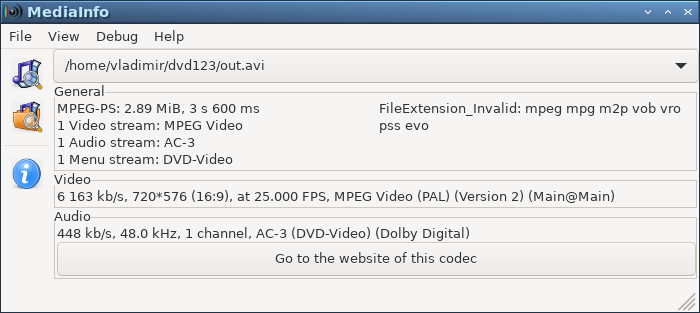
ffmpeg -i 2.mp4 -target pal-dvd -aspect 16:9 out.avi

Result:
mediainfo_dvd_16_9

11 Recommended bitrates for stereo sound

*ac3*>= 160k (for 5.1 multichannel audio)
aac**>= 128k (low quality - speech -b:a 128k )
*mp3>= 128k (recommended for music -b:a 192k -aq 2)

Converting the bitrate to the required number of channels:

*Bitrate = (stereo bitrate) (number of channels / 2)**

For mono:
*ac3>= 80k

*aac*>= 64k (low quality - speech -b:a 64k )
mp3**>= 64k (recommended for music -b:a 96k -aq 2)

12. Standard video resolutions and their recommended bitrates

| Technology | Resolution | P/I |Frame/field frequency, Hz | Title | Codec | Bitrate (web, archive), Mbit/s | Bitrate (good quality), Mbit/s |

|---------|----------------------------------------|---|---|:-----------:|:------------------------------:|
| analog | 352x240p, 4:3 PAL | p | 25/25 | CIF, PAL DVD - VHS | x.264 | 0.6 | 1.2 |
| analog | 352x240p, 4:3 NTSC | p | 29.97/29.97 | CIF, NTSC DVD@23.976fps | x.264 | 0.6 | 1.2 |

| analog | 352x288p, 4:3 PAL | p | 25/25 | Full CIF, FCIF | x.264 | 0.75 | 1.5 |
| analog | 704x480i, 4:3 PAL | i | 25/50 | D1, PAL | x.264 | 0.8 | 2 |
| analog | 720x480i, 4:3 NTSC | i | 30/60 | NTSC-D1 | x.264 | 0.9 | 2.2 |
| analog | 720x288p, 4:3 | 25/25 | p | 2CIF, Half-D1 | x.264 | 0.8 | 1.8 |
| analog / digital | 720x576i, 4:3 or 16:9 | i | 25/50 | Full-D1, PAL broadcast,DVD, SD | x.264 | 1.3 | 2.5 |
| digital | 544x576i, 16:9 | 25/50 | i | broadcast with reduced quality | x.264 | 1.2 | 2.2 |
| digital | 480x576i, 16:9 | 25/50 | i | broadcast with reduced quality | x.264 | 1 | 2 |
| digital | 352x576i, 16:9 | 25/50 | i | broadcast with reduced quality | x.264 | 0.8 | 1.8 |
| digital | 352x288p, 16:9 | 25/25 | i | broadcast with reduced quality | x.264 | 0.6 | 1.3 |
| analog | 768x576i, 16:9 | 25/50 | i | PAL-DV | x.264 | 1.3 | 2.5 |
| digital | 1280x720p, 16:9 | p | 25/25 | 720p, HD | x.264 | 2 | 4 |
| digital / analogue (video surveillance systems: AHD, MHD) | 1920x1080 | i | 25/50 | Full-HD or 2K) | x.264 | 3 | 5 |
| digital | 1920x1080p | 30/30 | Full HD 1080p 30fps or 2K-30fps | p | 30 | x.264 | 4 | 7 |
| digital | 1920x1080p | 60/60 | Full HD 60fps or 2K-60fps | p | 60 | x.264 | 6 | 10 |
| digital | 2560x1440p | 25, | 3k | p | 25 | x.265 | 12 | 22 |
| digital | 3840x2160p | 30, 60, 120 | 4k or UHD | p | 30, 60 or 120 | x.265 | 12 | 22 |

Application. Correlation of video formats by frame structure

D1 = PAL broadcast

D1=4CIF
CIF = 1/4 D1

HalfD1=1/2 D1
2CIF = 1/2 D1
2CIF=HalfD1

Appendix 2. Ratio of areas of video formats (or number of image elements - pixels)

FullHD = 2K
FullHD = 5 * PAL broadcast

FullHD = 2.25 HD
FullHD = 0.75 3K
FullHD = 1/2 UHD
FullHD = 1/4 8K


Source:https://trac.ffmpeg.org/wiki


Related publications

