
7
August
2022
Linux download setup from another disk after cloning HDD-SSD
2:05

Linux download setup from another disk after cloning HDD-SSD

7 August 2022 2:05

After cloning the disk, you need to configure the OS so that the download occurs from a new, faster SSD-disk.

Background

The SSD-Disk of Weijinto bought at AliExpress for a home computer.
Weijinto SSD 120 GB, 240 GB, 128 GB, 256 GB, 512 GB, 480 GB, 960 GB, 360 GB, 2.5 inch in the Weijinto Store store
For a volume of 120 GB paid 800 rubles (about $ 11). Despite the price, this company produces high -quality data drives. So, at work, the disc of this company has been operating for more than 1 year, in harsh conditions without comments.

Physical connection SSD disk

In the system unit to the motherboard using SATA cables, both disks are connected:

  • The first HDD disc contains all sections of the old disk.
  • The second SSD disc will contain only the main section (mounted in "/").

Disk cloning

First of all, you need to make sure that the disk is present in the system, even if it is not yet divided into sections.

sudo apt-get install gnome-disk-UTILITY

Now we launch the “Disks” utility through the Start menu - “Standard” - “Disks”
Or we perform a command (doing the same thing):

gnome-diskS.

First, we find out the type of marking of the source disk (old HDD) - I have a type of GPT marking.
The new disc decided to break down with the GPT type.
GPT

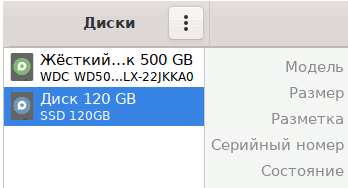
On the left side of the window, select the SSD disc, we see that it is working, but has not yet been divided into sections (and does not contain information).
DISKS
We close the graphic utility "Disks", it is not yet required.

Disc is broken

We launch FDISK from the command line and perform commands

sudo fdisk /dev/SDB
g
n
p
w

Команда g создает разметку типа GPT, n создаёт новый раздел типа "Linux", p - вывод на экран разделов (проверка), w - запись и выход.

Cloning the main section from the HDD disk to SSD

Узнаем на каком разделе находится "корень" дика (/).

 lsblk

NAME MAJ:MIN RM SIZE RO TYPE MOUNTPOINT
sda 8:0 0 465,8G 0 disk
├─sda1 8:1 0 300M 0 part /boot/efi
├─sda2 8:2 0 73,9G 0 part /
├─sda3 8:3 0 7,8G 0 part [SWAP]
├─sda4 8:4 0 90,8G 0 part /var
└─sda5 8:5 0 293G 0 part /home

It can be seen that the "root" corresponds to sda2 (у других может быть sda1).

The second disc, the purpose of the purpose sdb is also visible, and in it you can see the one we created sdb1

sdb 8:16 0 111,8G 0 disk
└─sdb1 8:17 0 111,8G 0 part

The purpose of the purpose should be larger than the source section (111g> 73.9g).

I start cloning from the section on the section between the SDA and SDB disks.
The source disk SDA2 is copied to the purpose of the SDB1, the size of the buffer 2 MB:

sudo dd if=/dev/sda2 of=/dev/SDB1 bs = 2m

Cloning took me about 30 minutes.

The purpose of the new UUID section SSD disk

In order to prevent duplicate, as well as for the convenience of distinguishing discs, I decided to change the uuid volume on the purpose disk, i.e. Record the new UUID,

UUID generation;

uuidgen

The resulting value was copied to the exchange buffer and set up the team parameter,
thus, I replaced the UUID section /DEV /SDB1 with a new UUID:

sudo tune2fs /dev/sdb1 -U новый_uuid

The command takes 5 seconds.

Checking the file system of the new disk after cloning

We are convinced that the new SSD disc SDB, more precisely, volume "/dev/sdb1" is not mounted:

sudo umount /dev/SDB1

Run the file system check:

sudo e2fsck -f /dev/SDB1

Main: ensuring the launch of the operating system from the new section

UUID identifier to a new boot and main section on SSD is known to us, but you can find out it in another way (if you forgot):

ls -l /dev/disk/byuid

или

 lsblk -f

It remains to perform 2 simple actions:

1) Add the command GRUB_DEVICE_UUID (для указания диска, с которого будет выполнена следующая загрузка),
in a configuration file /etc/default/grub,

sudo nano /etc/default/grUB

File /etc /Default/grub находится пока ещё на старом разделе /dev/sda2, but at the next load, the GRUB2 bootloader will choose the volume from the UUID, which we will indicate to him.

Configuration file line /etc /default/grUB is next (introduce without stars):

GRUB_DEVICE_UUID=**вставьте здесь uuid нового загрузочного раздела (том sdb1 на SSD диске)**

CTrl+O, Ctrl+x

Выполняем обновление конфигурации GRUB:

 sudo update-grUB

2) In the new section, edit the FSTAB file

To do this, in the "Disks" utility, mount a new SSD disk with a 1st section (button with a triangle ▶).

In the conductor along the way /media/user/uuid ищем и открываем в текстовом редакторе файл /etc/fstaB :

Edit "/media/user/длинный_uuid/etc/fstab ".

Replace in it for /DEV /SDa2 старый uuid на новый, который известен для /dev/SDB1
FSTAB
Save the FSTAB file and reboot the PC.

Now grub будет использовать для загрузки новый uuid, а fstaB S of the new disk will also use the UUID of the new SSD disk.

Examination

In addition to reducing the time of loading the operating system (in my case, from 1 minute 3 seconds the time decreased to 34 seconds), the current connections can be viewed in the same utility " wheels ". The old section No. 2 on the HDD disk is not mounted, and the new on the SSD is mounted as "root volume" **.

Tom

Comment

User section /Home и раздел системных настроек /var у меня на старом диске были выделены в отдельные тома. Такими же отдельными разделами на тех же местах они и остались. Ускорение ПК произойдет в этом случае при загрузке ОС и запуске программ. В данном примере профиль пользователя сохраняется на старом HDD диске. Если исходный диск был разбит по-другому, и весь диск был отведен под "корень" (/), включая /homE, then you need to buy SSD larger volume than the initial HDD disk (for example, 1 TB).


Links:
How to Change UUID in the /boot/grub/grub.cfg
How to Change disk parTition uuid in linux


Related publications

