18
March
2022
How to download a file from the Yandex.Disk cloud with download resumption
16:21

How to download a file from the Yandex.Disk cloud with download resumption

18 March 2022 16:21

Downloads of a large volume from the cloud storage "Yandex.Disk" represents a problem. To download the file to the local PC completely, without stopping and errors, it is necessary to use the download manager with the support of the so -called "Docketing".

Building in Firefox or Chrome, the download manager can stop the pumping if the connection has occurred.

Method No. 1 - not optimal: "Turbo Download Manager"

To correct the situation with the download of large files in Mozilla Firefox, the TURBO Download Manager (3RD Edition) "is developed.

Link to Turbo Download Manager from the Extension store Mozilla Firefox:

Turbo Download Manager

Additionally, you do not need to configure the expansion. It is installed on the extension panel and controls the file loader built into the browser.

At the same time, after the transition to the link to Yandex disc, the type https://disk.yandex.ru/d/vvqqssdfwweqadasdf
Close on each file separately and at the top of the browser window click the "download" button **
Download by browser

Disadvantages of this method:
1) The participation of the user is required at the beginning of loading.
2) the low reliability of the download.
3) It is impossible to download in several flows.

Method No. 2 is optimal. Synchronization of folders in the Yandex Disk program

In this method, synchronization of the folder on the local computer with Yandex disk occurs.

First of all, on a computer that acts as a "file storage" you need to download and install Yandex disk :

1) In e -mail, open a link to the file "Alien" Yandex.Disk, Link of the Vida:
https: //disk.yandex.ru/d/vvqqssdfwweqadasdf

2) In this case, usually through Email a link to the folder or file, which the other user made an affordable (visible) on the link, is transmitted.

After the opening of this link, a transition to the disk of another user will take place. It is necessary to copy the file or folder to your Yandex disk, in order to then pick up on a local PC using the Yandex disk program, which supports both the download in several flows, and the exact synchronization of files between the remote "cloud" and the local PC.

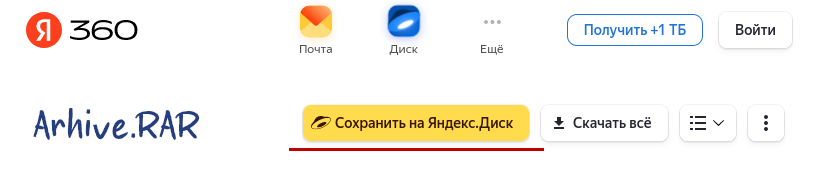
First of all, when moving to the local folder of another user, you need to click on the link "Save to Yandex disk".
Save on Yandex disc

After that, the user name (usually the type of user ...@yandex.ru) and the Yandex.Disk password will be requested, which belongs to you, which will be copying the file or folder from someone else's Yandex disk to yours, to the “load” folder .

After that, the link to the file will fall into the Yandex.Disc User. to whom the name and password belong.

3) Download files using the disk synchronization .

The option is considered the option when the "file storage" on the PC works under Windows._

Since in Windows, when synchronizing data by default, the download is made on disc c: , in the profile of the current user, before starting to save the files of their cloud on the PC, it is necessary to reconfigure the location of the “download” “load” ** to another section or disk, where there is a lot of free space. I have a disc with free space - this is a disc f:

*Create on a disk purpose on a computer where files will be downloaded (I have F :) a new folder , for example: F: \ Downloads
Cloud load folder

  • In the conductor we find the profile of the current user, and in it the “loading” folder.
    (Usually in C: \ users )
    Click on "Properties"
    The properties of the folder
    Press the button "move ..."
  • In the destination window, select the folder that was created earlier. In my case - F: \ Downlods
    The destination folder
  • Use changes. We agree to transfer files.

4) On the same destination computer, we launch the program " Yandex disc ".
Yandex disc program

6) On the left side of the window, select the “loading” folder, and on the right side - select a file or folder (transferred from another user by link), which must be loaded to the PC.
After selecting the folder, press the right mouse button and select "Save on this computer"
Keep on this computer

Then the download of files from the "cloud" to this PC will begin.

The load will now be made not to the C l disc: but to the disk where we previously indicated Way for the Downloads ..

After the start of the load, the process of transferring from the cloud to a local disk will begin (in this case, F :) in several flows, and the Internet channel will be completely busy. If it is 100 Mbps, then the speed can sometimes reach 110 Mbps, because With a gigabit network, the speed limits the provider according to the tariff plan. Then, you need to perform a light “shaping” of your own loading, by means of the router (router)-for example, cut the speed for the IP address, which is loaded from the cloud, up to 70-80 Mbit/s.

Loading is performed quickly and without problems. The degree of completion of the process can be observed according to the progress indictor at the bottom of the Yandex disk window.

To cancel the copy of the files on the PC, you need to delete the link to the "foreign" file from the download folder and restart the Yandex.Disk program:
Copying


Doberation from 03.22.2022:

Installation Yandex disk in Linux OS

Loading the Yandex disk installation program for Linux is made from the page:https://yandex.ru/support/disk-desktop-linux/start.html. There are links to download *. RPM or *. Deb.

Installation:

sudo dpkg -i yandex-disk_latest_amd64.deb

Help under the Yandex Disk program for Linux:

yandex-disk --help
Yandex.Disk 0.1.6.1074
Usage:
  yandex-disk start [OPTION]
  yandex-disk stop [OPTION]
  yandex-disk status [OPTION]
  yandex-disk sync [OPTION]
  yandex-disk token [OPTION] FILE
  yandex-disk publish [OPTION] FILE
  yandex-disk unpublish FILE

Teams:
  start        run as a daemon and start synchronizing the folder. In the file
                ".sync/status" the current synchronization status is recorded.
  stop         stop the demon.
  status       show daemon status: sync status, errors,
               last synced files, disk status
               space.
  token        get an OAuth token, encrypt it and save it in
               special file (by default /.config/yandex-disk/passwd).
  sync         sync the folder and exit (if the daemon is running, wait
               end of synchronization).
  publish      make a file/folder public and display a link
               in STDOUT. The object will be copied to the synchronized
               folder. To overwrite existing objects, use
               option --overwrite.
  unpublish    remove public access to a file/folder.
  setup        run the initial setup wizard.

Options:
  --config=FILE, -c FILE
               read options from the configuration file.
               The file must contain lines of the form name=value.
               Default file path is ~/.config/yandex-disk/config.cfg.
  --dir=DIR, -d DIR
               path to the Yandex.Disk folder.
  --auth=FILE, -a FILE
               read the token from the file. The file must be
               prepared by the token command. The defaul path to the file
               is ~/.config/yandex-disk/passwd.
  --exclude-dirs=DIR1,DIR2,…
               Do not synchronize the specified folders.
  --read-only
               do not upload local changes to
               server. Locally modified files
               will be renamed.
  --overwrite
               In read-only mode, overwrite locally modified files.
  --no-daemon, -D
               start the daemon without returning control to the console.
               To regain control, the demon must be stopped,
               by running the yandex-disk stop command in another console or
               closing the current console.
  --version, -v
               show version information.
  --proxy=PARAM
             Configure a proxy server. Acceptable parameters:
                              auto - use system proxy server settings.
                                     Used by default.
                              no - do not use a proxy server.
                              protocol,address,port,login,password - configure manually.
                              Example of manual proxy server setup:
                              proxy=socks4,my.proxy.local,1080,login,password

The disk synchronization is carried out in the same way as in the version for Windows.
The difference in the process of setting up Yandex disk under Linux is that the command line is used to control the demon.

Description of the teams Yandex disk:
First launch
Working with Yandex disc

  1. The first command after installation should be a team initialization team:

    yandex-disk token

To confirm the authenticity of your account, the program will prompt you to go to the following page on the Internet: https://ya.ru/device:

"Open the page 'https://ya.ru/device' and enter the‘ vpdbx61y ’code within 300 seconds. Make sure that you are authorized in a browser with the desired account."

  1. Go to the page https://ya.ru/device go into your account (if there are several, choose yours).

Or there will be a transition to paragraph 3 at once if the entrance to the Yandex account was made earlier.

  1. On the web page, enter the code (token), then in the next dialog, click "accept".

If for 300 seconds you did not have time to introduce token, start with paragraph 1.

The setting is completed.


Using the Yandex disk program in Linux:

The start of work with Yandex disc under Linux:

yandex-disk start

Status check:

yandex-disk status

Where is Yandex disc?

By default, virtual Yandex disk is in the folder
/Home/Name of_Polizer/yandex.disk

Where is the Yandex disk configuration file in Linux?

Placing the configuration file Yandex.Disk:
/Home/Name of_Polizer/.config/yandex-disk/config.cfg

You can view or edit the configuration file with a command

nano ~/.config/yandex-disk/config.cfg

The contents of the file config.cfg :

proxy="no"
dir="/home/vladimir/Yandex.Disk"
auth="/home/vladimir/.config/yandex-disk/passwd"

Add the Yandex.Disk folder to the PCManfm file manager's bookmarks:

To have a quick access to Yandex disk, you can add a bookmark on the entrance point panel in PCManfm manager in PCManfm.
To do this, go to the Yandex.Disk folder and click on the “Bookmark” menu to the menu item ”Add to bookmarks.
Bookmark

On the left side of the window, a laying on Yandex disk will appear:
Zakl

A third -party client YD -TOOLS - Yandex.Disk work indicator

To simplify work through GUI, programs with a graphic interface have been developed on the page
https://yandex.ru/support/disk-desktop-linux/cli-gui.html

They are installed in the system by adding a PPA-Ro-Correquency.

For example, YD-TOOLS using teams

gpg --keyserver keyserver.ubuntu.com --recv D3F70009E9DD65EA
gpg --export --armor  D3F70009E9DD65EA | sudo apt-key add --
sudo add-apt-repository ppa:slytomcat/ppa
sudo apt-get update
sudo apt-get install yd-tools

The first two teams add an open key to the local keys storage, otherwise, when updating the Apt-Get Update, an error will be displayed that the repository has not been signed.

The YD-TOOLS package consists of 3 components:

  1. The indication panel of the state of the Yandex disk in the system tray (next to the clock). The launch of the indication panel is made by the command:

    yandex-disk-indicator -l10

  2. The graphic installation program of Yandex Disk (I haven't earned.
    The script is called by the bash/usr/share/yd-tools/ya-sautup command-it freezes after entering the login and password)

  3. A set of plugins for the most famous file managers: Nautilus, Thunar, Nemo, Dolphin and Pantheon-Files

After the launch of "Yandex-Disk-indicator -l10" in the "tray" area on the task panel will appear a new indicator in the form of "gear".
Time

With it, you can monitor the state of Yandex.Dis (you need to click with the right mouse button on the indicator):
Status

So that the indicator starts during the launch of the system, turn it on in

Start - Parameters - LXQT settings - session settings - AUTOSTART
Startup

Changes in the list of automobile programs will be applied at the next entrance to the system.

If the Yandex disk folder is synchronized, then after turning on the PC "Yandex-Disk-indicator" displays the message "Synchronization completed"
Sync
This means that the files from the "cloud" Yandex.Disk were copied to the local disk in the Yandex.Disk folder.
Conversely, the changed files from the local PC were unloaded in the data storage on the Internet.

Thus, the “mirror” of folders to from Disk.yandex.ru is created on the local PC.
The size of the data stored in the Yandex disk on the local computer is practically equal in terms of the volume of the space engaged in the Yandex.Disk vault on the Internet.

The PC is occupied by 7.7 GB:
usage

In this example, on the Internet - on the disk is freely 2.89 GB of 10 GB (total, busy 10-2.89 = 7.11 GB)
Inet

There is a divergence of volume 7.7-7.1 = 0.6 GB due to calculation (the location of data in physical sectors on the hard drive).
Synchronization service files in a hidden .Sync catalog occupy my 17 MB.


Addition from 03/23/2022:

An example of a file transfer using synchronization to Yandex Disk in Linux

  1. On the _ first of the computer in Yandex, the file made the file available on the link and copied the link to the exchange buffer.

  2. I transmitted a link to the second computer (with another Yandex account) - by e -mail or in any other way.

  3. On Tomor Computer, first made the entrance to his disc - [https://disk.yandex.ru/client/disk2(Https://disk.yandex.ru/client/disk)/

  4. Then in the same browser he crossed the link to the file (opened the URL species https: //disk.yandex.ru/i/qwe ...) from the mail.

  5. I pressed the yellow button "Save on Yandex.Disk":
    test1

  6. A pop -up message "Saved to download" appeared and disappeared

  7. In the terminal on the Ith computer, execute the command:

    yandex-disk sync

  8. Go to the /home/name of the_pol -user/yandex.disk/loading
    test2
    The file appeared in the local folder in the Yandex.Disk / download folder.

Supplement: how to createyandex.disk on volume ntfs

If there is a large disk formatted in the NTFS file system, then the Yandex disk folder can be created on it.

1) Create a folder in the /Mount catalog - a mounting point for storage of NTFS disk files

cd /mnt
sudo mkdir shared

2) Learn Uuid disc ntfs

lsblk -f | grep ntfs

3) We find out the user and group ID

id -u
id -g

В мOome case 1000, 1000.

4) edit /etc /fstab for connecting NTFS volume:

Change the file /etc /fstab so that the NTFS section is connected to the mounting point /mnt /shared during the loading of the system

sudo nano /etc/fstab

UUID=264518E87411A62F                     /mnt/shared   ntfs-3g   uid=1000,gid=1000,dmask=022,fmask=133   0       0

Where UUID is the NTFS UUID value from point No. 2, /mnt/shared is mounting point, DMASK -022 and FMASK = 133 determine the rights to access to directors and NTFS volume folders.

4) reboot the PC

Check that the disk has appeared

cd /mnt/shared
ls

5) Stop Yandex disc

yandex-disk stop

6) We move the Yandex disk data from the working folder on that ntfs:

cd ~
sudo mv Yandex.Disk/ /mnt/shared

7) edit the Yandex disk configuration file, replace the path /home/user/Yandex.Disk to /mnt/shared/Yandex.Disk:

nano ~/.config/yandex-disk/config.cfg

proxy="no"
dir="/mnt/shared/Yandex.Disk"
auth="/home/vladimir/.config/yandex-disk/passwd"

8) Launch Yandex disc:

yandex-disk start

_Запуск демона...Готово_

Now Yandex disk is in the /MNT/SHARED/YANDEX.DISK folder,

on the NTFS volume connected when starting the operating system.


Related publications

