
3
September
2026
Launching DOH on Linux - DNS name to IP addresses resolution over HTTPS
11:11

Launching DOH on Linux - DNS name to IP addresses resolution over HTTPS

3 September 2026 11:11

This article is a supplement to setting up a systemd-resolved caching DNS server.

Introduction

This article doesn't describe methods for bypassing blocking, and is devoted to the method of resolving DNS names via HTTPS with caching, to increase the security of computers running Linux OS.

The point is that before accessing any website queries to any DNS server, no matter [free, independent or government] are transmitted in clear text. What creates opportunities:
1) interception of such requests by any of the computers in the local network segment.
2) analysis of requests to DNS at the level of the provider or upstream provider (with recursive DNS).
3) the possibility of interfering in the process of transmitting such messages (issuing false or empty responses by attackers, substituting IP addresses in DNS responses).
4) many DNS servers do not have filtering for fraudulent, malicious, or advertising sites, while many specialized DNS servers do have this capability (called “family DNS” or “secure DNS”).

Comparison of technologies:

  • Using DNSSEC only solves the problem of the inability to spoof a DNS server response using a message signature. The request emanating from a DNSSEC client is “transparent”, clearly visible in plaintext as with regular DNS.
  • Using DNS over TLS (DOT): doesn't work for an unknown reason (I couldn't get it to start). Also, the DOT protocol uses port 853/TCP on the remote server, which, like 53/UDP (DNS), is easily determined when studying traffic.
  • Using DNS over HTTPS (DOH):works(the purpose of this article is to talk about the experience of use). The standard DOH port and the HTTPS port are the same: 443.

Solution Description: Running DOH on Linux

This solution will set DOH to all linux operating system. The solution requires a working systemd-resolved. Which limits the list of operating systems to which this instruction applies to only those operating systems that use the service initialization system systemd.

Checking that the systemd init system is used:

ps -p 1 -o comm=

The answer should be:
systemd

To run DOH on the client you will need:
1) execute instructions for installing and configuring systemd-resolved,
2) install the package dnscrypt-proxy
3) customize the package dnscrypt-proxy using a configuration file with a .toml extension.
4) start the service dnscrypt-proxy
5) redirect requests to the caching DNS server systemd-resolved на dnscrypt-proxy.
6) configure your web browser (disable your DNS-over-HTTPS in it to work through a local caching local DNS server).

Actions step by step

1) Let's do it installation, configuration of the systemd-resolved caching DNS server.

2) Install the package dnscrypt-proxy

sudo apt update
sudo apt install dnscrypt-proxy

3) Create a configuration file /etc/dnscrypt-proxy/dnscrypt-proxy.toml

sudo nano /etc/dnscrypt-proxy/dnscrypt-proxy.toml

and add to dnscrypt-proxy.toml text:

# Empty listen_addresses to use systemd socket activation
listen_addresses = ['127.0.0.1:5053']
server_names = ['google'] # or 'yandex'. See https://dnscrypt.info/public-servers/ .

# Use reachable
ipv4_servers=true
ipv6_servers=false

# Enable DoH specifically:
doh_servers = true
dnscrypt_servers = false  # Only DoH, no DNScrypt
require_dnssec=false
require_nolog=true
require_nofilter=true
timeout=5000
keepalive=30 # Keep alive connection, seconds
cert_refresh_delay=240
ignore_system_dns=true
netprobe_timeout=60
netprobe_address='9.9.9.9:53'
block_ipv6=true
block_unqualified=true
reject_ttl=10
cache=true
cache_size=4096
cache_min_ttl=2400
cache_max_ttl=86400
cache_neg_min_ttl=60
cache_neg_max_ttl=600

[nx_log]
  file = '/var/log/dnscrypt-proxy/nx.log' # Log file is off by "require_nolog=true" 

[sources]
  [sources.'public-resolvers']
  url = 'https://download.dnscrypt.info/resolvers-list/v3/public-resolvers.md'
  cache_file = '/var/cache/dnscrypt-proxy/public-resolvers.md'
  minisign_key = 'RWQf6LRCGA9i53mlYecO4IzT51TGPpvWucNSCh1CBM0QTaLn73Y7GFO3'
  refresh_delay = 73
  prefix = ''
[sources.relays]
  url = 'https://download.dnscrypt.info/resolvers-list/v3/relays.md'
  cache_file = '/var/cache/dnscrypt-proxy/relays.md'
  minisign_key = 'RWQf6LRCGA9i53mlYecO4IzT51TGPpvWucNSCh1CBM0QTaLn73Y7GFO3'
  refresh_delay = 73
  prefix = ''

Save and exit: Ctrl+S, Ctrl+X

Restarting the service dnscrypt-proxy:

sudo systemctl restart dnscrypt-proxy

Comment:

  • systemd-resolved caching DNS server running on localhost on port 53 and 127.0.0.53:53
  • the new dnscrypt-proxy service will listen on port 5053.
  • name resolution here via [google], DNS over HTTPS service (complies with https://dns.google/dns-query - RFC 8484 (GET and POST))
  • IPv4 in use, IPv6 disabled
  • DOH servers - used
  • DNSCRYPT servers are disabled
  • DNSSEC option disabled
  • query log disabled
  • domain filters option disabled
    ...
  • IP address of the DNS server to resolve the first query netprobe_address='9.9.9.9:53'.
  • the "sources", "sources.'public-resolvers'" and "sources.relays" sections are needed for the dnscrypt-proxy service to work.

Name resolution via DOH affects the entire Linux operating system, all programs and utilities in it (dig, ping, traceroute).

4) Start the service dnscrypt-proxy and allowing automatic startup when the OS boots:

sudo systemctl enable dnscrypt-proxy
sudo systemctl start dnscrypt-proxy

5) DNS request redirection.

If you created a symbolic link,

ls -l /etc/resolv.conf

Only if there is a link, delete it:

sudo rm /etc/resolv.conf

Open the file /etc/resolv.conf for editing

sudo nano /etc/resolv.conf

And add the text to it:

nameserver 127.0.0.53

Save and exit: Ctrl+S, Ctrl+X.

What will redirect according to /etc/resolv.conf запросы приложений "ping", "dig" на systemd-resolved at local address 127.0.0.53.

Service systemd-resolved будет передавать запросы DNS на dnscrypt-proxy to 127.0.0.1:5053, for which we edit the file:

sudo nano /etc/systemd/resolved.conf

The contents of the file should look like this:

[Resolve]
DNS=127.0.0.1:5053
FallbackDNS=
Domains=~.

Here 127.0.0.1:5053 is the IP address and port dnscrypt-proxy.

Save and exit: Ctrl+S, Ctrl+X.

Restart the service:

sudo systemctl restart systemd-resolved

Redirecting requests from the "SystemD-ResolveD" service to dnscrypt-proxy(127.0.0.1:5053) done!

In turn,dnscrypt-proxy перенаправит запросы через DNS over HTTPS в Интернет на DOH-сервер, который указан в конфигурации TOML в разделе server_names = [].

Check

First of all, check the status of the dnscrypt proxy and caching DNS server

sudo systemctl status dnscrypt-proxy
sudo systemctl status systemd-resolved

There should be no errors, but the state "Active: active (running)" and "Now listening to 127.0.0.1:5053 [TCP]" for the first one and the same state "Active: active (running)" at the second one.

Request execution time:

time resolvectl query lenta.com
lenta.com: 178.248.232.88

-- Information acquired via protocol DNS in 53.8ms.
-- Data is authenticated: no; Data was acquired via local or encrypted transport: no
-- Data from: network

real    0m0,065s
user    0m0,000s
sys 0m0,010s
time resolvectl query lenta.com
lenta.com: 178.248.232.88

-- Information acquired via protocol DNS in 2.4ms.
-- Data is authenticated: no; Data was acquired via local or encrypted transport: no
-- Data from: network

real    0m0,009s
user    0m0,003s
sys 0m0,004s

Also, run two commands in a row:

dig ya.ru
dig ya.ru

Name resolution and query response caching works.

Note: team resolvectl statistics produces incorrect "Cache Misses" values, can be ignored. The main thing is that the response time to a request is zero.

Now let's stop the service and see if DNS name resolution can work when stopped dnscrypt-proxy?
Those. Is there a DNS leak?

sudo pkill -STOP dnscrypt-proxy

Now the following command hangs:

resolvectl query lenta.com

Ctrl+C

Let's run it again and check the work:

sudo pkill -CONT dnscrypt-proxy
resolvectl query lenta.com

Name resolution works again! The testing methodology is based on document.

6) Setting up web browsers

In web browsers, you need to disable their DNS over HTTPS if they are enabled. Since all requests now go through the local caching DNS, which redirects them through the system dnscrypt-proxy.

Mozilla Firefox:

  • Edit - Settings - Privacy and Security - DNS over HTTPS -Off(Use your default DNS resolver).
    Google Chrome, Chromium-Gost:
  • Settings - Privacy and Security - Use secure DNS server -Off.

Check:browserleaks.com DNS leak test-https://browserleaks.com/dns[/mark]

7) Specifying a caching DNS server in the Network Manager network settings.

The Network Manager setting is available in the system tray (bar near the clock).
In the settings for connecting to a local network or Wi-Fi, as indicated in the previous article, you need to specify DNS: 127.0.0.53, which corresponds to the systemd-resolved service.

Possible values for the option "server_names = [...]"

sudo nano /etc/dnscrypt-proxy/dnscrypt-proxy.toml

_Some variants of DOH server names for the servernames = [...] section of the TOML file
controld-unfiltered- Control D is a free DNS server without filtering. Does not block or rewrite domains. Does not keep a request log. Global Anycast Network. https://controld.com/free-dns Managed by Control D. Service page: https://controld.com/free-dns
dnsforfamily-doh- DNS for Family is a secure search service. Blocks domains related to adult content, gambling, drugs, malware, fraud/phishing, proxies/anonymizers and advertising; The blacklist is updated daily. Provides safe search on Google, YouTube, Brave, Ecosia, Bing, DuckDuckGo and Yandex. Social networks such as Facebook and Instagram are not blocked. DNS queries are not logged. Free service. Provided by: https://dnsforfamily.com
google- Google public DNS server. Global Anycast service operated by Google. The service is managed by Google Public DNS. Service page: https://developers.google.com/speed/public-dns
yandex- Yandex Public DNS Safe resolver. The service is managed by Yandex. Service page: https://dns.yandex.com/ Can register requests.
*yandex-safe- Yandex Public DNS Safe resolver. Anycast service from Yandex with malware filtering. The service is managed by Yandex. Service page: https://dns.yandex.com/ Can register requests.

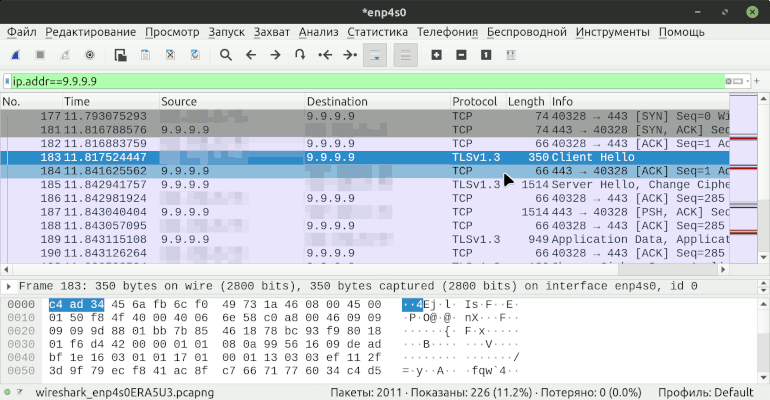
  • quad9-doh-ip4-port443-filter-pri - DNS-over-HTTPS server from Quad9. In the picture above.

After changing the server, restart the service:

sudo systemctl restart dnscrypt-proxy

For name matching, see home page -https://dnscrypt.info/public-servers/.

Result

We have configured DNS to work through a caching server with transmission via dnscrypt-proxy.
In addition to the increased level of security, the speed of opening web pages has significantly improved due to double caching DNS server responses (in dnscrypt-proxy and systemd-resolved).

Removing dnscrypt-proxy

If necessary, the dnscrypt-proxy package can be removed:

sudo apt remove dnscrypt-proxy

After deleting, do not forget to fix the file

sudo nano /etc/systemd/resolved.conf

The contents of the file should look like this:

[Resolve]
DNS=192.168.1.1:53
FallbackDNS=77.88.8.1
Domains=~.

where instead of 192.168.1.1 indicate the IP address of your local network router.

Restart the service:

sudo systemctl restart systemd-resolved

Source

This article is very different from the official instructions, where installation dnscrypt-proxy on port 53 and the systemd-resolved service is not used.

*https://github.com/DNSCrypt/dnscrypt-proxy/wiki/Installation-linux

The main source is the example configuration file "example-dnscrypt-proxy.toml":

*https://github.com/DNSCrypt/dnscrypt-proxy/blob/master/dnscrypt-proxy/example-dnscrypt-proxy.toml


Related publications