
7
January
2023
Installing nVidia video card drivers in runtu Lite (Ubuntu)
2:25

Installing nVidia video card drivers in runtu Lite (Ubuntu)

7 January 2023 2:25

To make the computer quieter, I bought an nVidia GT610 video card from Zotac on AliExpress.

Note

See also more new article - "Installing nVidia video card driver instead of Nouveau in Ubuntu OS".

General information

I bought the video card here:
Look what's on AliExpress! Used ZOTAC GT610 1G Ice Armor 64Bit GDDR3 Graphics Cards for NVIDIA GeForce GT610 VGA Series for RUB 1,547.06 - already 15% discount
https://sl.aliexpress.ru/p?key=fv5Wtqr

Operating system: Runtu LITE (based on Ubuntu 20.04), the instructions are suitable for it and all operating systems of the Ubuntu Linux family.

All drivers are:
*Nouveau- open source, universal, supports Mesa, OpenGL, hardware video acceleration,

  • nVidia - driver from the manufacturer with maximum support for video card capabilities.

The Nouveau driver always works, it is built into the kernel and sets the display to a high resolution without any problems.

To install the nVidia driver, you need additional steps, which I will discuss below.

Three ways to install nVidia drivers

Method number 1. Using a RUN file

The very first way that comes to mind, but wrong -find driver for nVidia video card and download the driver file from the manufacturer's website nVidia and install it.

Official instructions for installing the driver

*http://us.download.nvidia.com/XFree86/.../installationandconfiguration.html

The driver is located at:
*https://www.nvidia.com/Download/driverResults.aspx/142658/ru/

This method is wrong!

Problems:
1) the run file is not installed from a running graphical environment. You need to press Ctrl+Alt+F1, from which you can end the graphical session with “pgrep lightdm -l” or “pgrep gdm -l”; kill "id" (or "sudo service lightdm stop" or "sudo service gdm stop"). Or run in "Advanced options" in the Grub menu, where you go to the root line, which is what I did.
2) problems with dependencies. The first thing you will see during installation is a message about the need to install a specific version of the Linux kernel.
3) GCC compiler version conflict: the compiler version for the driver and the compiler version for the kernel must match up to a digit.

This method is most likely not feasible for a number of reasons mentioned above. The only positive aspect of this method is that it tells you the kernel version required for the driver. In this case, I installed the OS kernel Linux amd 5.10.0-1016-oem.

Method number 2. Using the console command "ubuntu-drivers"

This method uses a terminal. First you need to run a command from the console that will display a list of available nVidia drivers for a given operating system

sudo ubuntu-drivers list

The command will check the hardware, similar to AIDA64 (Everest), but the results will immediately display a list of available driver packages for this nVidia video card model.

For example, in the case of nVidia GT610, the result of the command is:
nvidia-340

nvidia-driver-390

All that remains is to install the required driver using the apt-get install command:

sudo apt-get install nvidia-driver-390

(Driver nvidia-driver-390 suitable for my nVidia Geforce GT 610 or GF119 video card; for other video cards the driver will be different).

If the team sudo ubuntu-drivers list I didn’t find any suitable drivers, perhaps the kernel version is too high for the drivers from the packages.

Installer apt-get install драйвер установит файлы и сделает нужные модификации в системе, отключающие загрузку штатного модуля ядра видеокарты (blacklist nouveau).

Method No. 3. Using "software-properties-gtk"

The most correct way for beginners. The only thing that can scare you off is the non-working Start-Settings-Drivers applet.
on some distributions. The software-properties-gtk module has been rewritten in python3 and may cause an error on line 222:

sudo software-properties-gtk **Solution:** 

sudo geany /usr/lib/python3/dist-packages/softwareproperties/gtk/SoftwarePropertiesGtk.py

On line 222 the command
self.backend.Reload();
source

I haven't found a better solution than adding a comment character "#" at the beginning of the line and save the file (Ctrl+S).
source2

After comment#self.backend.Reload();, the error goes away when the command is executed sudo software-properties-gtk no error occurs.

All that remains is to run "sudo software-properties-gtk" and go to the "Drivers" tab:
drivers
And change the Nouveau driver to a proprietary one from nVidia and restart the PC.

Problems with the vainfo program

The problem with vainfo, which should display information about hardware support for n.254 video decoding, has not been resolved

Under the nouveau driver, the vainfo program shows that the driver does not support hardware acceleration:

vainfo

libva info: VA-API version 1.7.0
libva info: Trying to open /usr/lib/x86_64-linux-gnu/dri/nouveau_drv_video.so
libva info: Found init function __vaDriverInit_1_7
libva info: va_openDriver() returns 0
vainfo: VA-API version: 1.7 (libva 2.6.0)
vainfo: Driver version: Mesa Gallium driver 21.2.6 for NVD9
vainfo: Supported profile and entrypoints
   VAProfileNone : VAEntrypointVideoProc

Watching FullHD video, for example, on YouTube or ruTube confirms this - processor load is 70-100%.

I changed the driver from nouveau to nVidia with the command sudo software-properties-gtk - Drivers

  • installing the proprietary driver version 340.108 caused error 10.
  • installation of the nvidia-driver-390 driver completed without errors.

Rebooted.

After starting the system and entering the desktop, the psensor sensor utility began to provide additional information from the nVidia video adapter:
psensor

The vainfo command still didn't work

libva info: VA-API version 1.7.0
libva info: Trying to open /usr/lib/x86_64-linux-gnu/dri/nvidia_drv_video.so
libva info: va_openDriver() returns -1
vaInitialize failed with error code -1 (unknown libva error),exit

The main check is when playing an MP4 file with FullHD resolution:

mpv --vo=gpu --hwdec=vdpau TextInMotion-VideoSample-1080p.mp4

It can be seen that there is no error, and hardware acceleration works:

mpv --vo=gpu --hwdec=vdpau TextInMotion-VideoSample-1080p.mp4

[ffmpeg/demuxer] mov,mp4,m4a,3gp,3g2,mj2: stream 0, timescale not set
(+) Video --vid=1 (*) (h264 1920x1080 25.000fps)
  Video --vid=2 [P](mjpeg)
 (+) Audio --aid=1 --alang=eng (*) (aac 2ch 48000Hz)
AO: [pulse] 48000Hz stereo 2ch float
VO: [gpu] 1920x1080 yuv420p
AV: 00:00:29 / 00:00:30 (99%) A-V: 0.000
 Exiting... (End of file)checking on YouTube - the video is playing 1080@60fps (this one)
with the processor cores loaded at 70%.
cpu1

Enabling h264ify and disabling media.rdd-vpx.enabled did not significantly reduce the CPU load.
cpu2

With full-screen video 1080@60fps there is no frame dropping, the processor and video card cope.
CPU3

Additional setup - ubuntu-drivers devices

ubuntu-drivers devices

== /sys/devices/pci0000:00/0000:00:02.0/0000:01:00.0 ==
modalias : pci:v000010DEd0000104Asv000019DAsd00002190bc03sc00i00
vendor : NVIDIA Corporation
model : GF119 [GeForce GT 610]
driver : nvidia-340 - distro non-free recommended
driver : nvidia-driver-390 - distro non-free
driver : xserver-xorg-video-nouveau - distro free builtin

What driver is included?

lshw | grep nvidia

configuration: driver=nvidia latency=0

dmesg | grep nvidia

[ 2.888762] nvidia: loading out-of-tree module taints kernel.
[2.896336] nvidia: module license 'NVIDIA' taints kernel.
[ 2.926121] nvidia: module verification failed: signature and/or required key missing - tainting kernel
[2.975471] nvidia-nvlink: Nvlink Core is being initialized, major device number 236
[ 3.006314] nvidia 0000:01:00.0: vgaarb: changed VGA decodes: olddecodes=io+mem,decodes=none:owns=io+mem
[ 3.039900] nvidia-modeset: Loading NVIDIA Kernel Mode Setting Driver for UNIX platforms 390.157 Wed Oct 12 09:15:25 UTC 2022
[ 3.064151] [drm] [nvidia-drm] [GPU ID 0x00000100] Loading driver
[ 3.071936] [drm] Initialized nvidia-drm 0.0.0 20160202 for 0000:01:00.0 on minor 0
[ 6.844038] caller os_map_kernel_space.part.0+0x100/0x140 [nvidia] mapping multiple BARs
[ 13.930497] audit: type=1400 audit(1673099944.464:11): apparmor="STATUS" operation="profile_load" profile="unconfined" name="nvidia_modprobe" pid=832 comm="apparmor_parser"
[ 25.360752] caller os_map_kernel_space.part.0+0x100/0x140 [nvidia] mapping multiple BARs

A custom nvidia driver is used.

One more check:

inxi -F

Graphics:
  Device-1: NVIDIA GF119 [GeForce GT 610] driver: nvidia v: 390.157
  Display: x11 server: X.Org 1.20.13 driver: nvidia
  resolution: 1280x1024~60Hz
  OpenGL: renderer: GeForce GT 610/PCIe/SSE2 v: 4.6.0 NVIDIA 390.157

nvidia-smi utility

SMI - system management interface

nvidia-smi
Sat Jan 7 02:01:22 2023

+------------------------------------------------------------------------------+
| NVIDIA-SMI 390.157 Driver Version: 390.157 |
|----------------------------+---------------------+----------------------------+
| GPU Name Persistence-M| Bus-Id Disp.A | Volatile Uncorr. ECC |
| Fan Temp Perf Pwr:Usage/Cap| Memory-Usage | GPU-Util Compute M. |
|=============================================+======================+=======|
| 0 GeForce GT 610 Off | 00000000:01:00.0 N/A | N/A |
| 40% 38C P8 N/A / N/A | 34MiB / 963MiB | N/A Default |
+------------------------------+---------------------+---------------------+

+------------------------------------------------------------------------------+
| Processes: GPU Memory |
| GPU PID Type Process name Usage |
|================================================================================= |
| 0 Not Supported |
+------------------------------------------------------------------------------+

More details: man nvidia-smi

nvidia-xconfig utility

Modifies a file /etc/X11/xorg.conf:

cat /etc/X11/xorg.conf

....

Section "Device"
Identifier "Device0"
Driver "nvidia"
VendorName "NVIDIA Corporation"
EndSection

Section "Screen"
Identifier "Screen0"
Device "Device0"
Monitor "Monitor0"
DefaultDepth 24
SubSection "Display"
Depth 24
EndSubSection
EndSection

nvidia-settings utility

It is not installed with the driver and is located in a separate package:

apt-cache search nvidia-settings

Installation:

sudo apt-get install nvidia-settings

Launch:

sudo nvidia-settings

Appearance of the nvidia-settings window:
nvidia-settings

What can you configure in this program?
1) monitor selection, monitor rotation, reflection
2) color correction
3) OpenGL settings (speed/quality)
4) core frequencies of the video card (in fact, overclocking, but for a video card without a fan it does not make sense), etc.
performance

Hardware video acceleration

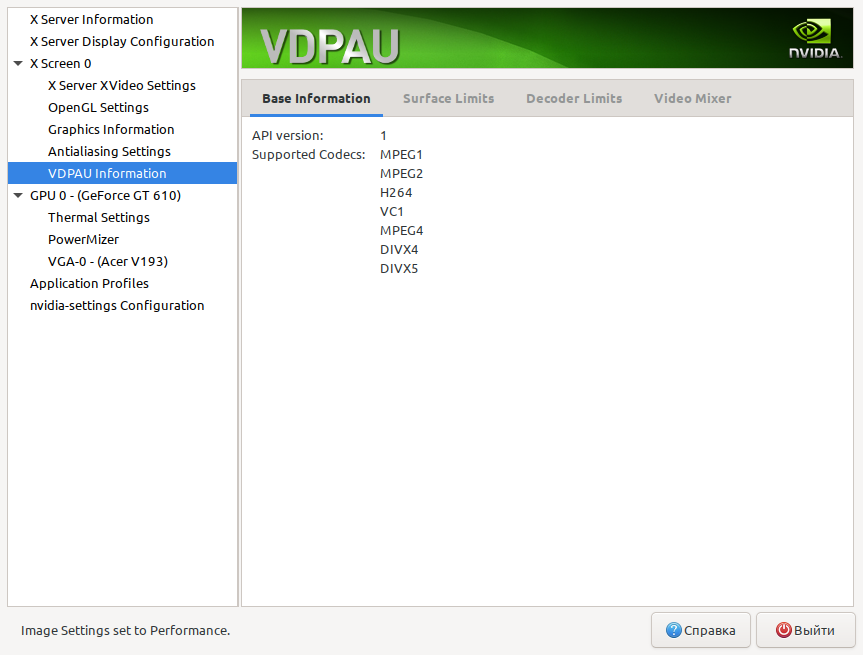
The "X Screen 0" -> "VDPAU Information" tab shows support for hardware video acceleration:
vdpau

MPEG1
MPEG2
H264
VC1
*MPEG4

  • DIVX4
  • DIVX5

The maximum supported resolution for hardware acceleration is on the next tab "Decoder Limits". Equals 4032 x 4080 in pixels.
limits

The purchase of the nVidia GT610 video card paid off - compared to the GeForce 9800GT, the GT610 model has support for hardware acceleration of FullHD video and higher, up to 4032 by 4080 pixels. In this way, you can install drivers for other nVidia video cards in Ubuntu.


Last change - 05/06/2025 (link to new article added).


Related publications

