

11
November
2020
Setting up the WSJT-X program (FT8 mode) for VHF competitions
13:56

Setting up the WSJT-X program (FT8 mode) for VHF competitions

11 November 2020 13:56

The FT8 digital mode has gained incredible popularity and recognition around the world. Radio amateurs want to use it not only for long-distance DX QSOs on short waves, but also in competitions, including on ultra-short waves 144 and 432 MHz. The WSJT-X program provides an operating mode for European competitions using FT8 modulation.

Before you start setting up, you need to install the program. 😀 The installation program (distribution) for WSJTX is located on the page
[hthttps://physics.princeton.edu/pulsar/K1JT/wsjtx.html in the section "Installation packages". This article discusses installation on the Linux Mint x64 operating system. The process of installing the program on Windows x86/x64 differs little and will not be considered separately.

  1. After downloading the program package as a DEB file, it will be saved in the folder "Downloads". In Explorer, you need to double-click the installation file *.deb(will open in the graphical package installer GDebi).

An alternative way is from the command line.
Go to the terminal in Downloads
and run the command sudo dpkg -i wsjtx_2.2.2_amd64.deb

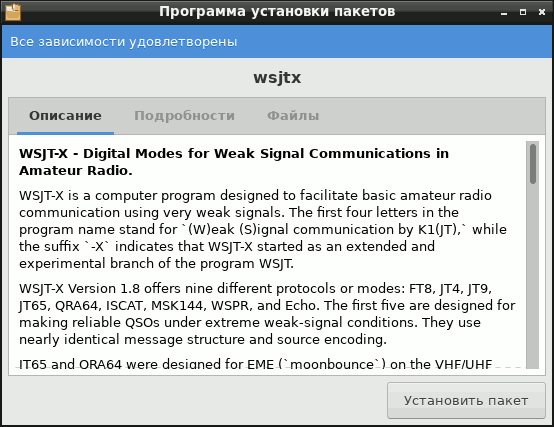
  1. The initial installer window will open.
    beginning

  2. To start the installation, press the button "Install package"

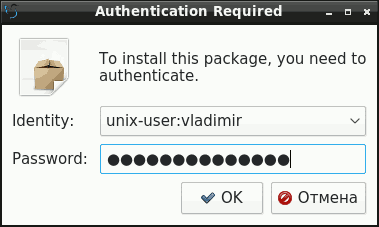
  3. Please note that WSJT-X requires administrator (SU) rights to install. Therefore, you will be prompted for the administrator password.
    administrator password

You shouldn't be afraid of this, because... the program simply installs itself in the following paths:
/usr/bin/ - wsjtx, rugctld-wsjtx and rigctl-wsjtx programs
/usr/share/pixmaps/ - program icon
/usr/share/man - command line user manual (man)
/usr/share/applications/ - .desktop file
/usr/share/doc/ - user manual in the form of an HTML file
/usr/share/app-install/desktop/
/usr/share/app-install/icons/

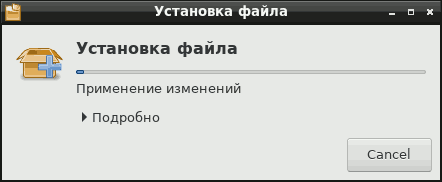
  1. The installation process will begin.
    installation

  2. After the installation is complete, close the installation window. The easiest way to launch the program is from a terminal window:

wsjtx

(in Windows we traditionally launch through the Start menu)

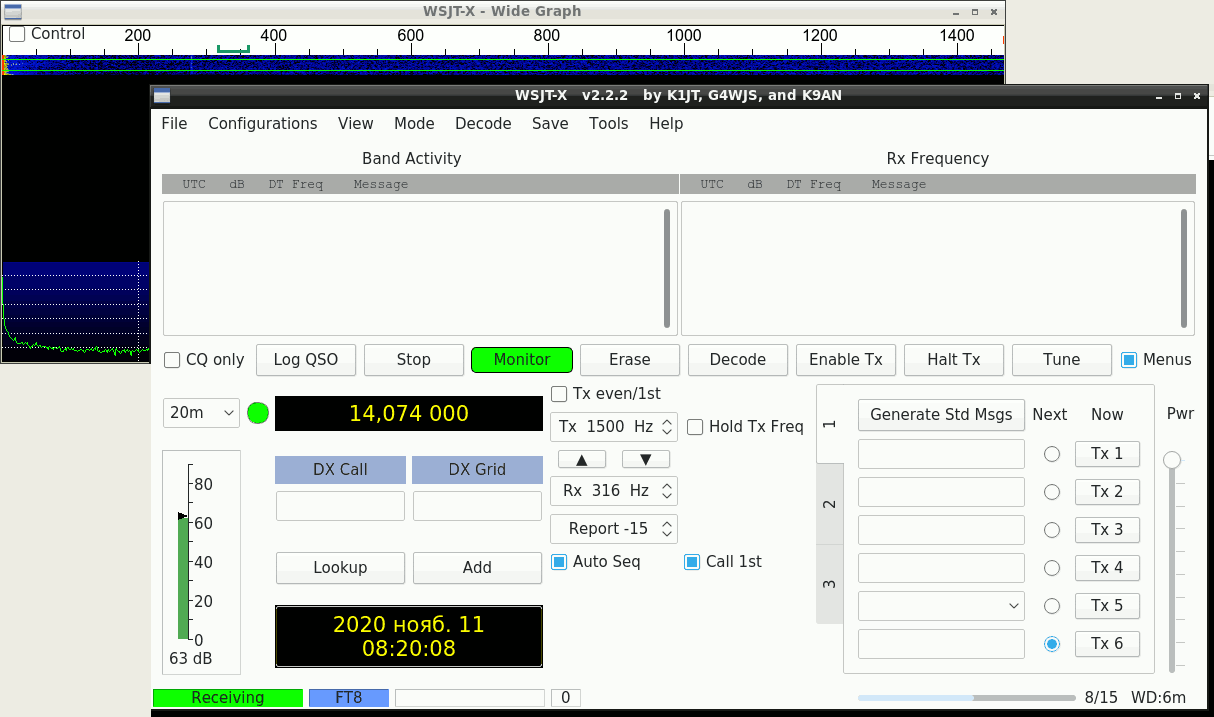
  1. The main program window will open
    main window

The program has not yet been configured and is not ready for work - the wrong range is visible, your call sign and locator are not indicated.

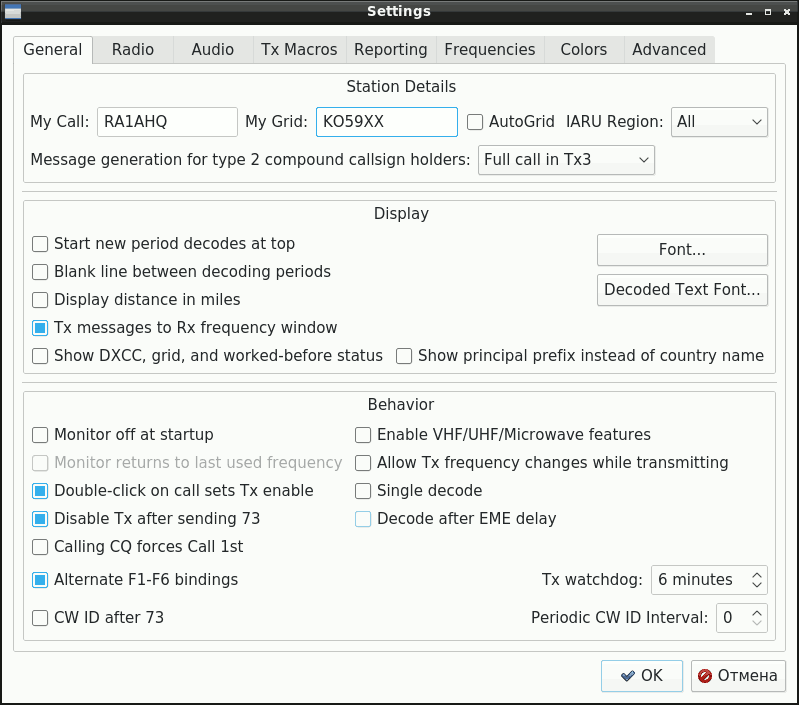
  1. In WSJT-X, go to the menu "File" - "Settings" - "General".
    Indicate your call sign and locator, check the boxes:

    • Double-click on call sets TX enable
    • Disable TX after sending 73
    • Alternative F1-F6 bindings (this point will be discussed at the end of the article)
      call sign
    1. The second and third bookmarks, "Radio" and "Audio" are configured as in the previous article "Installing, configuring and using WSJTX on Linux".

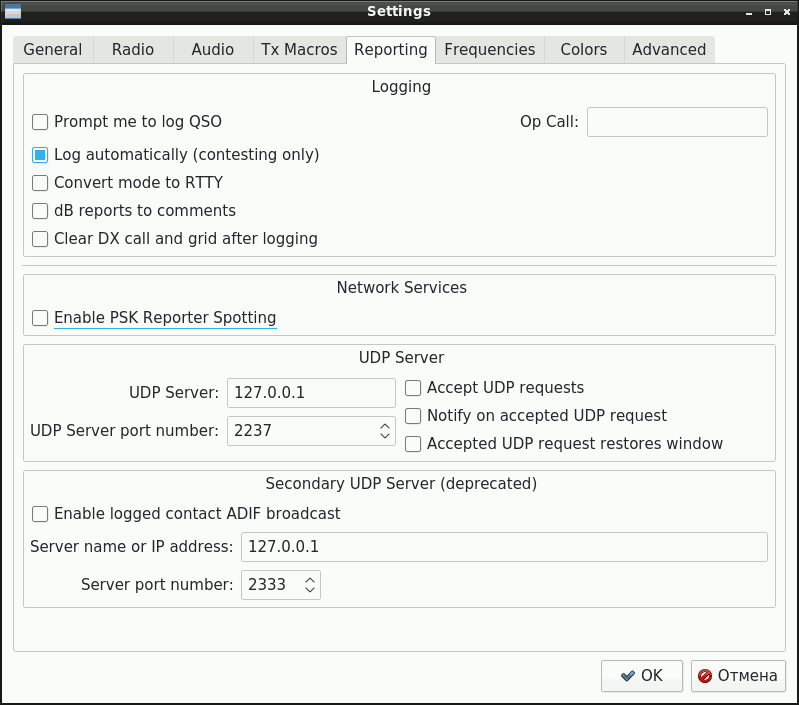
10.On the "Reporting" tab, check the box against "Log automatically (contests only)"

This setting is the opposite in its effect to “Prompt me to log QSO”, i.e. recording in the hardware log during competitions is automatic, after receiving all the information and confirming RR 73.

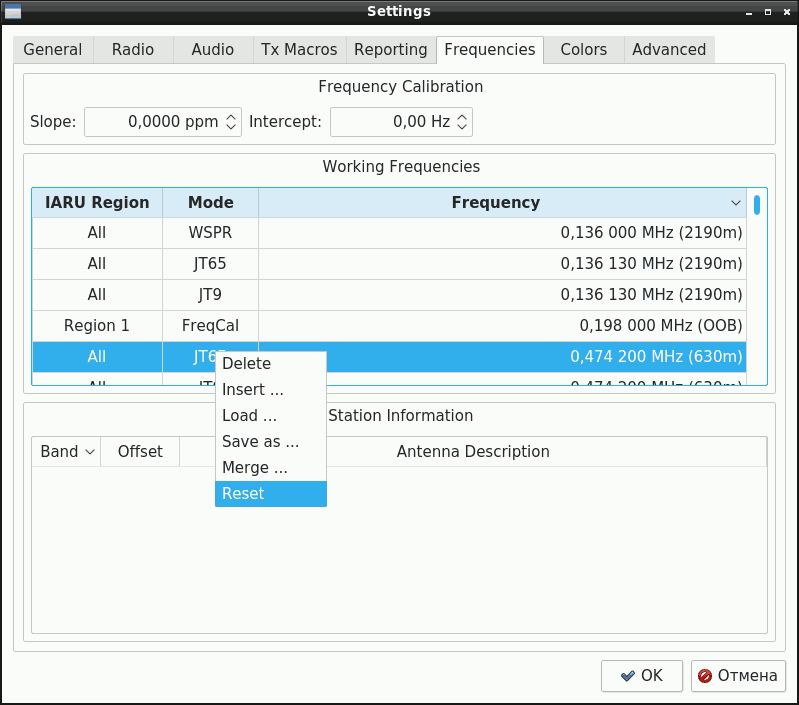
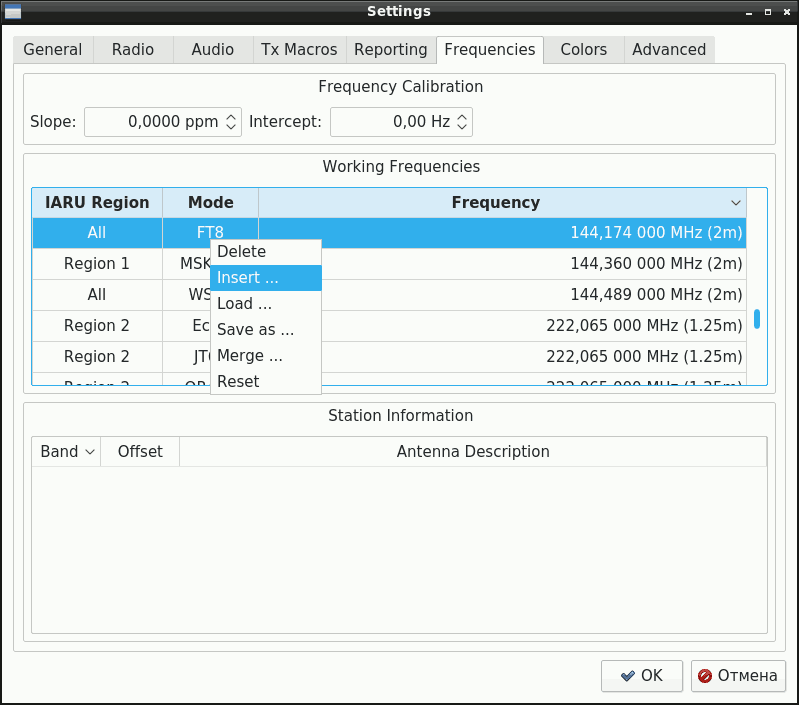
11.On the "Frequencies" tab you need to reset the frequencies. Otherwise, without this, FT8 will not have frequency 144.174 in the VHF range of 2 meters.
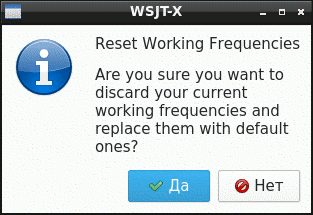
Right-click on the frequency table and select "Reset".
frequency table reset
frequency reset confirmation
The frequencies in the table will be reset according to the IARU plan.

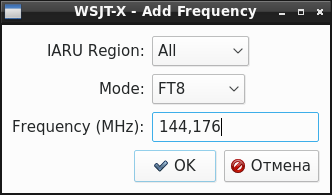
It should be noted that European radio amateurs use the frequency for FT-8 144.174 MHz(which is “hardwired” in the WSJT-X program by default), and in Russia the frequency adopted for FT-8 to operate on VHF is 144.176 MHz. For European competitions, for calls to the west it is more correct to use 144.174, and for work in the tropos to the east - 144.176.

Adding a new frequency is shown in the screenshots below:
insert
addition 144.176

Similarly, we add the frequencies of the FT8 mode of the 70cm range -432.174 MHz and 432.176 MHz.

After this setting, in the drop-down list of frequencies for the 2 meter range you can select 144.174 or 144.176, as well as 70cm..

Setting up FT8 for competition

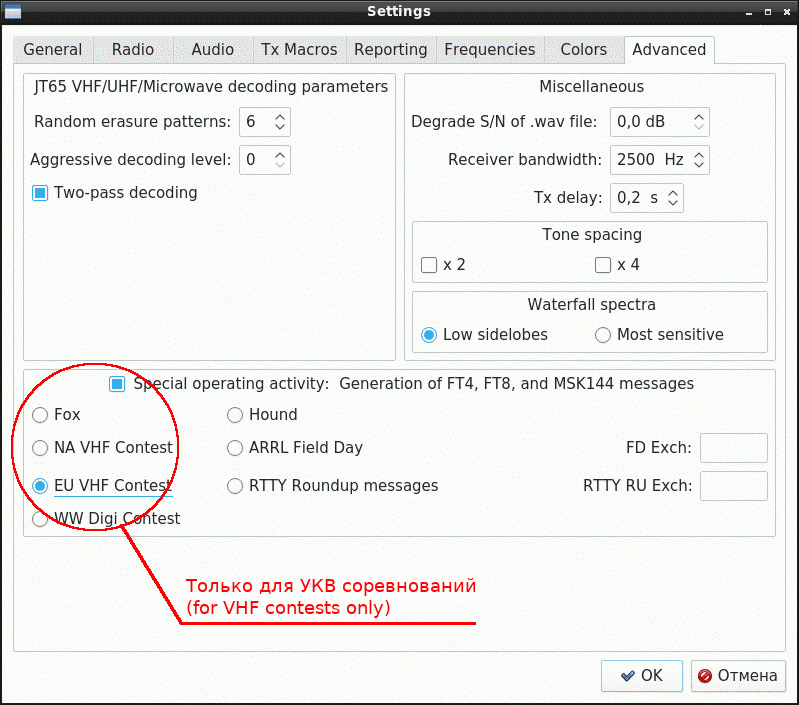
Let's move on to the main point - setting up FT8 for competitions. The "tab" is responsible for this mode.Advanced " and section " Special operating activity: Generation of FT4, FT8, and MSK144 messages"
12.Select this mode and check the box against "EU VHF Contest(for European competitions)":
settings for contests

Attention: the mode is only for competitions: after they are over, do not forget to disable these items. 😄

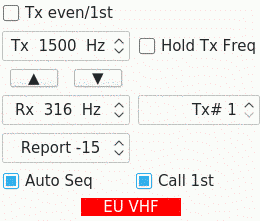
13.13. To remind you that the program operates in a special mode, the red banner “EU VHF” is lit at the bottom of the window:

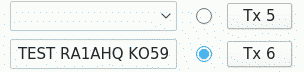
14.Radio communications are carried out as usual in FT8 QSO - using macros and structured messages that are generated by the program. By default, the CQ TEST all-call mode is enabled - just press Enable TX and the broadcast will begin.
challenge
You can find many videos and tutorials on the Internet about using the WSJT-X program.

15.The difference between this competition mode is the exchange of control numbers (substituted automatically) and WW locators.
For a detailed description of the competition mode, see the manual
http://www.physics.princeton.edu/pulsar/K1JT/wsjtx-doc/wsjtx-main-2.2.2.html#CONTEST_MSGS


Link about the peculiarities of working in digital sports competitions:
https://physics.princeton.edu/pulsar/k1jt/NCJ_FT4_FT8_Contesting.pdf


Feature of reassigning the F1 - F6 keys

With an alternative assignment of the keyboard function buttons F1-F6 (“Alternative F1-F6 bindings”), useful actions will be called - macros that will be useful in contests.

Key Action
F1 Enabling transfers(Enable TX)
F2 Mode reception(Halt TX + Monitor)
F3 Macro #3 -Tx3- step number 3 of the sequence
F4 Macro #4 -Tx4- step number 4 of the sequence (RRR or RR 73)
F5 Macro No. 5 - transmission RRR or RR 73
F6 Changing call period (even/odd)


Related publications

