
7
November
2022
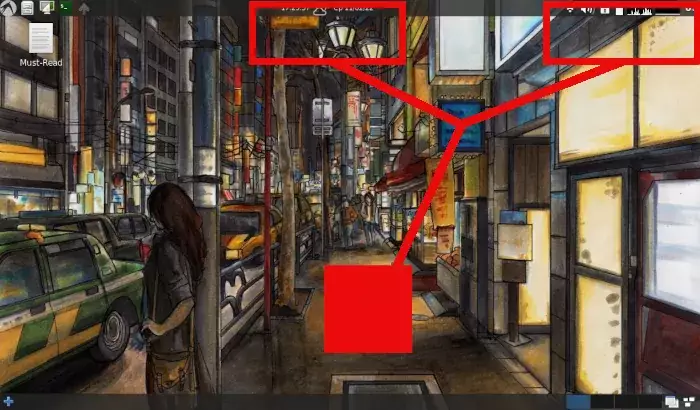
Screenshot in Linux Lxle. Setting up switching keyboard and clock.
16:47

Screenshot in Linux Lxle. Setting up switching keyboard and clock.

7 November 2022 16:47

Article about setting up the shells of the Linux Lxle Desktop (Lubuntu Extra Life Extension).

On the small screen of Netbook 13'-14 ', it is quite difficult to fit the interface of applied programs, while maintaining the text to the readable. To do this, there is a setup of scaling the image on the screen. Also, immediately after installation, it is necessary to add the layout of the keyboard for the national language and configure the display of time in accordance with the adopted format.

Table of contents:

  1. Масштабирование экрана в LXLE
  2. Переключатель раскладки клавиатуры LXLE
  3. Настройка формата часов
  4. Изменение часового пояса

1. Screenshot scale in lxle

In the lxle shell, scaling setting is set for each user separately.
I did not find a graphic tool for a change in scale. Perhaps I was looking badly.
Changing the scaling in LXLE using a configuration file .Xresources:

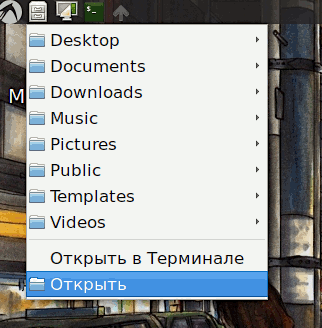
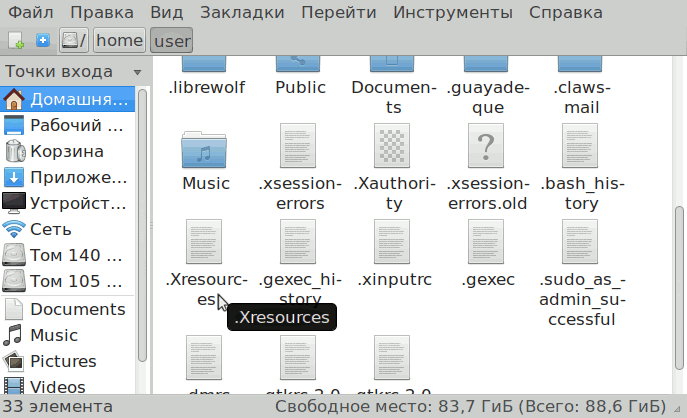
1) Open the PCManfm conductor (available through the rapidly launched program menu next to the Start button on the desktop).

Desktop0

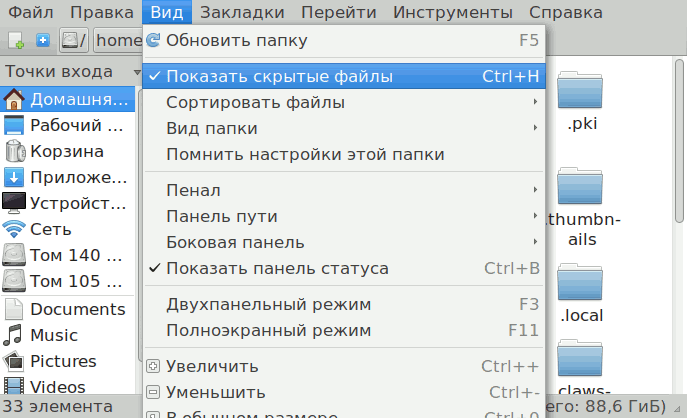
2) In the PCManfm menu, turn on the display of -shut -down files:
"View" - "Show hidden files":
Desktop1
Desktop2

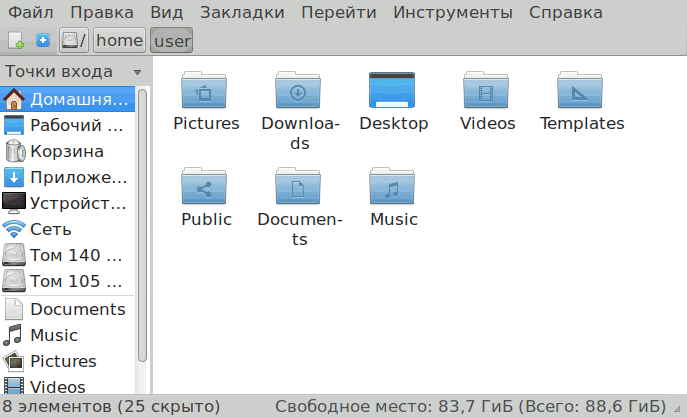
3) Find the file .Xresources In the user's home folder.

Desktop3

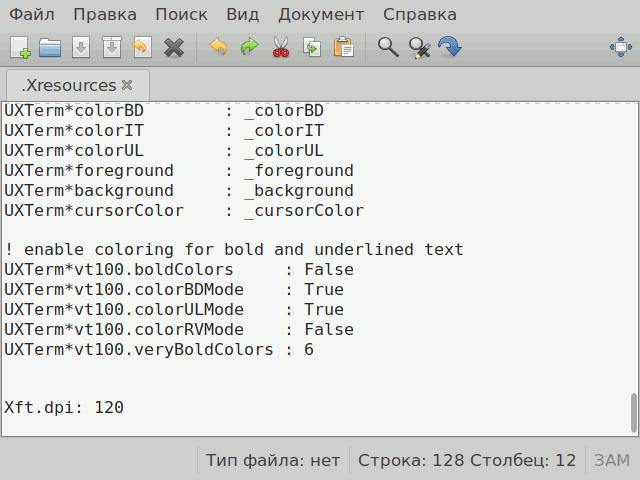
4) Open it with a double click for editing.

Desktop4

5) Add the parameter at the end of the file:

Xft.dpi: 120

Desktop5

Where the number 120 means scale.
72 - smaller by 25%,
77 - smaller by 20%,
96 - by default,
115 - 20%larger,
120 - 25%larger.

For Klog hardware magazine and screen resolution 1024x600, the optimal value of the parameter xft.dpi: 80 .

6) Save the changes in the file ( file - save (ctrl+s) )

7) make a way out of the current session: Start - Shutdown - Exit
And go into the user's session again.

For temporary scaling changes, you can use the built -in Xorg:
xrandr | grep connected | grep -v disconnected | awk '{print $1}'
xrandr --output VGA1 --scale 0.8x0.8
xrandr --output VGA1 --scale 1.2x1.2

2. Switching Switching keyboard layout LXLE

The layout is set up using the element "keyboard layout" ,
which must first be added to the system panel.

1) Open the parameters of the system panel using the right mouse button.

In the context menu, select the "Add/Remove the panel elements" .
nastr1

2) A window with a table in which the panel elements are listed. Press the "Add" :
nastr2

3) Select "Keyboard layout processor"
nastr3

4) On the right side, press the "Parameters" button.
nastr4

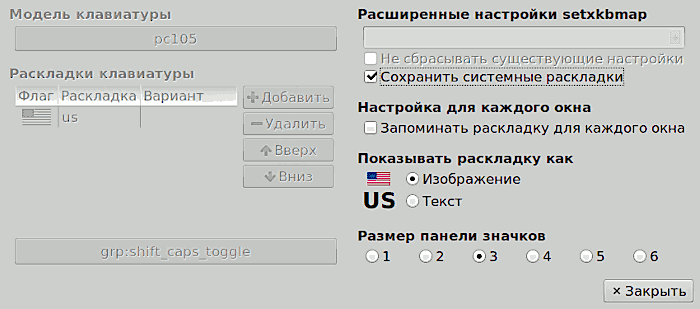
5) First, the parameters are blocked, using the castle "Save system layouts" .
Remove this flag.
nastr5

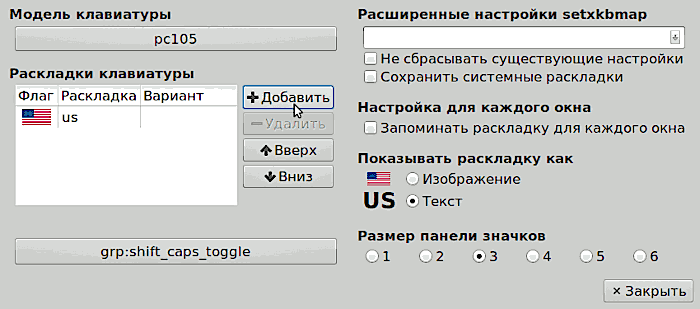
7) Now all the parameters of the keyboard and the selection of layouts are available for change.
Press the "Add" button.
nastr6

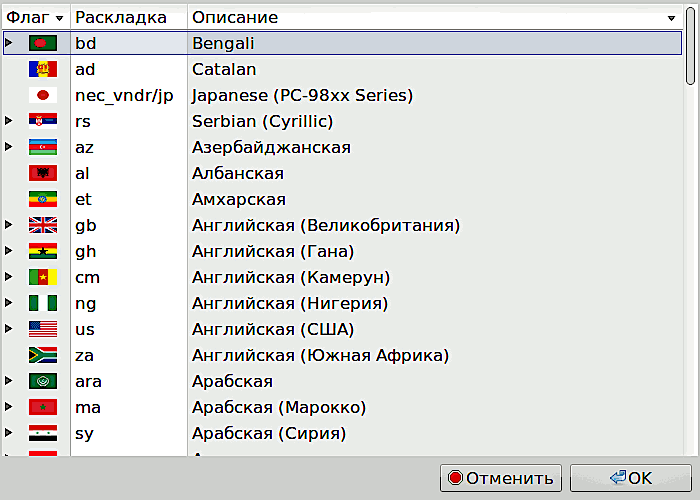
8) A form with a list of accessible languages will open.
nastr7

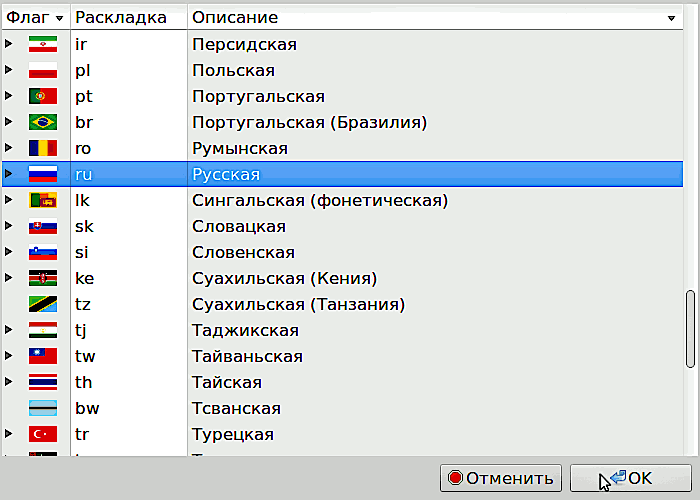
9) Find our keyboard language and click "OK" .
nastr8
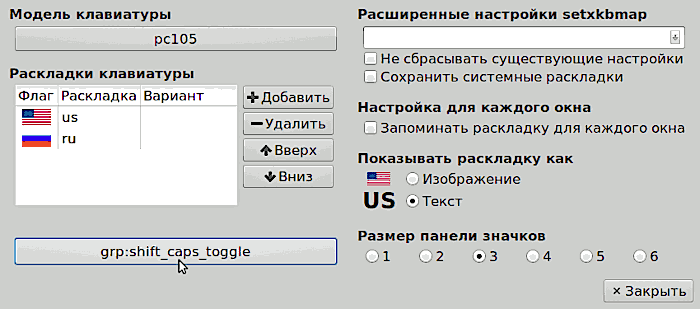
We have successfully added the second keyboard layout - for the national language.

10) We change the icon - the country's flag on the text with the switch.
nastr9
Below we press the button for setting hot keys to switch the keyboard layouts.

11) We ask hot keys - ctrl+Shift и/Or Alt+Shift
nastr10

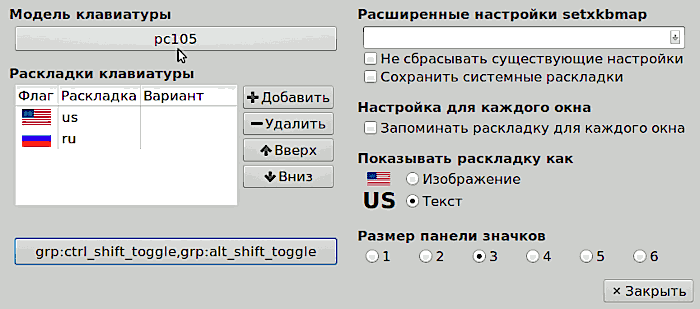
12) If a laptop is used, at the top of the window we press the button next to the inscription "keyboard model" ,
to change the keyboard model PC105 to another.
nastr11

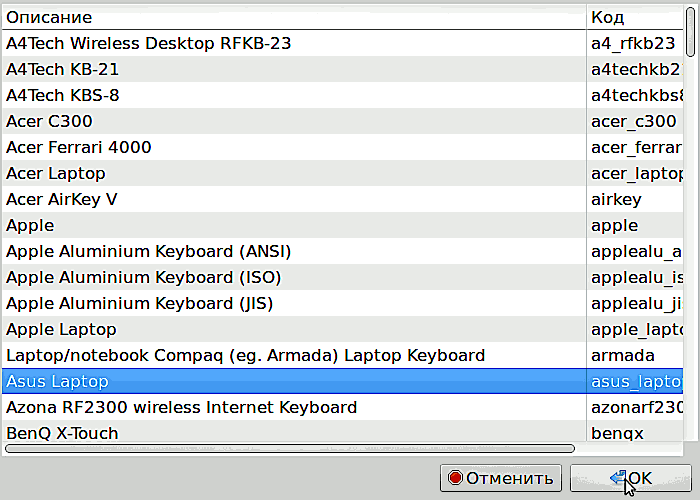
13) For a laptop: We clarify the keyboard model, choosing it from the list. For example asus laptop .
nastr12

14) Press the "OK" and "Close" buttons.

We pay attention to the system panel: it changed the view - the keyboard layer appeared in the right corner.
(In this example, the switch from US to ru and vice versa).
nastr13
Switching layouts - the keys that were set in paragraph 11, for example, Alt+Shift.

3. Setting up time format at watches

After installing the system, time is displayed on the taskbar in the wrong format. For example, instead of 17 hours, he writes 05, which is associated with an incorrect indication of the mask in the watch parameters. Settings of the watch format - see below:

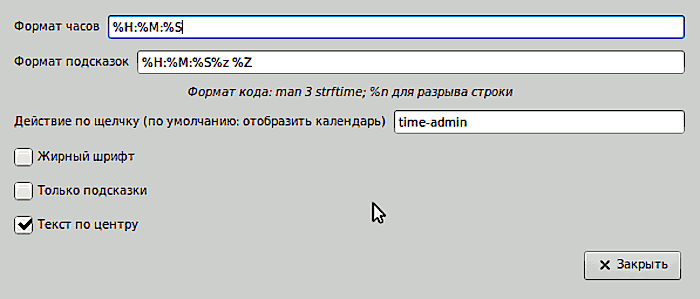
1) Click with the right mouse button on the clock in the central part of the system panel - item "Configure" digital watch "

2) Indicate the clock format %h:%m:%s
Time6

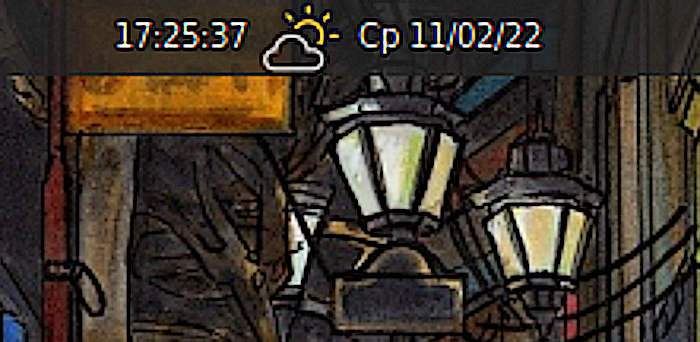
3) Now the clock displays the time in the correct format:
Time7

4. If necessary, change the date and the time zone

1) double -click on the clock (with the left mouse button).

In the window "Date and time" click the unlock button "Unlock" :
Time1

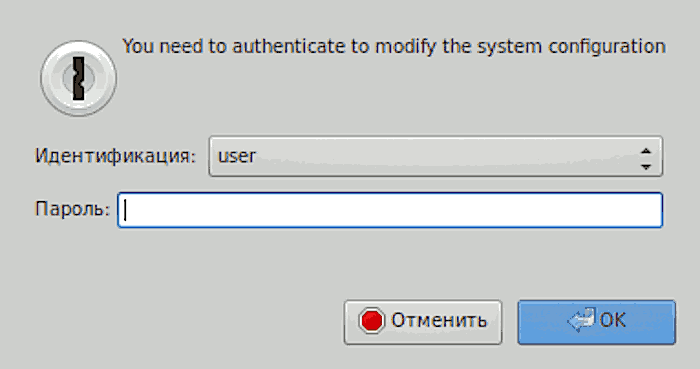
3) Enter the user password to perform administrative actions.
Time2

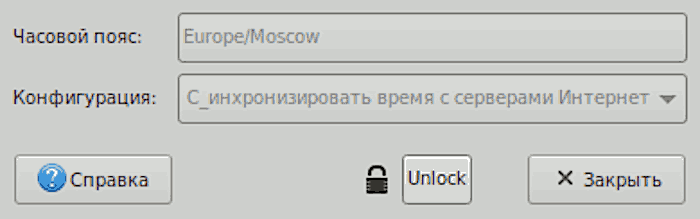
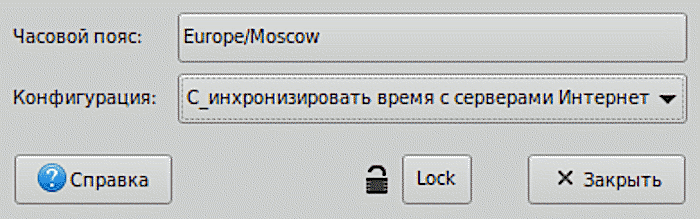
4) In the first paragraph "An hour -long belt" you can change the time zone.
Time4

5) In the second paragraph "Configuration" you can turn off or enable synchronization of time with servers on the Internet through the NTP protocol.

If you are turned off, time and date can be set another date and time:
Time3

So that the computer’s watch is automatically synchronized via the Internet, leave the default value:
"Synchronize time with Internet servers" .


Related publications

