18
October
2022
Linux Lxle: Launching a preinstalled version of OEM
17:19

Linux Lxle: Launching a preinstalled version of OEM

18 October 2022 17:19

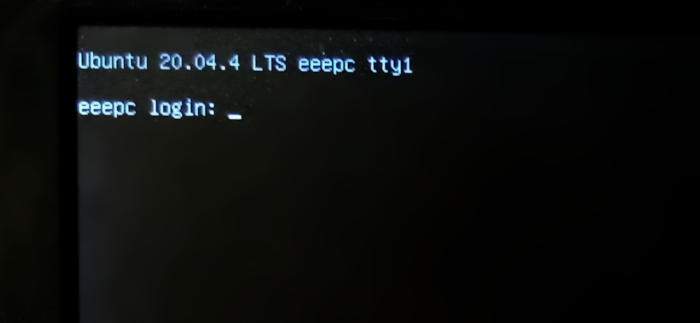
When I selected the “OEM 'installation option when installing LXLE, the program created a user oem и ярлык на его рабочем столе "PREPARE TO SHIPMENT TO USER", что означает "Подготовить ПК к поставке пользователю".

What is OEM installation for?

For example, a computer enters the store and it is necessary to install Linux. The installer launches "Prepare to Shipment to User" and then turns off the PC. Then the personal computer is cleaned in a box and sold. The user at the first inclusion comes up with the name of the computer, indicates his name and password.

In this case, when installing Linux Lxle, I chose just the method of installing "OEM". Below I will show what is happening next. When the PC is first turned on by the user. And what pitfalls exist in this case.

Description of the first inclusion of Linux after OEM installation

The main feature of the Linux Lxle installation is the first inclusion should be performed with the Internet disconnected. Update packages at the very end, after the complete completion of the setup and installation!

Шаг 1. Выбор языка. Поскольку LXLE основан на Ubuntu, локализация прекрасная. Доступно множество языков всех народов мира:

Asturian (Asturianu) Индонезийский (Bahasa) Боснийский (Bosanski) Каталонский (Catalá) Чешский (Čeština) Валлийский (CymraEG)
Danish (dansk) Немецкий (Deutsch) Эстонский (Eesti) Английский (English) Испанский (Español) Эсперанто (EsperaNTO)
Basque (EUSkara) Французский (Français) Ирландский (Gaeilge) Галицийский (Galego) Хорватский (Hrvatski) Исландский (Íslenska)
Italian (italiano) Курдский (Kurdi) Латвийский (Latviski) Литовский (Lietuviškai) Венгерский (Magyar) Голландский (NederlaNDS)
Without localization (UTF-8) Norwegian (BOkmål) Новый норвежский (Nynorsk) Польский (Polski) Португальский (Português) Бразильский португальский (Português de BraSil)
Romanian (ROmână) Саамский (Sámegillii) Албанский (Shqip) Словацкий (Slovenčina) Словенский (Slovenščina) Силезский (Ślůnski)
Finnish (SUOmi) Шведский (Svenska) Тагальский (Tagalog) Вьетнамский (Tiếng Việt) Турецкий (TürkçE) Greek (ελληνικά)
Belarusian (Belarusian Mova) Bulgarian (Blgar) Kazakh (Kazakh) Macedonian (Macedonian јAzik) Russian language Serbian (Srpski јezik)
Tajik (TOҷikӣ) Ukrainian (Ukrainian Mova) Georgian (ქართული ენა) Hebrew (etc. Uygursky (ئۇيغۇرچە) Arabic (عoff)

Choose the desired language.

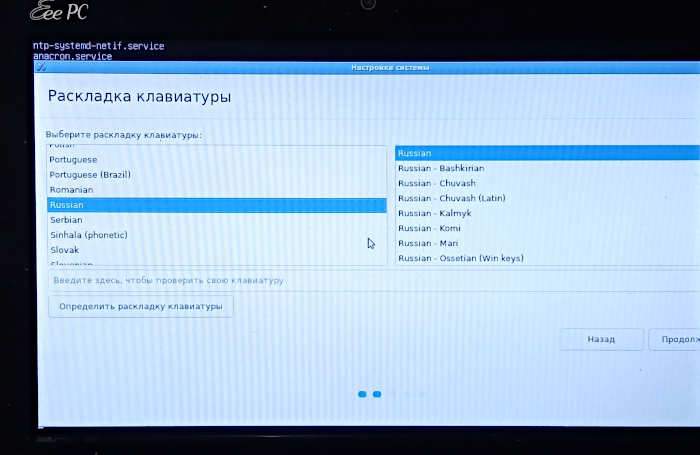
Шаг 2. Выбор раскладки клавиатуры

OEM02

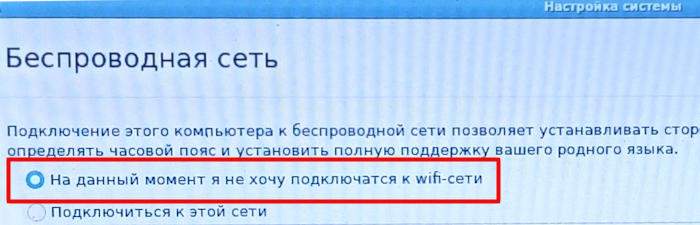
Шаг 3. Отказ от подключения к Wi-Fi сети

"At the moment I do not want to connect to Wi-Fi"

OEM03

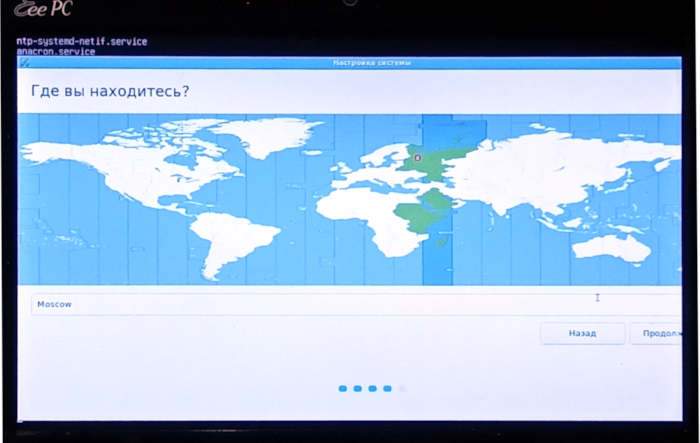
Шаг 4. Выбор часового пояса.

OEM04

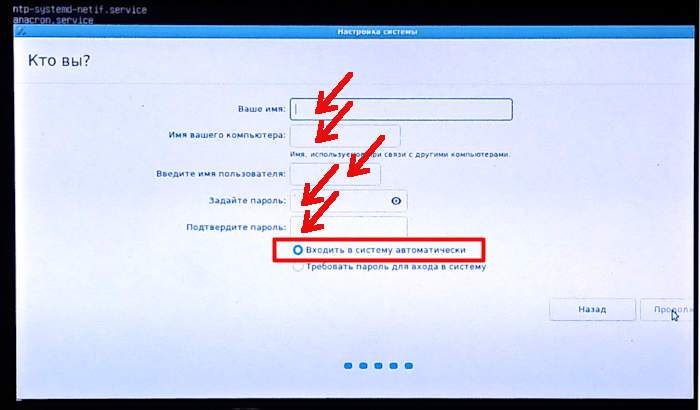
Шаг 5. Придумать Имя пользователя, имя аккаунта для входа, пароли

OEM05

After entering the user account data, we continue.
OEM06

Шаг 6. Выполнение установки и настройка параметров профиля пользователя

OEM07

Do not forget to put the switch against the automatic entrance to the system.

The end of the installation and settings:

OEM08

At the end of the installation - a window will appear on the screen about updating packages:
OEM09

Шаг 7. Перезагрузка ПК

OEM10

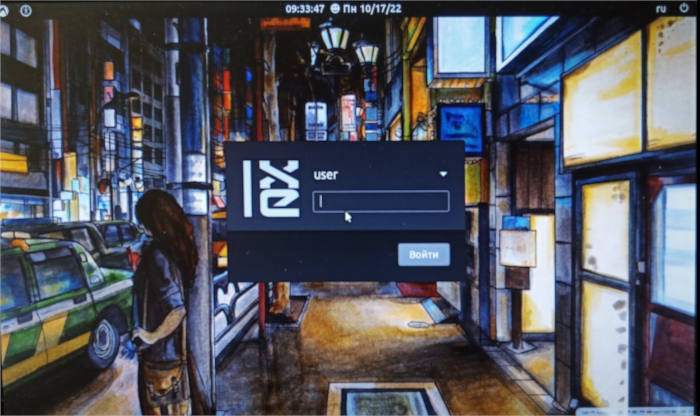
Шаг 8. Первый вход пользователя - необходимо ввести пароль, который придумали на шаге №6.

OEM11

Шаг 9. Теперь появится рабочий стол.

I connected to the Internet using Wi-Fi applet, the icon of which is visible in the right corner of the screen.
Launched "sakura" (ALT+F2 - sakura). On behalf of the SuperPolizer, I completed two standard teams:

sudo apt-get update
sudo apt-get full-upgrade

The process of updating the packages has begun:

OEM12

"Yes" - update packages

Шаг 10. В случае файлов конфигурации, нужно решить, заменять ли файл. В ходе обновления Linux LXLE, во всех случаях я поступил соответствующим образом - заменить файл конфигурации на новый, поставляемый вместе с пакетом:

OEM13

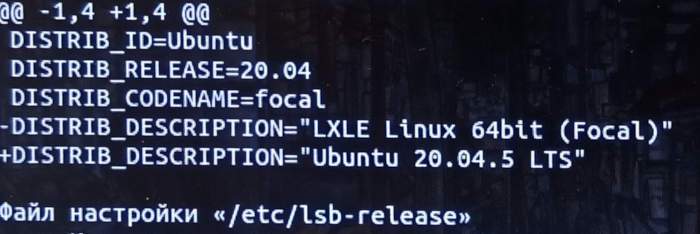
I am replaced by the release name from LXle Linux 64 on Ubuntu 04/20/5:
OEM14

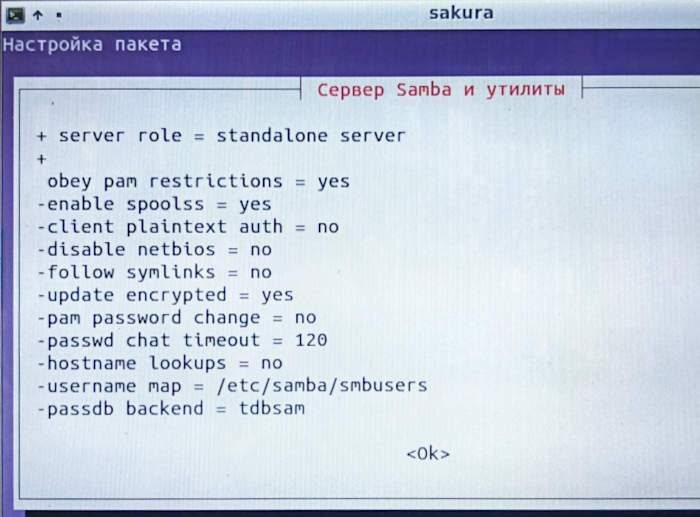
I studied the changes in the configuration file Samba (служба обеспечивает доступ к сети MS Windows, включая общие папки и принтеры), так как в новом файле указан "Standalone server"(Single server or workstation) and this option suits me.
OEM15

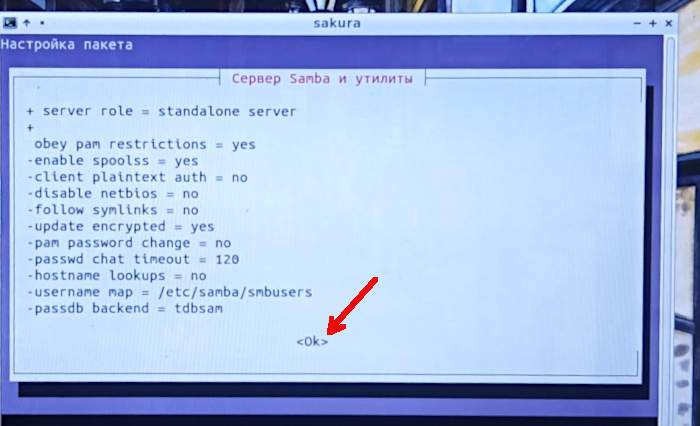
In the text window "server samba и утилиты" нажал OK, подведя курсор при помощи кнопки TAB и подтвердив выбор клавишей Enter.
OEM16

Select "Install the version from the package"
OEM17

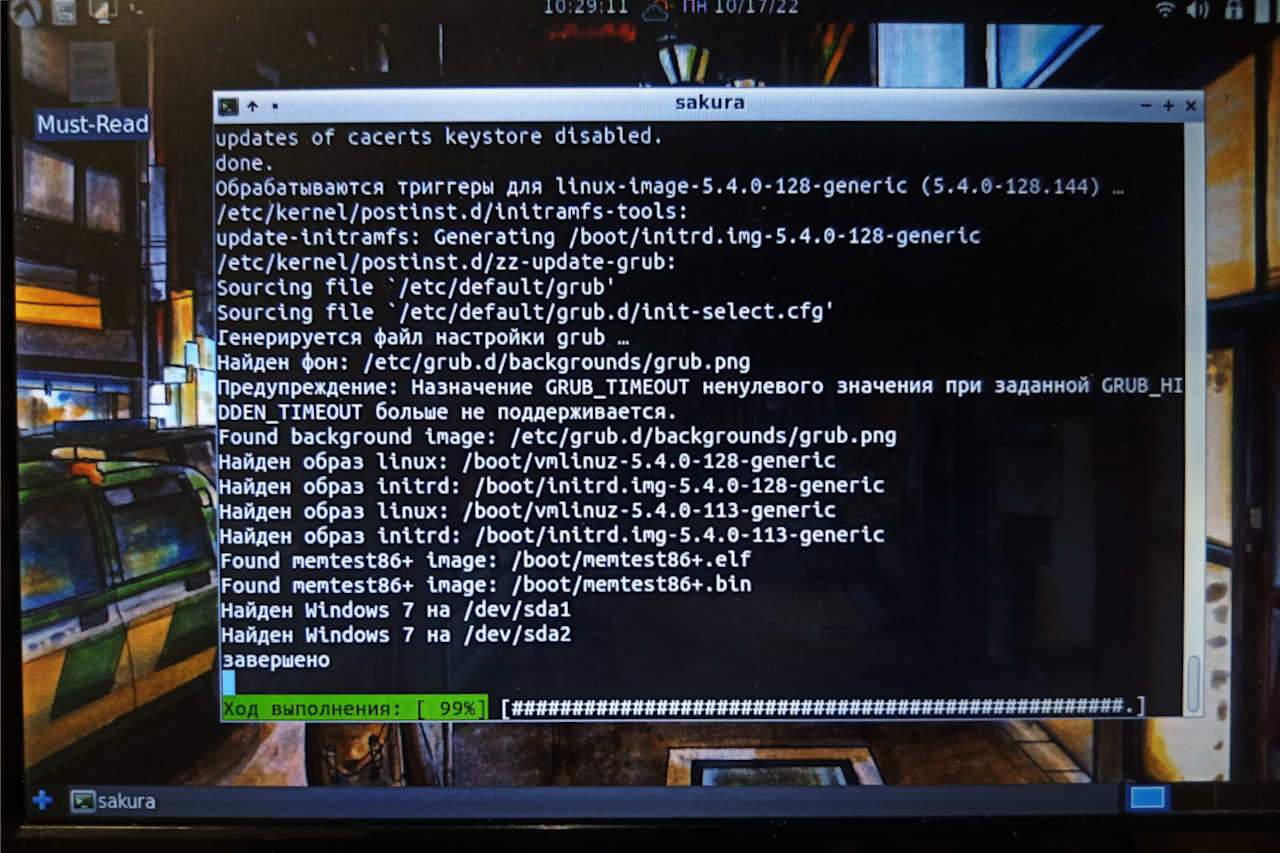
Шаг 11. Завершение обновления системы.
OEM18

Шаг 12. Затем я выполнил установку дополнительных языковых пакетов (для русификации LibreOffice) в меню Пуск - ContrOL Menu - settings - languages - (select the tongue) - install language packages .


Related publications

