8
June
2023
How do I query a MySQL database from LibreOffice Calc?
17:33

How do I query a MySQL database from LibreOffice Calc?

8 June 2023 17:33

In this article I tell you how to implement filling LibreOffice Calc table cells with data using a query to LibreOffice Base associated with MySQL.

Preface

As I previously told you, at work I have to perform a reconciliation between an MS Excel table and a MySQL database about once a month. An intermediate link that implements linked (external) tables is LibreOffice Base. The implementation of the connection between Base and MySQL is described in the previous article, all points of which must be completed before using Calc macros with access to the database.

Purpose of this article- show how to query from Calc to Base and fill cells using macros. This article is devoted to “office programming” in the LibreOffice Calc spreadsheet and is intended for the level of a novice programmer. Software tools are built into the LibreOffice package. It is assumed that the additional components, MySQL, Base and Connector, which are mentioned in the previous two articles, are configured.

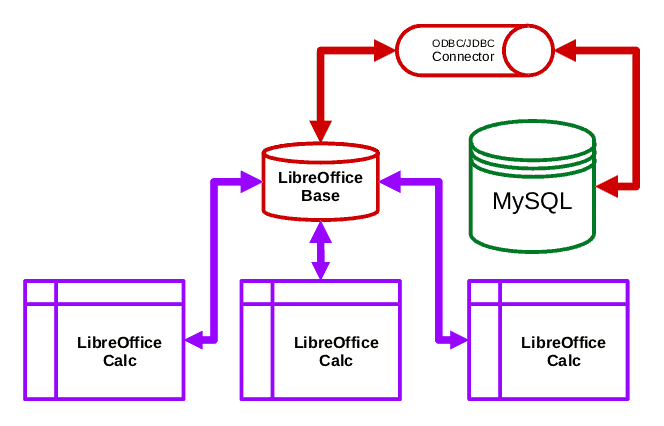
Connection diagram for programs for access from LibreOffice Calc to the MySQL database

shema

DBMS MySql <-> mysql ODBC/JDBC connector <-> LibreOffice Base <-> Libreoffice Calc

  • Installation of the MySQL DBMS is discussed in the article How to reinstall MySQL server
  • Setting up mysql connection connector ODBC/JDBC and LibreOffice Base described in the article How to link LibreOffice Base with MySQL
  • This article will consider connecting from Libreoffice Calc to LibreOffice Base and execution SQL query with filling query result cell electronic tables.

1. Introduction to LibreOffice Calc Programming

The LibreOffice user manual is located on your local PC in the folder
SCalc documentation (file main0000.html)

cd /usr/share/libreoffice/help/ru/text/scalc/
xdg-open main0000.html

The method suggested in the help method of inserting External data, see webquery.html file

cd /usr/share/libreoffice/help/ru/text/scalc/guide
xdg-open webquery.html

It's not good without programming, because... it is for working with flat tables from the same Calc / Excel files, we are interested in the database LibreOffice Base. Therefore, I turned to the LibreOffice Basic programming documentation

help.libreoffice.org/latest/ru/text/sbasic/shared/main0601.html

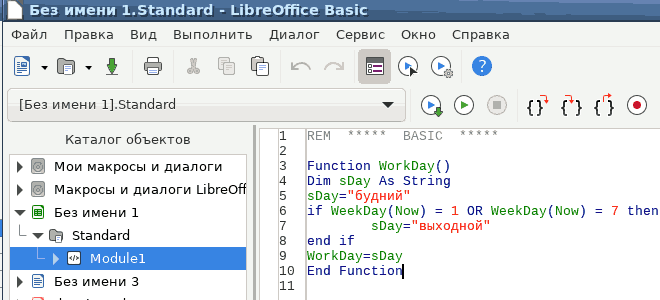
To get the data into the cell, write a function, for example:

Function WorkDay()
Dim sDay As String
sDay="weekday"
if WeekDay(Now) = 1 OR WeekDay(Now) = 7 then
sDay="выходной"
end if
WorkDay=sDay
End Function

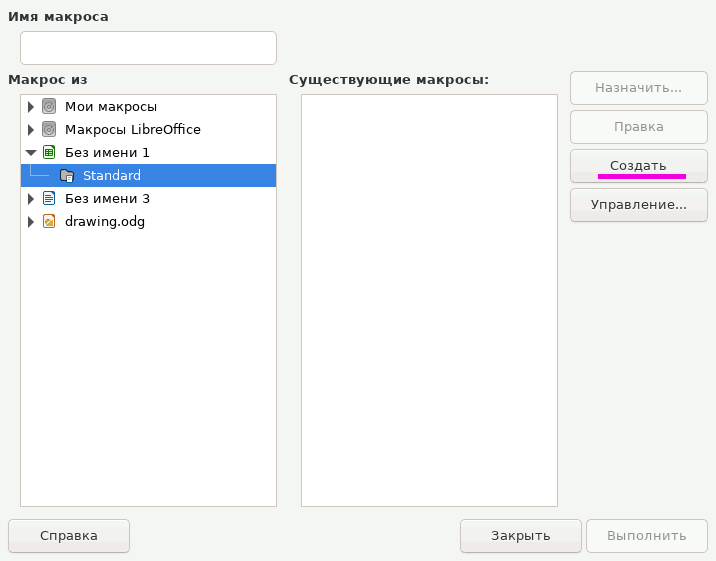
Menu item Tools - Macros - Managing macros - Basic- select our file on the left and press the button on the right Create:
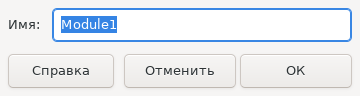
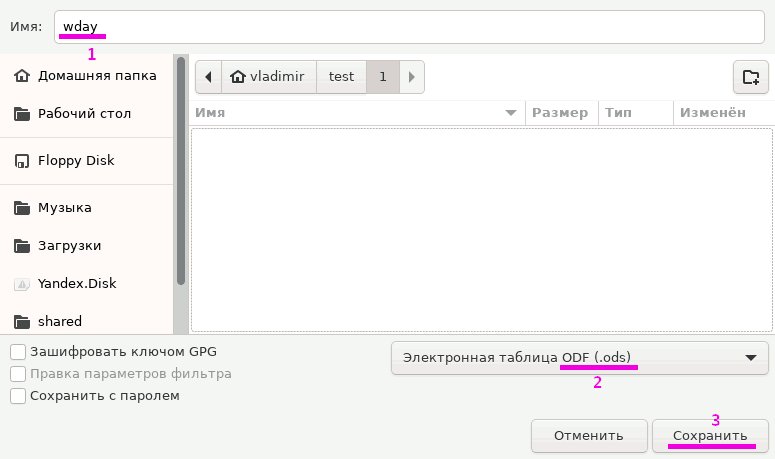
Select everything and delete it. Insert text - Save, Close. Let's come up with a file name:
1) create_macro1
2) create_macro2
3) create_macro3
4) create_macro4

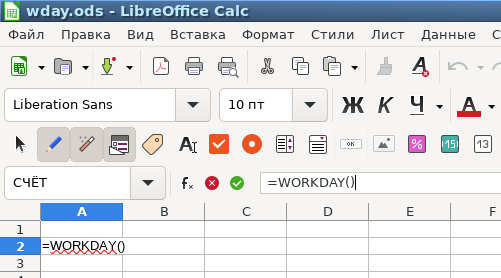
On the sheet, in a cell we write the name of the function with brackets (in which input parameters can be passed),
before the name of the function we put the equal sign ("=")
sheet1
Example:
=WorkDay()
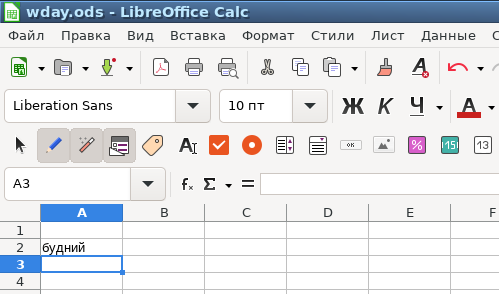
and press Enter. Result:
sheet2

2. Programming using databases

2.1 Viewing the names of LibreOffice Base databases registered in the system

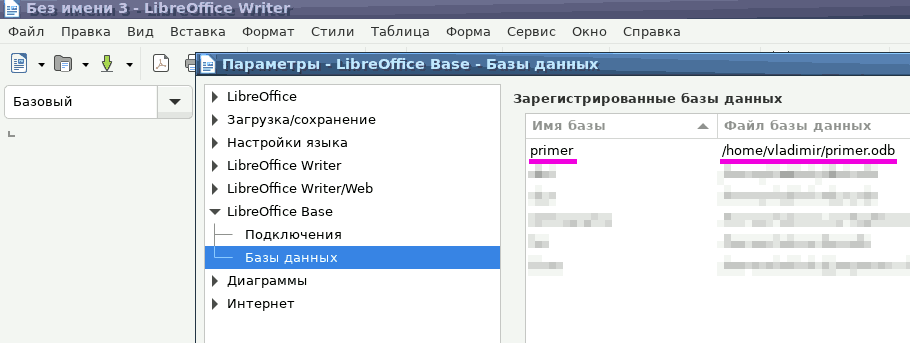
Registered databases can be viewed in the menu of any program from the LibreOffice package:
*Service - Options ->*
LibreOffice Base -> Databases**
registered

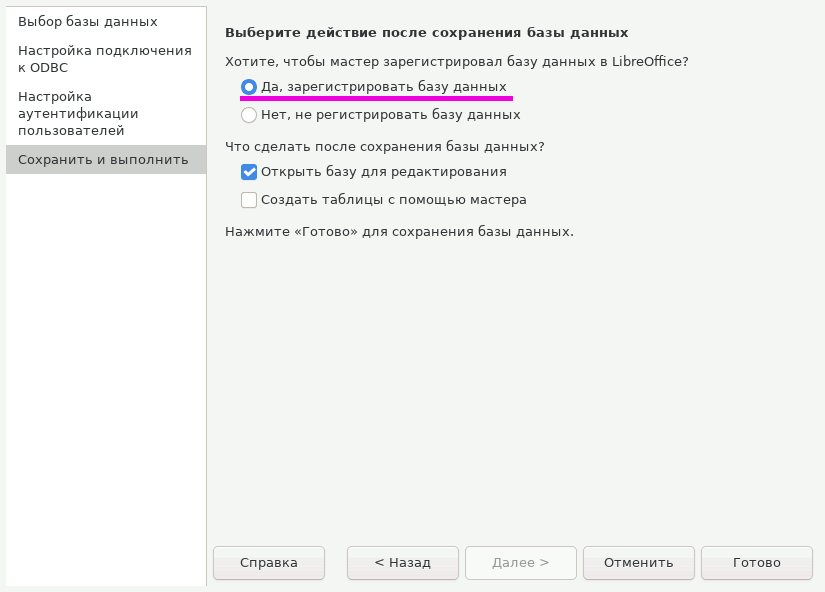
Addition this list occurs in LibreOffice Base when creating a new database: at the end of the Wizard you are asked whether to register the database in the system (by default -register):
reg

Database examples:

Path/home/user/.config/libreoffice/4/user/database/biblio.odb
Name bibliography

In my case, I created a Calc database with the same name "primer"

Path/home/user/primer.odb
Name primer

The database name can be specified here in Russian. Also, the database name for LibreOffice Base may differ from the MySQL database name of the ODBC/JDBC connector).

The LibreOffice Base database is now registered in the system. You can query it from a LibreOffice Calc spreadsheet.

2.2. Using LibreOffice Calc to access a database - Basic macro

Function SELPRICE(id)
On Error GoTo ErrorHandler
Dim dbContext, oDataSource, db, pstmt, oResult, s
s=""
If Not IsMissing(id) Then
dbContext=createUnoService("com.sun.star.sdb.DatabaseContext")
oDataSource=dbContext.getByName("primer")
db=oDataSource.getConnection("","")
sql=buildSelectPrice(id)
if sql<>"" Then
pstmt=db.prepareStatement(sql)
oResult=pstmt.executeQuery()
Do while oResult.Next
If (s<>"") then
s=s + ","
End If
s=s+oResult.getString(1)
Loop

db.Close
db.dispose()
EndIf
Endif
SELPRICE=s
Return
ErrorHandler:
End Function

Function buildSelectPrice(id)
Dim sql
sql=""
If Not IsMissing(id) Then
sql = "SELECT price FROM offers WHERE offer_id= " + id
EndIf
buildSelectPrice=sql
End Function

2.3. Using a Macro in a Calc Worksheet

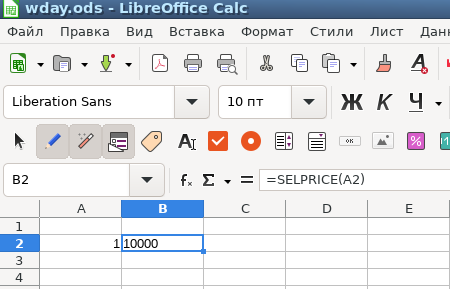
In cell B2 we write a macro call:
=SELPRICE(A2)

where A1 contains the entry ID (for example, 1). The price from the LibreOffice Base database, which is connected to the MySQL database, will be displayed in the Calc cell.
Result when executing a SELECT query with one input parameter

2.4 Using multiple fields in a SELECT query

Code:

Function buildSelectOfferPrice(id, status)
Dim sql
sql=""
If Not IsMissing(id) and Not IsMissing(status) Then
sql = "SELECTpriceFROMoffersWHEREoffer_id= " + id + " ANDdisplay= " + status
EndIf
buildSelectOfferPrice=sql
End Function

Function SELECTACTUALPRICE(id, status)
on error goto label
Dim dbContext, oDataSource, db, pstmt, oResult, s
s=""
If Not IsMissing(id) and Not IsMissing(status) Then
dbContext=createUnoService("com.sun.star.sdb.DatabaseContext")
oDataSource=dbContext.getByName("primer")
db=oDataSource.getConnection("","")

sql=buildSelectOfferPrice(id, status)

if sql<>"" Then
pstmt=db.prepareStatement(sql)
oResult=pstmt.executeQuery()
Do while oResult.Next
If (s<>"") then
s=s + ","
End If
s=s+oResult.getString(1)
Loop

db.Close
db.dispose()
EndIf
Endif
SELECTACTUALPRICE=s
label:
End Function

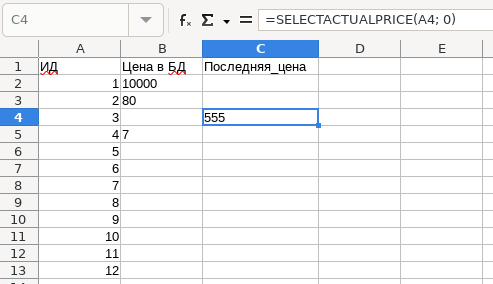
The result is shown below (in the first column the function parameter display=1, and in the second display=0):
Result when executing a SELECT query with two input parameters

Debugging a Macro

Еслand if required, you can set a breakpoint in the macro code and run Data - Cell Contents - Recalculate (F9). The cursor will stop at the stop point. You can then execute the statements line by line, step by step, using the keys F8- "step in" or Shift+F8- "step with detour". To see the error, you need to set the comment symbol - an apostrophe, if there is a line in the function 'on error goto label and save the macro File - Save. Then press F9 and F8. The names of the registered databases can be seen after executing the statement dbContext=createUnoService("com.sun.star.sdb.DatabaseContext")- by viewing the object variable dbContext, in the field of which ElementNames string values of database names are visible.

If, when executing the operator db=oDataSource.getConnection("",""), the exception "[unixODBC][DriverManager]Data source name not found and no default driver specified at" is thrown, this happens when the *.ODB database file we are accessing has been transferred from another user. It has an incorrectly configured connection in Service Communications. It's easier to delete the Libre Office Base (*.ODB) file and create a new Base DB file. In which you can correctly configure the connection to the ODBC/JDBC connector and the name of the data source on this computer:

Registering a new database in LibreOffice Base, establishing a connection with an external ODBC source

  1. launch LibreOffice Base
  2. in the "Connect to an existing database" wizard
  3. ODBC
  4. Next
  5. ODBC Source Name - Browse - OK
  6. Next
  7. Username is empty. Connection test.
  8. Done
  9. indicate the name and location of the database
    10.Save

This is discussed in detail in the article.How to link LibreOffice Base with MySQL.

Now the connection works - the external database tables are visible in the LibreOffice Base window, and the macro runs from Calc without error.
.
Select in Base save "File" - "Save as", save the Base *.ODB file in the user's home directory with a clear name. In Calc - accordingly, we save the spreadsheet with Calc macros to the *.ODS file.

Help (Programming User's Guide)

Documentation for LibreOffice Basic is on the disk

cd /usr/share/libreoffice/help/ru/text/sbasic/shared/
xdg-open main0601.html

Help for LibreOffice Basic on the Internet, with an example of connecting to a database:
*BASIC_Guide

UNO Object Help:

cd /usr/share/libreoffice/help/ru/text/sbasic/shared/
xdg-open uno_objects.html

Help for accessing databases in LibreOffice

LibreOffice Help for Data Sources:

Conclusion

Queries from LibreOffice Calc to the LibreOffice Base database and then to MySQL work.

Other links, reference materials:

For guidance on the dbContext=createUnoService("com.sun.star.sdb.DatabaseContext") object, see the following articles:


Addition. A note about storing macros

Macros can be stored in the Calc spreadsheet file itself (*.ODS) or in the user's shared macro storage. I recommend the first method, because... such files can be transferred between PC drives or between users without losing macros. The second method is that macros are stored in storage and are lost if the PC’s hard drive fails (since ODS files do not contain them in method No. 2, this is a problem). Therefore, it is better to store macros in ODS files rather than in the "My Macros and Dialogs" section of the Basic editor.


Related publications