
7
June
2022
How to use Radio Mobile under Linux: Fast Starting
13:50

How to use Radio Mobile under Linux: Fast Starting

7 June 2022 13:50

Radiomobile - a program for calculating the level of the signal on the VHF between the points on the map written by the Roger Coudé radio amateur with the callsigns of VE2DBE. I propose a brief introduction to its installation and use in Linux OS.

Introduction

Radio Mobile is a powerful program for radio amateurs working in the VHF range. The program works both under Windows and in Linux in the Wine execution environment. The Radio Mobile is designed to predict the levels of the VHF signal between the GPS points on the coordinates or QTH locators, the planning of wireless information transmission routes (the so -called "links"), for calculating the zone of the OHV retranislers. The calculation takes into account many parameters of the real transmission: wavelength, power, distance, curvature of the earth's surface, relief and single obstacles, vegetation, reinforcement of the reception and transmitting antennas, attenuation in the cable, parameters of the Frell zone. Accounting for additional conditions such as soil conductivity, climate, the probability of a successful installation of the connection (days per year or %) brings the calculation to reality. To build a coverage area (available in both polar and in decartement coordinates X, Y), the minimum value of the field voltage set in the parameters of MKV, DBM or S-units can be used.

Installation Radio Mobile in Linux

1) A Wine, 7ZIP archiver and 7zip extensions for a file manager should be installed:

sudo dpkg --add-architecture i386
sudo apt-get update
sudo apt-get install wine wine64 p7zip-full file-roller

In the conductor (I use PCManfm ), the opening of files *. 7Z in the Gnome archives ( file-Roller ) should work.

2) Microsoft Visual Basic 6 should be installed in Wine.
vb6.7z

  • РWe are azarchivating the VB6.7Z archive from the file manager, we launch vb6runtimes.exe with a double click of the mouse, we agree to the installation of VB6. The installation program is practiced in 2-5 seconds.

Or download the VB6 installation file from here:ZDNET Download VB6, also install vbrun60sp3.exe with a double click of the mouse.

3) Next, we create a catalog structure for the program, for which we perform commands in the terminal

mkdir ~/.wine/drive_c/Radio\ Mobile
mkdir ~/.wine/drive_c/Radio\ Mobile/SRTM3
mkdir ~/.wine/drive_c/Radio\ Mobile/SRTM1
mkdir ~/.wine/drive_c/Radio\ Mobile/SRTMthird
mkdir ~/.wine/drive_c/Radio\ Mobile/Landcover
mkdir ~/.wine/drive_c/Radio\ Mobile/OpenStreetMap
mkdir ~/.wine/drive_c/Radio\ Mobile/Terraserver
mkdir ~/.wine/drive_c/Radio\ Mobile/Toporama

Note: The archive with the program with all catalogs is at the end of this article. If the archive of Radiomobile.7z is removed to the ~/.wine/drive_c/folder, then we go right away to paragraph 7.

4) From the official site we download the archive with the main (Core) components for the Radiomobile program:
https://www.ve2dbe.com/download/rmwcore.zip

5) remove files from the archive rmwcore.zip to this folder

cd ~/Загрузки
unzip rmwcore.zip -d ~/.wine/drive_c/Radio\ Mobile/

5) from the official site we download the archive with the Radiomobile program for English (there is no Russian for the latest version 1167):
https://www.ve2dbe.com/download/rmw1167eng.zip

6) extract files to the same folder

unzip rmw1167eng.zip -d ~/.wine/drive_c/Radio\ Mobile/

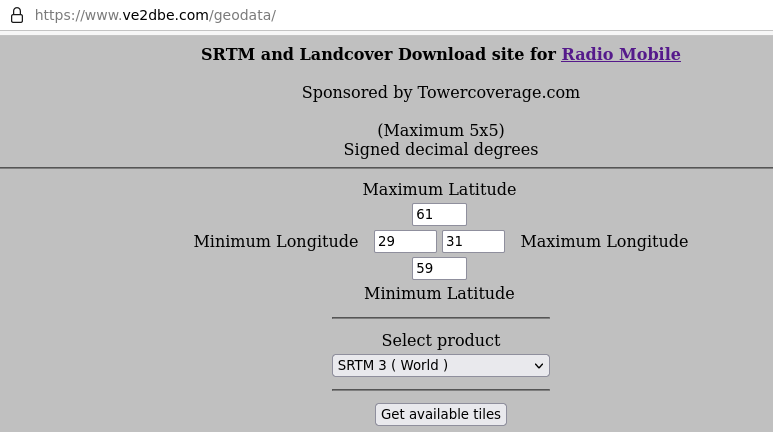
7) From the official site we upload high - SRTM3 (World) files,,
https://www.ve2dbe.com/geodata/
by setting the extreme points of longitude and latitude. For example:
SRTM3

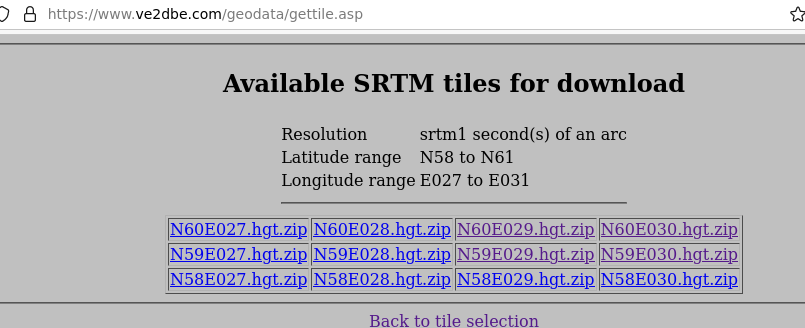
After downloading all the files that we execute in the browser manually, clicking on the file names, in the download folder there should be an even number of files, for example:
N60E030.HGT.ZIP
N59e030.hgt.zip
N60E029.HGT.ZIP
N59e030.hgt.zip

Note: Archive with HGT files of the Leningrad Region at the end of the article, the SRTM3.7Z file. It is enough to extract files from it to the SRTM3 folder.

8) We move the ZIP archives to the SRTM3 folder:

cd ~/Загрузки
mv \*.hgt.zip ~/.wine/drive_c/Radio\ Mobile/SRTM3

9) extract from archives SRTM3 heights

 cd ~/.wine/drive_c/Radio\ Mobile/SRTM3
 for f in $(ls *.hgt.zip); do unzip $f; done;

If you need increased accuracy of the relief calculation, we repeat the actions 7-9 for data on the heights of the SRTM1 format (where 1 is one angular minute), paragraphs 10-12. Otherwise, if the highest accuracy of the relief is not needed, we miss steps 10-12.

10) From the official site we upload high files SRTM1 (World),
https://www.ve2dbe.com/geodata/
by setting the extreme points of longitude and latitude. For example:
SRTM1
After loading manually, the downloads of the files should be obtained in the download, for example:
N60E030.HGT.ZIP
N59e030.hgt.zip
N60E029.HGT.ZIP
N59e030.hgt.zip

Note: Archive with HGT files of the Leningrad Region at the end of the article, the SRTM1.7Z file. It is enough to extract files from it into the SRTM1 folder.

11) We move the ZIP archives to the SRTM1 folder:

cd ~/Загрузки
mv \*.hgt.zip ~/.wine/drive_c/Radio\ Mobile/SRTM1

12) We extract from archives SRTM1 heights

 cd ~/.wine/drive_c/Radio\ Mobile/SRTM1
 for f in $(ls *.hgt.zip); do unzip $f; done;

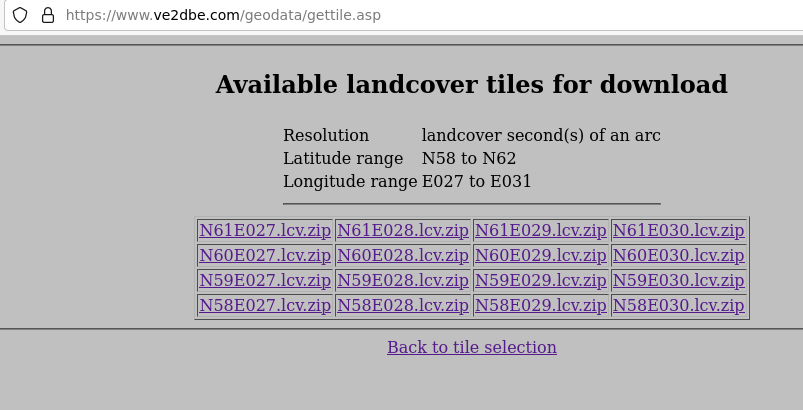
13) Download from the official website VE2DBE.com data of the underlying surface (because coniferous forest, deciduous forest, fields)
In LCV format:
LCV

14) We move the archives of the LCV files to the desired catalog "Land Cover":

cd ~/Загрузки
mv \*.lcv.zip ~/.wine/drive_c/Radio\ Mobile/Land\ Cover

15) We extract files with information about the underlying surface

cd ~/.wine/drive_c/Radio\ Mobile/Land\ Cover
for f in $(ls \*.lcv.zip); do unzip $f; done;

All ZIP files in all catalogs SRTM3, SRTM1, LAND Cover can be removed (optional).

16) edited the file map_link.txt in the program catalog: removed a single quotation margin in front of the desired line (before Google)

'Radio Mobile Restricted Merge Sources (This Line for Alternate Osm Style Server)
'virtualearth.net
Google.com

Although this was helped to download cards from the Internet in the future, the author recommends that the instructions change the map_Link.txt in his instructions, taking off the comment - apostrophe against one of the lines.

18) Follow the first launch of the Radio Mobile :

wine ~/.wine/drive_c/Radio\ Mobile/rmweng.exe

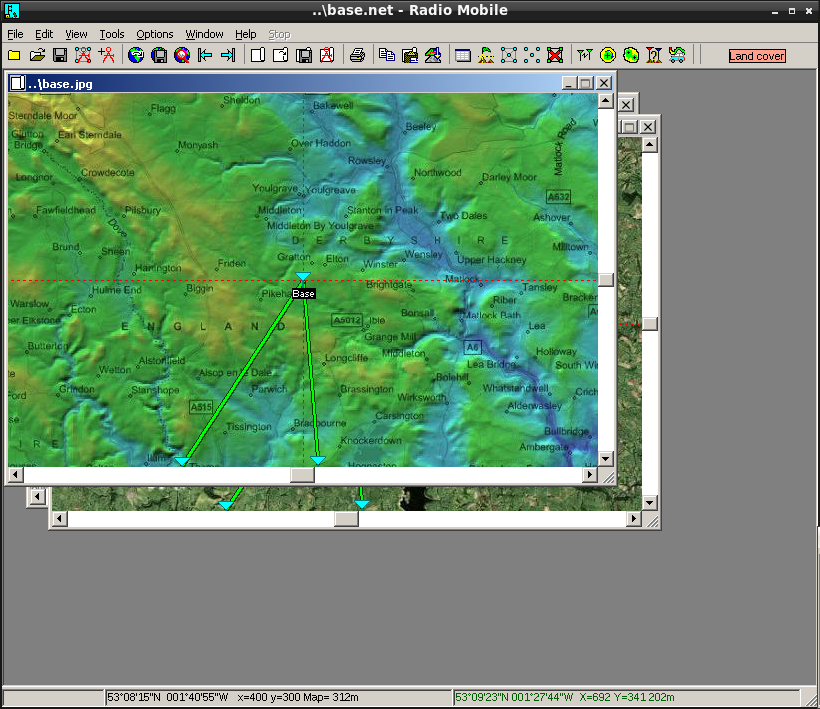
The main window window with three images will appear on the screen.
We close them (these are examples of tracks from the author for another city).

Okno

Brief instructions for using Radiomobile

Terminology:

  • Network - a network or system 2 or more UNIT radio stations, one of which transmitting TX other reception RX
  • System - calculation system
  • Unit - single station

0) Three windows by default with calculations from the author close.
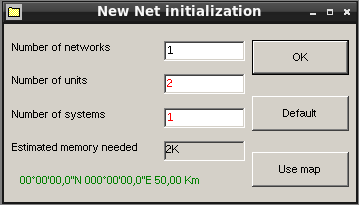
1) We create a new network consisting of two Unit - transmitter and receiver. Select the menu item:
File - New Networks and introduce:

  • Number of Networks - 1
  • Number of units - 2
  • Number of Systems - 1
    121
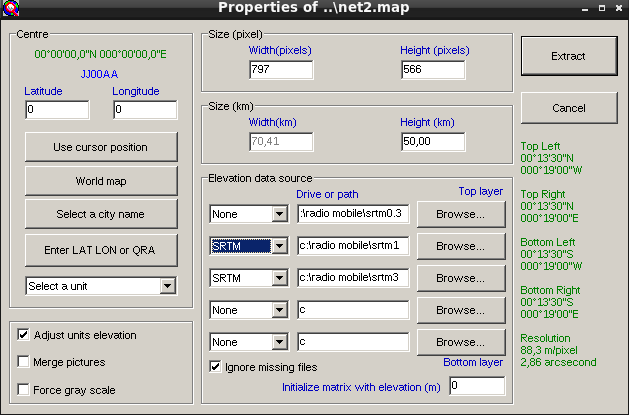
    2) create a new card - using the menu or click F8
    ** File - Map Properties (F8) "

    New_SRTM1

By default, SRTM3 heights are selected. But you can specify SRTM1 if you download them. SRTM1 is more accurate than SRTM3, but the calculation is performed a little longer.

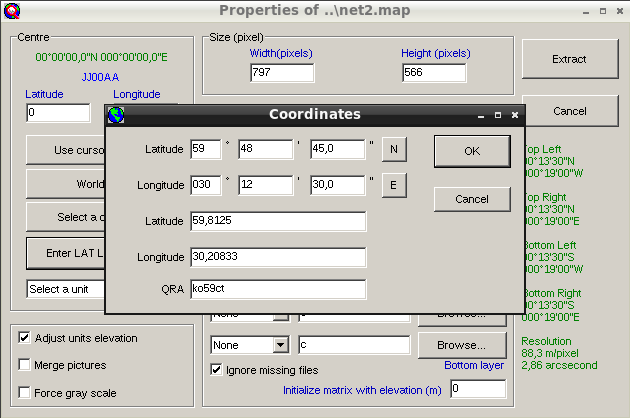
Enter the coordinates of the map of the map: the button "Enter Lat Lon or Qra"
I introduce a WW -Locator - the square of my QTH:
New_qthloc
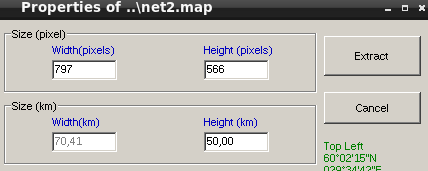
On the upper right side we set the dimensions of the card (I tried the maximum image size 1920 by 1080), but I recommend starting with small 794 to 566 pixels.

The main parameter is the calculation radius or coverage of the territory, which is called “height” in the program. For small tracks, I choose the "Height" parameter - 50 km, it will be considered faster at low distance. With a radius of 50 km, the width in the scale will be 70 km.

New_size

(If one into the other is divided into a calculator by 794 pixels 70 km or 8 pixels per kilometer).

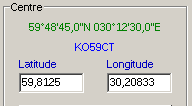
Once again, check the coordinates of the card center in the left side of the window.
New_Coord

Press the Extract button to extract data on the heights of the terrain!

New_extrct

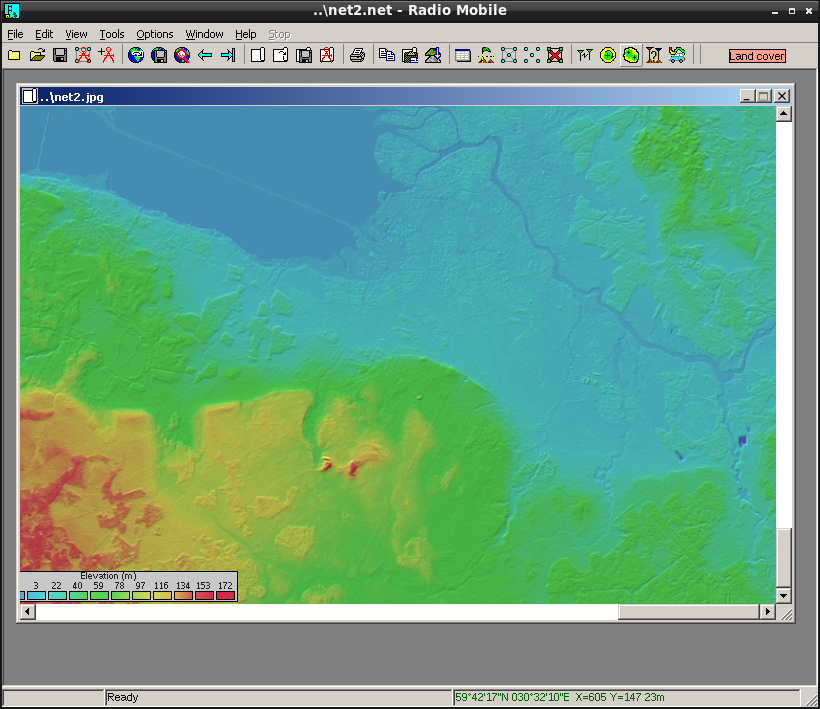
If everything went fine, data on the heights of the surface will be loaded from SRTM catalogs to RAM, and a map of the heights of the selected area will be built.
New_Map

Where red color is a large height (hill), blue is a small height (lowland).

For convenience, the map can be stretched over the edges to the entire screen space.

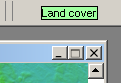
3) Turn on the data of the underlying surface (Land Cover) - you need to click on the red inscription Land Cover, it will become green.
New_cover
New_cover2

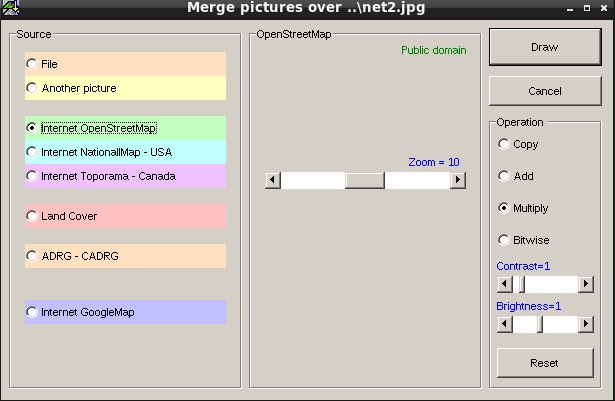
4) To apply the designations of cities and the road network to the map, you need to combine images with data OpenStreetmaps or Google. Previously, about half a year ago, this function worked, now not.

To apply the topographic card on the height map, it was necessary to click edit - Merge Pictures or F7 ,
choose the type of source of data OpenStreetmaps and a map layer (16 - scale, the detail is the highest, the smallest. It is better to choose the average layer of level 6-7).
Currently, these functions have ceased to work - the API has changed to access OSM or Google, or there have been problems with servers. Now on the key f7 - Extract nothing happens.
New_OSM

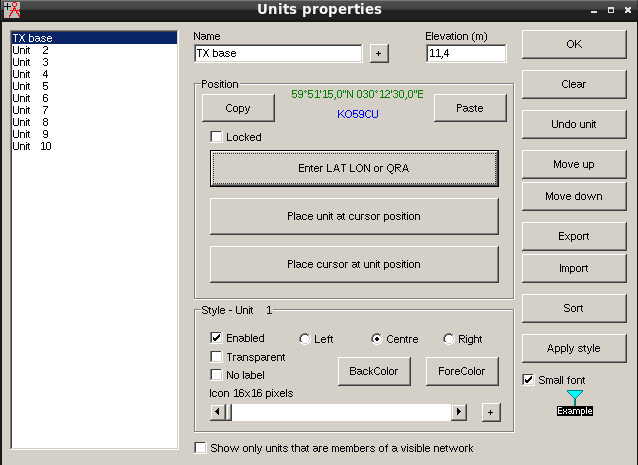
5) In the File menu - Unit Properties Enter the coordinates of the TX and RX stations:

File - Unit Properties (Ctrl+U):

The first station is the transmitter:
TX
We write the name for designating, for example, "TX BASE".

Press the Enter Lat Lon or Qra button and enter the square (locator) of the transmitter.
In this example - KO59CU, in others of me on your square. The height over sea level will be automatically substituted, it is not necessary to change it.

If there are more accurate GPS coordinates, you can specify them in the "Enter Lat Lon or Qra" window.

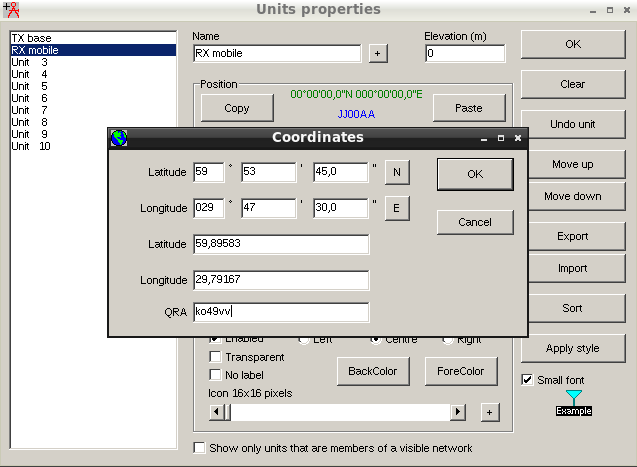
We move to the second station - line 2 will be “RX” - a remote mobile station in the city of Lomonosov, which is west of St. Petersburg.
RX

I know the square of the second radio station in advance - KO49VV. I click the "Enter Lat Lon or Qra" button and introduce this value in the Qra field. The large height of 30.1 meters turned out, most likely, due to the presence of houses (when rifling the heights from the artificial satellite of the Earth) and due to some elevation of the central part of Lomonosov above the Finnish bay. We also leave the height above sea level as it is. Click OK and go out in the main window.

6) set the network (Network) and the system (System).

We go to File - Network Properties (Ctrl+N).

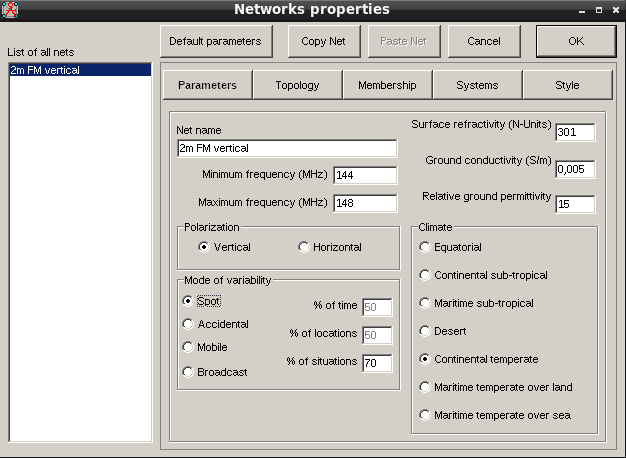
Rename the NET 1 network into a certain name, say, "2M FM Vertical".
Spot

We set up the calculation criteria for the first bookmark parameters :
* spot * - between two coordinates.
Accidental - Rather, for passage (Tropo) as a percentage of days a year. For example, 50% - there is no reception for several days, then the same time is satisfactory.
mobile - for mobile radio stations (the criterion of interference and unequal conditions at different points of reception is taken into account, i.e. statistics). The budget of the route and the required capacity depend on the percentage of the places in which the reception is possible.
BroadCast ** - The most stringent criterion is when the quality of the coating is provided in a given area, which makes high requirements for the power of the transmitting station.
These criteria can be studied in more detail in the user manual on the site https://www.ve2dbe.com/

I chose spot - between the two coordinates. Polarization is vertical.


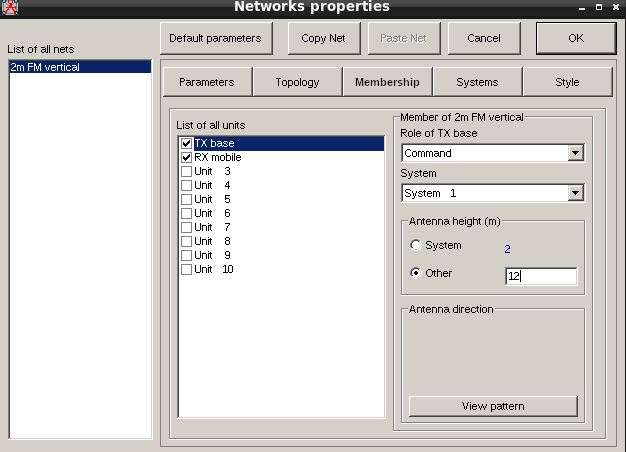
On the "Membership" **, we combine the stations into the network, put the boxes:

  • TX Base - Type command (leading station)
  • Rx mobile - type subordinate (Vedic)

At each of the stations, you can clarify the height of the antenna installation above the surface of the Earth. For the base, I chose Other - 12 meters.
Command


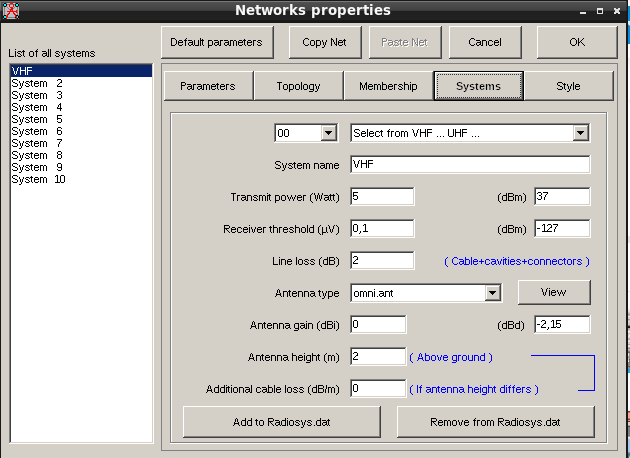
On the settings lay Systems you need to set the general parameters for the entire network:
Systems

*System name - vhf

  • VHF or UHF range (chose VHF for 144 MHz)
    transmitter power - indicated 5 W
    Sensitivity of the receiver - indicated - 127 dBM or 0.1 UV
    losses in the transmission line - indicated 2 dB (long cable to the roof)
    Strengthening the antenna - 0 dB because There is a weakening from the roof and neighboring buildings and the passport strengthening of 3 DBI are not implemented in the city (my low house is surrounded by 9 floor houses).
  • Antenna Height - the height of the installation of stations in the system - 2 meters because The height of mobile stations. We indicated the height for the base on the previous bookmark. For portable and automobile stations, the height of the antenna installation should be indicated 2 meters.
    *Click ok

7) Launch the calculation - click the key f2 or select the menu item Tools - Radio Link .

A result close to reality must be deduced:
Result

In fact, it is. I conducted radio communications (QSO) with a radio amateur from Lomonosov with an estimate of 57 both by S-meter and by ear, with a power of 5 watts from both sides.

Clarification of calculation for broadcasting FM radio stations

For more accurate WFM radio results. We should take an increase in the antenna -10 ...- 12 dB , because Car VHF antennas for radio receivers are not as effective as transmitting radio amateur ones - a thin conductor with heavy losses is used. Also, at the height of the EVR of the antennas above the ground less than 10 meters per VHF loss to the nearby radiation zone and losses from the substantial overlap of the Frenel zone (residential buildings, neighboring vehicles, etc.).


Conclusion:

The foregoing material is enough for using Radio Mobile for radio amateur purposes, such as the search for successful reception places, calculation of the range, signal quality, the field of action of the useful signal or interference, etc.

Files for download

VB6:
vb6.7z

Archive with SRTM3 heights for the Leningrad Region:
SRTM3.7Z

Archive with SRTM3 heights for the Leningrad Region:
SRTM1.7Z

Lowing surface for the Leningrad region:
Landcover.7z

Archive with the program (folders for these relief SRTM1, SRTM3 and Land Cover surfaces are empty):
Radiomobile.7z

Other instructions


Related publications

