28
November
2023
Start VNC server x11vnc as a service
1:20

Start VNC server x11vnc as a service

28 November 2023 1:20

x11vnc is a remote desktop program included in any Ubuntu distribution. Next, I’ll tell you how to configure x11vnc to run as a service.

Introduction

VNC is a remote desktop similar to Radmin Server, only for Linux. Also VNC is a better alternative to XRDP.

Installing x11vnc and VNC plugin

sudo apt update && sudo apt install x11vnc remmina-plugin-vnc

Installing a VNC viewing client

sudo apt install remmina

1) First launch of the program - as an application

1.1) Generate a password

x11vnc -storepasswd

enter the password twice (may differ from any password and be simple) and press "y"

The password will be saved to the file /home/USERNAME/.vnc/passwd

1.2) Launch the x11vnc program as a console application to check operation

Here is a ready-made line for launching VNC X11 as an application.

x11vnc -auth guess -forever -loop -noxdamage \
-repeat -rfbauth /home/USERNAME/.vnc/passwd \

-rfbport 5900

where -auth guess is needed for the first launch without knowing the location of the Xauth file
-forever -loop -repeat - to run the program in an endless loop
-rfbauth /home/USERNAME/.vnc/passwd - password file for VNC
-rfbport 5900 - external port that the program will listen to

The command can be used as an sh file.

#!/bin/sh
x11vnc -auth guess -forever -loop -noxdamage -repeat -rfbauth /home/vladimir/.vnc/passwd -rfbport 5900

After launch, an endless loop will begin.

In another window, first run netstat with keys that show ports in the LISTENING state

sudo netstat -plnt

If the port 5900 present in a state LISTENING, launch remmina and configure the plugin for viewing VNC:

*New connection - VNC type*
Server - 127.0.0.1**

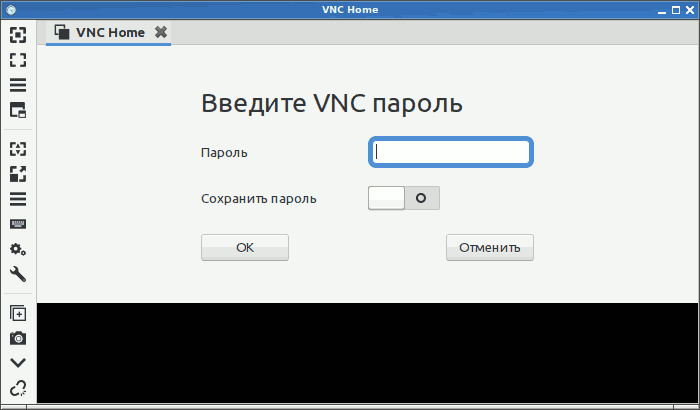
You will be prompted to enter your VNC password - enter it. The Desktop will be shown.

2) Convert x11vnc into a service

We will need knowledge of the variables:

  • file path for the -auth key
  • display designation for the key -display
  • The path to the VNC password file needs to be changed to /root/....

    2.1) Find out the value of the variable for the -auth key

To do this, you need to run the ps command to output worker processes with full paths

sudo ps wwwwaux | grep auth

We are looking for the line that mentions -auth:

/usr/lib/xorg/Xorg -core :0 -seat seat0 -auth /var/run/lightdm/root/:0-nolisten tcp

Here I have highlighted the path for the -auth switch in bold.
Now in the line instead -auth guess can be specified -auth /var/run/lightdm/root/:0

2.2) Find out the display number with the same option -auth guess it will be written below. Port 5900 uses display :0, so in the parameter -display :0, либо -display compname:0.

2.3) We generate a password from the user su in the passwd file, which will be saved to the /root/.vnc folder:

sudo x11vnc -storepasswd

Enter VNC password:
Verify password:
Write password to /root/.vnc/passwd? [y]/n

For the last question, press Enter (by default - y).

3) Create in a folder/usr/local/bin/our Shell file x11vnc-lightdm, which will launch the x11vnc program when the x11vnc service starts:

sudo nano /usr/local/bin/x11vnc-lightdm

We transfer the previously configured x11vnc parameters into the text of the file, into the $OPTS line.

File Contents /usr/local/bin/x11vnc-lightdm:

#!/bin/bash
OPTS=
exec /usr/bin/x11vnc\
    $OPTS\
         -rfbauth /root/.vnc/passwd -rfbport 5900 \
         -forever -loop -bg -ncache -auth /var/run/lightdm/root/:0 -display :0

(or "automatic": instead of -auth /var/run/lightdm/root/:0 можно указать -auth guess).

4) Create a SystemD unit file to launch the x11vnc service:

sudo nano /etc/systemd/system/x11vnc.service

Its contents are as follows:

[Unit]
Description=VNC Server for X11
Requires=graphical.target
After=graphical.target

[Service]
ExecStart=/usr/local/bin/x11vnc-lightdm

[Install]
WantedBy=graphical.target

5) Enable and launch the new service x11vnc.service

sudo systemctl enable x11vnc.service
sudo systemctl start x11vnc.service

6) Diagnostics: check the status of x11vnc.service and the LISTENING status on VNC port 5900

sudo systemctl status x11vnc.service

If the service is running (active), check that it is listening on port 5900/TCP:

sudo netstat -plnt

If configured correctly, the listening port 5900 LISTEN will be visible:

Active Internet connections (only servers)
Proto Recv-Q Send-Q Local Address Foreign Address State PID/Program name

tcp 0 0 0.0.0.0:5900 0.0.0.0:* LISTEN 35821/x11vnc

7) First connection using remmina to VNC on localhost

The first connection on the same PC is a test connection.
In remmina we create a VNC connection to locahost, and “Save and connect”.
Or double-click on the VNC connection that you created to the localhost server.

You will be prompted for the server password. Enter the server password that was set as root (in paragraph 2.3).

8) Open port 5900 (or your own) on the ufw personal firewall

sudo ufw allow 5900/tcp

9) Now you can connect via VNC remotely

From a distant PC or “forward” port 5900 from the router. Or we organize a VPN, then the remmina connection will occur to the PC address within the local network, for example, 192.168.1.100.

The x11vnc.service service starts when the PC boots and does not depend on whether the user is logged in or not.

On the client:
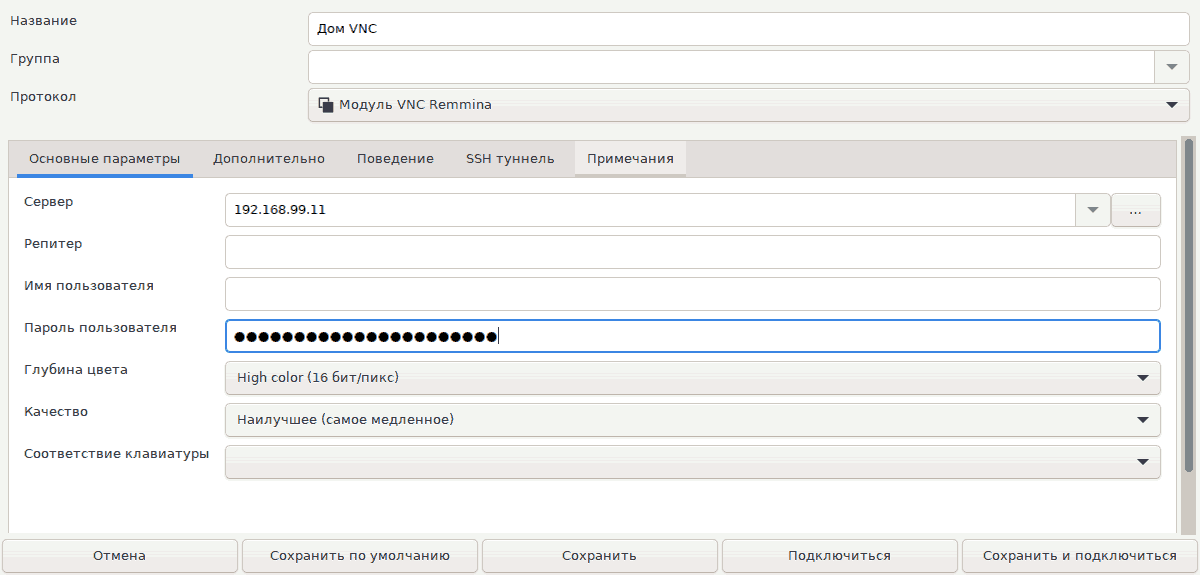
I created a new connection in remmina.
(Attention: the minimum client screen resolution is 1200 x 900!).

vnc-connect

*Name - VNC Home

  • Protocol -VNC Remmina module
  • Server - 192.168.99.11 (replace with your own)
  • User password - the password of the VNC server, which was set by the command sudo x11vnc -storepasswd(clause 2.3)
  • Color depth - High Color (16 bit)
  • Quality - best (slowest)

Last action:Save and connect.


Related publications

