
30
April
2022
Restoring the HTTPS protocol and self-signed certificates
12:43

Restoring the HTTPS protocol and self-signed certificates

30 April 2022 12:43

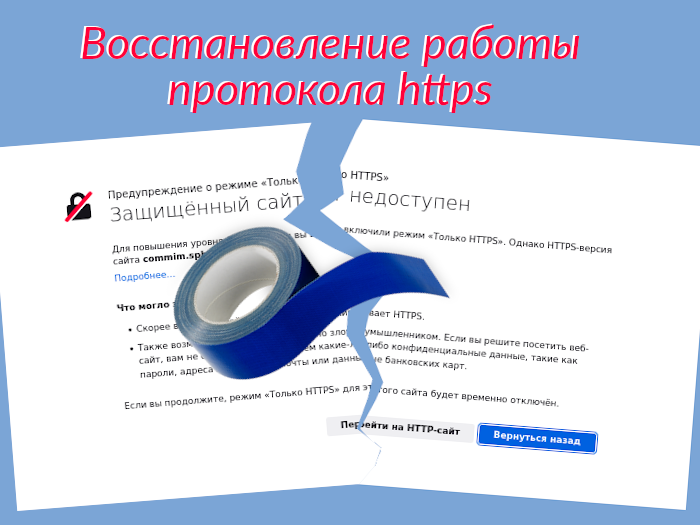
More and more often, when browsing websites, the Internet began to notice HTTPS protocol errors. Also, work colleagues began to come and complain about the inaccessibility of the sites. In this article I propose how to improve this situation associated with the use of HTTPS.

Introduction

Error messages about HTTPS being unavailable or not working properly can vary. Main reasons:

Reason number 1. Only the HTTP version of the site is available (port 80), but the "HTTPS Only" mode is enabled in the browser (port 443)
On some websites, only the HTTP protocol is available (port 80 - http or classic WWW). In the last 10 years - an extremely uncharacteristic option for the Internet, because... webmasters try to enable the HTTPS protocol (port 443 - SSL) as soon as possible. Reasons: cellular operators can add advertising to open HTTP traffic; passing HTTP traffic can be viewed by attackers (including cookies used to log in without a password). However, this option can be found in local networks for logging into a router and Internet cafe, where for authentication you need to go to the site via the HTTP protocol (since the web resource does not have an SSL security certificate).

For curious users: how to check that the https version of the site exists?

The obvious way is to enter https:// in the address bar instead of http://

You can also check for port 443 opening or request using CURL. The result is visible on the screen:

nmap test.ru -p 443
curl -I -v --connect-timeout 3 https://test.ru

But the presence of port 443 open does not mean that it is necessarily a website; other services may be running on port 443.

Messages about the absence of an HTTPS version of the site or the inability to open it can be disabled by setting your browser "Privacy" - "Do not enable HTTPS Only mode""In this case, when you explicit enter an HTTP address of the form http://192.168.1.1 or http://neverssl.com the connection will be made via the HTTP protocol (not secure!). Further, if the site redirects to HTTPS, if its webmaster has configured redirection from HTTP to HTTPS. Either a protected site will open, and if not, the “lock” in the address bar will remain open, which is a sign of a lack of traffic encryption.

Setting up HTTPS-ONLY mode

This method is justified for home computers, but is not suitable for office PCs, whose users work with Internet-based information systems, bank websites and databases.

It is not possible to force your browser to open websites using HTTP instead of HTTPS - reduced security.

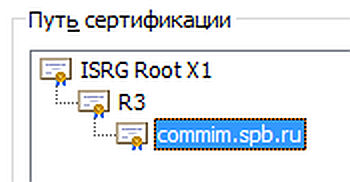
Reason number 2. The website, as part of “import substitution” or as a result of sanctions, switched to domestic cryptography (Russian RSA SSL certificate) - but the root CA certificate issued by the Ministry of Communications and Mass Media of the Russian Federation is not installed in the browser in March-May 2022, Russian sites began the transition to domestic, Russian centers for issuing SSL / TLS security certificates (CA). In particular, websites are issued new SSL certificates that are generated by not from US root certificates, and from root certificate of the Russian Certification Authority "Russian Trusted Root CA"- Ministry of Communications, Communications and Digital Development - (official website https://digital.gov.ru/). The use of the new CA can be seen on the example of the website of the St. Petersburg Property Relations Committee commim.spb.ru - chain, screenshot from 05/25/2022:

  1. Root CA certificate "Russian Trusted Root CA"
  2. Intermediate CA certificate "Russian Trusted Sub CA"(issued by CA No. 1)
  3. SSL certificate of the website *.commim.spb.ru (issued by CA No. 2)

    trusted

Such a chain of trust raised questions in the “imported” Google Chrome browser, due to the unknown root certificate “Russian Trusted Root CA” - and the site did not open via the HTTPS protocol, which made it impossible to work with website of the Property Relations Committee one of my colleagues at work.
!A simple solution is for users to install browsers"Yandex"or"Sputnik", into which the new SSL certificate is “sewn”Russian Trusted Root CA.

!!!The decision is on the webmaster's side- add SSL certificates issued by foreign certification authorities to the site - especially for users of foreign browsers Google Chrome and Mozilla Firefox.Free Let's Encrypt certificates. The Let's Encrypt company issues certificates for .RU and .РФ domains without paying attention to sanctions. And so it happened on April 28, 2022 - the site https://commim.spb.ru became accessible through "Let's Encrypt" certificates. Paid SSL certificates:GlobalSign AlphaSSL and Thawte SSL123- for domains .blog, .info, etc.

As of May 1, 2022, the website uses the ISRG X1 ("Let's Encrypt") root CA certificate:
isrg-root

The ISRG root certificate is "understood and accepted" by Chrome. Where ISRG - Internet Security Research Group. The certificate is still foreign.
But the SSL certificate will undoubtedly soon be replaced by a Russian one!

!!!!A solution for advanced users is to install an SSL certificate of the Ministry of Communications of the Russian Federation in the Chrome or Firefox browser this is what this article is dedicated to. 😀

Reason number 3. The website is protected by a self-signed certificate (where "self-signed" means "myself-signed" self-signed or "myself-signed" certificate- in CRT format (X.509) generated by the webmaster for the site without the participation of a third-party certification authority). We cannot do without installing a self-signed/myself-signed certificate in the browser if we want to use protecting https:// connections with such a website.

Reason number 4. All other reasons are related to errors when using the certificate: 4a) The validity period of the SSL certificate has expired or has not yet expired. 4b) The site's SSL certificate has been revoked (CRL). 4c) SSL certificate issued for another domain. This problem lies on the side of the site's webmaster, not the user. Client-side bypass - also disabling HTTPS Only mode or adding the website domain to exceptions - the button to exclude the site from the security check is available in the initial error message - click the button "Advanced"- "Accept the risk and continue" - in this case the connection will be established via HTTP, without using SSL encryption, the site address will be in web browser exceptions and and will begin to open in the future, but without encryption.
yellow


I. Installation of the root SSL certificate of the Ministry of Communications and Digital Development ROOTCA_SSL_RSA2022.CER

Solving the problem Error code: SEC_ERROR_UNKNOWN_ISSUER in Firefox,
Troubleshooting NET::ERR_CERT_AUTHORITY_INVALID error in Chrome

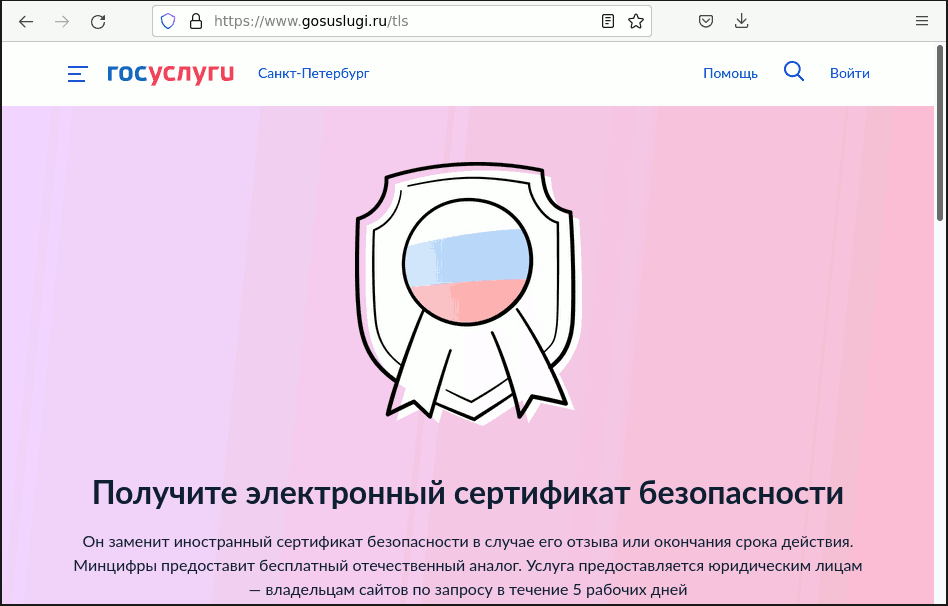
  • go to the State Services website to the section for issuing SSL certificates for legal entities:https://gosuslugi.ru/tls
    gosuslugi1

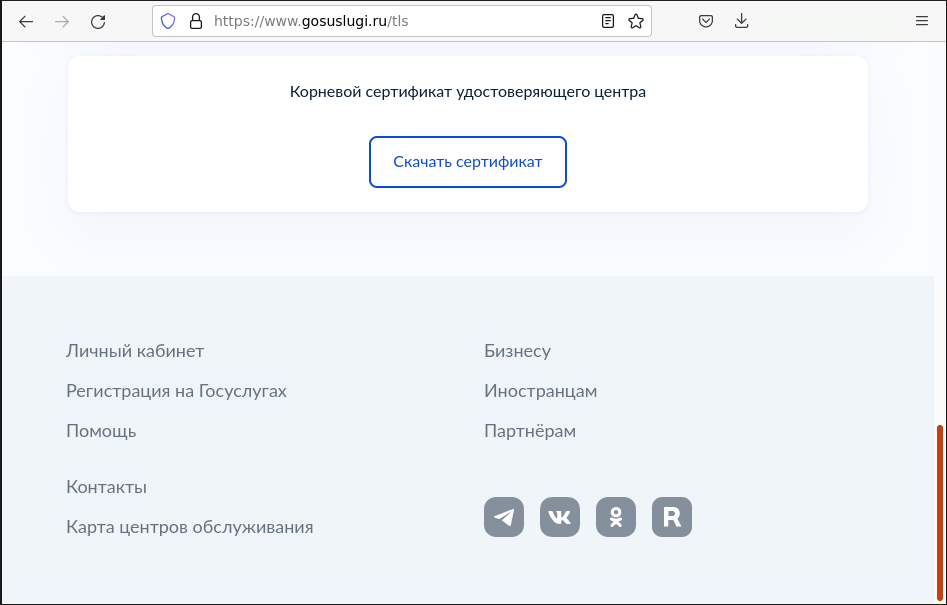
  • scroll the page down to the very end and download the ZIP certificate file of the State Services page ( - button at the end of the page, button "Download certificate")
    gosuslugi

We save the ZIP file with the SSL certificate from the “Government Services” to the “Downloads” folder.

  • create a temporary folder on the PC ~/Downloads/import

    mkdir ~/Downloads/import
    cd ~/Downloads/import

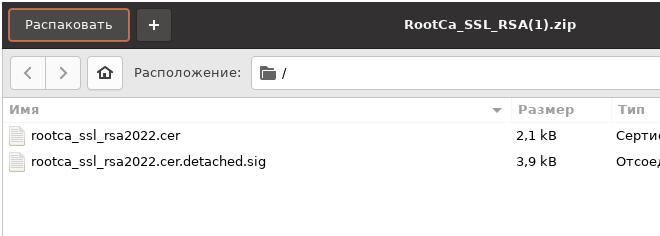
  • extract the CRT file from the archive in the "Downloads" folder to the ~/Downloads/import folder
    extract_zip1
    extract_zip

Next, the most important thing is to import the CA certificate.

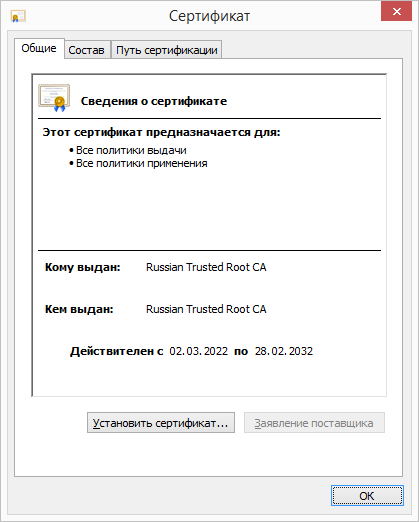
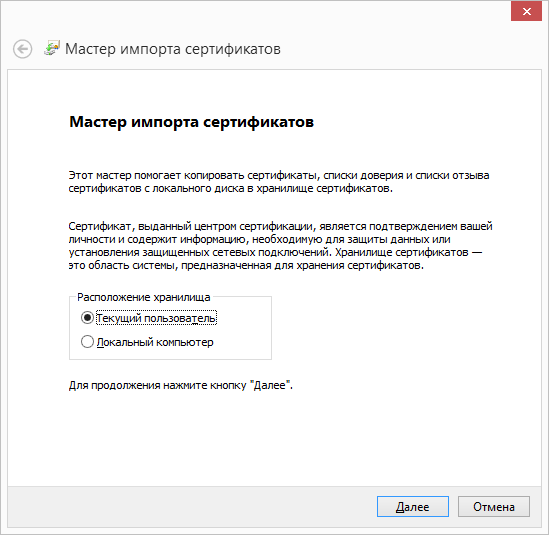
Windows:In Explorer import the root certificate ROOTCA_SSL_RSA2022.CER double click.

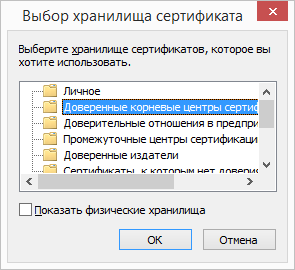
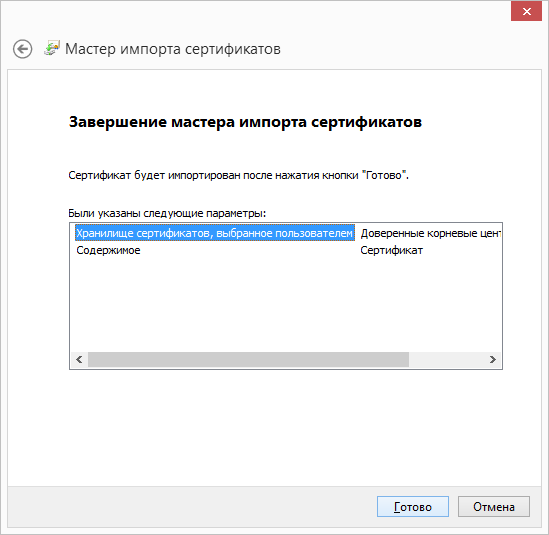
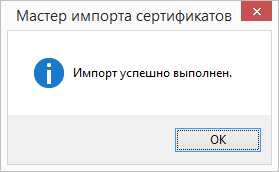
  • Import - Select where - to "Trusted Root Certification Authorities"- ... - Done.

    import01
    import02
    import03
    import04
    import05
    import06
    import07
    import08

    - Linux:

On Linux, FireFox and Chrome use their own security and ignore PC settings. Assumption that certificates need to be copied to a folder /usr/share/ca-certificates and executing the command sudo update-ca-certificates, stated in an earlier article in practice did not lead to the desired result, unlike installing web browser certificates in the store.

You need to install the SSL certificate of the root certification authority of the Russian Federation in the browser

First you need to download root certificate of the Ministry of Telecom and Mass Communications 2022, also known as "Russian Trusted Root CA"- file rootca_ssl_rsa2022.cer,
then change the file format from CER to PEM.

To convert an SSL certificate from the CER format to a PEM format certificate, use the command in the terminal:

openssl x509 -outform pem -in rootca_ssl_rsa2022.cer -out rootca_ssl_rsa2022.pem

!Additions from 01/11/2023:

  1. Some sites use an intermediate Russian Trusted Sub CA certificate. Then, you need to install both certificates - root and intermediate.
  2. These certificates Russian Trusted Root CA and Russian Trusted Sub CA available on website gu-st.ru via direct links:
    https://gu-st.ru/content/Other/doc/russian_trusted_root_ca.cer
    https://gu-st.ru/content/Other/doc/russian_trusted_sub_ca.cer.
    (The domain gu-st.ru - auxiliary for the State Services website belongs to the Ministry of Digital Development, Communications and Mass Communications of Russia).

Root certificate "Russian Trusted Root CA" can also be downloaded from the page website of the electronic document management system of the Russian Treasury "Roskazna" roskazna.gov.ru.

For automation, commands for downloading certificates can be compiled into a linux shell file:
#!/bin/sh
wget https://gu-st.ru/content/Other/doc/russian_trusted_root_ca.cer
wget https://gu-st.ru/content/Other/doc/russian_trusted_sub_ca.cer
openssl x509 -outform pem -in russian_trusted_root_ca.cer -out russian_trusted_root_ca.pem
openssl x509 -outform pem -in russian_trusted_sub_ca.cer -out russian_trusted_sub_ca.pem

I.1. Adding a Russian Root Certification Authority certificate to the Mozilla FireFox browser

Need to add CA certificates

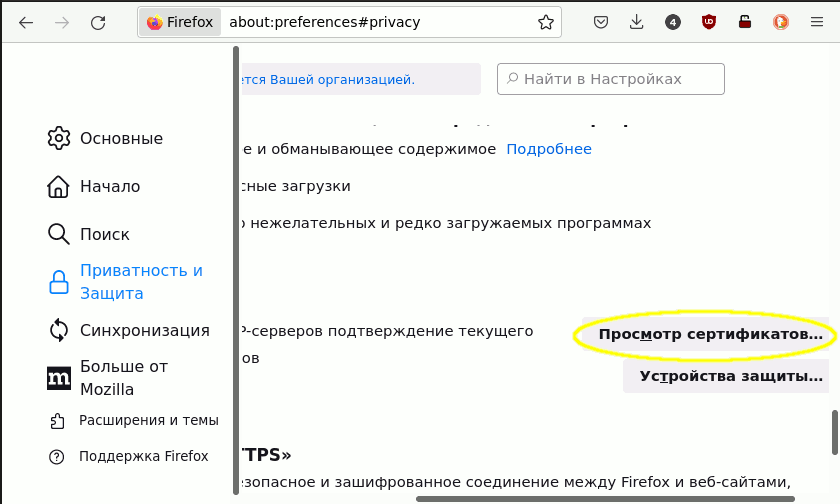
- Settings
- Privacy and protection
- Import certificates
- View certificates
- Certification Authorities
- Import

Select the “import” file in the “Downloads” folder "rootca_ssl_rsa2022.pem"
ssl-rca

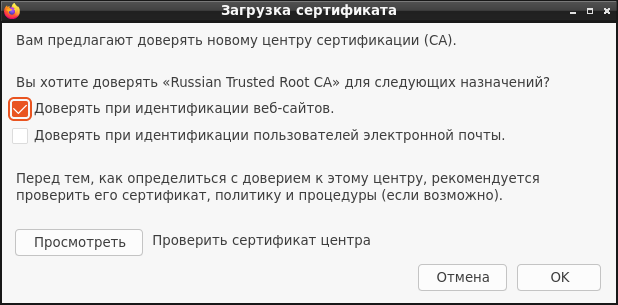
Check the box "Trust for sites"
import1

OK

At this point, the FireFox setup is completed, the site with the Russian certificate via https:// opens!


I.2. Adding a Russian Root Certification Authority certificate to the Google Chrome browser

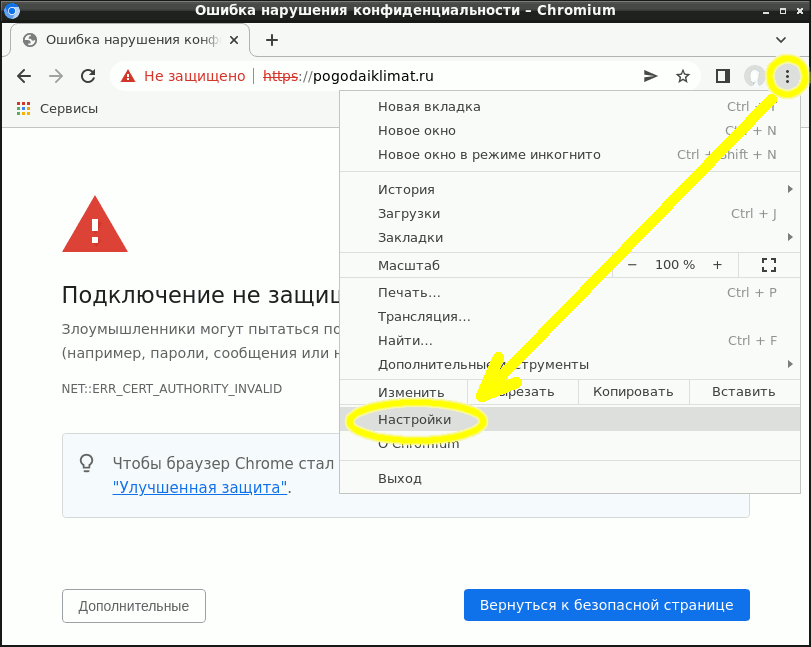
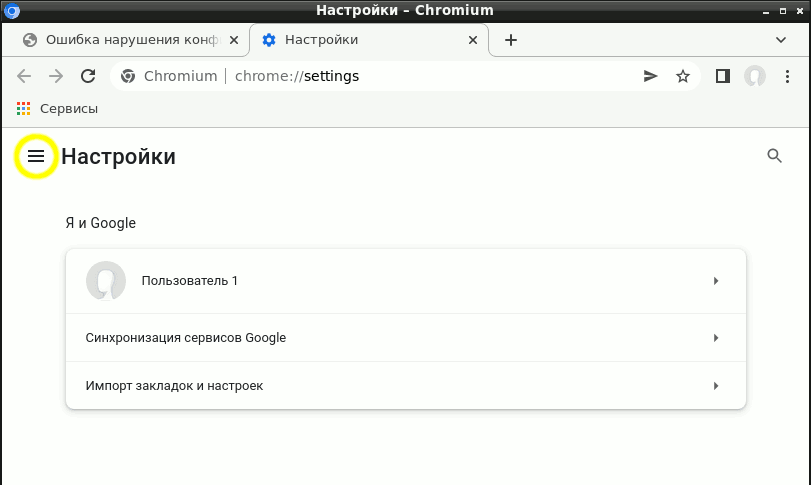
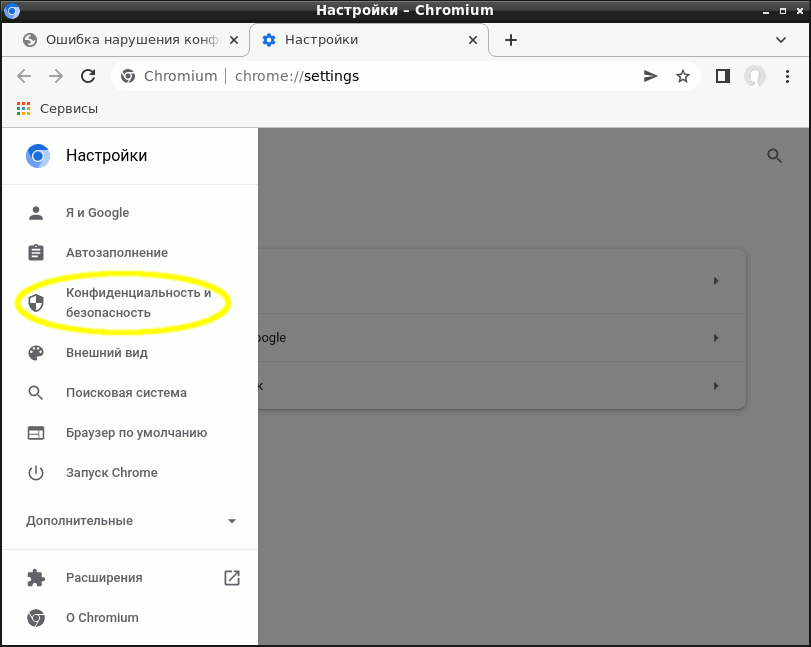
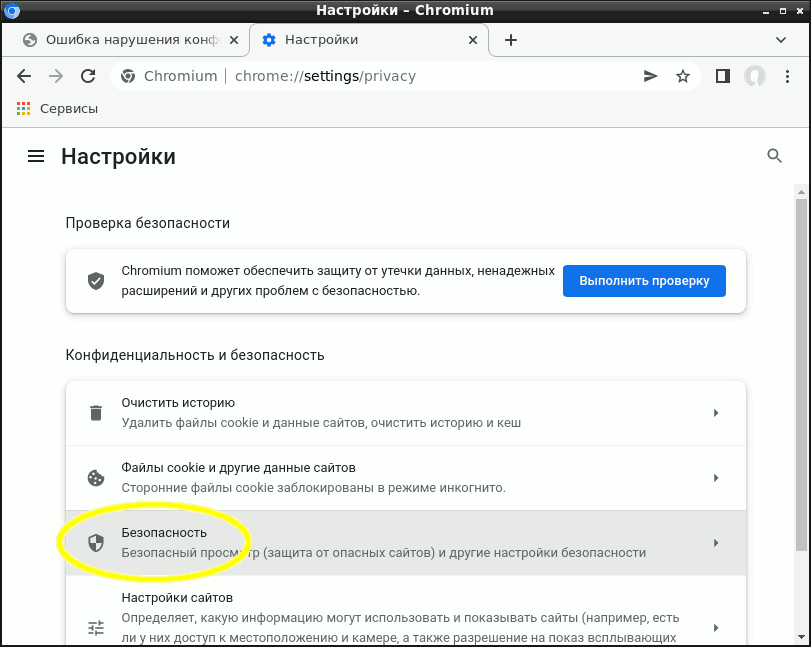
In Chrome (Chromium):
- Settings
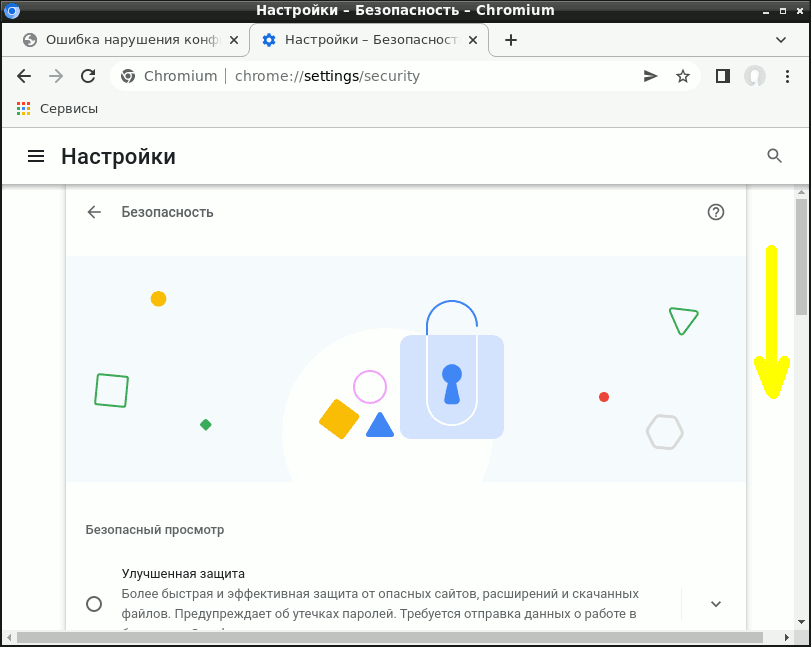
- Privacy and security
- Security
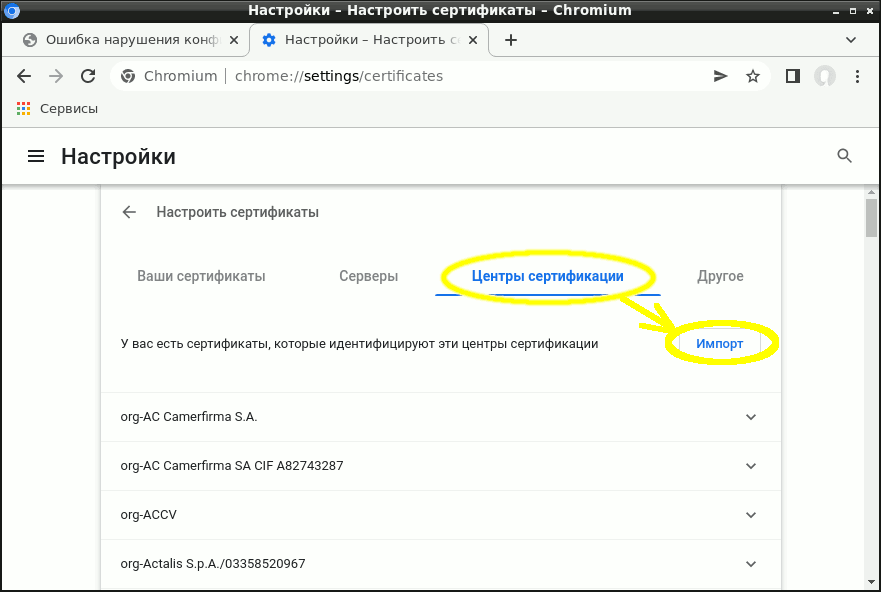
- Set up certificates
- Certification Authorities
- Import

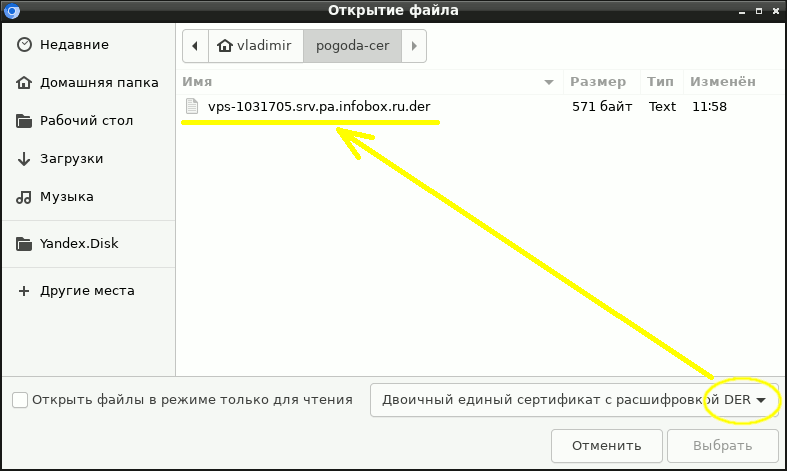
Select the Ministry of Telecom and Mass Communications CA certificate file and confirm the import:
ssl-rca

At this point, the Chrome setup is complete, the site opens via https://!


II. Installing Self-Signed SSL Certificates

Some sites, in response to sanctions against Russian companies or for other reasons, have issued self-signed SSL certificates (which are created by the site authors themselves - not tied to any external CAs). In this case, a special procedure is needed to activate them in the browser, which will allow you to use an HTTPS connection with their help.

Mozilla Firefox responds to self-signed SSL certificates with an error MOZILLA_PKIX_ERROR_SELF_SIGNED_CER, which means that the certificate is too weak and cannot be trusted. At first glance, this error in the FireFox browser costs one click of the mouse, pressing the button "Accept the risk and continue". However, adding a site to exceptions does not solve the problem - the connection to the site is not secure, it works without encrypting server requests/responses. What can contribute to the leakage of confidential data. This means that you need to enable HTTPS encryption using a self-signed certificate (see below for the solution to the problem).

II.1 Adding a self-signed certificate to Mozilla Firefox (step-by-step instructions)

step1
step0
step10
step11
step12
step15
step16
step17
step18
step19

II.2 Adding a self-signed certificate to Chrome (step by step instructions)

https1
https2
https3
https4
https5
https6
https7
https8
https9
https10
https11
https12

New issue: Certificates blocked due to HSTS protection (Google Chrome only)

Problem - HSTS- implementation of an add-on over HTTPS in the Chrome browser - subsystem HSTS/PKP), which makes it impossible to open sites using the HTTP protocol. An HSTS-enabled website requires the browser to connect to it only over HTTPS with a previously known certificate. Such a connection refuses to work if the website certificate suddenly changes (when trying from MitM). Since HSTS is designed to protect against attacks on the HTTPS protocol, it is impossible to disable external checking. The only thing that helps is clearing the local HSTS database in the Chrome browser (see below). In FireFox, if HSTS protection is triggered, you must give the command to “forget” the website.

Description of the problem

A user running Windows 7 and Google Chrome complained that he was unable to connect to the website commim.spb.ru. After trying to log in to FireFox, a message appears:

"Warning: Possible safety hazard
Firefox detected a possible security threat and did not open commim.spb.ru. If you visit this site, thieves may try to steal your information, such as passwords, email addresses, or credit card details.
How can you fix this?
Most likely, this problem is related to the website itself, and there is nothing you can do about it."

Google Chrome browser could not open this site https://commim.spb.ru/, with approximately the same error message

The link “Go to the site (Unsafe)” was not visible to the user on the screen due to the activation of the HSTS system - he was prohibited from connecting using the HTTP protocol. Apparently, the site used to have a different certificate, and the browser perceived the radical replacement of the certificate as "drop attack"- a variant of the MitM attack with temporary use of HTTP followed by the inclusion of lightweight HTTPS “man-in-the-middle” encryption. Therefore, the web browser required HTTPS with a “strong” certificate and did not give the user the opportunity to go to an unsecure site using the HTTP protocol or with another SSL certificate.

Solving the problem with HSTS: clearing information on a website from the HSTS storage of the Chrome browser

1) Enter in the address bar:

chrome://net-internals

and press Enter

2) On the left side of the window, click on the menu item

"Domain Security Policy"

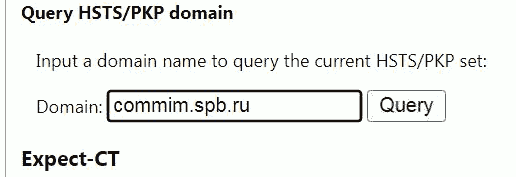
3) On the right side of the window Go to the “Query” section, check that the site is in the list (click the Query button)
query

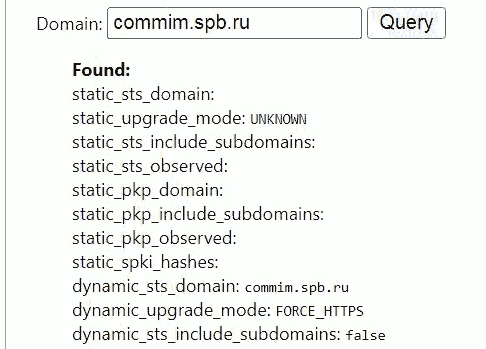
4) If the domain is in the HSTS list, the following information will be displayed:
response

5) To remove domain information from the HSTS database (which is necessary to apply new SSL certificates) - go to "Delete domain security policies"

6) Enter the website address without the https:// prefix
delete-hsts

7) Press the button "Delete"

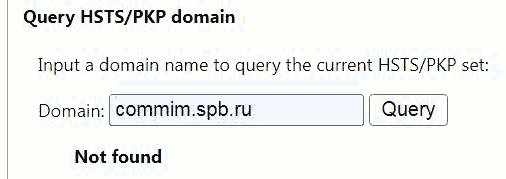
8) Check deletion with a second request (Query)
notfound

The result is "Not Found", which means the HSTS site settings have been removed from Chrome.


Related publications

