
16
June
2023
Installing and configuring CodeLite in Linux Mint 21.1
16:26

Installing and configuring CodeLite in Linux Mint 21.1

16 June 2023 16:26

CodeLite is a lightweight development environment (IDE) for Linix, Windows and Mac. Author: Eran Ifrah, GNU 2.0 License.

Benefits of CodeLite

1) The CodeLite project is actively developing - the latest version was released 10 days ago, and the stable version was released less than six months ago.
2) Support for programming languages ​​C/C++/Rust/Python/PHP/Node.js.
3) Highlighting keywords in the source code in different colors (syntax highlighting), automatic completion of the syntax of procedures and methods (support for an object-oriented approach to programming languages).
4) Debugging PHP Debugging code from the editor, breakpoints.
5) Support for workspaces and projects.
6) Free and lightweight IDE (occupies 1GB of RAM), launches and works quickly (due to the GTK+3 library).
7) Search in project files, mass replacement in the texts of source files.
9) Class manager (generation of source code for methods, inheritance, etc.)
10) Plugins.
11) A fairly large font and a not overloaded interface compared to the Eclipse IDE. Can be used on small monitors or on a netbook.
12) Support for improving code by reworking source codes (code refactoring)
13) Understands uploading to the server via SFTP.
14) There is good documentation with illustrations.

Download, installation from CodeLite website

This method is the fastest, but incorrect, because... installing from a DEB file or *.RPM is worse than installing from a repository (no updates).

https://downloads.codelite.org/

For Linix Mint 21.1, the DEB file is suitable at the link "Ubuntu 22.04, GTK3". The screen for collecting financial assistance (donations) to the author will open - you can skip it. Downloaded and installed the CodeLite-17.3.0-gtk3-ubuntu-jammy-x86_64.deb package.

sudo dpkg -i CodeLite-17.3.0-gtk3-ubuntu-jammy-x86_64.deb

The necessary dependencies were pulled up automatically.
As you might guess, version 17.3.0 “unstable” will be installed, but the newest one as of the date of writing this article.

How to install CodeLite for Linux from the repository

It should be noted that the version from the Linux Mint repository does not work ("crashes"), in addition, it is old 14.0.0 (the latest is 17.3.0).

Removing the old version:

If codelite was installed from a DEB file

sudo dpkg -r codelite

If codelite was installed from the system repository

sudo apt-get remove codelite

We update and install codelite not from the Linux system repository, but from the CodeLite repository

1) Download and install into the system the key that signs the CodeLite repository:

wget http://repos.codelite.org/CodeLite.asc
sudo apt-key add CodeLite.asc

2) Add a repository to the system from which the wxWidgets component is installed

If the OS is based on Ubuntu 22.04 "Jammy" (for example, Linux Mint 21.1 "Vera")

sudo apt-add-repository 'deb https://repos.codelite.org/wx3.2/ubuntu/ jammy universe'

If the OS is based on Ubuntu 20.04 "Focal" (for example, runtu LITE 20.04)^

sudo apt-add-repository 'deb https://repos.codelite.org/wx3.2/ubuntu/ focal universe'

We update the package cache:

sudo apt-get update

3) Install wxWidgets, which is needed for codelite:

sudo apt-get install libwxbase3.2-0-unofficial libwxbase3.2unofficial-dev libwxgtk3.2-0-unofficial libwxgtk3.2unofficial-dev wx3.2-headers wx-common libwxgtk-media3.2-0-unofficial libwxgtk-media3.2unofficial-dev libwxgtk-webview3.2-0-unofficial libwxgtk-webview3.2unofficial-dev libwxgtk-webview3.2-0-unofficial-dbg libwxbase3.2-0-unofficial-dbg libwxgtk3.2-0-unofficial-dbg libwxgtk-media3.2-0-unofficial-dbg wx3.2-i18n wx3.2-examples

4) add the program repository

For Linux OS based on Ubuntu 22.04 codebase:

sudo apt-add-repository 'deb https://repos.codelite.org/ubuntu/ jammy universe'

For Linux OS derived from Ubuntu 20.04:

sudo apt-add-repository 'deb https://repos.codelite.org/ubuntu/ focal universe'

5) Install dependencies and program

sudo apt-get update
sudo apt-get install codelite

Source:https://docs.codelite.org/downloads/download/#ubuntu-debian
With some modifications, this instruction is suitable for other operating systems Ubuntu and Debian.

6) Check

codelite --version

For 22.04:
CodeLite IDE v17.0.0

For 20.04:
CodeLite IDE v16.0.0

This is a stable version!

Launching CodeLite

On the menu Start - Programming - CodeLite.

or in the terminal

codelite

The program settings are stored in the home directory ~/.codelite

To clear traces of configurations from previous installations of CodeLite, you can run the command "rm -R .codelite"

When you launch it for the first time and the .codelite directory is empty, a wizard will launch where you can set the initial settings.
The same wizard can be launched later, in the “Help” -> “Run the Setup Wizard” menu.

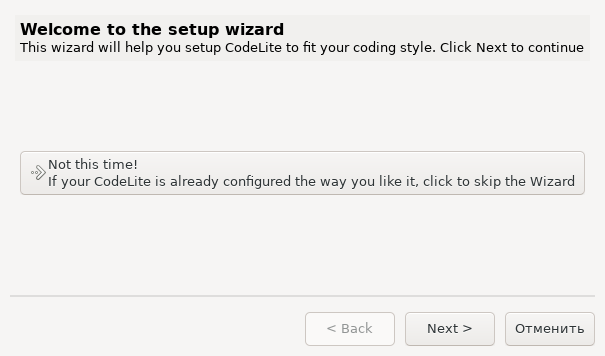
Шаг1. CodeLite Setup Wizard initial screen - option to stop or continue setup.
wizard1

Шаг2. We indicate the main application of the development - for example, PHP / JavaScript (Web)
wizard2

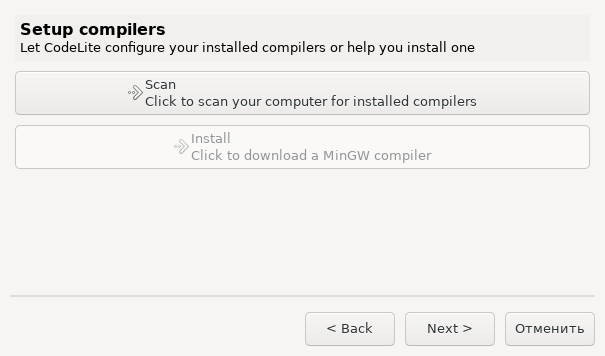
Шаг3. Search for installed compilers - "Scan" button (only for C/C++)
wizard3

Шаг4. Setting a theme (light, dark, gray) for syntax highlighting in the editor (select as desired)
wizard4

Шаг5. Setting spaces or tabs in the source text editor.
wizard5

When you start it for the first time, you need to create a workspace.
Press the wide button ">New create a new workspace". A space will be created (to include projects).

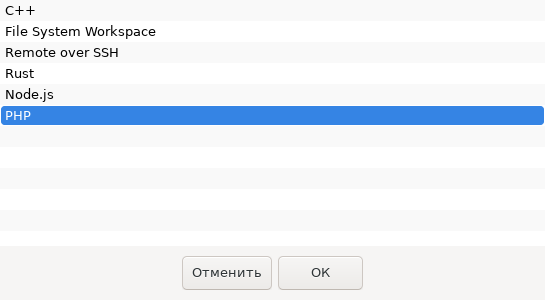
Select the type of space - for example, PHP.
type
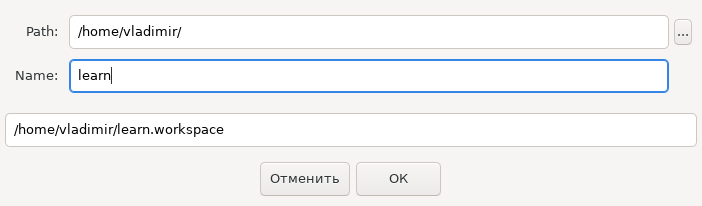
Specify the name and location of the workspace folder - Name, Location.
location

Creating a new project

You need to add the first Project to the Workspace:

File - New - New Project

The program offers you to choose one of two options:

  • new empty project
  • select existing in the file system

For a clean (empty) project you need to select the first option -Create an empty PHP proje ct.
empty

We indicate the name and where the project description file will be stored - in the root of the “home folder” or in the project folder "Create the project under a separate folder". (If you check this box, the project description file will be stored along with the source code. Otherwise, in the home directory).

Specify the launch type - console application (CLI) or web application (HTML).
In the case of a web application, you need to select "Run project as website".

The path to the php executable file should be as follows:/usr/bin/php
run

Then you can complete the wizard. Why do you need to press TAB - TAB - TAB - Enter.

Before launching CodeLite for the first time for development in PHP, we check the presence of an interpreter with the “php --version” command, and install packages if necessary:

sudo apt-get install php php-common

Path settings for PHP files (for launch)

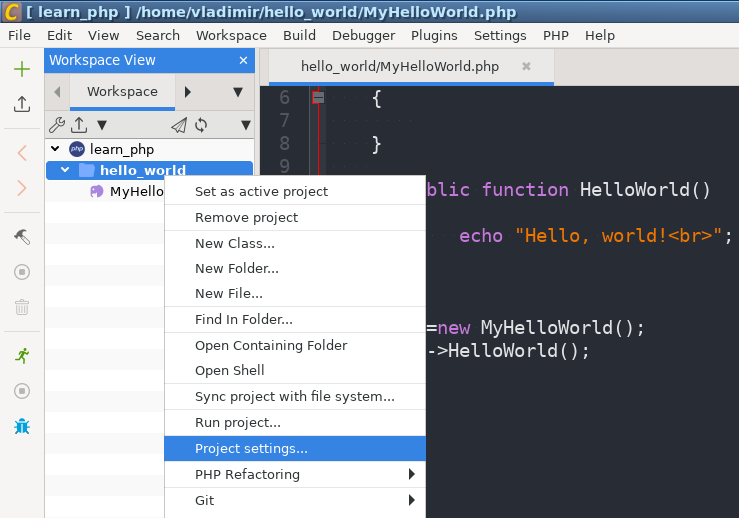
Call up the setting by right-clicking on the project name "Project Settings".
project_settings

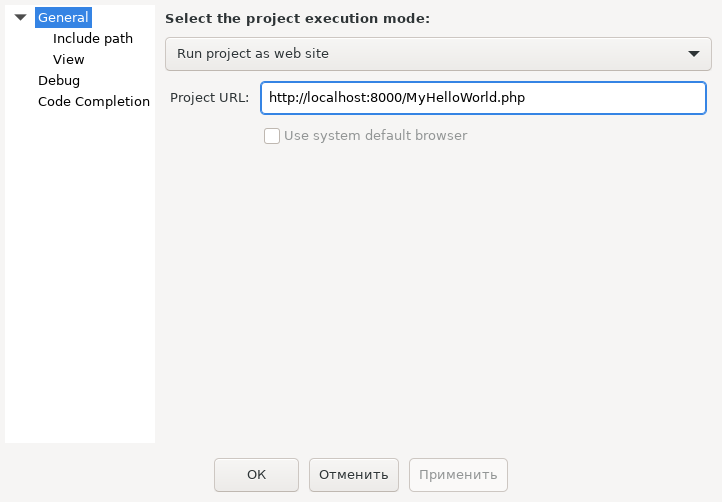
In the main settings section "General" I indicated:

  • startup type ("Run project as website")
    *start URL to launch a web application (when opening the project in a web browser) - always with http, localhost and the port number and the name of the initial page (in my case MyHelloWorld.php):
    http://localhost:8000/MyHelloWorld.php
    run_path

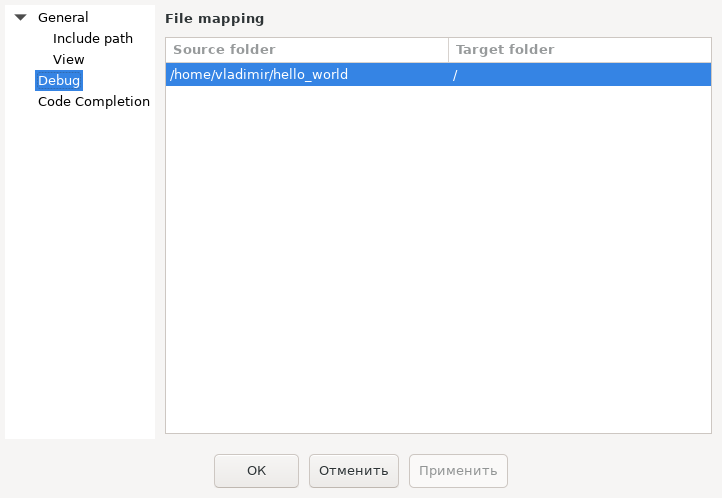
On the menu "Project settings" in section "Debug" we indicate the matching of directories on the disk and paths on the website for debugging (Debug):
debug_path

Adding a class to the project

Right click on the project name -New Class.

Fill in the class name field, for example, MyHelloWorld and click OK.

By editing the text we add a method

public function HelloWorld() {
echo "Hello, World!";
}

Save the file (Ctrl+S).

After the closing curly brace of the class, I added an instantiation of the class and a method call:

$objHello=new MyHelloWorld();
$objHello->HelloWorld();

Saved the file again (Ctrl+S).

Source text:hello_world.zip.

Running a PHP file for execution

Before starting, you need to configure the web server to run the project in PHP.
Teams

cd hello_world
php -S localhost:8000

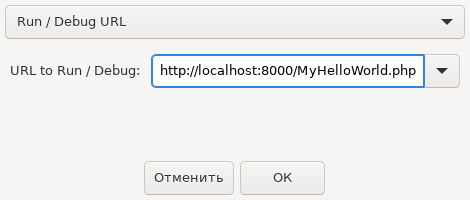
In CodeLite, press the key F5, then OK.

Or menu "Debugger - Start/Stop Debugger (F5)"., then OK.

Debugging PHP in CodeLite

Requirement: must be installed xdebug(see xdebug installation instructions).
For example, for the standard Ubuntu repository, the xdebug installation command is:

sudo apt-get install php-xdebug

Let's find out where the PHP ini files are: added text to the HelloWorld method to display var_dump information:

var_dump(php_ini_loaded_file(),
php_ini_scanned_files());

and updated the web page
The path to the PHP INI files in my case is /etc/php/7.4/cli/conf.d/ where the 20-xdebug.ini file is located.

Add the text to 20-xdebug.ini:
zend_extension=xdebug
;zend_extension=xdebug.so
;zend_extension=/usr/lib/php/20210902/xdebug.so
xdebug.mode=debug
;xdebug.remote_enable=1
xdebug.idekey="codeliteide"
xdebug.remote_host=127.0.0.1
xdebug.remote_port=9000
xdebug.client_port=9000
xdebug.start_with_request = yes
xdebug.discover_client_host=1

A guide on how to set up Xdebug debugging in CodeLite:
https://wiki.codelite.org/pmwiki.php/Main/DebugWithXDebug

Before pressing F5 in case of debugging, you need to press the down arrow in the project menu "Wait for debugger connection".

wait_for_debugger

Then Run (Ctrl+F5) and OK.
run!

I was unable to fully debug PHP with breakpoints: CodeLite ignores breakpoints.
(In Linux Mint 21.1 and runtu LITE 20.04, debugging does not work).

Thus, the section "Debugging PHP in CodeLite" is not completed. The program can be used in application launch mode Run(no debugging).


Related publications

