
9
July
2024
Spiral Linux: A Customized Debian 12 Distribution for Beginners
17:14

Spiral Linux: A Customized Debian 12 Distribution for Beginners

9 July 2024 17:14

All Debian distributions are quite lightweight (not demanding on hardware) and easy to learn. I want to talk about Spiral Linux.

SpiralLinux and its backs (variants) - with work tables

  • Budgie (similar to Windows 7)
  • Cinnamon (similar to Windows 10)
  • GNOME (classic Ubuntu and Fedora look)
  • KDE Plasma (a beautiful desktop aimed at powerful PCs)
  • LXQt (lightweight and humble desktop)
  • MATE (lightweight desktop)
  • Xfce (Xubuntu desktop)

    Stable release- USA - Linux kernel 6.1 Debian Testing or Unstable

There is support for the Russian language - you can even install from LiveCD.

Processor architecture amd64 or Intel 64
System Requirements: 1 GB RAM (2 GB recommended)
10 GB hard drive (with graphical shell)
Monitor with 1024×768 resolution

Pre-installed programs:
1) Audio-video
*Clementine

  • VLC media player
  • PulseAudio volume control

2) Graphics

  • Drawing - simple drawing
  • LXimage - view photos
  • LibreOffice Draw - a program for creating covers and advertisements
  • Shotwell
  • Document Viewer - PDF Viewer
  • Document scanner - program for a flatbed scanner or MFP

3) Internet

  • FireFox ESR - web browser

  • Pidgin - communication program

  • Transmission - program for downloading torrents

  • Thunderbird email client - classic email program

4) Office

  • Fax address book - address book for faxes (for multifunctional copier/printer/fax devices)
  • HPLIP Fax - works through a software "layer" with Hewlett Packard (HP) MFP sending faxes
  • LibreOffice Calc - spreadsheets, Excel replacement
  • LibreOffice Draw - creating posters and announcements, diagrams or drawings from primitives (rectangles, arrows,...)
  • LibreOffice Impress - creating presentations (slides)
  • LibreOffice Start Center - with this program you can start working with LibreOffice
  • LibreOffice Writer - text editor, Word replacement
  • Document Viewer - PDF Viewer

5) Other

  • Language support - change language and units of measurement
  • Snapper GUI (root)
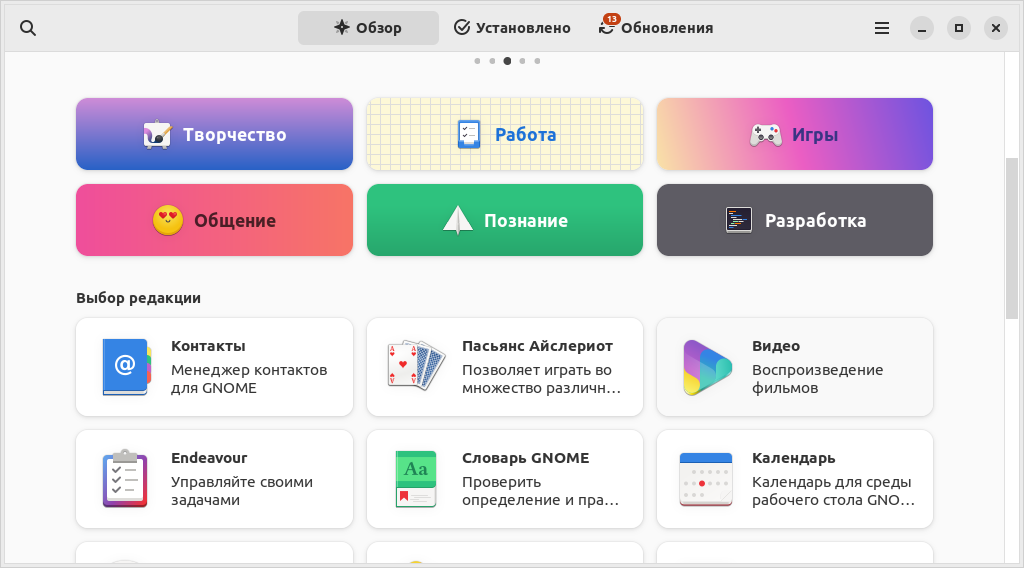
  • Application Center (easily install applications in one click)

7) System

  • GParted - disk partitioning, working with volumes

  • Gnome Software - additional programs from Gnome

  • Htop is a graphical indicator of processor usage in a table view, where the rows are processes in the system.

  • Install SpiralLinux - installation to hard disk (from Live mode)

  • Qterminal - terminal session (for entering commands)

  • QTerminal drop-down console (same as QTerminal, but when input focus is lost, the terminal window closes)

  • Task Manager - beautiful task manager with CPU and RAM load graphs

  • GDebi package installer is a graphical utility for installing files with the DEB extension.

  • dconf editor - system settings editor

  • Network Tools - graphical utility for network testing (ping, traceroute, port scan, DNS, etc.

8) Standard

  • Garculator - calculator
  • Mousepad - a simple text editor with Unicode support (notepad replacement)
  • Snapper GUI - for the Snap app store
  • File Archiver - a graphical utility for compressing files into archives
  • Disks - a utility for managing disks (similar to Disk Manager in Windows), simpler than gparted
  • PCManFM-QT File Manager - lightweight file manager (create, copy, move or delete folders and files)
  • Catfish File Search - Easily search for files on disk
  • Firmware - checks the computer hardware devices and offers to update their firmware
  • Menu Editor - Start Menu Editor
  • Screenshot - capture the entire screen, window or part of the screen into an image file.

9) LXQt Settings - a submenu with many settings from language to OS appearance.
9.1) LXQt system settings - all shell settings on one screen
9.2) File associations - setting up file associations
9.3) Appearance - customize the style of widgets, icons, LXQt theme, system fonts, cursor and appearance for GTK applications. Here you can also customize the colors and style of corner roundings for windows and controls.
9.4) Date and time - setting date and time, time zone
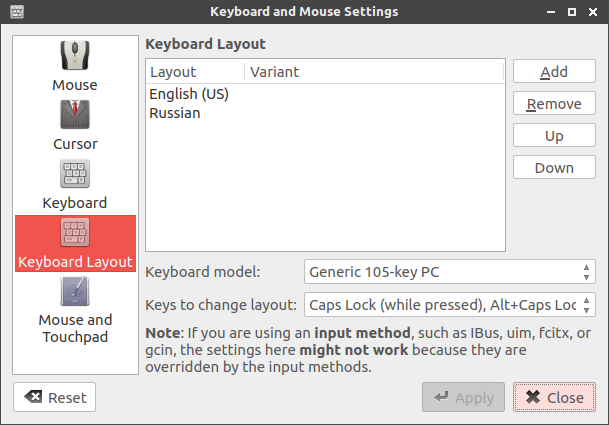
9.5) Keyboard and mouse - setting up the keyboard layout, additional languages and switching between them
9.6) Locale - setting regional parameters (date, time formats)
9.10) LXQt brightness and contrast settings (setting hardware display backlight brightness and LVDS software dimming)
9.11) Monitor settings - screen resolution, refresh rate
9.12) Session settings - switching the window manager (openbox by default), user directories and applications in autostart (Autostart)
9.13) Users and groups - graphical way to manage users and groups
9.14) Desktop - desktop icon size, system font, desktop color or photo, or customize desktop background slideshow), enable additional desktop icons
9.15) Keyboard shortcuts - setting up hot keys, for example, Ctrl+Alt+T = Terminal
9.16) Desktop notifications - setting the appearance of desktop notifications - display duration, width, interval, number of notifications in history.
9.17) Power management - configure what happens when you press the power button when the computer is on, what happens when you close the lid, sleep mode settings, and the shutdown button

10) Parameters (continued)

  • Bluetooth manager. Bluetooth device management
  • Grub Customizer - customizing the Grub2 menu, which is shown when the OS boots
  • HPLIP Toolbox - tools for Hewlett-Packard MFPs
  • Software && Updates - sources of applications and updates
  • Date and time - change date and time, time zone
  • OpenBox Settings Manager - customizing the appearance of the OpenBox window manager
  • Synaptic package manager - installation and removal of packages in graphical form
  • LightDM GTK+ Greeter settings - login window settings for entering username and password
  • Printing options - adding and setting up printers
  • Text editor options - setting appearance (for example, line numbering), tab length, etc.
  • Users and groups - manage users and groups graphically
    *Advanced network configuration
  • Application Center - install applications with one click

11) About LXQt
12) Quit

  • Quit
  • Logout
  • Shutdown
  • Standby mode
  • Reboot
  • Sleep mode
    13) Lock the screen.
    14) Search

It should be noted that the SpiralLinux distribution is lightweight. Additional programs can be installed from the App Center store, and packages can be installed using Sinaptic.

Support for Russian and other languages

After starting from a LiveCD or flash drive, you need to add the Russian keyboard layout to change the language in

*Start - Settings - LXQt Settings - Keyboard and Mouse

For switching keyboard languages to work using a keyboard shortcut, for example, Alt+Shift, you need to specify the switch in the same utility Keyboard and mouse-- Keyboard Layout - Russian

Switch the system to Russian (the names of menu items can be found in

*Start - Options - LXQt Settings - Locale - Region - Russia - Russian (ru_RU)
Adding Russian language to Spiral Linux OS
The setup is easy to do in the graphical interface.

You need to add a keyboard indicator switch to the System Tray panel -

*Right mouse button - Configure Panel - Widgets - click on plus (+) - Keyboard layout indicator
Adding a Keyboard Layout Switcher Widget
An indicator will appear on the panel
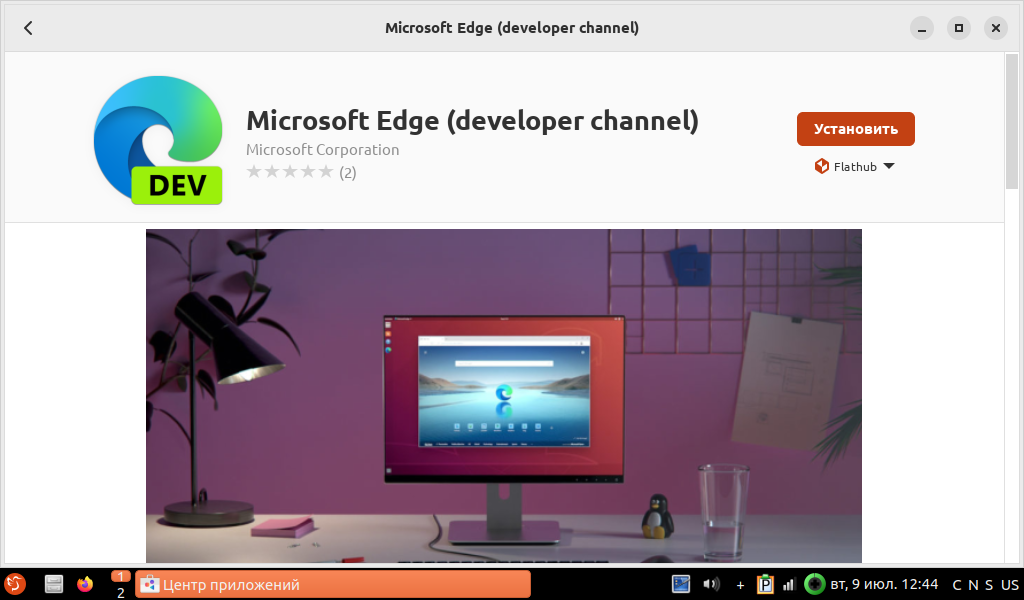
The keyboard switch has appeared on the system tray panel


Additional applications can be installed using the Application Center, which is located in
*Start - Settings - Application Center

Screenshot - Debian App Center
App example

My impressions of the Spiral Linux distribution:

  • The distribution is based on Debian 12 Bookworm stable branch, the Debian distribution itself is the most stable
  • The developers have made the set of programs more diverse
  • The speed of operation even from a LiveCD (USB drive or flash drive) is high.
  • In the LXQt - Autostart session settings, a print queue applet has been added by default - if there is no printer, it can be disabled.
  • On the small screen of a netbook, the system interface looks nice, moderately large
  • Logical Start menu
  • Disadvantage - it does not have the means of saving a session when working in LiveCD mode, as in antiX, i.e. persistence is missing.
    *Memory consumption is significant - 1.3 GB out of 6 GB. The reason is that the application store takes up almost 600 MB of RAM. If you have a small amount of RAM, you can not install or remove the Application Center (sudo apt remove gnome-software) and use only the Synaptic package manager.
  • РThe buttons for changing the backlight brightness (FN+F5/F6) and volume (FN+F11/F12) work. Wi-Fi control (FN+F2), the Wi-Fi adapter itself is detected and working. The sleep, shutdown or reboot button Zz is also triggered by the FN+F1 key combination. A menu appears on the screen - you need to select an action.
  • The green desktop background can be changed with the right mouse button, but no pictures other than the standard one are attached.
  • Double clicking on the touchpad works instead of the left mouse button.
  • There are various Russian keyboard layouts for calling special characters as they are indicated on the keys. Hotkeys for changing layouts can be configured as desired.
  • I read on a third-party resource that in Spiral Linux, when adding a new user, he is immediately placed in the sudo group, so that administration as root (su) is not required, as in Debian. Thus, for administration you only need the sudo command.

Software sources

By default, Spiral Linux has all sources enabled

  • Officially supported (main)
  • DFSG-compliant software with proprietary software dependencies (contrib)
  • Non-DFSG-compatible Firmware for Hardware Support (non-free-firmware) - firmware
  • Non-DFSG-compatible software (non-free)

You can select the Russian server as the server from which to download software and updates:
Start - Settings - Software Updates - Download from: Server Russian Federation
After clicking the "Close" and "Update" buttons, the program will update the cache of software packages.
Software source - server in the Russian Federation
These updates are delivered by Debian https://www.debian.org/ from a server in the Russian Federation.

Playing videos in Mozilla FireFox ESR

I have a slow computer, I decided to check how hardware acceleration works out of the box.

On the Russian video portal rutube launched the first video he came across, “Jungle - Trouble in Paradise.”
The video plays smoothly at 240p, which is the standard for this netbook computer.

Hardware acceleration for AMD Radeon graphics card:

vainfo

Shows hardware acceleration support out of the box, which means the amd driver is built into the 6.1 kernel.
MESA software environment here 22.3.6 AMD PALM.
VA-API version 1.17 (libva 2.12.0).
Hardware video acceleration capabilities - drivers and libraries are built into the Linux kernel

Regarding the OS kernel, see the screenshot below.
Kernel and release information

General conclusion

The Spiral Linux distribution is interesting: the Debian base and clean delivery without unnecessary programs are captivating. But this applies to the lightweight LXQt desktop, because... Gnome desktop may have higher resource consumption. The distribution can start from a flash drive in LiveCD mode, i.e. it can be used without installation, like a “Swiss knife” - for Office or the Internet (you can connect the Russian keyboard in a couple of minutes). With the Spiral Linux distribution, I didn't have to install or configure anything from the console - the distribution was preconfigured and ready to use.


Related publications

