6
December
2022
EXFAT file system for portable drives
16:06

EXFAT file system for portable drives

6 December 2022 16:06
  • Why is Exfat better than NTFS?

For work, the organization purchased an SSD to a portable hard drive, and the HDD 2.5 case for storing the archive video. Before using the disk, I created on it the MSDOS sections table and formatted the section into the NTFS file system. After some time, when connecting the USB cable, he stopped opening in Windows 10 and 8.1 - “access is prohibited”.

I copied its contents in Linux on the internal HDD of a larger volume. I formatted SSD this time in Exfat.
Now for USB "flash drives" and portable HDD I will always use Exfat!

The main advantages of Exfat over NTFS are listed below:

1) Exfat, like NTFS, allows you to save files with a size of more than 4GB.

2) Exfat support in Linux is built into the kernel 5.4, or later. While NTFS support is implemented through an optional (Optional) NTFS-3G package.

3) The use of Exfat is less load on the processor and controller of the disk when copying information and increases the speed.

4) There are no problems with the rights of users and groups - they, like in any FAT, are not. Therefore, troubles with the impossibility of reading or an appointment on the carrier will not arise.

5) Many USB "flash drives" go pre -formatted in Exfat. But Exfat can also be used for discs with backup copies, on which archives, copies of databases, or video files are copied.

6) Exfat is one of the most compatible file systems with portable devices (cell phones, mp3 players) as well as with TV and stationary DVD players. Exfat support was implemented for the first time in Window XP (update KB955704), Windows 7, etc., in Linux from the nucleus of 5.4 and above.

7) Exfat supports only long file names.

8) the maximum number of files in the catalog is actually limited by the number of clusters.

9) a more effective recording of long files without fragmentation. In EXFAT, one bit in the catalog record indicates that the file is continuous (not fragmented), indicating the Exfat driver to ignore FAT. "While NTFS needs to constantly contact the block table. This increases the Exfat speed when copying files.

10) There is a free space card, which also simplifies and accelerates the recording of large files.

11) The main advantage of Exfat: Exfat file system is recognized by all Microsoft operating systems, which allows to transfer data between Linux and **Windows . Also, the operating system for smartphones and tablets - Android 9.0 and above, as well as iOS** for Apple Mac (doberated 06.02.2025) understands Exfat.

The optimal size of the Exfat cluster. Reservation of a place at the beginning of the disk

When formatting a large volume disc, you can specify the size of the cluster much higher than the standard for NTFS 4 KB. The maximum size is 32 MB. For the 256MB - 32GB disk, 32 KB clusters are optimal.

Formatting of the section in Windows in Exfat format with the size of the cluster 32 KB:

diskpart
select disk 0
list partition
select partition 1
format fs=exFAT unit=32k quick

When formatting a disk from Linux to the Exfat format, you can specify two parameters-the border boundary "-b" and the size of the cluster "-C" .
The lower border is needed for the so -called "alignment" of the section. At which the speed of copying information increases.

The alignment argument is indicated in bytes or can be indicated with the m/m suffix for megabytes or the suffix K/K for cybibians and should be the degree of deuce. Some carriers, such as SD cards, this parameter is necessary for the optimal performance and durability of the carrier.

mkfs.exfat /dev/sdd1 -b 64k -c 32k -L "Cruiser 8Gb"

where:
/dev/sdd1 - replace the volume name with the real name (can be found out with the lsblk command).
-b - "boundary" parameter for allocating free space at the beginning of the disk to improve reliability and performance.
-c - cluster size.
-L "label name" - symbolic disk label, where the text label name is up to 11 characters long (spaces are allowed).

For flash drives and microSD memory cards that do not have a volume (for example, lsblk displays /dev/sdd).

sudo mkfs.exfat /dev/sdd -b 64k -c 32k

where:
/dev/sdd - the name of the disk that the lsblk command displayed for the memory card.

Recommended by the Association of manufacturers of USB Flash values -b and -c for disks of different volumes:

USB flash drive, GB Parameters -b and -c
1 - 2 -b 64k -c 32k
2 - 32 -b 4M -c 32k
32 - 128 -b 16M -c 128k
128 - 512 -b 32M -c 256k
512 - 2048 -b 64M -c 512k

For example, for a 16 GB flash drive, a command to create an Exfat file system:

mkfs.exfat /dev/sdd1 -b 4M -c 32k

Where is the SDD1 - replace in the name of the section of your disk.

For a portable flash drive with a volume of 256 GB command to create an Exfat file system:

mkfs.exfat /dev/sdd1 -b 32M -c 256k

Where is the SDD1 - replace in the name of the section of your disk.

Typical errors in the breakdown and use of Flash-disks

The main problem that may arise is the output of the Flash one if the table is removed and another Partition Table is created in its place (for example, when performing a command dd id=file.iso of=/dev/sdc). Some USB flash disks can only work with the sections table created at the factory and cannot make its changes. You can only format such "flash drives" in Exfat without changing the structure. A sign of failure of the flash disk is the message "There is no medium." At the same time, the controller is recognized from the computer at the time of connection to the USB nest, but the internal memory of the carrier is not visible (0 bytes, 0 byte is free).

The “killed” flash-disk cannot be restored by Windows or Linux commands (only special low-level programs from manufacturers who are directly addressed to controllers are helped, indicating the parameters of memory chips. Such programs are often not compatible with the installed controller, have a complex interface that requires an accurate type of controller (you can find out by dismantling the Flash disc.).

A list of portable drives that fail when executing a DD command or deleting a section of sections using Parted:

  • Adata C008 [AC008-8G-RKD]
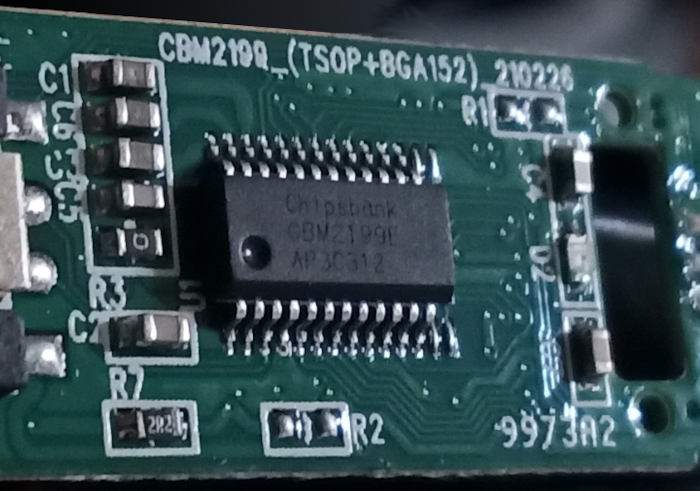
  • фLeshki with AliExpress with two USB and Micro-USB connectors (Chipsbank CBM2199E controller chip). The inscription on the printed circuit board: CBM2199. Perhaps other models of chipsbank flash drives.

Creating a table of disk and formatting sections in EXFAT in Windows

cmd
diskpart

list disk
select disk 1
clean
list disk
create partition primary
active
format fs=exfat unit=32k label="Flash disk" quick
assign letter=f

Creating a table of disk and formatting sections in Exfat in Linux

First you need to install the necessary packages:

sudo apt-get update
sudo apt-get install gparted gnome-disk-utility

Now we launch the program:

sudo gparted

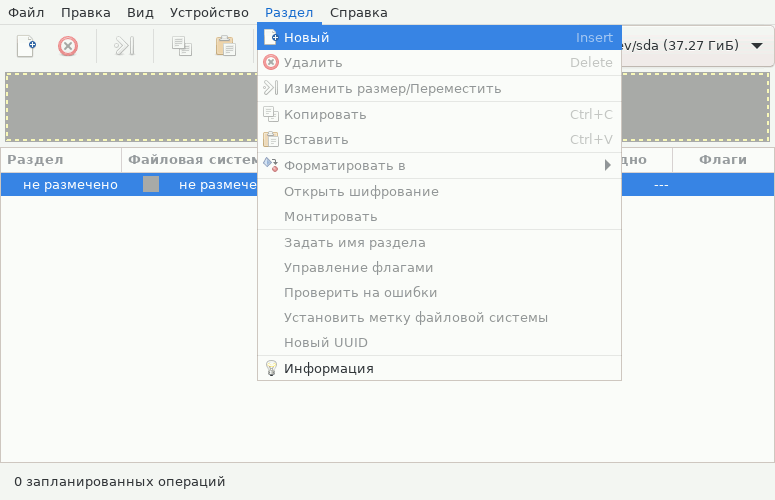
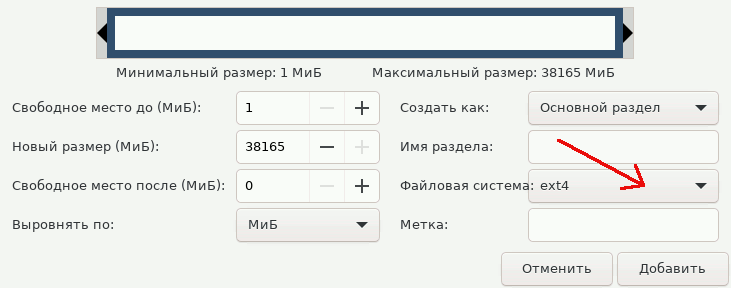
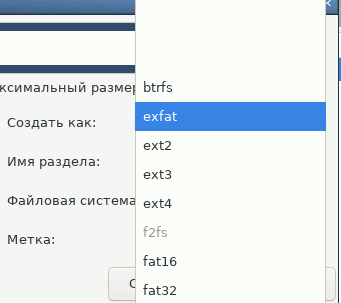
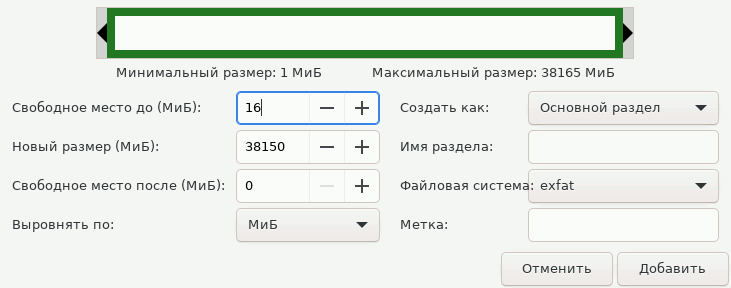
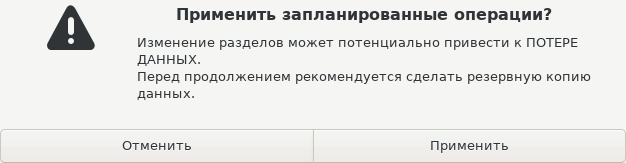
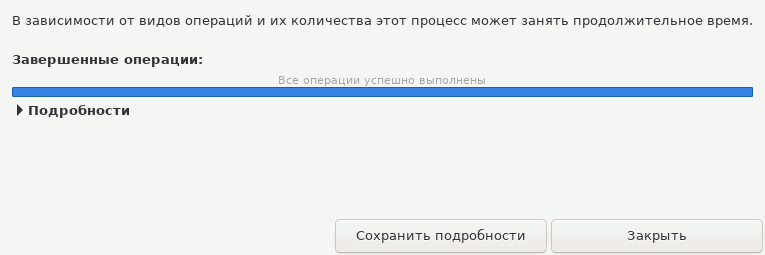
Next, do actions as in the screen pictures below:

Replace the letters SDA in the name of the disk (SDD, SDE, etc.) corresponding to the transfer drive - see the command of the command lsblk.

1.
Create0
2.
Create1
3.
Create2
4.
Create3
5.
Create4
6.
Create5
7.
Create6
8.
Create7
9.
Create8
10.
Create9

To mount the disk, run the “disks” equipment (sudo gnome-disks), select the disk, section and click on the "Triangle" button.
Mount

The new disk is ready for work.

Mounting a drive with a different name

When connecting the carrier to the USB, the outer disk in the /media/username/label ::
Mounted

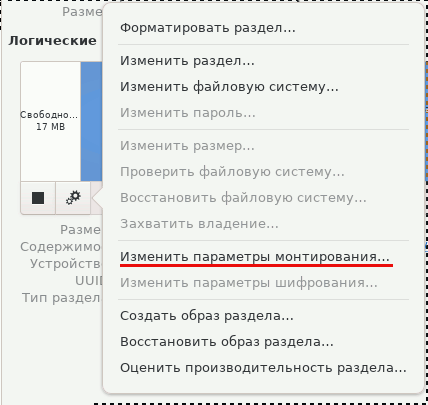
If you do not suit the name of the mounting point by default, it can be changed by pressing the button with the image of two gears.
Options

Disable the switch "default parameters for the user" => change the mounting point.
Change

Then, indicate the other mounting point:
Backup

In order for the changes in the settings to be applied, in the “disks” equipment, defront the disk (button with a square - “stop”) and mount the disk again (button with a triangle).

Backup2

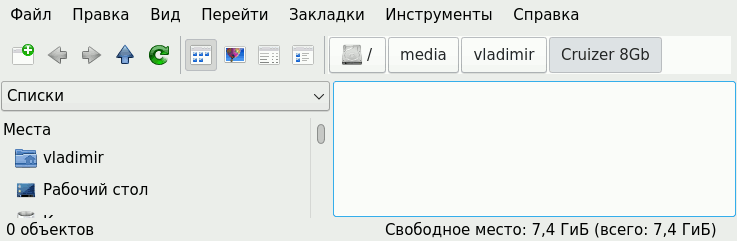
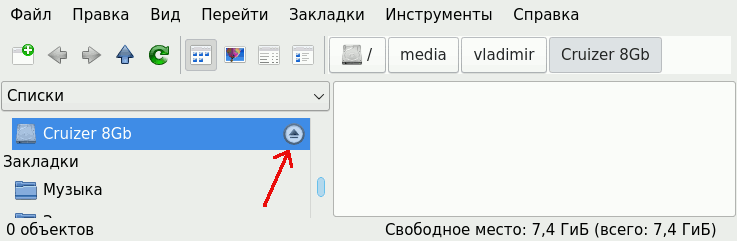
The mounting point has changed to /mnt/backup . The disk is visible in the conductor "PCManfm".

The correct extraction of the disk

Before the physical disconnecting of the disk, click on the "extract" icon in the conductor.
Unmount

Addition. Questions and answers.

Question: Starting with which version of the nucleus (Kernel) is there EXFAT support in Linux?

Answer: For low versions of the nucleus 4.1 - 5.15 you can use Backport called Linux-Exfat-Oot which needs to be compiled and embedded in the core.

Native, i.e. "Native" support of Exfat with mounting disks in a graphic interface - with a core 5.19 and above. (Source).

Also, in Android 9.0 "pie" and above (the nucleus of Android 4.4.146+).

Question: Starting with which version of the UBUNTU OS, support for FS Exfat "out of the box"?

Answer: ubuntu 20.10 and 22.04 LTS and newer, also Linux Mint 21.x LTS based on 22.04 .

Source 1,Source 2

What is the purpose of the Exfat-Fuse package?

Answer: The Exfat-Fuse package is used for the Fuse modular file system for the user environment of the UBUNTU OS version nge 22.04.

In the Ubunti 20.04 LTS and earlier - you need to additionally install the module exfat-fuse.

sudo apt install exfat-fuse

Examination:

uname -r
lsb_release -a

If the core is above 5.19 and OS 22.04 LTS, then the package exfat-fuse не требуется, его нужно удалить.

sudo apt remove exfat-fuse

How to check the availability of Exfat support at the level of the nucleus modules?

Answer:

find /lib/modules/ -iname '*exfat*'

How to check Exfat support in old OS (to Ubuntu 20.10)?

The package is responsible for support in old OS exfat-fuse для модульной файловой системы FUSE:

dpkg -s exfat-fuse

This package can be installed separately by a command that will turn on Exfat support for old Linux OS:

sudo apt-get install exfat-fuse

Question: Which package contains utilities for working with Exfat?

Answer: ExfatProgs .

sudo apt install  exfatprogs

EXFAT -Fuse - tools for creating, checking and marking file systems Exfat.

Tools for managing the extended table of posting file system files.
This package provides tools for creating, checking and marking the file system .
On contains
- mkfs.exfat to create a file system Exfat
- FSCK.exFAT to check and restore the Exfat file system
- tune.exfat for printing and editing the file system label
Instruments included in this package is ExfatProgs,
Samsung supported by engineers who provided Linux Exfat. support
Proceedings, but independent implementation of these tools, written by the author of the implementation of Exfat-Fuse,
accessible in the package Exfat-Utils.
Domash page:https://github.com/exfatprogs/exfatprogs.

Question: How to set a new lap for a disc without its formatting?

Answer:

sudo sudo exfatlabel /dev/sdd1 "Disk Label" 

Question: What is the length of the Exfat disc trim?

Answer: Theoretically, 15 characters, but for compatibility with Exfat 1.0, the length of 11 characters is chosen, the rest are reserved.
Correct: 0 - 11 characters .

Question: What to do if the exfatlabel displays the message:
"Open Failed: /Dev /SDD, Device or Resource Busy"

Answer: You need to find out the name of the external disk device:

mount | grep fat

Break the volume (in this case SDD1):

Sudo Umount /DEV /SDD1

Repeat the "Exfatlabel" command for Tom SDD1:

sudo exfatlabel /dev/sdd1 "Cruizer_8Gb" 

Disconnect the disk from the USB nest and connect again.
The disk is now mounted with a new label.

Who has a patent on the Exfat file system?

СпеSpecification of the Extended File Allocation Table (Exfat) file system was developed by Microsoft Corporation и защищена несколькими патентами, включая патент США № 2009/0164440 A1. Все реализации файловой системы exFAT, включая те, которые основаны на открытом исходном коде (например, Linux, Android, FATfs или другие), подлежат выплате роялти в пользу Microsoft. Это означает, что если вы разрабатываете и отправляете продукт, который включает в себя любую функциональность, охватываемую патентами exFAT, независимо от того, откуда получен код, вы обязаны выплатить роялти до публикации продукта, чтобы соответствовать условиям лицензирования Microsoft. Source

Sources:
Man mkfs.exfat.8
https://en.wikipedia.org/wiki/exfat

Last editing: 06.02.2025