21
October
2021
Hardware magazines for Linux: installation and comparison - part 2
14:30

Hardware magazines for Linux: installation and comparison - part 2

21 October 2021 14:30

There are special Linux assemblies for radio amateurs, but it is not necessary to reinstall the system. In any distribution of the Hamradio-Loging meta-package, when installing which the necessary packages for a hardware magazine are installed.

Installation of the "Hamradio-Loging" package

sudo apt-get install hamradio-logging

New packages

  • Hamradio-Loging
  • Hamradio-Tasks
  • klog
  • pyqso
  • Python3-Cartopy
  • Python3-Pyproj
  • Python3-Pyshp
  • python3-scipy python3-shaply
  • TLD
  • Trustedqsl
  • tucnak
  • Xplanet

Only 105 MB from the most common Universe repository.

Let's start with this:

Pyqso

A simple everyday journal for radio communications that does not present any requirements for RAM or screen resolution.
There is no connection with the CAT interface. QSO magazines are stored as a file of a popular SQLite data light database.
Magazine files can be changed when starting.

Pyqso (1) Hamradio Applications Pyqso (1)

NAME
Pyqso - Amateur Radio Logbook Application

This small application in Python was familiar to me earlier: it offers the possibility of maintaining a simple journal of radio communications.

Installation:

sudo apt-get install pyqso

The launch parameter -L allows you to specify the journal to which radio communications will be recorded. For example:

pyqso -l local144.db

where Local144.db is the name of the database for ties. It will be created in the folder, from where Pysqo was called.
DB is the extension of the file that he came up with (you can use any, the main thing is that it differs from the standard ones.
For example, you can name the Local144.QSO file

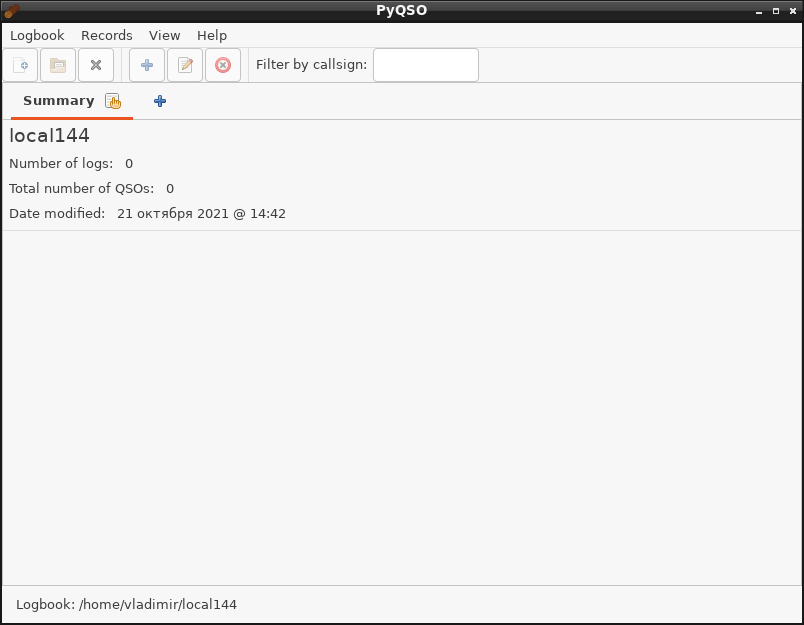
A window with an intuitive interface will open:
Pyqso

  • He pressed in the lower row of buttons on "+", just as sheets are created in MS Excel, next to the word Summary-created the first magazine, called it "FM" (for radio communications in the World Cup for 145.2125-145.5625 MHz).

Immediately there was a familiar table "Callsign", "Date", "Time", "Frequency MHZ", "Band", Mode "..." TX Power "," RST SENT "," RST Reced "..." NOTES "

Accelerated form call to add QSO to the journal: Pilling two keyboard keys Ctrl + R (from the word "record" - recording).

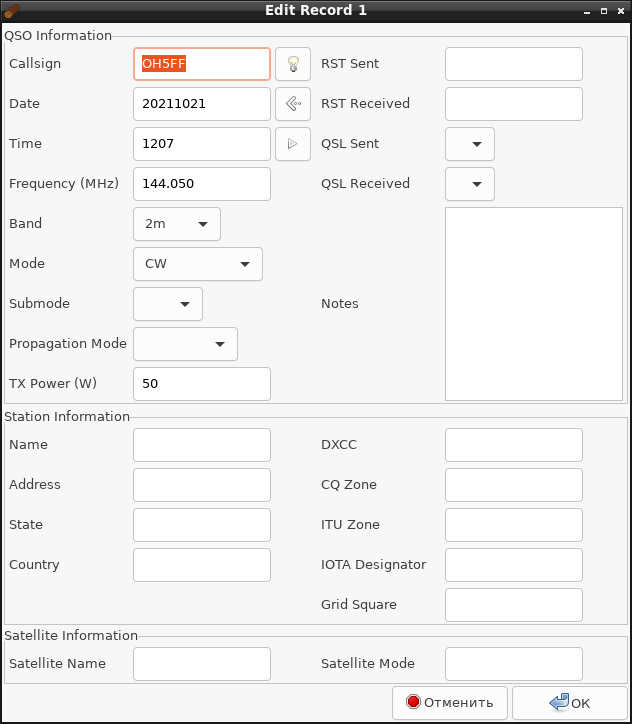
To add radio communications, I pressed in the upper row on the "+" button (Add Record).
QSO

Filling out the field fields - call sign, RST Sent, RST Receved, Band, Mode and pressed the OK button to save.
The recording was added to the magazine. In fact, the data was immediately saved in the SQLite database in the Local144.DB file.

Now the magazine can be exported to other programs. Logbook - Export - Export Log as Adif

You need to set the full name, for example, "2021-10-144.adi" and the file will be created-it will include all connections from the current journal.

To stop working with this magazine, I selected the menu item "logbook" - "Close LogBook". Or just close the program "logbook" - "quit".

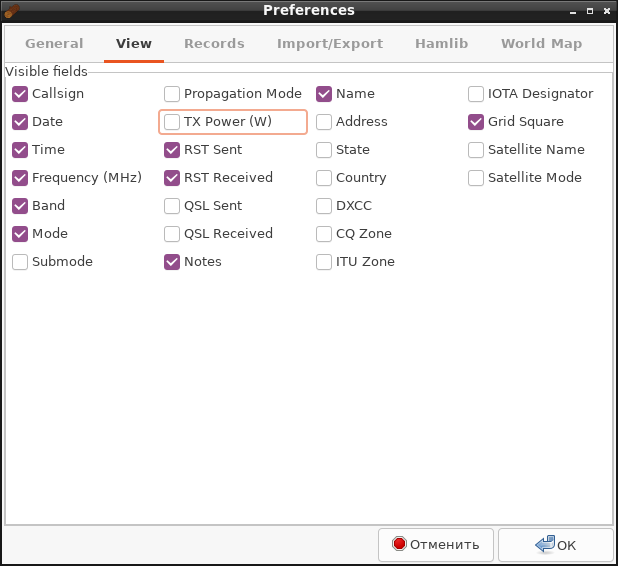
You can configure the fields displayed in the table in the settings.
Settings
Unfortunately, they do not affect the input form to add QSO - all fields and types of modulation are always available on it.
Also, the type of work (CW/SSB or FM) is selected by scrolling the list, which is not convenient.

Solution: If the same mode is often used, for example CW or FM, it can be fixed on the form. There are two ways to do this.

Method 1: LogBook - Preferences - Records: "Mode" - "FM" - OK.

Method 2: editing in the catalog ~/.config/pyqso file Preferences.ini:

  • To create a file ~/.config/pyqso/prefeences.ini, first go to the "logbook" menu - "Preferences" Change values, for example, on the View bookmark, and click OK.

Then we edit the created file Preferences.ini:

nano ~/.config/pyqso/preferences.ini

In the file, we are looking for a section [records] . For the operating mode "by default" is responsible for the default_mode parameter. We indicate the type of work. For example, CW, SSB or FM.
[records]
autocomplete_band = True
use_utc = True
default_mode = CW

CTRL+o, ctel+x

However, the working range after adding the recording is not remembered and when entering the next QSO you have to fill out the form to add the next QSO completely from the beginning.

Solution: The Pyqso file has a contact setup with the CAT interface for transmitting the range from the radio station and type of modulation:

[hamlib]
autofill = False
rig_pathname =
rig_model = RIG_MODEL_NONE

In these lines suggest the introduction of a COM port for the connection of PC and radio stations (for example rig_pathname = /dev /ttyusb0 )
and Rig_Model radio station from the library Hamlib (например, rig_model = 1022).

If there is no CAT interface, frequency, range and type of work in the journal are not transmitted. It will be possible to fix the ranges of work at QSO records later.

Despite the inconvenience, in general, the PYQSO program works and can be used in practice to register everyday radio communications instead of a handle and paper.
Pyqso2

The radio communications exported to the Adif file can be transferred to any other journal, even to another operating system.

AmAteur Radio Log File. Generated on 2021-10-21 14: 59: 26.224720. Contains 1 Record (s) .
\n
<adif_ver:5>3.0.4
<programid:5>PyQSO
<programversion:5>1.1.0
<eoh>
<call:5>RV1AA
<qso_date:8>20211021
<time_on:4>1148
<freq:7>145.775
<band:2>2m
<mode:2>FM
<prop_mode:3>RPT
<tx_pwr:1>5
<rst_sent:2>59
<rst_rcvd:2>59
<notes:10>ant. GP
<name:5>Maxim
<gridsquare:6>ko59dx
<eor>

Klog

If the SID repository is connected to Debian, it contains the latest version 1.8.5.

Installation:

sudo apt-get install klog

If the KLOG version after installation is below 1.8.5, you need to assemble a program from the original texts !!! Since the KLOG program is actively developing and errors are corrected.

1) Delete klog
sudo apt-get remove klog

2) Download the original texts of it from the site https://github.com/ea4k/klog/releases

KLOG assembly procedure from the initial texts

  1. Установить зависимости.
  2. sudo apt-get install g++ make qt5-qmake qtbase5-dev qttools5-dev libqt5charts5-dev libqt5sql5-sqlite libqt5serialport5-dev

Additionally: I install Autoreconf and Automake (from the error "You must have autoReconf installed to compile hamlib.")

sudo apt install autoconf automake libtool

I note that when installing Libhamlib-DEV, the old version 3.3 will be installed, while fresh 4.
sudo apt-get install libhamlib-dev

You need to collect Libhamlib 4.x from the source.

If the old version of Hamlib was installed:

sudo apt-get remove libhamlib-dev

And if it was installed from the original texts, we first delete the old version:

cd ~/Hamlib
sudo make uninstall
cd ~
rm -R ~/Hamlib

I cloning the GIT project and compare from the source:

cd ~
git clone https://github.com/Hamlib/Hamlib.git
cd Hamlib
sh bootstrap
./configure
make
make check

There should be a lack of errors

TestSuite Summary for Hamlib 4.4 ~ Git
# Total: 7
# Pass: 7
# Skip: 0
# Xfail: 0
# Fail: 0
# XPASS: 0
# Error: 0

Now I install Hamlib:

sudo make install

I continue Klog compilation

cd ~/klog/klog-1.8.5/src
qtchooser -l

There should be a record "Qt5", then we are exported

export QT_SELECT=qt5

I download the source texts into the current folder

cd ~
wget https://github.com/ea4k/klog/releases/download/1.8.5/klog-1.8.5.tar.gz
tar xvzf  klog-1.8.5.tar.gz
cd klog-1.8.5/
sudo apt-get install libqt5serialport5-dev
qmake PREFIX=/usr/local src.pro
make

Let's go drink tea. )) For 20 minutes.

After the end:
sudo make install

Now start Klog from the command line.

/usr/local/bin/klog

There is an error for an already compiled and previously installed Hamlib4 library

"/USR/Local/Bin/Klog: Error While Loading Shared Libraries: Libhamlib.so.4: Cannot Open Shard Object File: No Such File Or Directory

Reason and solution: you need to fulfill:

sudo ldconfig

After that, Klog starts without error!

klog

Translate

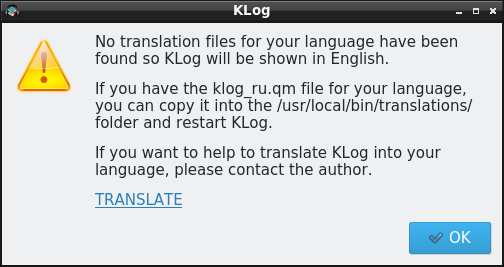
After the author’s apologies for the absence of translation from English (click "OK") the first step of the adjustment will open:

Note: If there is a "black screen", try starting the same step from Sudo Klog

Klog1

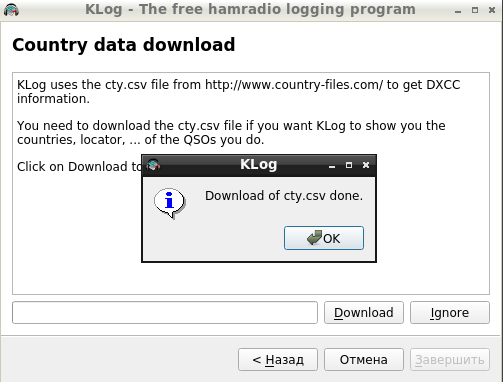
I pressed "Next" - "Acknowledge" - "Next" - "Download" - "Done"
Done
Complete. OK.

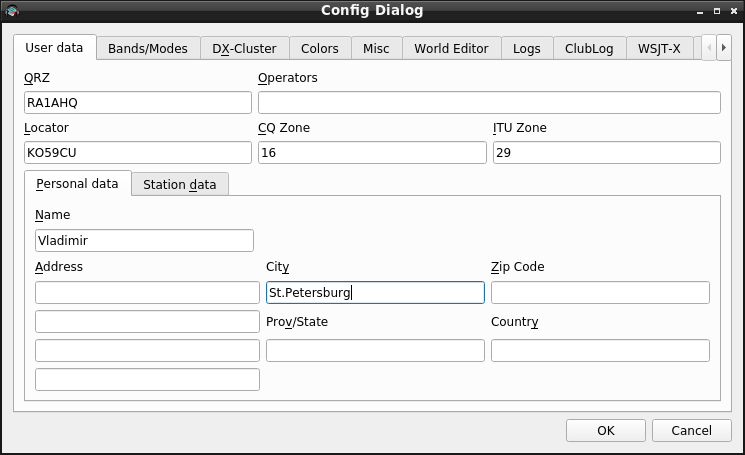
Now the program has displayed the configuration window for entering information about the radio station - call sign, ww -locator, operator.
Config

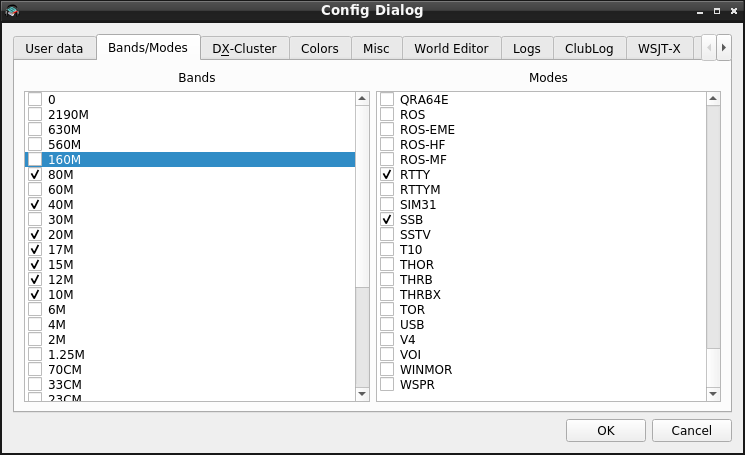
On the next bookmark, you need to remove the ranges on which we do not work - 160 and 6 meters, and specify the views that we use - for example, CW, SSB, RTTY.
Bands

On the MISC tab, you need to specify the path to the magazine:
For example:
/home/vladimir/klog.adi or leave the same (since launch from the user Root)

And the catalog, for example

/Home/vladimir/

If we change the location of the database: be sure to press the Mover DB button, which moves the database to the new "address".

He set the "Save Adif on Exit" - to save ADIF magazine when leaving the program.

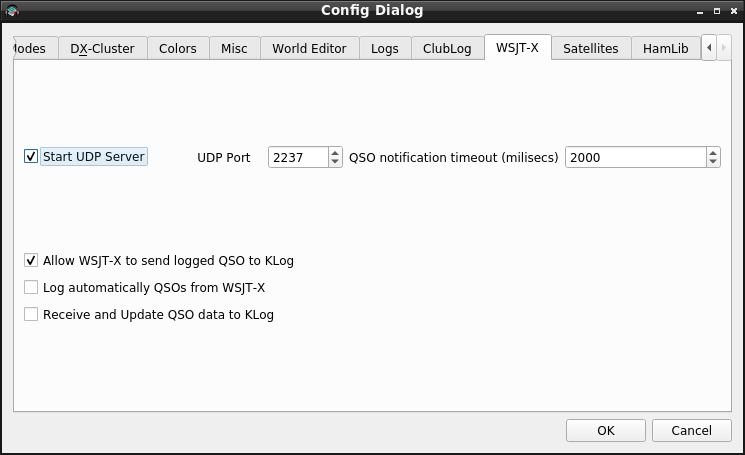
On the WSJT-X tab, it is possible to configure the connection of two programs via UDP for (if you install a checkplace " Start UDP Server ") to automatically add FT-8 bonds to KLOG.
WSJTX

On the last “Hamlib” bookmark, you need to configure the control of the radio station through a sequential COM port and Hamlib library.
Hamlib

Note. To connect a radio station to a computer via a COM port, you need a data transfer cable and a USB-COM converter. For models, Yaesu FT-817/857/897 Data transmission cable is called CT-62 ("Cat Interface Cable FT-817/897/857").

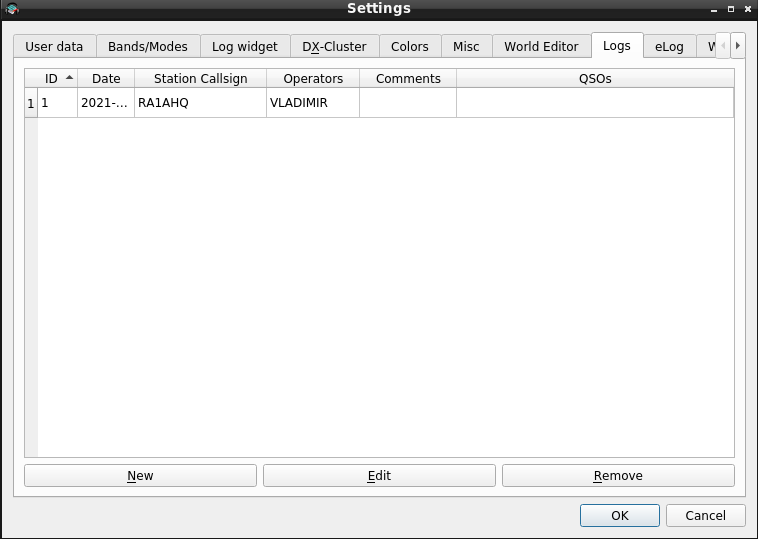
On the Logs tab, click New and come up with the name of the new magazine. Otherwise, the program will not work.
VLAD

Press OK. Now KLOG can be used to register QSO. The setting is completed.
Klog-New


Last change 04/16/2025


Related publications