11
August
2023
VPN over L2TP in 5 minutes
17:04

VPN over L2TP in 5 minutes

11 August 2023 17:04

The article describes how to set up an L2TP/IPSec VPN under Linux Mint 21.2.

Introduction

Previously, I configured the server and client using the PPTP protocol. Unlike PPTP, the L2TP protocol does not have vulnerabilities and the connection is also much faster.

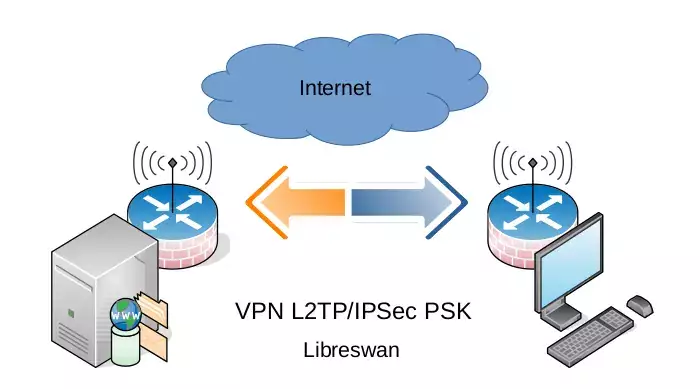
To use VPN type L2TP/IPSec PSK.

(Инструкция была переработана и проверена 04.12.2023 для совместимости с Ubtuntu 20.04 и 22.04 / Linux Mint 21 / LxLE).

Removing Libreswan

Update apt cache:

sudo apt update

This command will remove libreswan and automatically install strongswan:

sudo apt-get remove libreswan

Starting and registering the strongswan service in systemd:

sudo systemctl strongswan-starter.service start
sudo systemctl strongswan-starter.service enable

Reinstalling the Strongswan plugin for NetworkManager

sudo apt reinstall network-manager-l2tp network-manager-l2tp-gnome

Generating a Pre-shared key

Any sequence can be used as a public key (12345678 is often recommended :)
but it's better to use at least a 128-bit key.

dd if=/dev/random count=16 bs=1 | xxd -ps

The PSK key should be transferred between machines securely (not via email, but, for example, through another VPN or using a USB flash drive).

Setting up an L2TP server

We set up a router on which we launch an L2TP VPN - enter the shared key, username and password.

General settings - Change component set
Change the set of Zyxel router components

Adding VPN L2TP/IPSec on a Zyxel router

Adding an L2TP/IPsec server

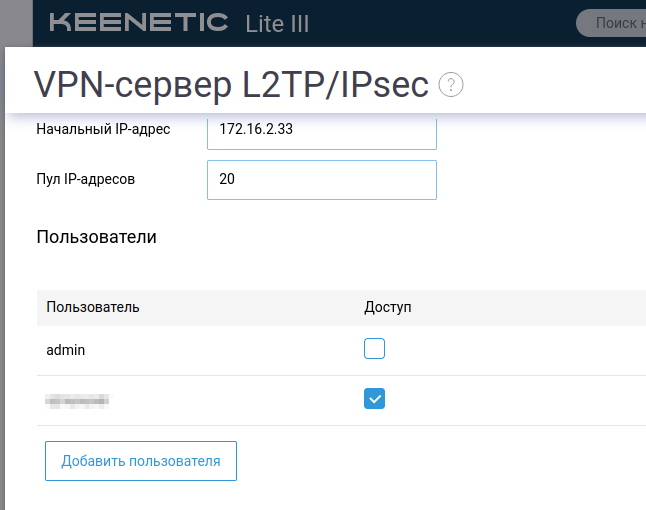
We configure the VPN server. To do this, go to the menu "Applications" on the left side of the window and click on the name VPN L2TP/IPSec. The screen for setting up the VPN server will open:
Basic L2TP/IPSec server settings
Granting rights to the user (username and password added earlier).
We provide the user with the ability to connect

Starting a service on an Ubuntu/Linux Mint client

sudo systemctl enable ipsec.service
sudo systemctl start ipsec.service

Create a connection to the L2TP server (setting up L2TP on the client)

The following settings are for L2TP/IPSec PSK.

In the Ubuntu / Linux Mint system tray, left-click on the network icon

  • VPN connections - Set up VPN
    l2tp-01

Select the VPN type from the drop-down list instead of Ethernet
l2tp-02

Type "Layer2 tunneling protocol (L2TP)"
l2tp-03

"Create" button.
l2tp-04

The protocol parameters must correspond to the server, which is the home router:

  • Gateway (Gateway - white IP address of the home router)
  • Type - Password
    *Username
  • Password
    l2tp-05

    *Enable IPSec tunnel to L2TP host*
    Pre-shared key**
    l2tp-06

In the system tray, click on the network icon - VPN connections and select an L2TP connection.

In my case, connecting to the VPN worked immediately.
connected

If not, check the parameters (server IP address, pre-shared key, username, password, connection ability).
On the client, since it is the initiator, there is no need to open ports on the firewall. On the server, ports 1701/UDP, 500/UDP and 4500/UDP must be open for input (when you enable the VPN L2TP/IPSec application, Firewall rules are added to Zyxel Keenetik automatically).

The L2TP protocol operates at the second, OSI packet level and is not blocked within the Russian Federation by either mobile operators or fixed Internet providers when transmitted between Russian autonomous systems. For example, between Megafon and Rostelecom.

Configuring a VPN connection route on the client

If you do not configure the route in the connection properties, then only the router (gateway) will be available.

To have access to all computers on the local home network, you need to configure the route through the gateway on the client in the connection properties.

1) First, open the connection properties (on the Network Manager panel in the system tray, press the left mouse button -"VPN Connections"-"Connection settings". A window will open with a list of connections:
Routes on the client

Select the desired VPN connection and click on the gear "properties".

We carry out route configuration- on the bookmark IPv4 press "Routes", then "Add":
Adding a route
Fill in the parameters:

  • address - 192.168.100.0

  • network mask - 255.255.255.0

  • gateway - 192.168.100.1

  • metric - 1

(Where instead of the IP address 192.168.100.0 we indicate the address of our local home network, for example, 192.168.77.0,

instead of gateway 192.168.100.1, specify the IP address of the home network gateway, for example 192.168.77.1).

Through a VPN, you can access computers in your home network (FTP, etc.). Clients' Internet access from their home network also works.

The same settings can be performed on a smartphone running Android OS.
Setting up a VPN on Android
Setting up a VPN on Android - continued

Addition dated November 27, 2023 with correction dated March 31, 2026:

If some of the traffic from the PC passes through the VPN tunnel

Problem: the VPN connection to the server was successfully established, but some of the client traffic does not go through the VPN.

Solution:On the client (PC at work or laptop), configure the default route.*

1) deleted the old route with the default gateway

sudo ip route del default via 192.168.1.1

where 192.168.1.1 is the IP address of the work PC router.

2) _added a new route - the default gateway through the ppp0 device connected to the home VPN.

sudo ip route add default via 192.168.100.1 dev ppp0

where:
192.168.100.1 - IP address of the gateway (router) of the home local network where the VPN server is installed,
ppp0 - L2TP VPN device name.

I saved the script in my home folder under the name gw.sh and set the permissions:
chmod +x gw.sh

Example script:
#!/bin/sh
sudo ip route del default via 192.168.1.1
sudo ip route add default via 192.168.100.1 dev ppp0

Run the script with the command:

./gw.sh

If you look in Wireshark, after running the script, packets from the work PC go only to the external IP address of the home PC. No more packets bypass the tunnel, i.e. all traffic is wrapped in a VPN tunnel to the home PC.

After disconnecting from your home VPN network, you can restore the network using a script that changes the default gateway to the original one.

#!/bin/sh
sudo ip route add default via 192.168.1.1

where 192.168.1.1 is the IP address of the network router at work.

Added execution right (eXecute):

sudo chmod +x gw-off.sh

Client traffic with home VPN connected before script execution:
before
Client traffic with home VPN connected after script execution:
after
Connections to foreign IP addresses have disappeared. All traffic goes through the tunnel.
With this method, torrents may not work, but WWW browsing works fine.

The gw-off.sh script to restore settings must be run after disconnecting from the VPN.

./gw-off.sh

Or, after disconnecting from your home VPN, you can restart the network with the command.

sudo service networking restart


Related publications