12
November
2025
Fixing the "Your browser is out of date" error in Thunderbird and Mail.ru mail
17:11

Fixing the "Your browser is out of date" error in Thunderbird and Mail.ru mail

12 November 2025 17:11

On some computers, when you try to download Mail.ru mail messages, the “Your browser is out of date” window appears.

Introduction

Application Thunderbird(https://www.thunderbird.net/ru/) is a well-known email client for Linux, Windows and Android, which is developed by a non-profit organization Mozilla Foundation, which is financed by voluntary donations. The Mozilla Thunderbird email client project has existed since 2008 (Wikipedia).

Advantages of the Thunderbird email client:
1) You do not need a constant Internet connection to search for mail, synchronization once every 10 minutes.
2) Local mail archive (security in case of an accident on the e-mail server or Internet provider)
3) You can transfer mail to Personal Folders offline and delete mail from the server - unloading the mailbox.
4) No advertising.
5) The application is free (support through donations from users).
6) There is a client for Android with the ability to easily transfer settings from the desktop application.

Description of the problem

On some computers it occurs problem in Thunderbird, when receiving mail or moving through folders within the application, a window with a web interface opens where an error message is written "Your browser is out of date. To access the service, update your browser or install a new one. Install Atom.".

badbrowser

Cause of the problem

Many years ago, logging in, sending and receiving mail was done with SMTP and IMAP using a username and password,
then in 2015, the mail service MAIL.ru tightened the screwsstrengthened security: OAuth 2.0 password entry protection, in which the password is not trusted to third parties, but uses a web-based password entry window in which the user enters the password and solves the work check by solving the “I am a human” captcha problem, after which not the password, but the login token is transferred to the third-party application. This mechanism can sometimes fail - for some reason, a strict check of the web browser version is implemented.

Other changes to Mail.ru - logging in via a single identifier VK.ID, or using a QR code on the screen only works with the proprietary Mail.ru application for Android.

Thus, using third-party applications (Mozilla Thunderbird, Microsoft Outlook, The Bat, Evolution, Mailspring) to store mail on a local PC instead of Mail.ru servers is difficult.

OAuth 2.0 mechanism may fail, because :
1) mail.ru displays the error "Your browser is out of date" even with completely updated Thunderbird, Yandex browser, Chrome or Firefox. Perhaps due to the fact that browser checking in 2025 has become more thorough against spam bots.
2) cookies are used that are stored on the client side (a unique “token” issued by the server after successful authentication through the web interface). Cookies are highly browser dependent and may be deleted or expire validity period(Re-login via OAuth 2.0 will be required). But a new cookie cannot be obtained for reason No. 1 - "Your browser is out of date".

Solving the problem

This method is primarily for PCs with a problem in the Thunderbird program, on which logging in via Oauth2 has stopped working (a web window with the message “Your browser is out of date”).

But the solution is also suitable for PCs without this problem, where the login is made through Oauth2 and the message “Your browser is out of date” is not displayed.

Brief description of the solution

Needed instead of OAuth 2.0 you need to specify the standard mail server authentication method -by username and password. Specify as password External application password, which needs to be created in Mail.ru. To do this, you first need to configure the Mail.ru mailbox through a web browser, namely, you need to create an External application password.

Advantages and Disadvantages

Benefits- a complete solution to the “Your browser is out of date” problem, the application password can also be used on an Android smartphone in the Thunderbird program of the same name for Android or on other PCs with Thunderbird to receive and send email.

Disadvantage- storing the password for an external mail application in the Password Manager, which can be seen in Thunderbird - Settings (menu "Edit" - "Settings"), as written in this article:Password Manager - Remember, delete and change passwords in Thunderbird.

Procedure

Part 1: Create an external application password

You can skip this step if the password for the external application has been created and is known to you.

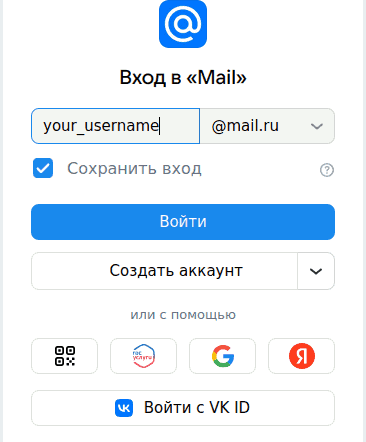
1) in the browser on your PC, go to Inbox - Mail.ru Mail at https://e.mail.ru/inbox/.
2) if necessary, log in to your mailbox. If you are already logged in, go to step 3.
enter_mail.ru

  • if you have the "Mail Mail Cloud" application on your smartphone - using the QR code
  • otherwise - by username and password in "Other login methods" with confirmation via SMS.
    settings_mail.ru_2
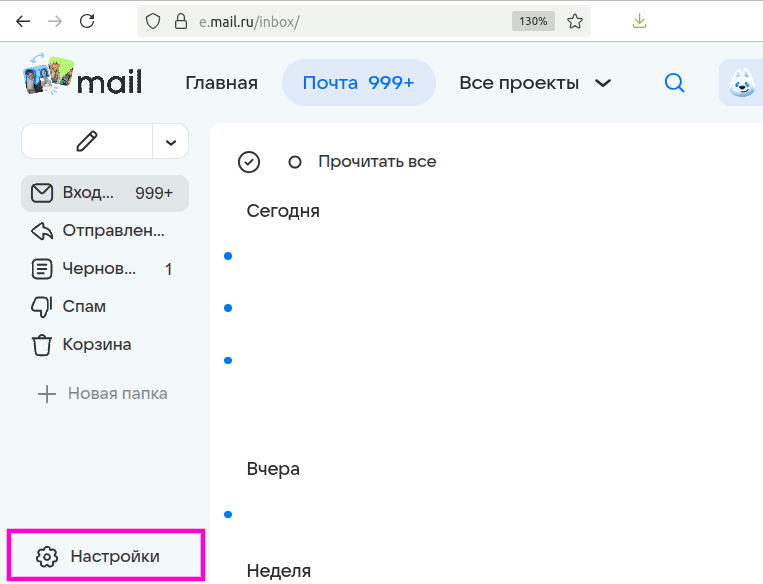
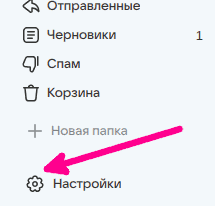
    3) below the folders there is a "Settings" button,
    settings_mail.ru_0
    you need to click the "Settings" link to enter your mailbox settings.
    settings_mail.ru_1
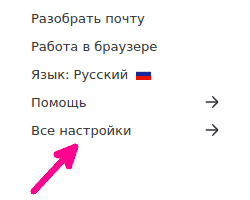
    4) in the parameters, scroll down the window with your mouse and click the "All settings" link.
    settings_mail.ru_3
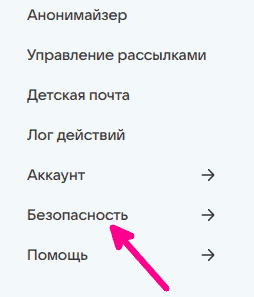
    5) click "Security".
    settings_mail.ru_4
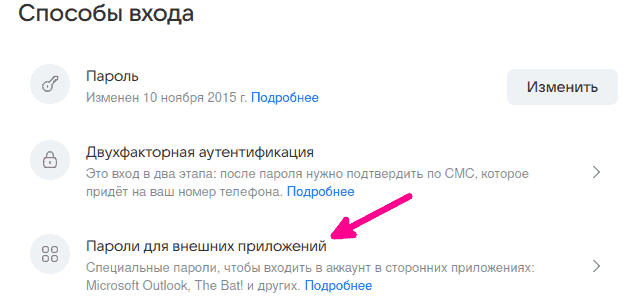
    6) scroll down the screen - item "Passwords for external applications".
    settings_mail.ru_5
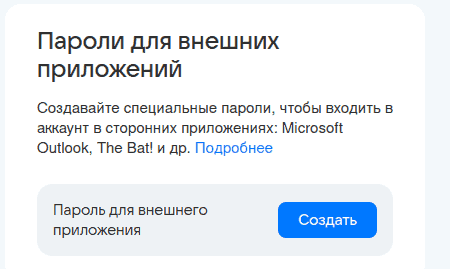
    7) create a password for an external application - button "Create".
    settings_mail.ru_6
    8) Come up with and enter a name (description) in the text field for recording your home or work email password.

    settings_mail.ru_8
    Then click "Continue".
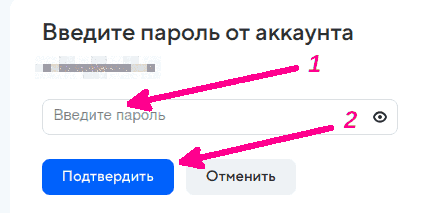
    9) Enter the password for your mail.ru account and click the button "Confirm"

    settings_mail.ru_9
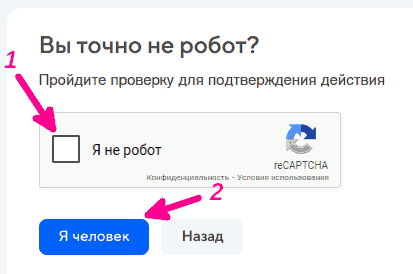
    10) Check the box "I'm not a robot" and click "I am a man".
    settings_mail.ru_10
    11) An external application password will be created.
    Copy the created password for an external application to the clipboard (save it in a safe place), it will be useful in the future!

The password is available for viewing and/or copying only once.

settings_mail.ru_11
After that, click "Done".

Part 2: Setting up Mozilla Thunderbird

The main feature of this instruction is the use of the external application password directly in the application, instead of web authentication using OAuth2.

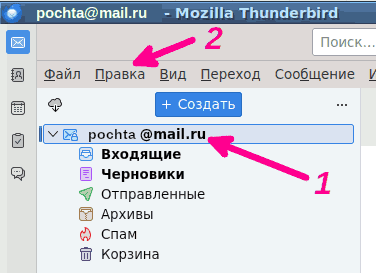
12)Launch the Thunderbird email client and select your mail account, click "Edit"-.
settings_mail.ru_12
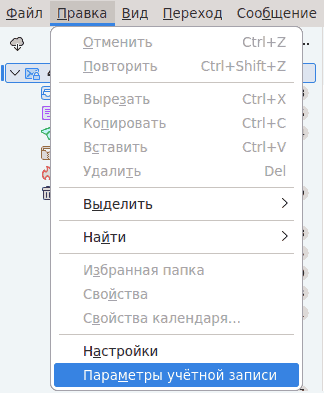
13) Menu item "Account Settings".
settings_mail.ru_13
14)Server settings
settings_mail.ru_14
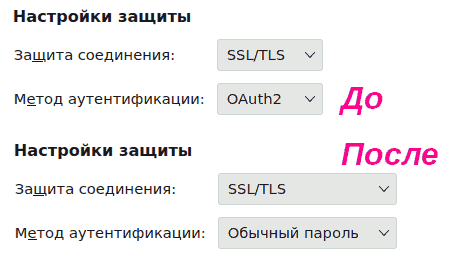
15) Change the authentication method from OAuth2 on Regular password
settings_mail.ru_15

The password for incoming mail will be requested the first time you connect to the IMAP server (receiving emails).

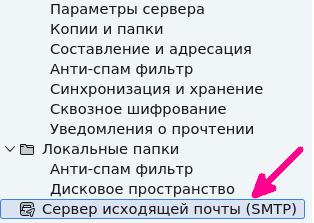
16) Scroll down on the left side of the window -Outgoing mail server settings (SMTP).
settings_mail.ru_16
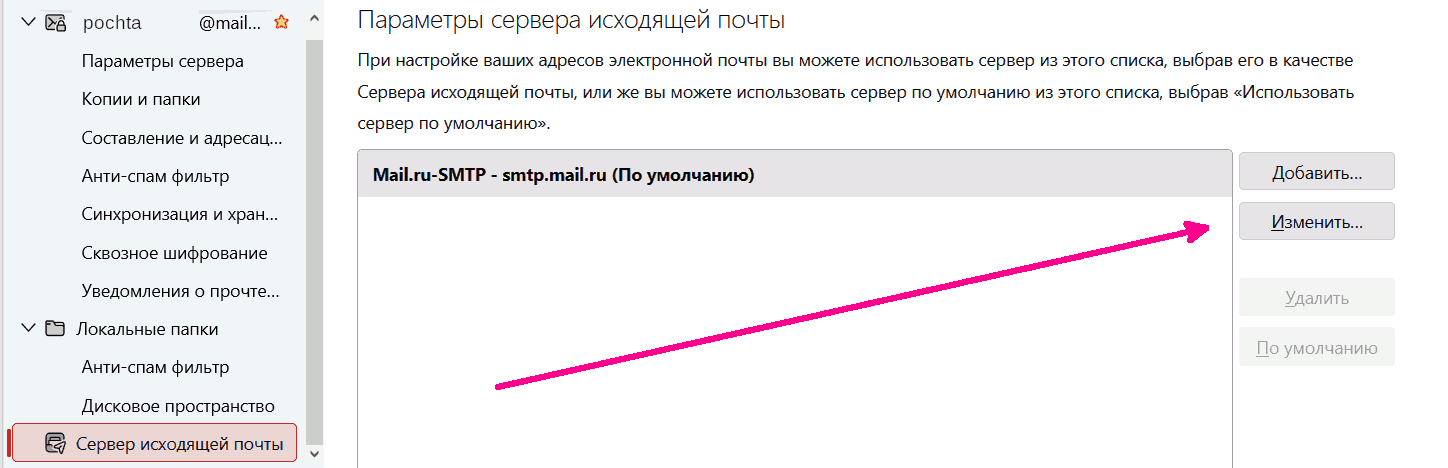
18) On the right side of the window, click "Edit".
settings_mail.ru_17
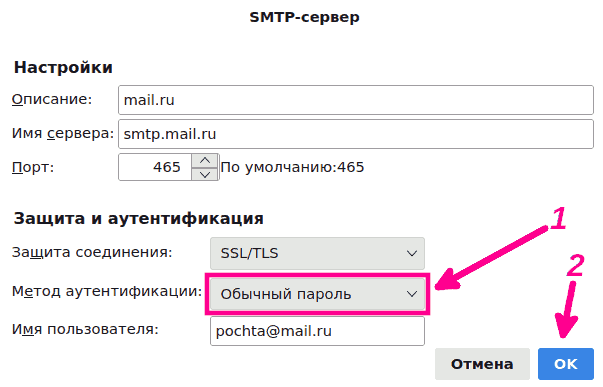
19) In the SMTP server settings, also change the authentication method OAuth2 on Simple password.
settings_mail.ru_19

The password for incoming mail will be requested the first time you connect to the SMTP server (sending letters).

20) Click the icon "get mail"(Cloud with down arrow) or keys Shift+F5.
settings_mail.ru_20
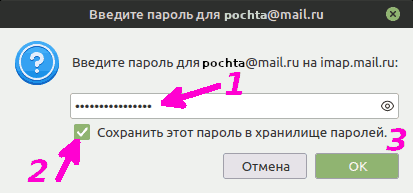
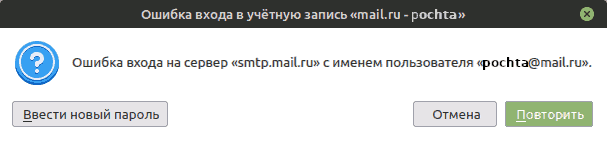
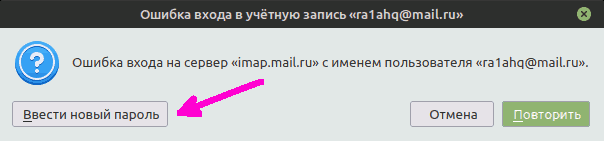
21) An error will be displayed

mail_err_1- click "Enter new password".
The password will be saved in the Thunderbird password manager.
22) Enter into the Password of the external application copied in step 11.
mail_err2
Don't forget to check the box "Save this password in your password vault".
24)Create a letter to your email address and send a message (Ctrl+Enter).
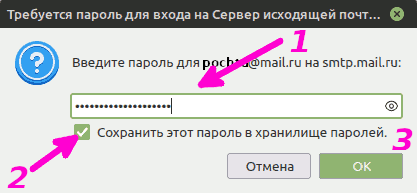
25) An error window will be displayed.
mail_err3
26) Enter into the Password of the external application copied in step 11.
mail_err3_1
Don't forget to check the box "Save this password in your password vault".


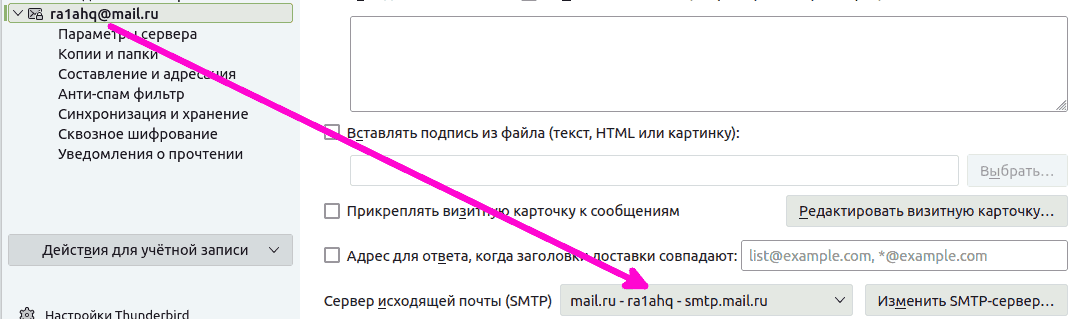
Note: if there are two mail.ru accounts on the PC, you need two passwords for external applications and also two entries for outgoing SMTP mail -give them different names to differentiate when choosing. Each Mail account in Thunderbird must have its own outgoing SMTP record.

First account:
equal_email
Second mail entry (fictitious address, changed for example):
equal_email2

Add-on: Thunderbird app for Android

Application settings can be exported and "Tools" - "Export for mobile..."
and import via QR code into Thunderbird app for Android.
*Thunderbird on Play Market

(If two e-mail addresses are used on the mail.ru server, you will need to specify the Application Password for this account in the server for sending, since confusion is possible, as described in the Note above).
The application works with Mail.ru servers in the same way as the Thunderbird desktop application.

Note

This method (using a simple password instead of OAuth 2.0) works as of November 13, 2025. I am not responsible for the relevance or obsolescence of the information presented in this article.


Link:

*Official instructions:https://help.mail.ru/mail/login/mailer —
How to log into Mail in another mail program
and in it SMTP, IMAP - connection parameters to the Mail.ru server


Last modified article: 11/13/2025