9
October
2026
Installing Wine, Flatseal and MMANA-GAL basic using Flatpak
23:13

Installing Wine, Flatseal and MMANA-GAL basic using Flatpak

9 October 2026 23:13

On some Linux operating systems, you cannot install the Wine runtime from the repository due to unresolved dependencies, then the Flatpak application installer comes to the rescue.

Definitions

Wine- environment for running Windows applications (executable files *.EXE).
Flatpack- a system for installing applications in a sandbox, which does not depend on the distribution.
Flatseal- a program for setting permissions (rights) for Flatpak sandbox applications.
MMANA-GAL basic is an antenna modeling program for Windows that can also be run on Linux using Wine. Authors: Makoto Mori JE3HHT, Alexandr Schewelew DL1PBP, Igor Goncharenko DL2KQ.

Installing Wine from Flatpak

1) First you need install the Flatpak environment according to the instructions. I'm skipping this point.

2) Install Wine from Flatpak

Method 1 - Install Wine by downloading the .flatpakref file from flathub

The easiest way.

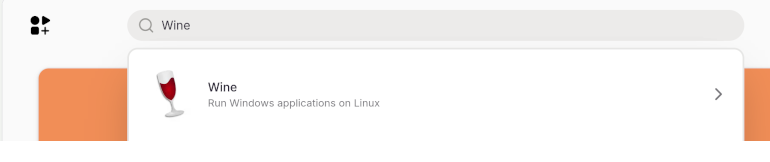
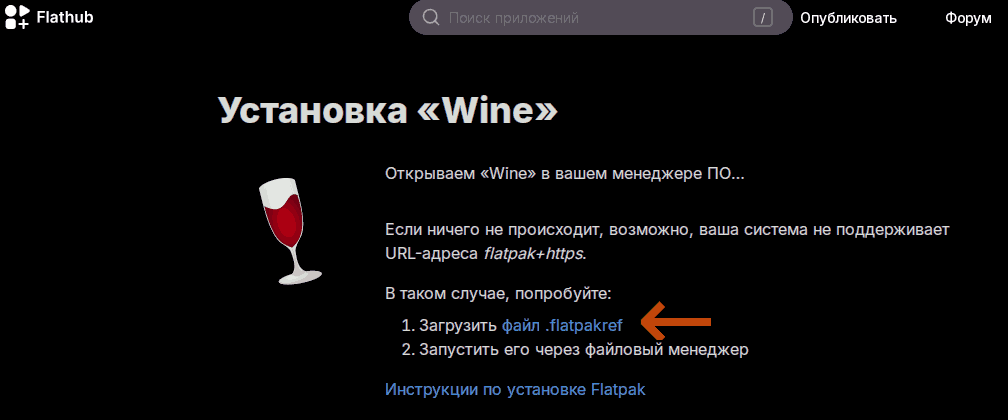
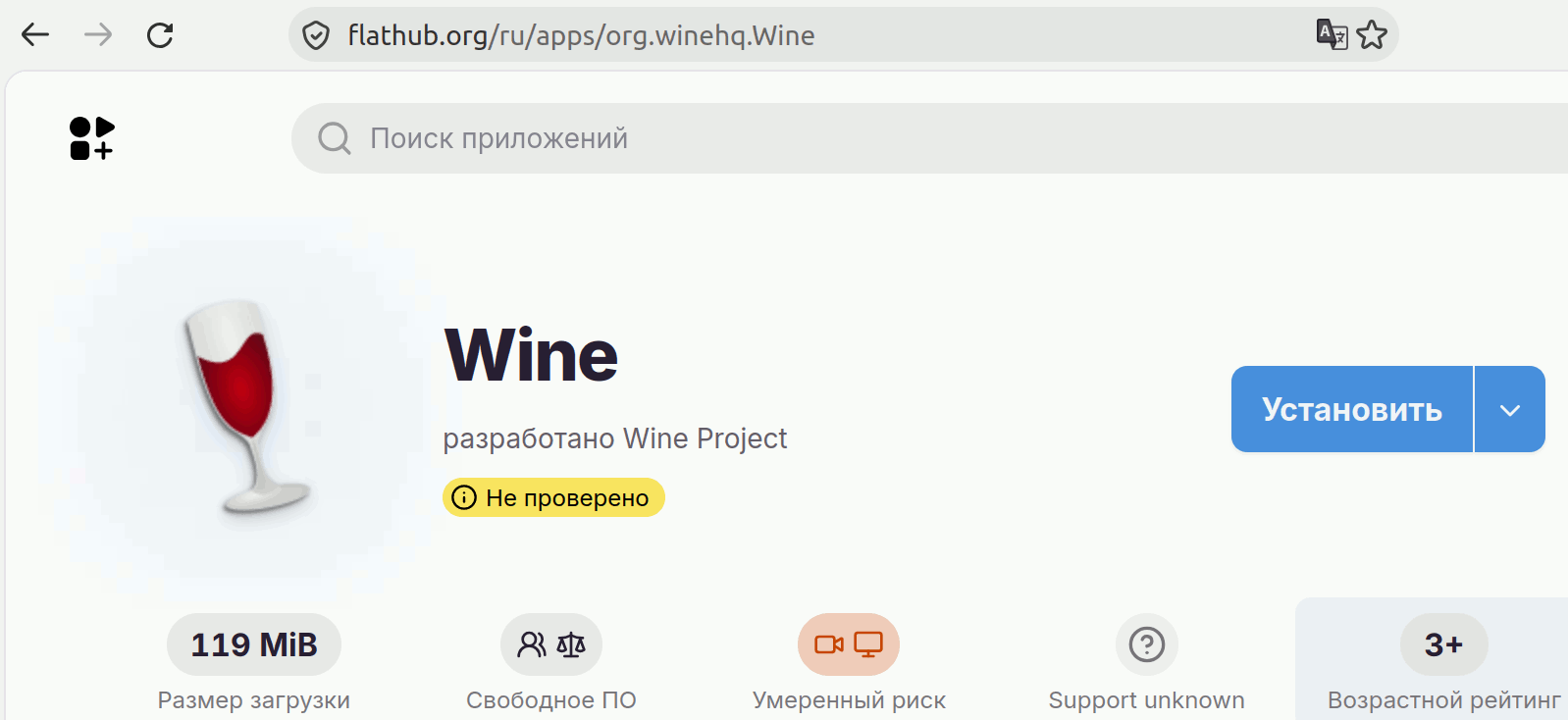
We go to the site https://flathub.org, find by searching Wine and download the .flatpakref file.
wine-flathub-org.png

wine-setup.png

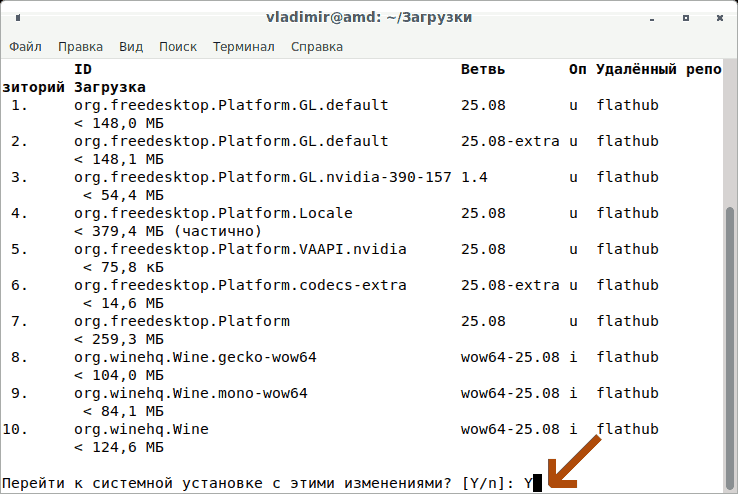
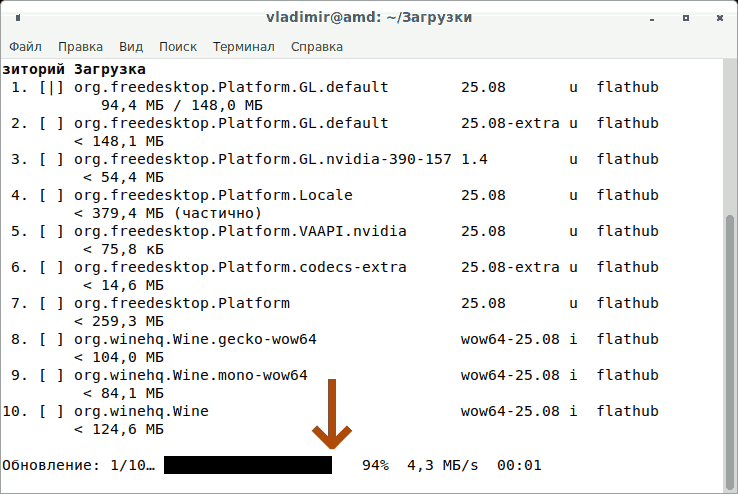
In the terminal, run the installation "flatpak install" and the name of the downloaded file.

cd Downlods
flatpak install org.winehq.Wine.flatpakref

We confirm the installation and wait for it to complete.

Method 2 - first install Flathub, then from it Wine with one command

flatpak install flathub org.winehq.Wine.flatpakref

Method 3 - by clicking the Install button

Some Flatpak installations have an Install button available in your web browser.
setup_wine.png

Installing Flatseal from Flatpak

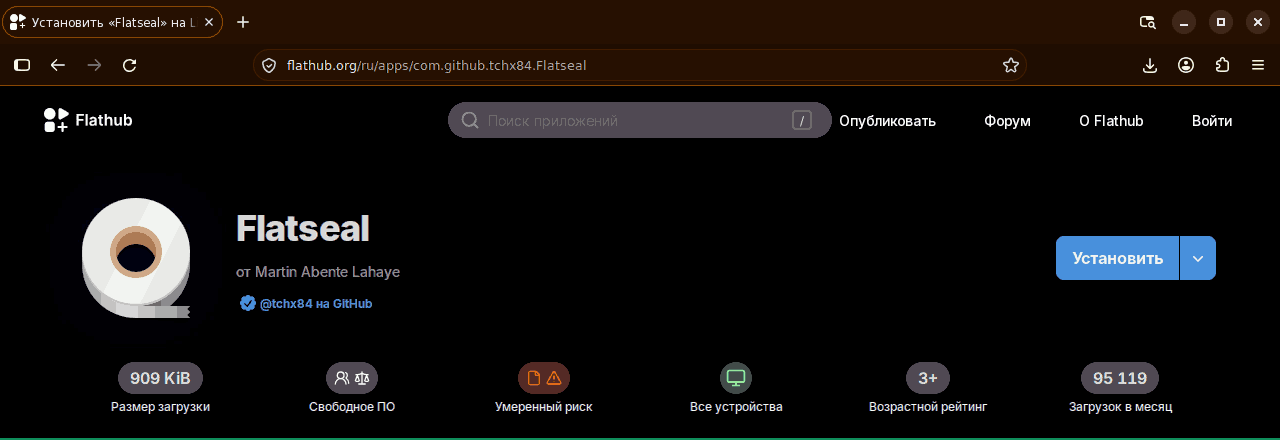
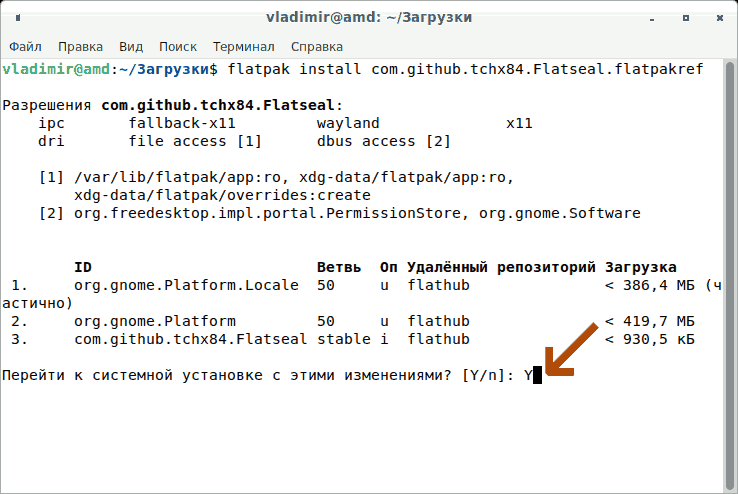
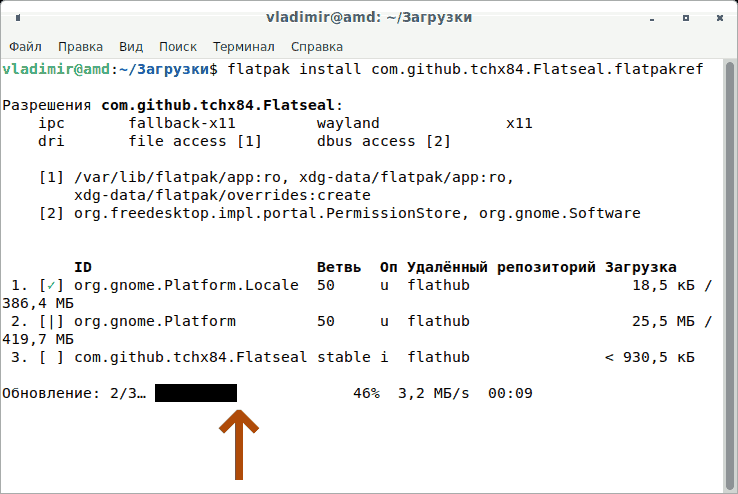
We install Flatseal in a similar way.
tchx84.Flatseal.png
setup-flatseal1.png

Or

flatpak install flathub com.github.tchx84.Flatseal

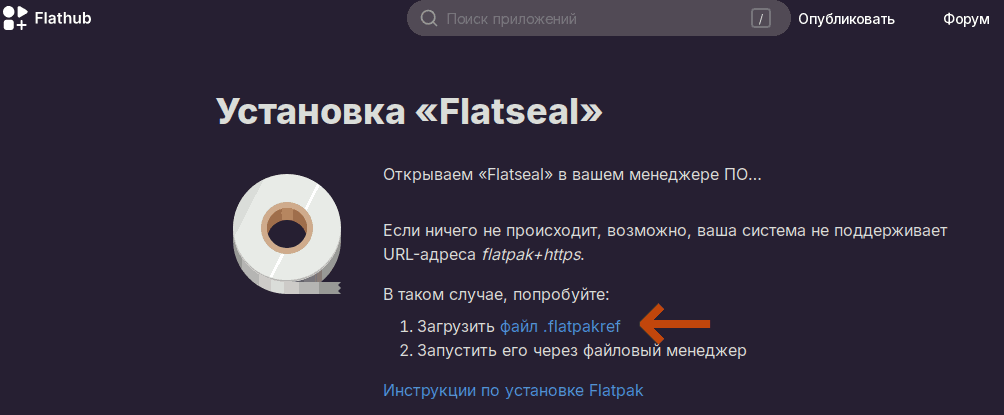
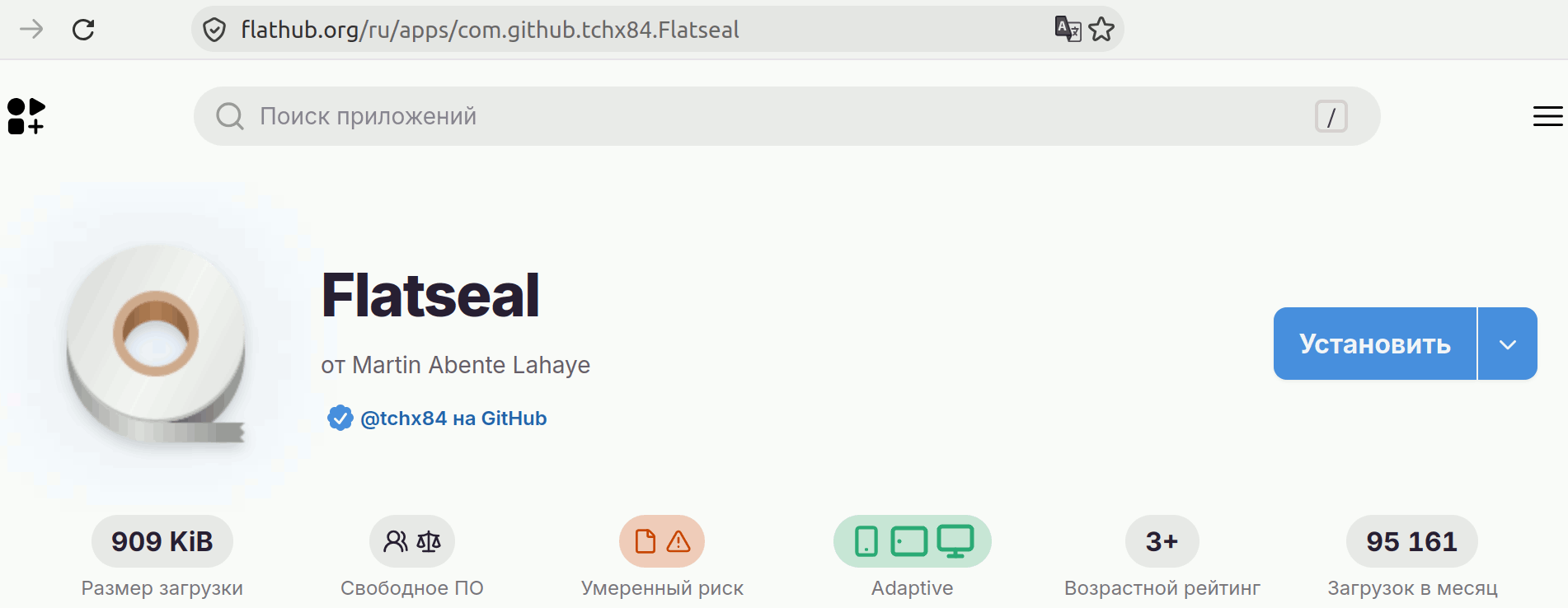
Or installation occurs after clicking the Install button.
setup_flatseal.png

Running Flatseal and granting access to the user's directory to Wine

Launching Flatseal from Terminal:
Team:

flatpak run com.github.tchx84.Flatseal

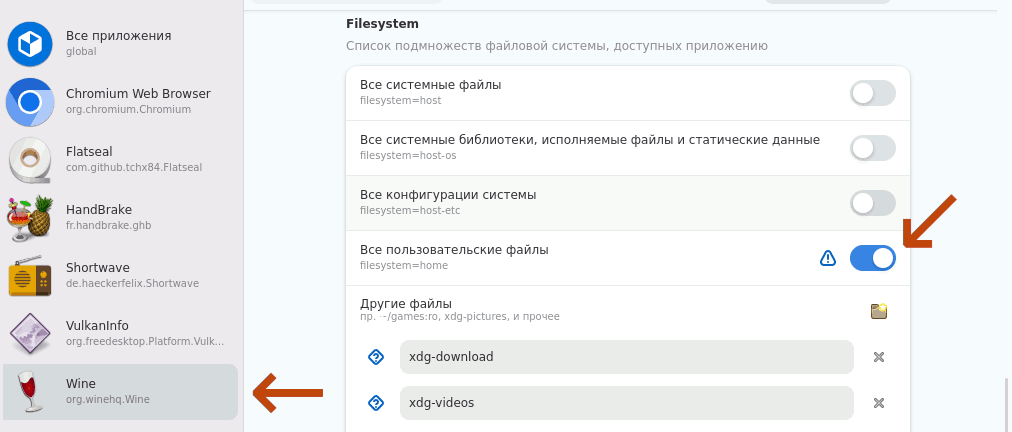
Flatseal gave the Wine program permission to access the user's files.

filesystem.png

Download the ZIP file with the installer, extract the EXE file from the ZIP archive, start the installation of MMANA-GAL basic

MMANA-GAL basic- download available from page gal-ana.de/basicmm/ru/#18.

I used xarchiver to extract the ZIP file

sudo apt install xarchiver

Extracted the file to "Downloads" in the "mmana-gal" folder.

flatpak run org.winehq.Wine ~/Downloads/mmana-gal/mmbasicru.exe

I install the file, agreeing with the default path C:\MMANA-GALBasic3.

In what folder was the Windows application installed in Flatpak?

Unlike installing from a repository (where the folder is ~/.wine), when using Flatpak, Windows programs are installed in the following directory:

/home/username/.var/app/org.winehq.Wine/data/wine/drive_c/

In this case, the full path to the EXE file:
/home/username/.var/app/org.winehq.Wine/data/wine/drive_c/MMANA-GALBasic3/MMANAGALBasic35.exe

Launch of MMANA-GAL basic in Flatpak

For readability, I divided the command into three lines:

/usr/bin/flatpak run --arch=x86_64 \
org.winehq.Wine \
/home/vladimir/.var/app/org.winehq.Wine/data/wine/drive_c/MMANA-GALBasic3/MMANAGALBasic35.exe

Creating a shortcut (.desktop file) to launch

You need to create a file in ~/.local/share/applications called MMANA-GALbasic.desktop :

nano ~/.local/share/applications/MMANA-GALbasic.desktop

and contents:

[Desktop Entry]
Version=1.1
Type=Application
Name=MMANA-GAL basic
Comment=Antenna modeling
Icon=applications-other
Exec=/usr/bin/flatpak run --arch=x86_64 org.winehq.Wine /home/vladimir/.var/app/org.winehq.Wine/data/wine/drive_c/MMANA-GALBa>
Path=/home/vladimir/
Actions=
Categories=Electronics;Engineering;X-Gnome-Other;
StartupNotify=true

Where instead of vladimir, specify the user's directory name.

Save and exit.
Ctrl+O, Ctrl+X

A shortcut for launching the MMANA-GAL basic program is available to launch in the menu "Start" - "Other".
menu-other.png


Related publications