18
July
2025
Updating LXLE 20.04 "focal" to version 22.04 "jammy", part 1
17:15

Updating LXLE 20.04 "focal" to version 22.04 "jammy", part 1

18 July 2025 17:15

How to update the LXLE Linux operating system based on Ubuntu from version 20.04 to 22.04.
Part 1- Clean installation of LXLE 20.04 "Focal".

Introduction

Linux LXLE distribution based on Ubuntu with LXDE desktop for older PCs, laptops and netbooks. It is installed on my Asus Eee PC. The latest version of LXLE is 20.04 "Focal Fossa" and version 22.04 "Jammy Jellyfish)" doesn't exist because... the developer abandoned development. Using the update, I switched to 22.04 - all packages were updated. The OS is fully working. The article is also suitable for other Ubuntu-based distributions.

LXLE is a distribution with a minimalistic LXDE shell.

LXDE desktop:

  • not demanding on processor resources and RAM, great for netbooks.
  • based on the GTK library, which continues to be developed (latest GTK release 3 days ago)
    *at the time of writing - developing (latest LXDE release 3 months ago).
  • LXDE is an older shell, but suitable for running applications that do not require powerful appearance customization like LXQT or KDE.
  • Unlike Cinnamon and XFCE, LXDE has a more classic window appearance like X applications. (The choice of DE is a matter of taste).

Compared to antiX, the LXLE operating system is not based on Debian, but on Ubuntu. The latter has a better driver experience (there is an ubuntu-drivers utility) and a stable appearance (no shell switching) and LXDE is similar in ideology to LXQT, but lighter and faster. LXLE is written in the free GTK GUI programming toolkit. Since the GTK library is written in C, it runs as fast as the processor allows.

Other distributions that support the LXDE desktop:
Raspberry Pi (LXDE Desktop)
Debian- classic OS, DEB-based package base, has an ISO image option with the LXDE desktop. Uses the SystemD service initialization system.
Devuan- a Debian fork in which the developers got rid of the SystemD service initialization system in favor of others: SysVinit, OpenRC or Runit. The default desktop is XFCE, but the LXDE desktop can also be used. Link:Devuan downloads. Runit can be faster than SystemD on older hardware.
Fedora is a community-supported variant of Red Hat, a very actively developed package-based RPM distribution. Requires a good Internet connection, because... a large volume of updates comes weekly.
Slitaz: Extremely small distribution for booting from Live CD
Sparky Linux- a simple and beautiful Debian-based distribution from Poland, offering its own repositories. Like Debian, it uses SystemD.
ALT Linux - Alt Workstation and Simply Linux- Russian OS, RPM-based package base. The "Viola Workstation" version is paid (~ 5,280 ₽).
Gentoo- the operating system stands apart, because The philosophy is based on compiling packages on the machine where it will be used.Ability to install LXDE.
*OpenSUSE- distribution kit for experienced users. Package managers and the package base itself differ from Debian/Ubuntu - RPM and Zypper, yast are used. Eat OpenSUSE LiveCD LXDE.

Background

The LXLE version was installed on the PC, which was changed - the sound server was replaced from PulseAudio to PipeWire. On the Distrowatch website I found a solution on how to update LXDE 20.04 to 22.04:
1) Run the command sudo do-release-upgrade and wait for the update to complete. (The program itself will disable PPA repositories that it considers unsafe).
2) In the Y-PPA-Manager utility, replace the text of the PPA repositories from "focal" to "jammy" and perform the update apt update && apt upgrade
Source -Distrowatch.

I did it according to this scheme. The operating system works, but with some problems.

1) Pipewire remains version 20.04 and is not updated. The reason is that I integrated pipewire instead of pulseaudio manually and the updater was unable to update pipewire. Although there is sound, the version remains old. Because of this, old versions of libraries were dragged through dependencies. Then I wanted to get a fresh operating system
2) the OS boot time after updating the LXLE version from 20.04 to 22.04 increased from 1 minutes 30 seconds to 2 minutes 30 seconds
3) in the Start menu, new sections “Other” and “Debian” appeared with console utilities from Linux Debian that were unnecessary for me, for example, a shortcut to sh, which clogged the Start menu.

Therefore, I decided to install LXLE from scratch, then manually deal with the PPA repositories, disabling unnecessary ones, and update clean LXLE operating system. Thus, you will get a pure LXLE 22.04 OS without the tails from the old version 20.04.

Improved installation plan

The plan was developed by me and successfully implemented:

0)Burning bootable USB media to install the Linux LXLE version of the operating system.
1)Normal clean installation LXLE operating system from bootable USB media to LXLE hard drive 20.04 "Focal Fossa".
2)Preparing for update 20.04- removal of unnecessary programs,disabling a large number of external PPA repositories in apt settings, directory cleaning /etc/apt/sources.list.d from *.list files with empty content.
3) Connect to WiFi and package update"up to the latest versions for 20.04 "Focal Fossa".
4)Upgrading the distribution version by switching from 20.04 to 22.04(Jammy Jellyfish) using the utility "do_release_upgrade".
5)Editing in files PPA repositories version with "focal" on "jammy"-> in files /etc/apt/sources.list/d
6)Update operating system and remaining packages using "apt upgrade"
7)Restarting the computer. Setting and checking system time. Performing the final update apt full-upgrade- for LibreOffice
8)Installing additional packages on Linux LXLE flatpak, xdg-desktop-portal and from them installation of Chromium and Firefox browsers.

Stage 0. Burn USB media

A 16 GB flash drive was used, but you can use any suitable size, preferably with good writing and reading speeds. For example, I liked USB flash drive from AGi UP138, purchased from DNS.

I took the ISO image of the operating system distribution here:https://sourceforge.net/projects/lxle/files/Final/OS/Focal-64/.

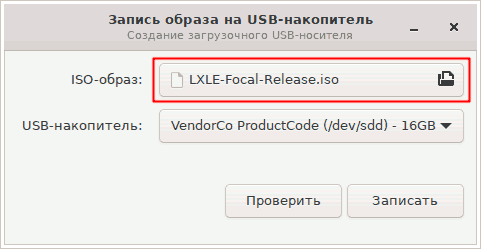
Burned a USB flash drive in the operating system Linux Mint-Start-Standard-Saving an image to a USB drive.
flash_writer

Stage 1. Clean installation of Linux LXLE 20.04 on your hard drive

1.1 Determining the partition table type

Before installing or reinstalling Linux OS, you first need to determine the partition type of the target disk: MBR or GPT. This can be done either by booting into the existing operating system, or using a USB drive in the LiveCD graphical interface mode in the utility gparted-> Device information ->"Partition table".

  • the inscription "msdos" corresponds to mbr.
  • the inscription "gpt" speaks for itself.

1.2 Booting a personal computer from a USB LiveCD

When starting the Asus Eeepc computer, I pressed the Esc key several times and selected the boot menu item from a USB drive in MBR mode, because... The hard drive is partitioned with a msbos (mbr) partition table. On other PCs, if the hard drive has a GPT partition, select the item with “GPT” in the name of the USB drive.

boot_menu

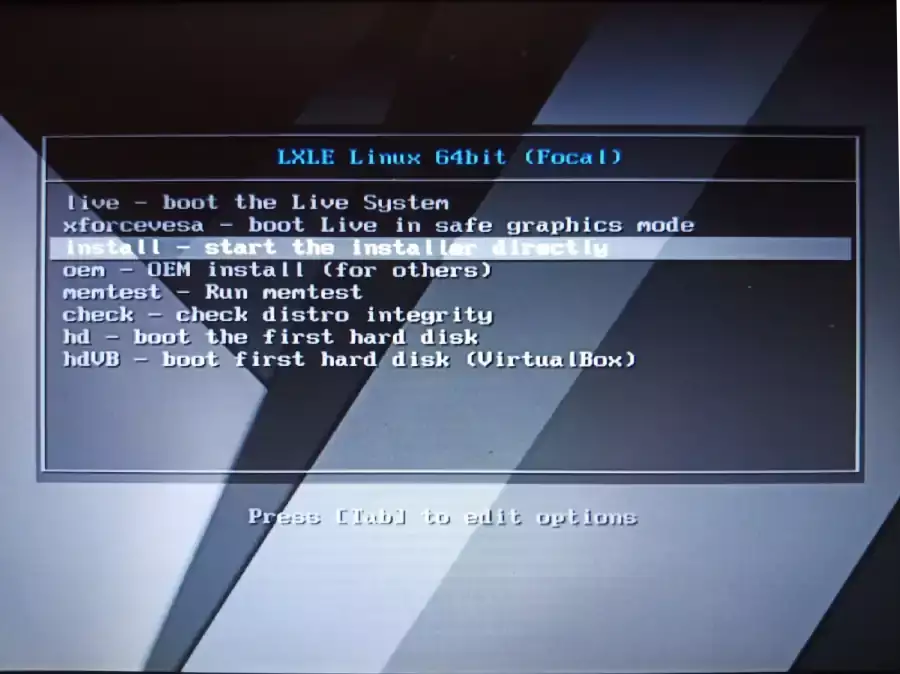
1.3 Selecting the LiveCD launch option

Selected the option to install to hard drive -"Start the installer directly".

start_installer

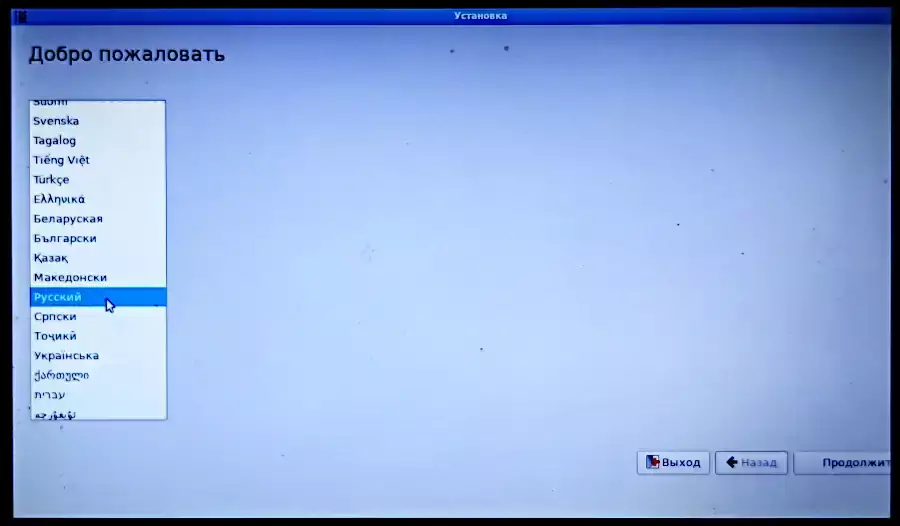
1.4 Language selection

I chose "Russian".

set_language

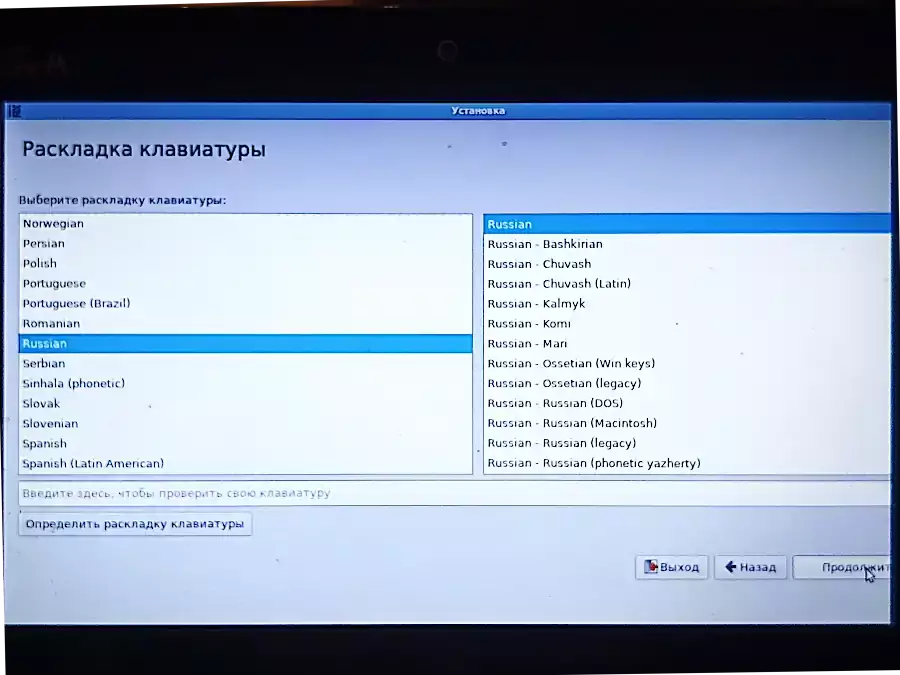
1.5 Selecting a keyboard layout

Selected layout "Russian" - "Russian".
keyboard_layout

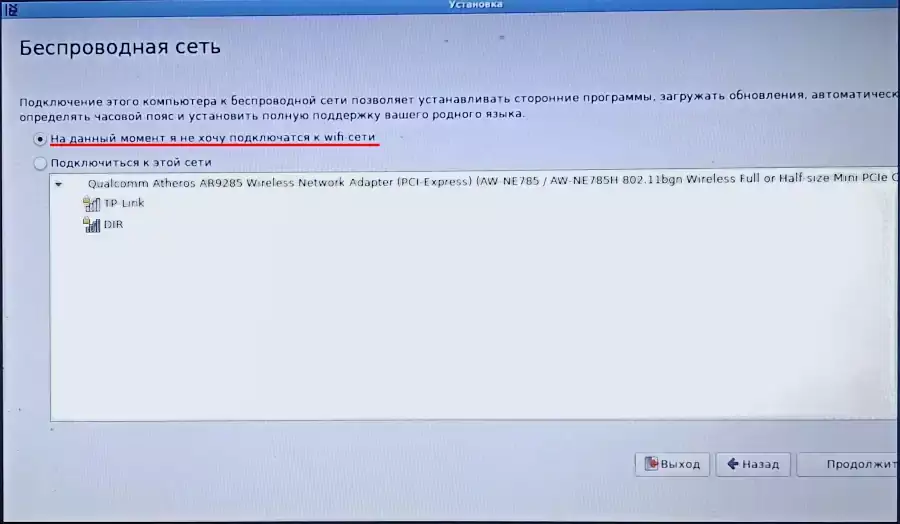
1.6 Refusal to connect to Wi-Fi

A network connection is not required at this stage of installation. We skip the Wi-Fi connection.
no_wifi

1.7 Refusal of updates and other programs

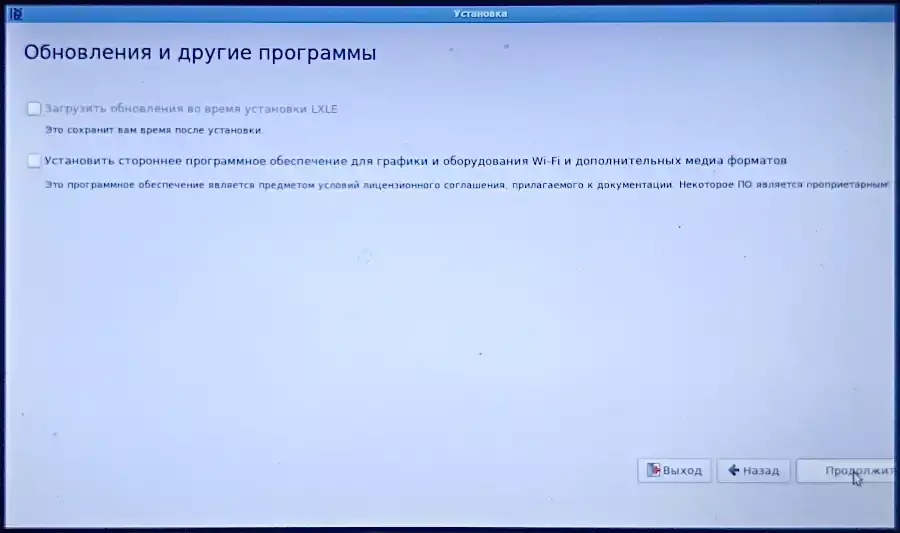
Unchecked the boxes “Download updates during LXLE installation” and “Install third-party software for graphics and Wi-Fi equipment and additional media formats.
no_updates

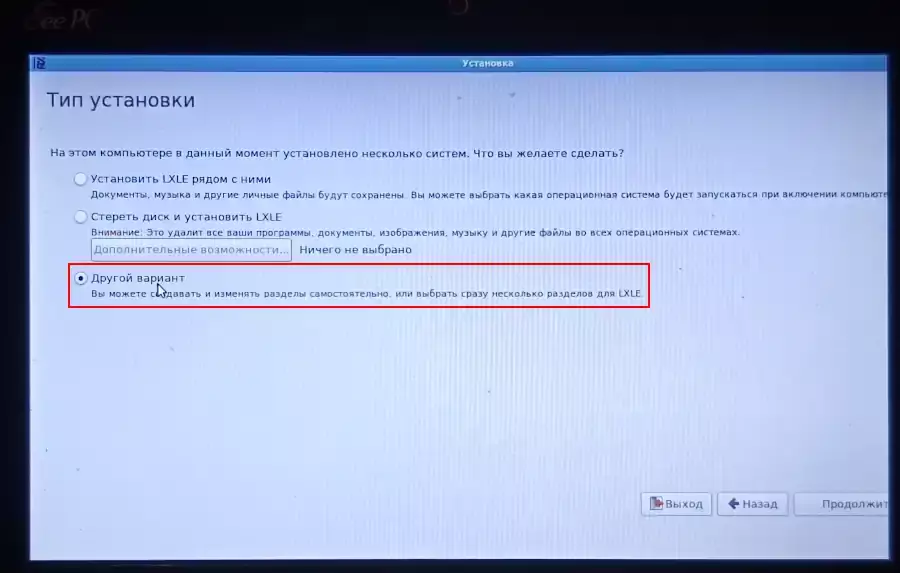
1.8 Installation type - “other option” or “install next” / “erase disk”

When installing over an existing partition, I selected "Installation type" - "Other option"
since it is installed over an existing Linux partition.
other_option

If you are doing a full installation with formatting the entire disk, there may be a different choice. For example, “install nearby.”
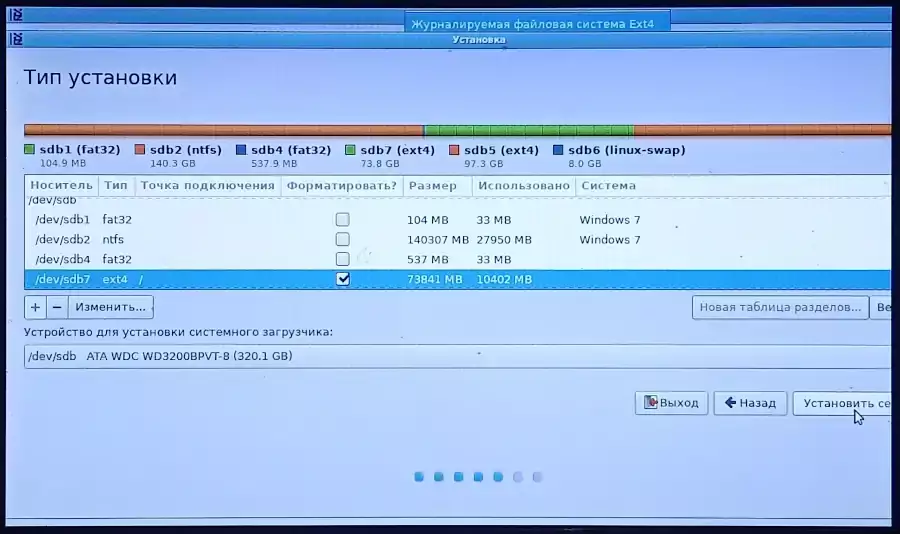
In my case, Linux OS is installed on the only \dev\sda7 partition on the hard drive next to Windows 7 (partitions sda1 - sda6).

If you select "other option", the installation will be performed on the specified partition, or you will have the opportunity to partition the disk manually.

1.9 Selecting where the OS will be installed: volume, partition, file system and mount point

Selecting the partition where the LXLE OS will be installed -:
install_to

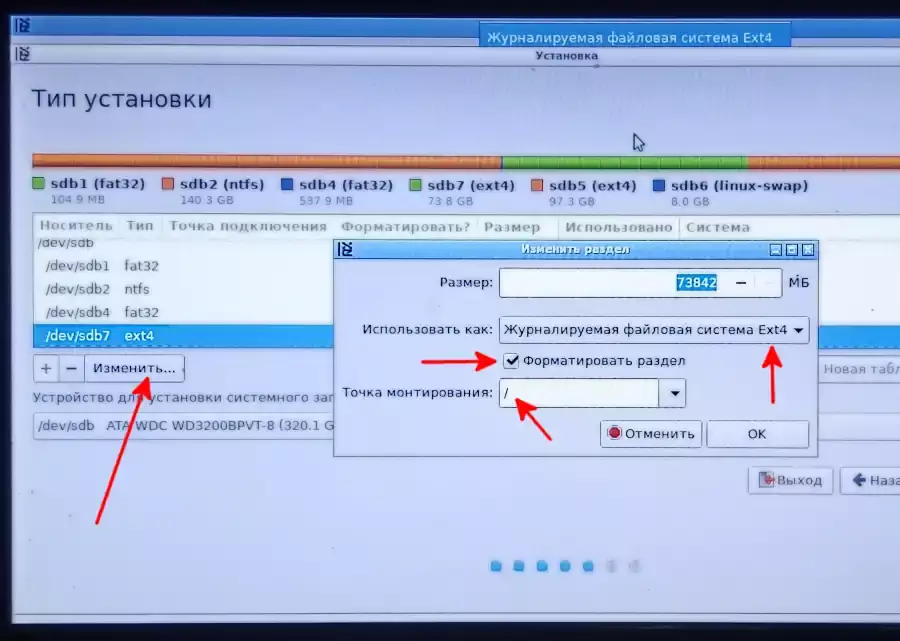
Parameters of the new partition for Linux LXLE OS:

  • Size - approx.70 GB(all allocated space of the old section)
  • Use as -Ext4 Journaled File System
  • checkbox Format partition
  • Mount point - / (slash, disk root)
    change_vol

At this stage, I simply installed it into an existing old LXLE partition, formatting the partition.
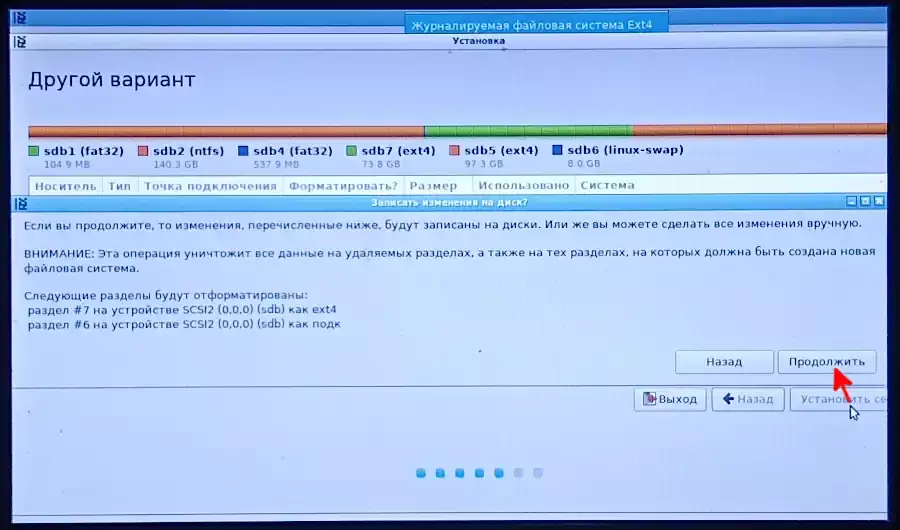
Click "Continue" to continue with the Linux installation wizard.
continue_install

1.10 Selecting a time zone (“Where you are”)

I clicked on the map approximately in the Moscow region, and the time zone was selected "Moscow",
![choose_location](choose_location.webp?lightbox&classes=img-zoomable "continue_install" "choose_location")

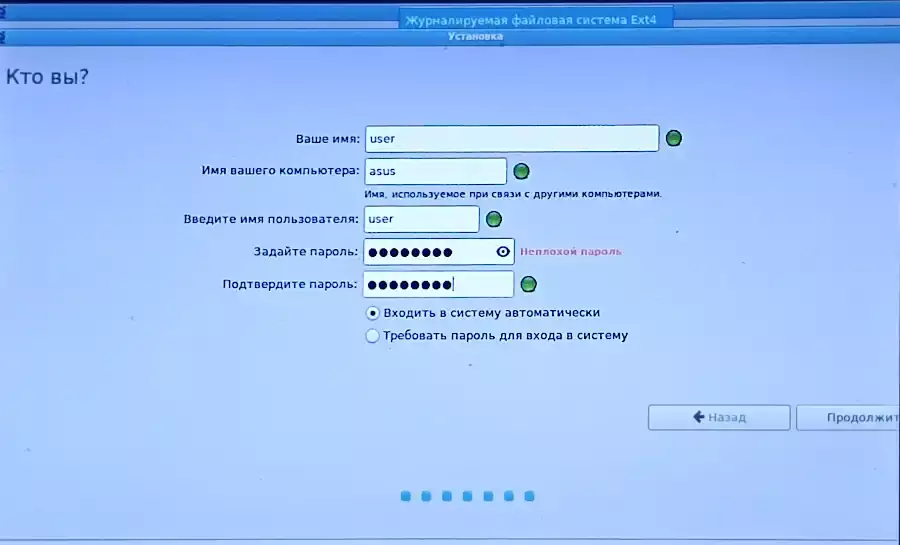
1.11 Creating a user by specifying his name and password and whether automatic or manual (require entering a password)

Created a user "user", him password, and login method "Login automatically":
username
Continue

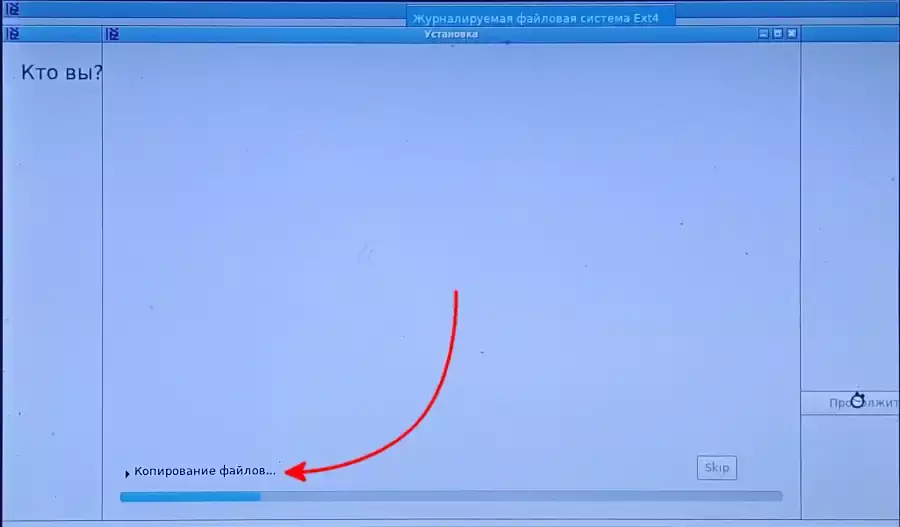
1.12 Performing the installation

installing

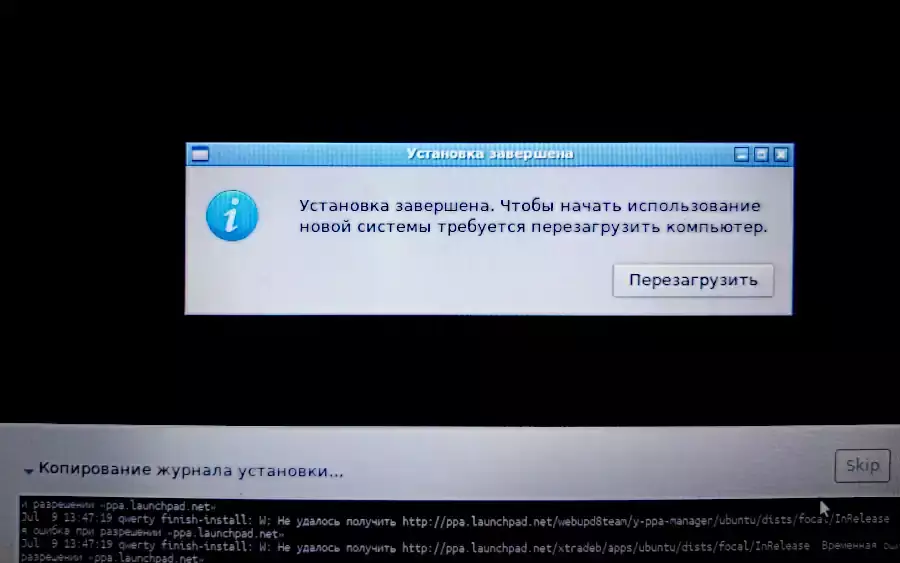
1.13 Installation complete

After installation is complete, reboot by clicking on the "Reboot" button
install_complete

Do not remove the USB drive ahead of time! You need to wait for a message with the word Enter

Reboot.

1.14 First launch

When starting for the first time, enter the user password. In the future, if the “Login automatically” checkbox was checked, the Linux operating system does not ask for a user password at startup, and the Desktop immediately appears on the screen.

1.15 Disabling unnecessary languages

The LXLE operating system contains a command to display the current language. By default, Russian language is selected during installation.

localectl

To display the number of all available languages:

localectl list-locales | wc -l

This version of Linux supports 79 languages.

In subsequent stages of system updating, generating files for various languages ​​takes up to 40% of the total installation time. It is advisable to disable unnecessary languages, for example, African ones, before updating.

You can disable unnecessary languages ​​using the command and subsequent editing

sudo nano /etc/locale.gen

I left only these lines, before the rest I put a comment symbol - a hash "#" and a space:
en_US.UTF-8 UTF 8
ru_RU.UTF-8 UTF-8

1.16 Ability to change keyboard layout and language

This item can be skipped if you selected the Russian language earlier and the installation of the LXLE operating system corresponds to the Russian language.

echo LANG #ru_RU.UTF-8
echo LANGUAGE #ru_RU.ru

For information, commands to set the language.

sudo localectl set-locale LANG=ru_RU.UTF-8
sudo localectl set-locale LANGUAGE=ru_RU.ru


If you want to change the keyboard or language settings on the system, run the command:

sudo dpkg-reconfigure keyboard-configuration

Choice for a desktop computer with a classic keyboard:"Generic 105-key PC",
and for a Nentbook without an additional numeric keypad or for a narrow PC keyboard -"Generic 86-key PC".

The correct values for "Language" have already been selected there -Russian, keyboard layout -Russian,
keyboard shortcut to switch language Alt+Shift, temporary switch between national and Latin layouts - do not specify.
The key used as AltGr is not used-default keyboard layout, (AltGR is a key that, when held, prints Russian letters).
composite key (for entering Unicode codes, for example, smile 263A -no compound key
Use Control+Alt+Backspace to interrupt the X server?No

After updating the triggers is completed, creating a new version of the kernel, the changes will be applied the next time the OS boots.

1.17 Turning on the current language indicator on the panel

It is imperative to add a switch - keyboard layout indicator,
which is located in the right corner near the network, sound, and processor load icons.

It displays the current language with the national flag.

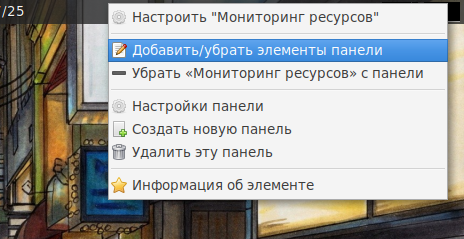
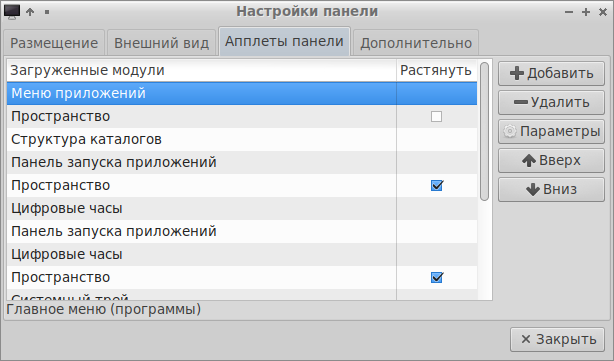
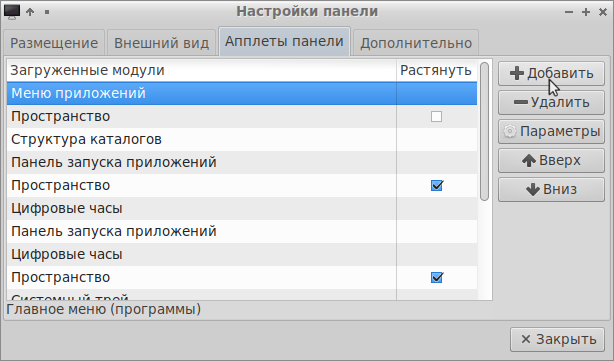
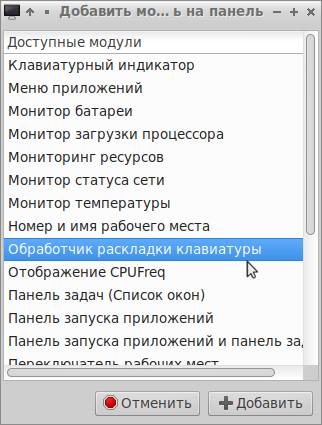
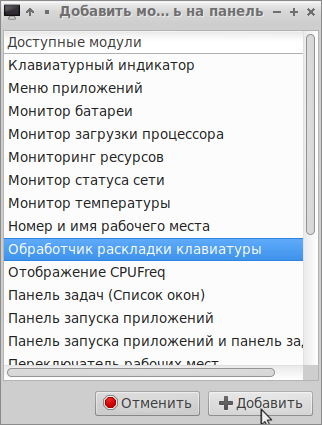
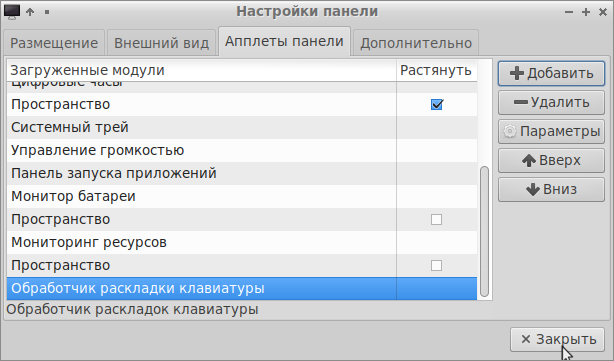
Right-click on the area on the right side of the system tray and add "Keyboard layout handler":
panel1
panel1
panel3
panel4
panel5
panel6


*Next -see part 2 of the article, which is directly devoted to updating 20.04 to 22.04.


Related publications

