
17
December
2024
How the Frugal Lean mode works in antiX Linux and how to enable it
18:09

How the Frugal Lean mode works in antiX Linux and how to enable it

17 December 2024 18:09

Economy mode is designed for laptops with a small hard drive or for older PCs.

The required hard drive capacity is only 3 GB. The initial part of the boot up to the menu is done from a flash drive, and the main part is from a hard magnetic disk drive (HDD) or solid-state drive (SSD). RAM requirements - 512 MB, as in _persiststatic mode, in a similar mode frugal_static.

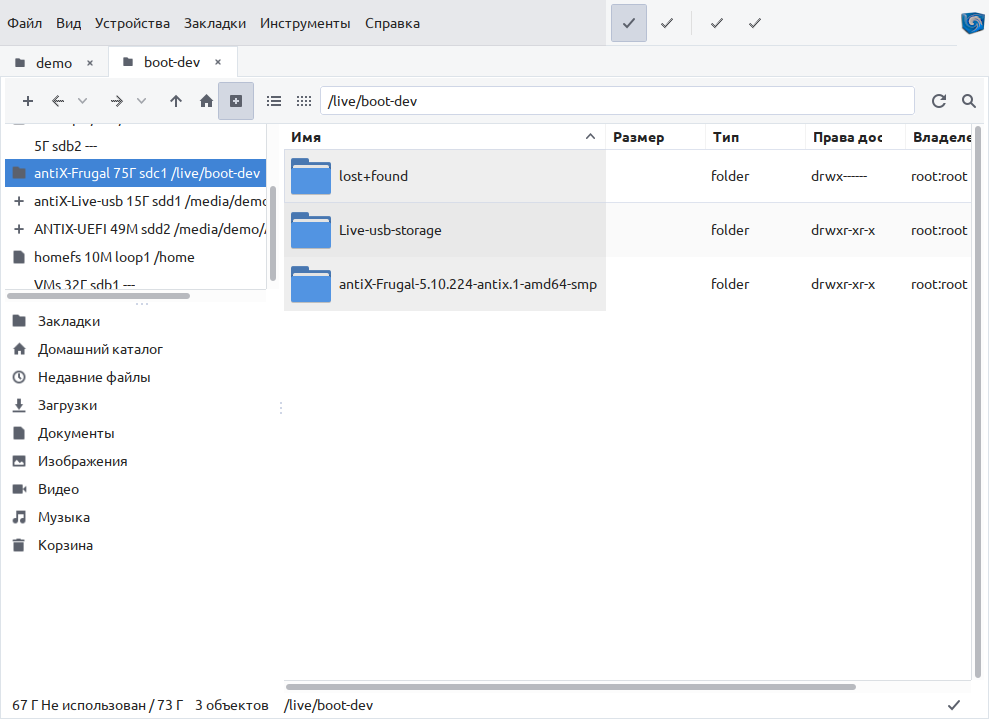
Frugal's lean mode saves the linuxfs system, rootfs and homefs data to the hard drive in one "antiX-Frugal" partition. The data in it is stored in compressed form as files in one folder with the distribution name, "/antiX-Frugal/antiX-Frugal-5.10.224-antix.1-amd64-smp". To use the frugal function, you need a clean ext4 partition with a volume of at least 2.4 GB. Since after installing Frugal the system takes up 2.2 GB.

Creating a section for the "Lean" mode antiX frugal:

  • the "antiX-Frugal" partition can be organized on an existing hard drive by changing the partition table and creating an empty new partition with a capacity of at least 2.4 GB, with the ext4 file system.
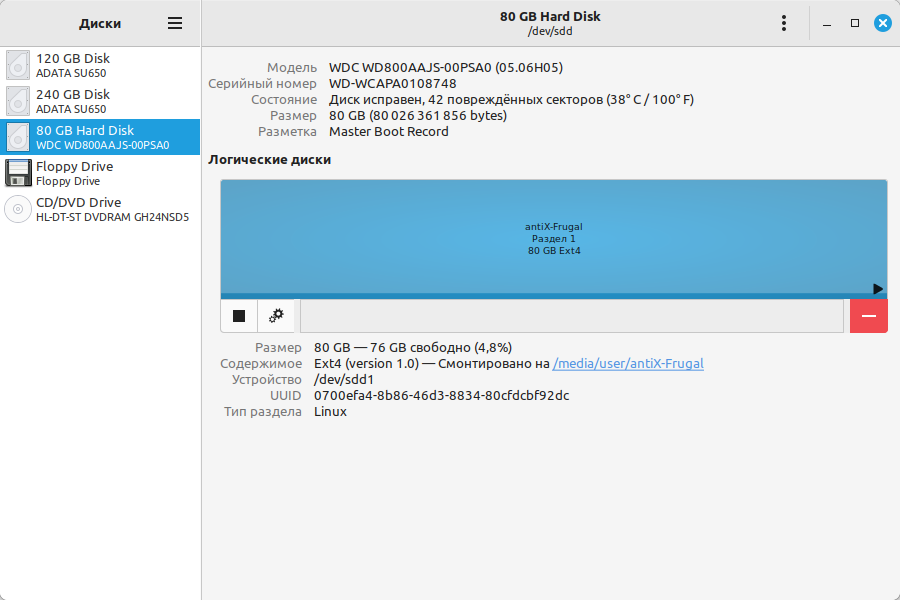
  • or you need to connect an old SATA hard drive with a capacity of 40 or 80 GB to the PC and allocate all free space for frugal. In the case of an old disk, all bad blocks must be detected by deep scanning sudo fsck -c /dev/sdX or a thorough disk health check sudo e2fsck -fccky /dev/sdXX. On a decommissioned but serviceable 40/80 GB disk, you can create a partition table of type mbr (dos) and a single partition with a file system of type ext4 in gparted.

    frugal_partition

(Using a second flash drive as a Frugal partition is not advisable, although it is possible, since the read speed is lost. The slowest hard drive has a speed 4 times higher than USB: 70 MB/s / 15 MB/s = ~4 times).

Internal structure of the "antiX-Frugal" section

Unlike persistence, with frugal persistence the data is stored not on a flash drive, but on a hard drive (HDD).

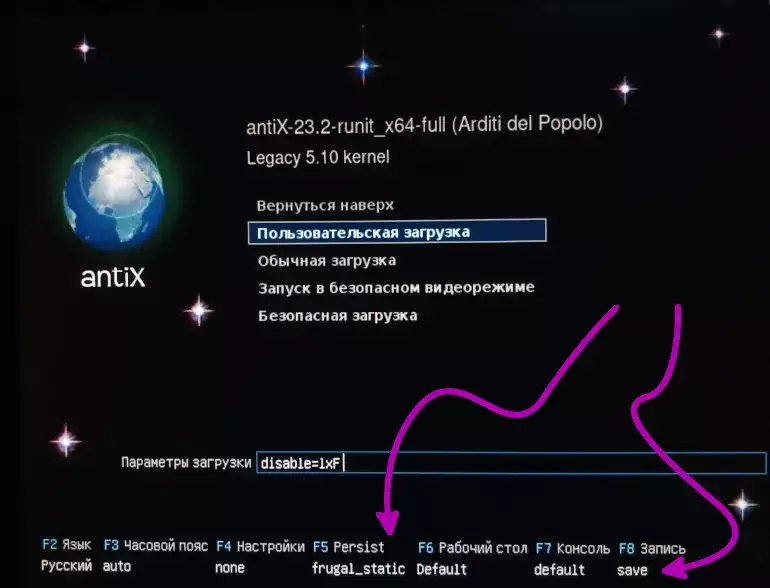
  • To select the lean mode in the boot menu, press F5 and choose "frugal_static" and F8-save, then continue with a normal or custom download.

    frugal_boot_menu

After a series of questions, the files for the partition will be created.

The system will create a frugal size of 2 GB by default. But you can choose a smaller volume, up to 250 MB, if you do not intend to make significant changes to the operating system. On first startup, or if rootfs does not exist, a rootfs partition will be created to store differences between the "root" ("/") from the reference OS distribution.

frugal_title

You need to allocate 100-500 MB for the homefs home folder.

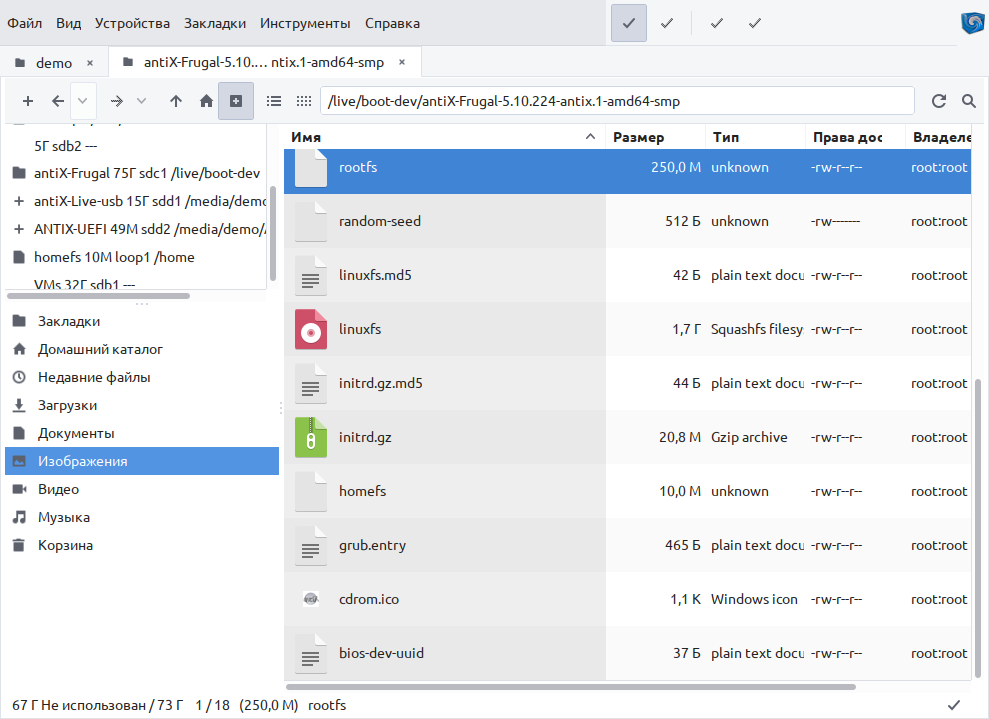
The structure of the "antix-Frugal" section is as follows - the folder with a long name contains all the necessary files for the frugal function.

frugal1

frugal2

frugal3

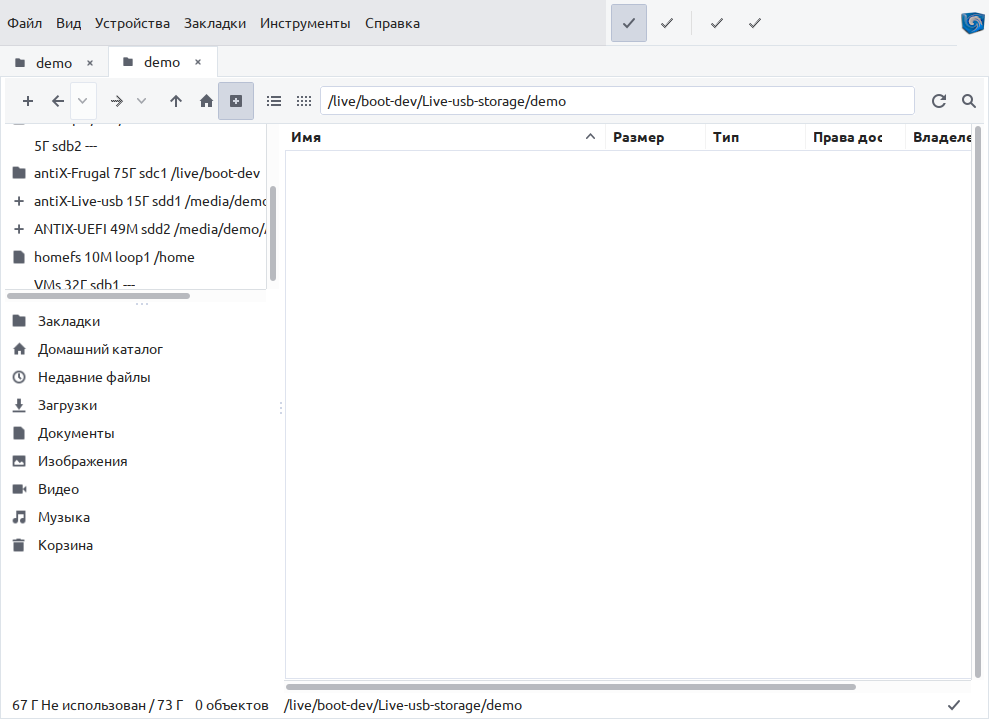
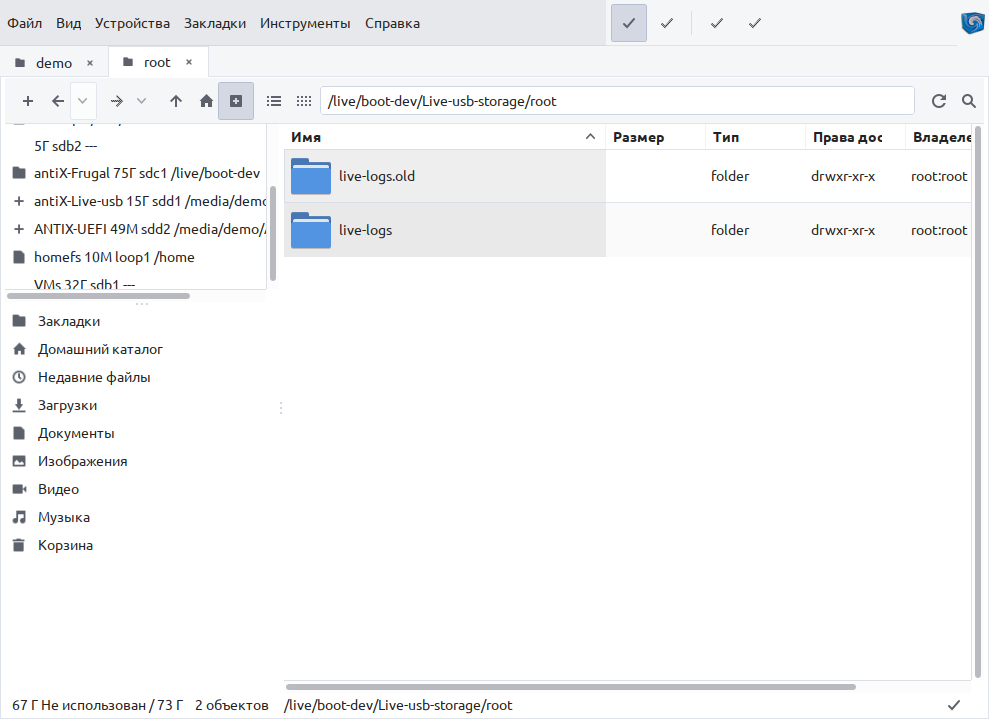
There is nothing in the other folders except for a few text logs (initrd.log, live-init.log, persist-config.log and others).

frugal4

frugal5

As mentioned earlier in the article about persistence, the purpose of the files in the main folder /antiX-Frugal/antiX-Frugal-5.10.224-antix.1-amd64-smp is as follows:
*linuxfs*- operating system.
rootfs**- changes made by the user to the operating system
*homefs- user's home folder.

Booting from a LiveCD from a flash drive with Frugal mode

When booting from a liveCD, you need to ensure that one of the options is selected -frugal_static or frugal-persist or`frugal_home, which are compatible with each other. The frugal_root mode is only compatible with f_static_root.

If a function without frugal is mistakenly selected, for example “persist_root”, loading will be done from a flash drive (slowly, for a long time).
In bootable liveCD mode, when selecting options frugal_static,,frugal_persist the system itself will find the partition where files are stored on the hard drive and use them during the boot process.

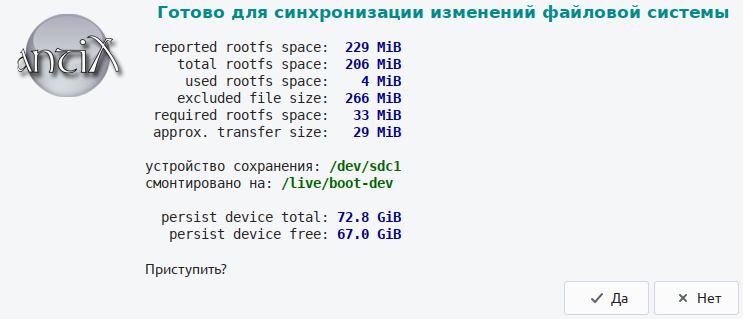
If the frugal mode with persistence is selected, when you turn on the computer in the "frugal_persist" mode, data will be saved to the media as usual.

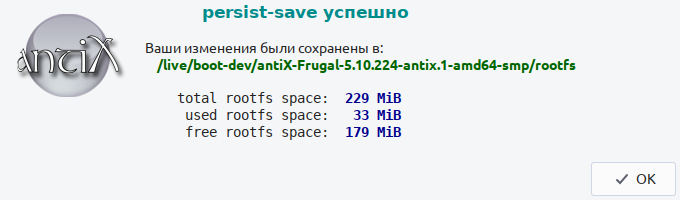
Please note where the data is saved in this case - to the hard drive in the /dev/sdc1 partition with a capacity of 80 GB, and not to a flash drive.
exit_save

After this window the computer will be turned off. All data is saved to the hard drive.
exit_save2

Booting from the hard disk (HDD) antiX / MX Linux with Frugal mode

With the help of a video on YouTube, a solution was found on how to untie the frugal economy mode from a flash drive.

First, I will briefly outline how to boot from an HDD using a USB LiveCD

  1. BIOS - first hard drive to boot (F9, F12 or boot order)
  2. boot sector at the beginning of the hard drive with frugal
  3. launch grub without menu from /antiX-Frugal/boot/grub/grub.cfg
  4. insmod initialization for file systems and graphics
  5. loading frugal mode kernel from linuxfs, rootfs files
  6. completing the system startup from the /antiX-Frugal partition

There are already files on the disk in the antiX-Frugal-*-antix.1-amd64-smp directory

All that remains is to install Grub and configure automatic booting from the partition.

In the *.smp directory there is a file grub.entry containing a piece of text to be written to a file 40_custom in the catalog /etc/grub.d/. Lines from this file grub.entry need to be added to file /etc/grub.d/40_custom, install grub and update its configuration file on the hard drive based on this 40_custom file, using the update-grub command with a parameter indicating where in the frugal "lean" section the grub.cfg configuration file is located. This is the way /antiX-Frugal/boot/grub/grub.cfg.

Unlinking the frugal partition from a USB flash drive in steps:

  1. Boot from any OS except this antiX, MX boot disk. For example, run Ubuntu or Linux Mint.
  2. B Ubuntu or Linux Mint run the application Terminal
  3. Find out the name of the frugal hard disk partition:

df

and its uuid:

blkid /dev/sdc*

where sdc* - corresponds to the disk with frugal.

  • for example, in my case, “frugal” is /dev/sdc
  • the sdc disk in my case has id=0700efa4-8b86-46d3-8834-80cfdcbf92dc
  1. Mount disk partition

sudo mount /dev/sdc1 /mnt

  1. Install Grub to this partition:

sudo grub-install --root-directory=/mnt /dev/sdc

  1. Append text from file in *.smp directory from grub.entry to file /etc/grub.d/40_custom

sudo nano /etc/grub.d/40_custom

#!/bin/sh
exec tail -n +3 $0
# This file provides an easy way to add custom menu entries. Simply type the
# menu entries you want to add after this comment. Be careful not to change
# the 'exec tail' line above.
menuentry "antiX 23.2-runit (Arditi del Popolo) Frugal" {
    insmod part_msdos
    insmod part_gpt
    insmod ext2
    search --no-floppy --set=root --fs-uuid 0700efa4-8b86-46d3-8834-80cfdcbf92dc
    linux /antiX/vmlinuz bdir=antiX buuid=0700efa4-8b86-46d3-8834-80cfdcbf92dc persist_root lang=ru_RU disable=lxF
    initrd /antiX/initrd.gz
}
  1. Fix launch option persist_root on frugal_static

sudo nano /etc/grub.d/40_custom

persist_root lang=ru_RU disable=lxF replace with
frugal_static lang=ru_RU disable=lxF

  1. Correct uuid to the partition identifier that was previously found out with the blkid command (step 2)

(In my case, 0700efa4-8b86-46d3-8834-80cfdcbf92dc).

  1. Update the grub.cfg configuration file on the frugal disk

sudo update-grub --output=/mnt/boot/grub/grub.cfg

  1. Update the grub configuration file on the current disk (if the dual boot operating system is the current OS or antiX/MX).

sudo update-grub

  1. Reboot the PC and select a new disk in the BIOS or F9 or F12 boot menu. The system will boot antiX or MX Linux from it.

Or in the boot menu when loading the current Ubuntu / Linux Mint OS, select the last item (in the case of a dual-boot OS) - “antiX frugal”

10.We take out the flash drive or bootable LiveCD; they are no longer needed to run frugal from the hard drive (HDD).


Last change:
12/24/2024 - added the paragraph "Booting from the hard disk (HDD) antiX / MX Linux with Frugal mode".


Related publications

