21
November
2022
Fldigi is a program for digital species and CW. Part 2 - initial setting
15:32

Fldigi is a program for digital species and CW. Part 2 - initial setting

21 November 2022 15:32

After installation, start the program. The master will offer to make a preliminary setting of FLDIGI.

The settings master can be interrupted at any step.

Where is Fldigi configuration stored?

In the user’s catalog after the first launch, a hidden folder with the name . Fldigi will be created.
If you want to save a copy of the initial configuration, make a copy of it:

cd ~
cp -R .fldigi .fldigi.BAK

FLDIGI settings master

ЭкрAN 1. Information
Fldigi1

ЭкрAN 2. Call and name!
Fldigi2

Filled:
Fldigi3

ЭкрAN 3. Selecting ALSA sound card or Pulseaudio server.
Fldigi4

ЭкрAN 4. The preferred method of managing the acceptor in FLDIGI - using the utility flrig which is included in the FLDIGI package.
Fldigi5
By default, IP address 127.0.0.1 (Localhost) and Port 12345 are used

ЭкрAN 5. Put a checkmark if the controller controls using Rigcat
Fldigi6

ЭкрAN 6. Put a checkmark if the controller controls using HAMLIB
Fldigi7

ЭкрAN 7. (It is not necessary to fill out). Links to sections of the site w1hkj.com with weather stations and buoy frequencies.
Fldigi8

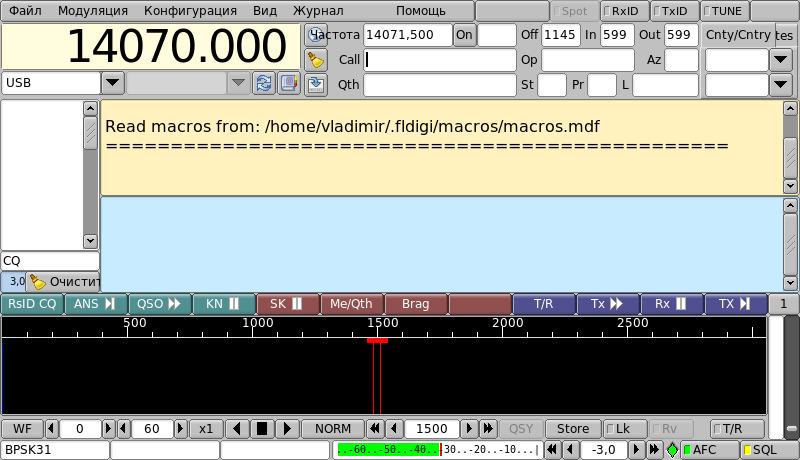
ЭкрAN 8. The main window of the FLDIGI program
Fldigi9

The program settings are on the configuration menu - Config Dialog .
To change the location of macros buttons, go to the settings section UI - Macro Buttons

Instead of default value 1 line under the waterfall ,
Config1

we indicate a new layout version - two lines, scheme 2 :
Fldigi0

Rusification of reception/transmission

If, when taking free text from Russian -speaking radio amateurs, unreadable characters are visible, you need to include in
Configuration - Config Dialog - Configure - Colors -Fonts - Set of characters - CP1251 (instead of UTF -8).
CP1251 . Now you can transmit to the PSK31 amateur amateurs from Russia and the CIS countries text in Russian in digital PSK31 mode.

In a telegraph, the use of Russian letters only when transmitting a text from a telegraph key:
S = y
С = q
E = ..- ..
Yu = ..--
I = .-.-

Admission/transmission tuning through COM Port or Cat command

In CAT interfaces, transmission is carried out either through a COM port or CAT teams.

For control, the first of two COM ports is used, at a speed of 9600 or 38400 BOD.

To be able to change COM to transmit CW through the second port,
it is necessary to give permission as written in the article Wiki Linux_serial_HowTo:

sudo adduser (username) dialout

If the USB-COM adapter is used, you need to check whether the adapter chip is recognized when loading the system, which is also described in the article above, in the USB-> RS232 Adapters section.

COM-port will be called /DEV /TTYUSB0. If there is a second com, then his name is in the system /dev /ttyusb1.

You can bring the available COM ports in the operating system with a command:

 ls -l /dev/ttyUSB*

Three ways to manage the acceptor - Flrig, Rigcat and Hamlib

FLGIG - preferred and most common way to manage the acceptor (transceiver) when using FLDIGI.
FLGIG is an external program-service working through the TCP 12345 port, which also has a graphic interface for adjusting and displaying frequency. By default, not installed, for installation and configuration, enter the commands:

sudo apt-get update
sudo apt-get install flrig
flrig

The FLGIG program should be launched before or simultaneously with FLDIGI. For this. There is a setting in the "MISC" - "Autostart" configuration, where you can specify in the Flrig point to the program:/usr/bin/flrig и поставить галочку включить.

Rigcat - another control method built into the FLDIGI program. Rigcat - transmission controller using CAT commands. There are settings for various models of acceptors -On the site Sourceforge - Fldigi - Files - XML. XML file for the radio station must be put in the folder .fldigi/rigs (полный путь к папке: /home/(имя пользователя)/.fldigi/rigs).
Then start FLDIGI and choose a control method in the configuration settings - Config Dialog - Configure - Rig Control
*CAT (Rigcat) - Put a checkmark Use rigcat, a control file of the acceptor - Select: . Fldigi/Rigs/(Transiver model) .xml - open.
Put a checkmark Cat teams for PTT (for Yaesu FT-857D). Press the "activation" button.

HAMLIB - A constantly updated library with support for many models of amateur transceivers, familiar in the previous ones to be about APRS. Project home page with links to resources:
*https://hamlib.github.io/
In the case of using Hamlib, turn off the other control in the "Rig Control" menu and install a checkmark against the corresponding "Hamlib" item: Use HAMLIB.

hardware ptt - hardware method for forming a telegraph (CW) by changing the voltage at the contacts of the computer port. To start transmitting a dash or point, a high voltage level of +5V is used at RTS and DTR outputs on the second COM port. In this case, you need to enable us Separate Serial Port PTT, choose a combination of USE RTS and USE DTR flags so that the transceiver when executing the TX command in the program moved to the transmission mode. This method is suitable for CW modulation if the CAT interface is homemade and the transmission is controlled by levels at RTS and DTR contacts. The voltage +5V with the output of the COM port can be inverted in a home-made circuit on one transistor, causing landing to zero contact PTT, which will lead to the beginning of the transmission (the transistor is used in key mode instead of relay).