

24
November
2021
VPN over PPTP in 5 minutes
16:46

VPN over PPTP in 5 minutes

To gain access to the home server on which the receiver is running, I created a virtual private network (VPN).
The simplest method (but not the most secure) is VPN using the PPTP protocol.

At home I have a Zyxel Keenetic Lite III Internet router installed with the latest software version

2.15.C.6.0-1.

The router allows you to organize virtual private networks (VPN) of the following types for access to your home network:

  1. PPTP VPN server
  2. SSTP VPN server
  3. L2TP/IPSEC VPN server,
  4. IPsec VPN server

I chose PPTP because of the speed of setup.
I am considering setting up PPTP with 40-bit encryption, which protects traffic from viewing by third parties and is permitted by law in force in the territory of the Customs Union of Russia, Belarus and Kazakhstan.

1. Adding the "PPTP server" module to the Zyxel router

Go to the control panel - General settings:
router1

Change the set of system modules by clicking on the button "Change component set"
router2

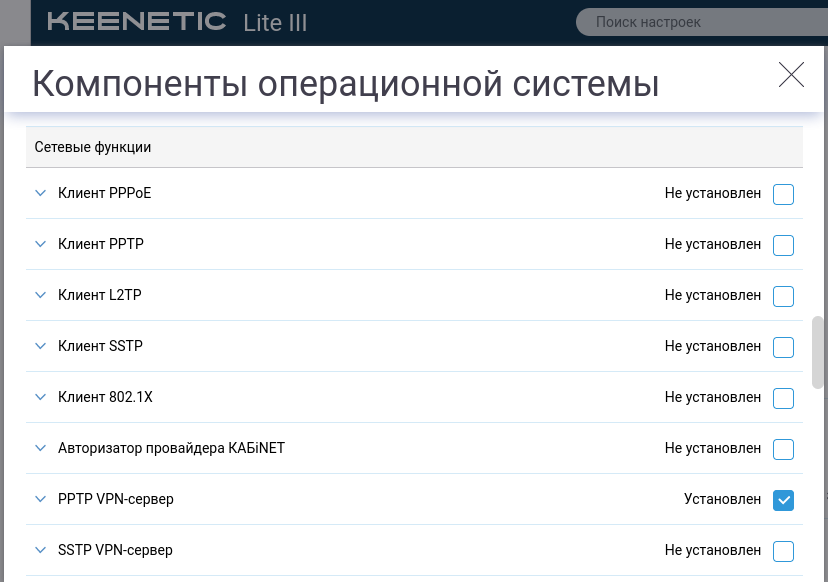
Scroll down the list and in the "Network functions" section enable the module "PPTP VPN server"
After saving the module configuration, the router will reboot.

2. Changing the range of dynamic IP addresses of the router (DHCP)

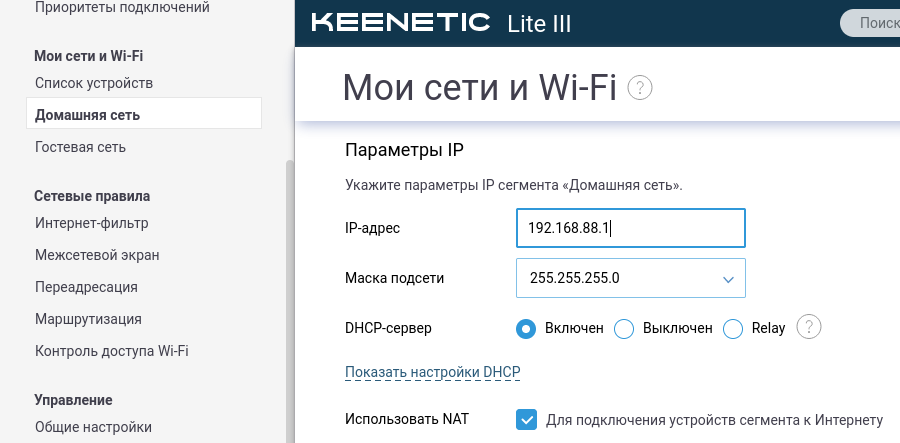
We connect to the router control panel and in the section "Home network" look at the IP address for your home network.
For example, 192.168.88.1 - can be changed to any of the “Private networks” range, in this example as indicated.
router3
Press the button "Show DHCP settings".
router4
We indicate 10 clients starting from the address 192.168.88.1 - these are the addresses of devices within the network (smartphones, TVs).
Please note that in this case DHCP addresses may be occupied from 1 to 10.

(For the virtual private network below, the same subnet of class “C” will be used, but the issuance of addresses starting with the number 100).

3. Add a user for VPN

The router uses the logins/passwords specified on the tab to connect users "Users and Access".

On the “Users and Access” tab, add a new user and come up with a complex password (write it down on a piece of paper).
Save the changes.
router5

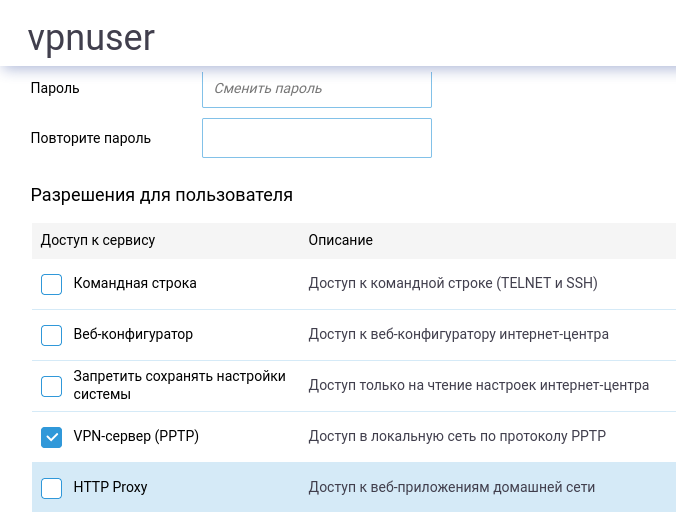
Don't forget to scroll down and check the VPN server box. Save the changes.
router55

4. Enable PPTP VPN and allow user connection

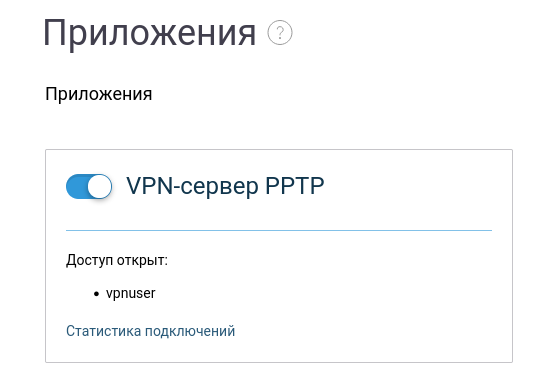
Enabled the PPTP component on the dashboard tab called "Applications" in the lower left part of the window.
router6
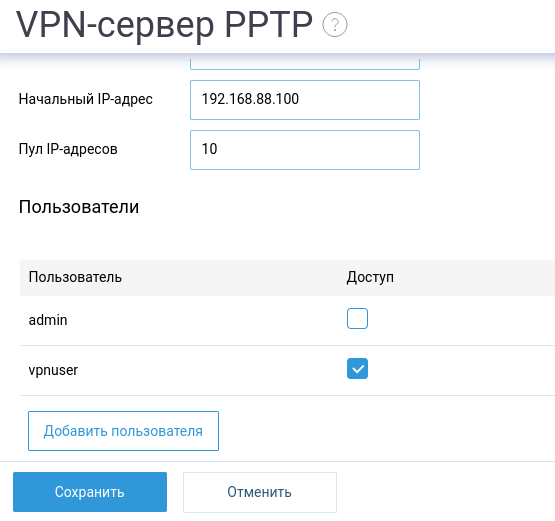
By clicking on the “PPTP VPN server” link, we go to the VPN server settings menu.

We correct the address to the internal network, but let the starting address for VPN clients begin with the number 100.
router7
There we also check that the user vpnuser, which we added earlier, is enabled. He will be able to connect to the server.
router8
Save. Server setup is complete.

5. First connection to VPN PPTP from an Android smartphone

In "Settings" - "Network and Internet" - "Advanced" - VPN, click "+"
In the VPN profile on your smartphone:

  • name

  • type - PPTP

  • server address - enter the external (white) IP address of the home network router

  • incl. PPP encryption (MPPE)

  • Username - vpnuser

  • Password - vpnuser user password
    *Save
    vpn

Connect to VPN - tap the name of the VPN connection on the connection and press the button "Connect"^
vpn2

The setup is complete.

!Note: if the connection via Wi-Fi does not work, the reason lies in the settings of the organization’s router, which does not allow messages from the PPTP server to the client behind NAT. In this case, you need to switch your smartphone from Wi-Fi to mobile Internet.

The following steps are required to connect from a Linux client (not required).

6. Installing the PPTP VPN client on a client computer running Linux

sudo apt-get update
sudo apt-get install pptp-linux

7. Setting up a PPTP VPN client

Created and edited the file as follows. From the command line we run the command:

sudo nano /etc/ppp/peers/test-vpn

Contents of the file "/etc/ppp/peers/test-vpn", where 56.78.90.12 is indicated in the first line -"white" IP address of the router behind which the home server is installed:

pty "pptp 56.78.90.12 --nolaunchpppd"
name vpnuser #логин
remotename TEST #имя соединения
require-mppe-40 #включаем поддержку MPPE
defaultroute #создавать маршрут по умолчанию
replacedefaultroute #принудительно изменять маршрут по умолчанию
unit 12 #номер ppp интерфейса
persist #восстанавливать подключение при обрыве связи
maxfail 10 #количество попыток переподключения
holdoff 2 #интервал между подключениями
file /etc/ppp/options.pptp
ipparam $TUNNEL

Saving: Ctrl+O, Enter, Ctrl+X.

If the subscriber does not have a fixed "white" IP address, it must be connected (ordered, paid for) from the provider. This service is often called "Direct IP address" or "Static dedicated IPor " Fixed IP address". On my tariff plan, the Direct “white” IP address turned out to be free (you can enable and disable it in your “Personal Account”). If the router only has a dynamic external IP address available, connecting via PPTP is not possible. In this case, you can try using the SSTP via “cloud” method Zyxel.

Addition: file contents /etc/ppp/options.pptp on the client:

lock
noauth
refuse-pap
refuse-eap
refuse-chap
refuse-mschap
require-mppe
asyncmap 0
debug
crtscts
hide-password
modem
mtu 1500
noipx
persist


8. Specifying the username and password on the client in the "secrets" file

sudo nano /etc/ppp/chap-secrets

I inserted the following text, where the first parameter is the username, the second is the connection name, and the third is the password:

"vpnuser" TEST "mypassword"

mypassword must match the password of the same user on the server (see point 3).

9. Enabling Linux kernel modules and setting up a firewall on the client

On most Linux distributions, you need to enable the "nf_conntrack_pptp" kernel module to run:

sudo modprobe ip_gre
sudo modprobe nf_nat_pptp
sudo modprobe nf_conntrack_pptp

In the firewall, you need to allow connection from the server side to the client:

sudo ufw allow proto gre from внешний_IP_адрес_сервера
sudo service ufw restart

10. First connection from a Linux client to a home network via VPN

From the client (another PC) run the command:

sudo pon test-vpn nodetach

This will connect to the VPN and home network. The output of the "pon" program is as follows:

Using interface ppp12
Connect: ppp12 <--> /dev/pts/1
CHAP authentication succeeded
MPPE 40-bit stateless compression enabled
replacing old default route to enp2s0 [192.168.0.1]
local IP address 192.168.88.100
remote IP address 192.168.88.1

Thus, a client connection has been established under the address 192.168.88.100
and all devices on the network are available, where 192.168.88.0 is the home network,
1-10 - network devices on the home network, 100-110 clients connected via VPN.

The client's external IP address will change to the IP address of the home network on the Internet, see 2ip.ru. All websites are accessible using NAT.
Setting up the VPN took about 5 minutes. 😀

To disconnect the VPN connection, click Ctrl+C.

12. Diagnostics (if necessary)

System log output with tracking.

tail -f /var/log/syslog

13. Addition. Allowing a connection to start as a standard (non-privileged) user

It is necessary to eliminate the shortcoming - launching pon using the sudo command.

Sudo was necessary because... When connecting without root rights, an error will occur:

"anon warn[pptp_gre_bind:pptp_gre.c:102]: socket: Operation not permitted
anon fatal[main:pptp.c:360]: Cannot bind GRE socket, aborting.
Modem hangup
Connection terminated."

Eliminating the error is simple (if you know how) - run two commands in the terminal:

First team— we give the right to execute "pptp" on behalf of the superuser.
Where "chmod u+s" is the setting of the setuid bit, which affects the launch of the program: instead of using the privileges of the current user, the program runs with the privileges of the owner (and the owner of the executable file /usr/sbin/pptp is root):

sudo chmod u+s /usr/sbin/pptp

Second team adds a user to the "dip" group of the user "username", which runs the pptp client on this computer (you can find out with the command whoami). Here "dip" is a group with the right to launch a pptp tunnel.

sudo usermod -aG dip username

After this additional configuration, the connection from the client is started with a command that can be added to the “vpn.sh” batch file:

pon test-vpn nodetach

14. Solving the problem with the termination of the PPTP tunnel, increasing reliability

In my case, the PPTP connection hung after 5-10 seconds with the error rcvd [LCP TermAck id=0xb].

  1. The error is mainly caused by a poor quality patch cord. After replacing the cable the problem was solved. Point-to-point speed increased from 26 to 46 Mbit/s. Thus, the PPP protocol is sensitive to line quality.

  2. If the line is bad, adding it to the file helps "/etc/ppp/options" next parameter

    noauth

(The connection is based on the trust of the client and server).

  1. It is also advisable to configure the channel - reduce the MTU size. I selected it as follows: first, in the file "/etc/ppp/options" I specified the maximum size of 1500. With the tunnel installed, using the ping command sever_name -M do -s 1400 and decreasing the number, I found the MTU size - in my case 1318.

I entered the found MTU value into the file "/etc/ppp/options"

mtu 1318

If the external channel is of poor quality (packet losses, connection breaks and reconnections), a strong reduction in MTU down to 500 helps:

mtu 500

Options file for complex conditions:

noauth
asyncmap 0
crtscts
lock
hide-password
modem
-mn
debug
mtu 500
lcp-echo-interval 2
lcp-echo-failure 5
lcp-restart 3
lcp-max-configure 2
noipx

persist

Then run the connect command

pon test-vpn nodetach

Dependence of transmission speed on MTU block size

Measured iPerf speed between two PCs connected by VPN is shown in the table:

MTU value,
bytes
VPN PPTP speed,
Mbit/s
500 25.6
768 32.5
1000 35.5...40.7
1056 42.1...47.9
1256 43.3...53.0
1280 48...49.1
MTU auto (=1500) 42.5...53.6

15. Availability check

Externally, port 1723/TCP is open on the router:

sudo nmap IP_адрес_сервера -p 1723

PORT STATE SERVICE
1723/tcp open pptp

Inside, after connecting to the local network via VPN PPTP, local IP addresses are available:

ping внутренний_ip_адрес_сервера_или_роутера

where внутренний_ip_адрес_сервера_или_роутера— the address of the computer or router on the internal network to which we are connecting.

In the router, in the DHCP server section, you need to register the PC you are connecting to so that it has static IP address.

16. Connecting to the server via RDP using remmina

For RDP I use the remmina client:

sudo apt-get install remmina

launch:

remmina

In remmina I created a connection to a remote PC. Displaying screen information and PC control works fine.

17. Solving the problem "sent [LCP ConfReq id=0x1 <asyncmap 0x0> <magic 0x86451d9c> ]"

1) Load kernel modules into memory:

sudo modprobe ip_gre
sudo modprobe nf_nat_pptp
sudo modprobe nf_conntrack_pptp
sudo modprobe nf_conntrack_proto_gre

2) Try connecting temporarily as root:

sudo pon test-vpn nodetach

18. Configuring PPTP VPN using the Network Manager GUI

В системном лотке нажал на иконку сети _левой_ кнопкой мыши

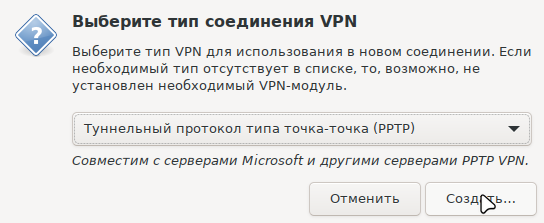
Start adding VPN PPTP
Selected VPN connection type to add - PPTP:
Select VPN type - PPTP
And pressed the button "Create...".

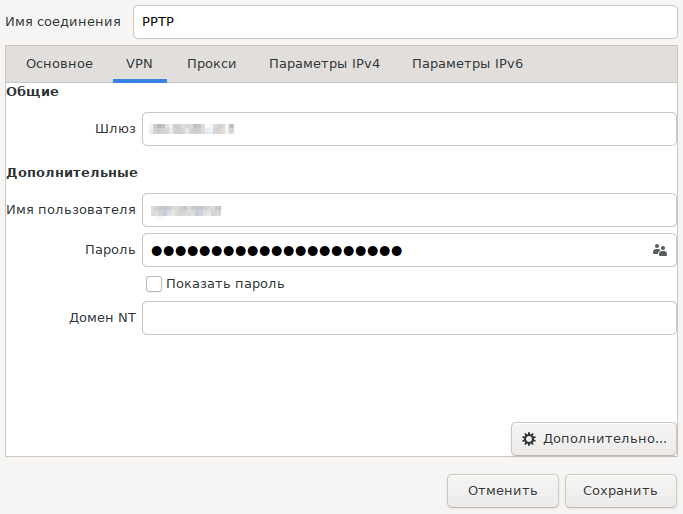
At the top of the window I set connection name eg "PPTP".

On the second tab from the left, VPN indicated the server parameters
Configuring PPTP parameters (part 1) - VPN tab
*Gateway*- you need to specify an external fixed IP address or FQDN of your home network router
Username**- this is the username in the home router, which acts as a VPN PPTP server
*Password- this is the password of the user with the name specified in the previous input field

Note: to enter a password, click on the button with a diamond and a question mark on the right side of the input field and select whether to save the password for all users of the computer or only for this user, or whether to request it every time you connect.

You need to set additional connection properties - the “Advanced” button:
![Configuring PPTP parameters (part 2) - "Advanced" button](pptp-03.png "Settings (part 2) - "Advanced" button")

  • Tick "Use MPPE encryption".

Pressing buttons Apply - Save to complete the connection creation.

Connecting to your home network - in the system tray, click on the network icon and select the previously created VPN connection.
If the connection is successful, the network icon in the system tray will change its appearance:
vpn connected

If nothing happened when connecting, the network icon spun and returned to its original form - look sudo tail -n 30 /var/log/syslog on the client side, and on the router "System Log" for errors on the server side.

19. Solving the problem in syslog on the router “mppe encryption required, but rejected, terminate”, on the client “LCP terminated by peer” when connecting using NetworkManager

In the NetworkManager connection settings, click "Advanced" and enable MPPE encryption, as in the picture above. (Tick "Use MPPE encryption").


Sources:


ПосLast change: 06/03/2024 - added paragraph No. 9 "9. Enabling Linux kernel modules and setting up a firewall on the client" and the last paragraph No. 19 (if there is a connection error using NetworkManager), the numbering of paragraphs has been changed.


Related publications

