3
December
2020
Setting up the PHP developer workstation
15:27

Setting up the PHP developer workstation

3 December 2020 15:27

The article is devoted to setting up a web server, PDT in Eclipse, Composer and TWIG. Updated '2024!

Installing a web server, PHP and MySQL

On Windows, the first thing you need to do is download and install the ready-made distribution of the XAMPP web server https://www.xampp.ru/, which contains MariaDB (similar to the MySQL database management system) and PHP 7.3.6.
On Linux you can install Apache, MySQL and PHP (
sudo apt-get update
sudo apt-get install tasksel
sudo tasksel install lamp-server
), instead of the Apache2 web server, you can use the web server built into PHP (php -S localhost:8000).

Installing the Eclipse IDE and PDT Kit for PHP Development

Then, on Windows and Linux, download the Eclipse IDE installation file. After going to the package download page https://www.eclipse.org/downloads/packages/ you need to download the version "Eclipse IDE for Enterprise Java and Web Developers" for Linux x86_64 (about 528 MB).

eclipse-web-installer
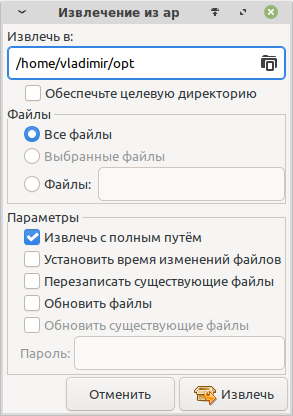
File name:eclipse-jee-(номер версии)-linux-gtk-x86_64.tar.gz. После загрузки, необходимо открыть файл с расширением .tar.gz в Xarchiver и извлечь его в папку /home/(имя пользователя)/opt с полным путём. Например: /home/vladimir/opt.

extract

Or run the commands to extract Eclipse from the archive into the ~/opt folder:

mkdir ~/opt
mkdir ~/eclipse-workspace
tar xf eclipse-jee-*-linux-gtk-x86_64.tar.gz -C ~/opt --warning=no-unknown-keyword

Before you begin installing Eclipse, make sure you have at least 2 GB of free space on your hard drive.

On Windows, you need to additionally install a free Java assembly in the jre folder.

Attention: A JRE virtual machine downloaded from Java.com will not work. Need to download from another source - Open JDK (https://jdk.java.net/15/- Windows x64).
That is, if the Eclipse development environment is installed in the C:\Eclipse folder, put java Open JDK in the C:\Eclipse\jre folder

On Linux, the executable file is located in the folder /home/(username)/opt/eclipse/
To launch Eclipse, in Linux we create and save on the Desktop a shortcut file Eclipse.desktop, with the contents:
[Desktop Entry]
Version=1.0
Type=Application
Name=Eclipse
Comment=
Exec=/home/user/opt/eclipse/eclipse
Icon=/home/user/opt/eclipse/icon.xpm
Path=/home/user/eclipse-workspace/
Terminal=false
StartupNotify=false

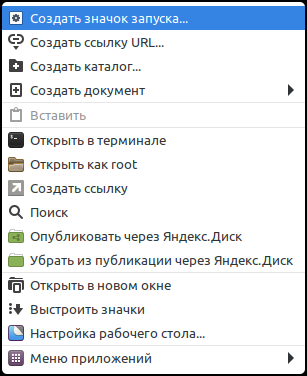
Or create a shortcut in the GUI: right-click and select "Create launch icon":
create_shortcut
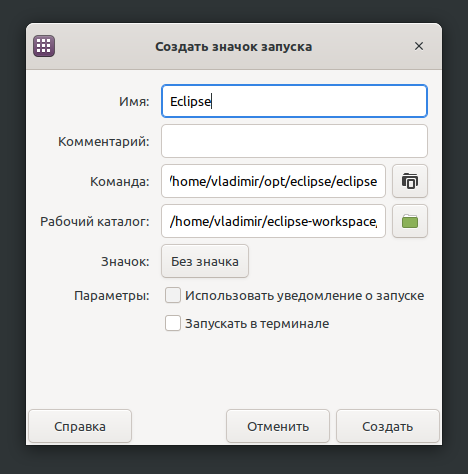
Setting options for a shortcut:
eclipse_shortcut
Icon picture: select the file in the folder /home/username/opt/eclipse/icon.xpm.


Launch Eclipse from the desktop:
Eclipse icon
At the first launch, we confirm the folder for storing eclipse-workspaces files.

To be able to program in PHP, you need to add support for dynamic languages ​​DLTK and extensions for programming in PHP (PHP Development Tools - PDT) to the menu in Eclipse:

  • "Help" - "Install New Software" - "Add" - Name: "DLTK 6.4" - Location: "https://download.eclipse.org/technology/dltk/updates-dev/6.4/" - "Add" - select "Dynamic Languages Toolkit (DLTK)" - and complete the installation: "Next" - "Next" - "I accept the terms ..." - "Finish".
  • Restarting Eclipse IDE - "Restart Now"
  • "Help" - "Install New Software" - "Add" - Name: "Updates 8.2" - Location: "https://download.eclipse.org/tools/pdt/updates/8.2/" - "Add" - "PHP Development Tools" - and complete the installation: "Next" - "Next" - "I accept the terms ..." - "Finish".
  • Restarting Eclipse IDE - "Restart Now"

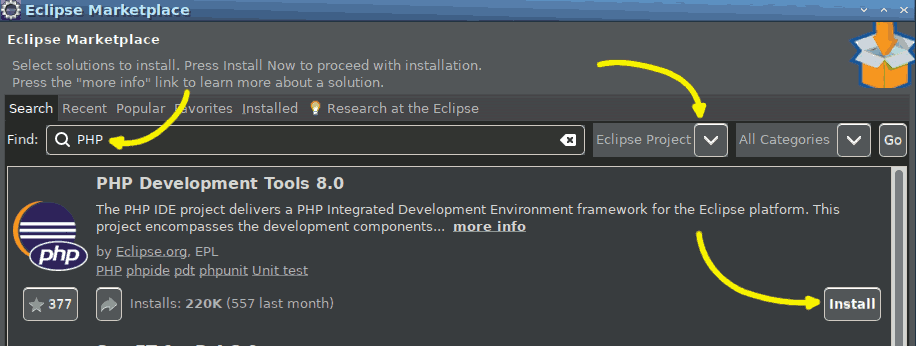
We complete the PDT installation:"Help"- "Eclipse Marketplace..." - in the text field "Find" enter "PHP", in the next field:"Eclipse Project" and Enter(or button "Go").
selecting the php tools component

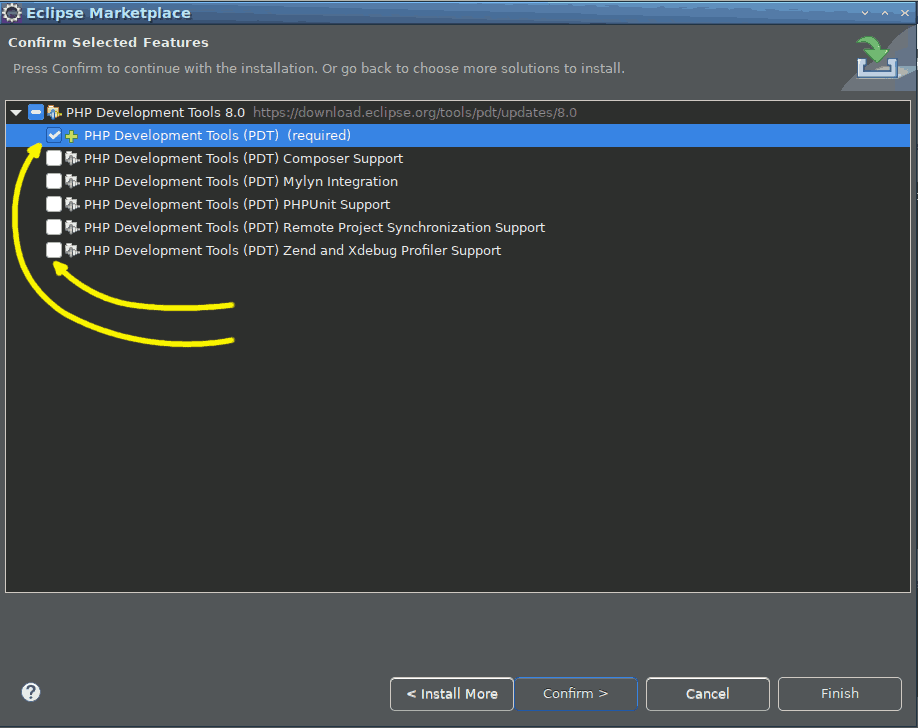
Then select the top, mandatory item:"PHP Development Tools (PDT)", the remaining checkboxes can be unchecked.
select the PHP Development Tools (PDT) component

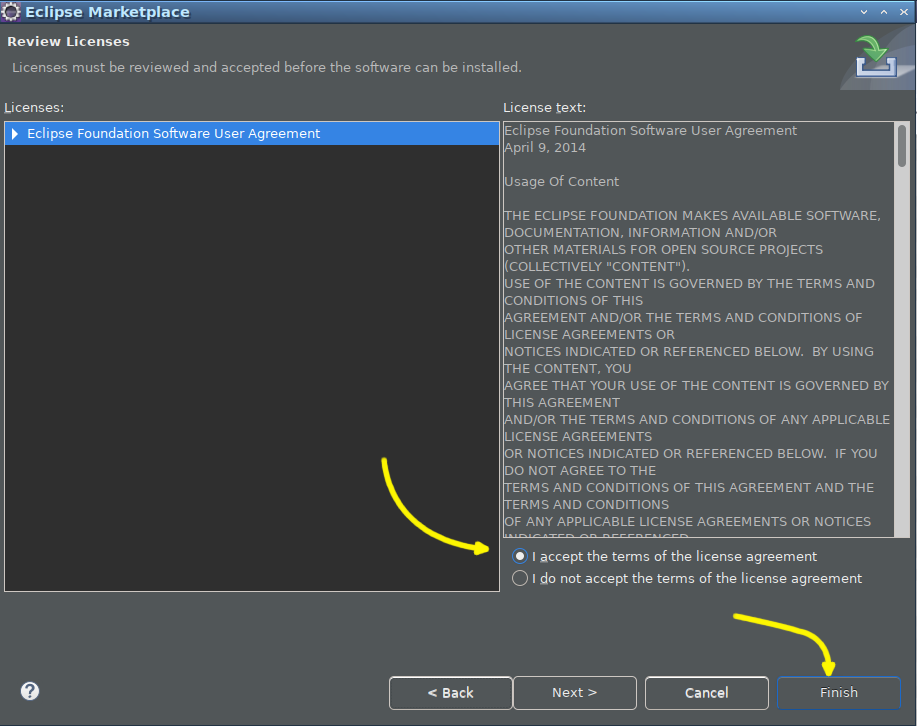
After clicking "Confirm" you will be asked to accept the Eclipse license: - Select the desired item -"I accept", "Finish".
Consent to the Eclipse license - I accept, Finish

After completing the PDT installation, reboot Eclipse.

(Optionally) install a useful plugin for the Twig template engine:

  • "Help" - "Eclipse Marketplace..." - in the "Find" text field, enter "twig plugin" and Enter. - "Install"- "Accept" - "Finish".

    (Последнее обновление - январь 2024)


Installing Composer (for faster installation of frameworks)

  1. Create a composer installation directory and remove traces of the previous installation
    sudo rmdir /usr/local/bin/composer
    sudo mv ~/.composer ~/.composer.old

  2. Create a .composer folder in the user folder:
    mkdir ~/.composer

  3. Download the Composer installer from the official website
    https://getcomposer.org/installer-> the file is saved in the "Downloads" folder.

  4. Rename the installer file and prepare for launch
    cd ~/Загрузки
    mv installer ~/composer-setup.php
    cd ..

  5. Start installing and updating Composer with two commands:
    php composer-setup.php
    php composer.phar self-update


Create the first project and PHP file:

  • Create a project File - New - PHP Project
  • Project name - test

    Creating a new PHP project in Eclipse from the File -New - PHP Project menu

in the folder /home/vladimir/workspace/test (replace with yours)
If the project tree is not visible, expand it using Project Explorer.

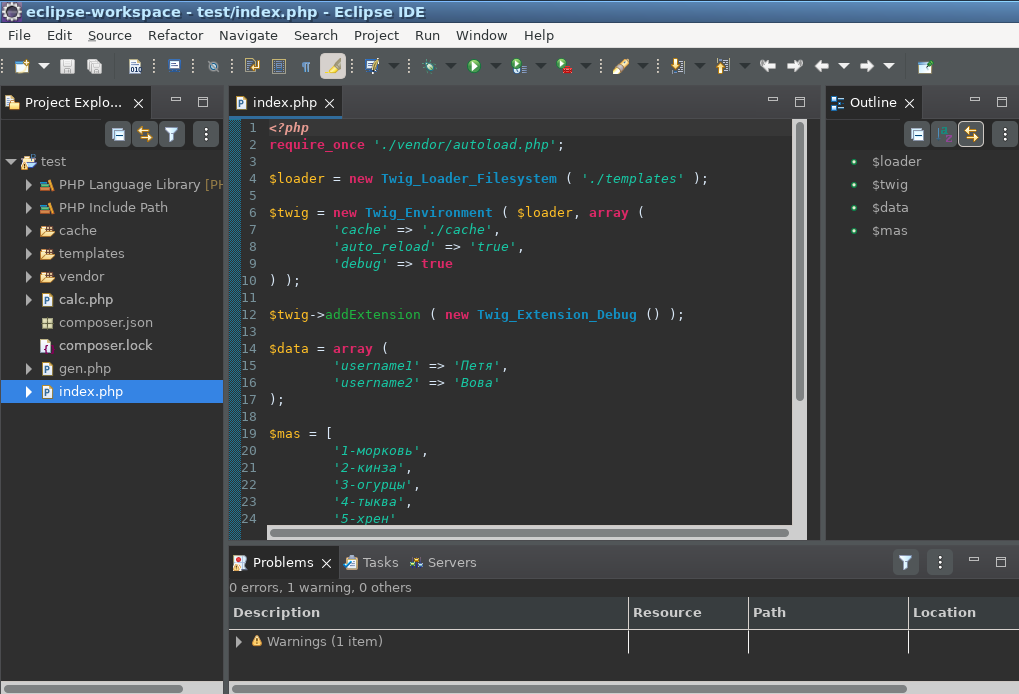
File - New - PHP File- insert the text from the example below. (File name -index.php).
New PHP file

Setting up Eclipse

0..Eclipse dark theme- Window - Preferences - General - Appearance - Enable Theming -Theme - Dark- Apply and Close.

  1. Specify PHP location
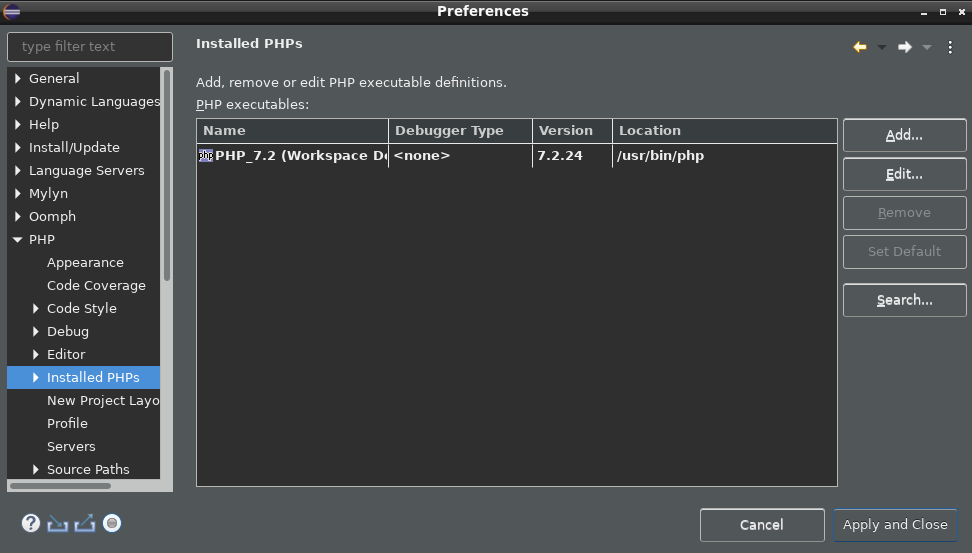
    "Window" - "Preferences" - "PHP" - "Installed PHPs" - "Add"
    Name - PHP
    location Execution path -/usr/bin/php
    Button "Finish".
    indication of installed php

The following settings are not accurate and are subject to revision.

  1. Specify the built-in web server of the php package
    "Window" - "Preferences" - "PHP" - "Servers"
    Delete by default
    Add
    Server name- any, for example "localhost:8000"
    Base URL- http://localhost:8000
    Document root - /home/vladimir/workspace(replace with yours)

Note that I decided to run on port 8000, so I specified the value "http://localhost:8000".
built-in web server
Button below Next
Debugger - None
Button below Next
Path mapping
*Add

  • Path on server -/test
  • Path in workspace -test
  1. Launching the web server php -S on port 8000 and root directory, in this case /home/vladimir/workspace

cd ~/workspace
php -S localhost:8000

where ~/workspace is the path to the php projects folder you need to replace with your own.

!!Attention! if you forget to run the command cd ~/workspace (which in this case is "Document root"), then when running php -S there will be a 404 error:

404

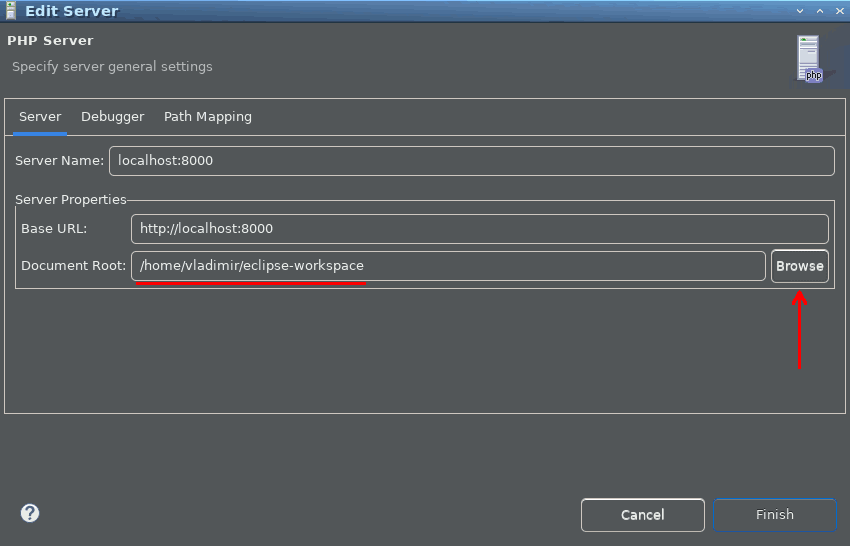
!!Explanation: the project folder must be a subdirectory of the folder "Document root". If the project is stored in a subfolder of another folder other than "workspace", correct the field "Document root". For example, in the example below, the projects folder is called "eclipse-workspace".

server - document root

the result of running in the terminal should be the following:
"[Mon Apr 17 16:59:14 2023] PHP 8.1.2-1ubuntu2.11 Development Server (http://localhost:8000) started"

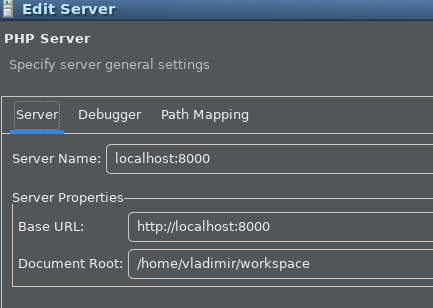
  1. Window - Preferences - PHP - Servers
    Change as follows:

The first tab - we indicate the Document root is the same as for php -S, namely
/home/vladimir/workspace (replace with the path to the projects folder)
set1

The third tab "Port mappings": we do not configure it!
Save the setting and exit.

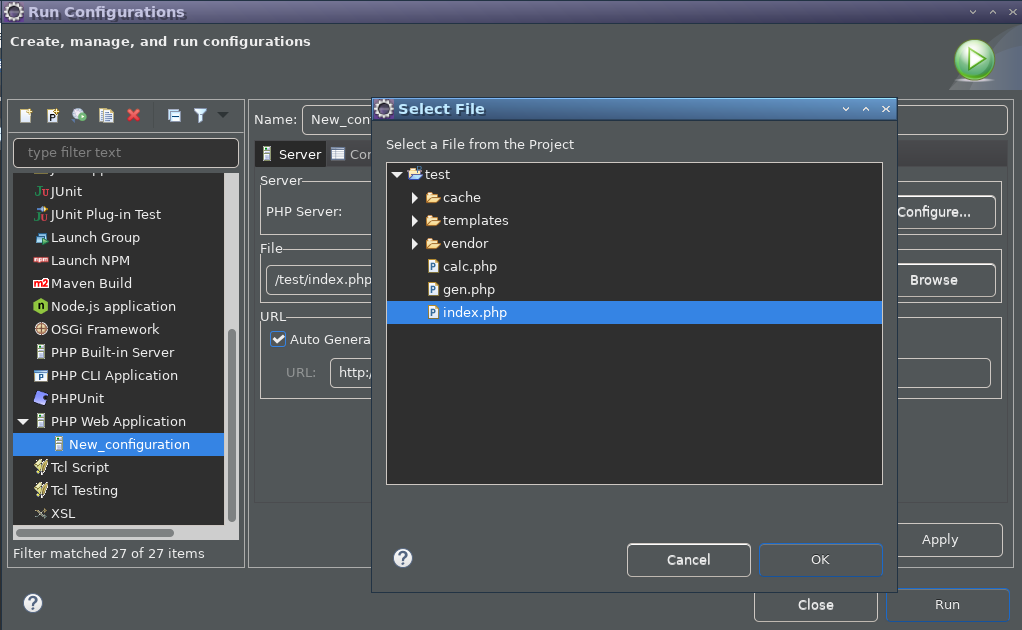
  1. In the Eclipse panel, click the down arrow next to the green launch icon "Run" - "Run Configurations...".
    This setting is intended to specify the "default" starting php file when running "Run".

Select the server configured in the previous paragraph.

In the project, select yourmain PHP file to run, button "Browse".
select_file

The "Auto generate" checkbox must be checked.
auto generate

*Apply

  • click Run(not Close!)

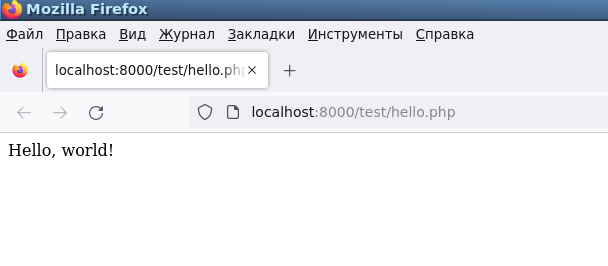
If the web server is running on port 8000, the web server will work and the page will be displayed.
If a hastily created page was launched <?php echo "Hello, world!";

Hello, world!

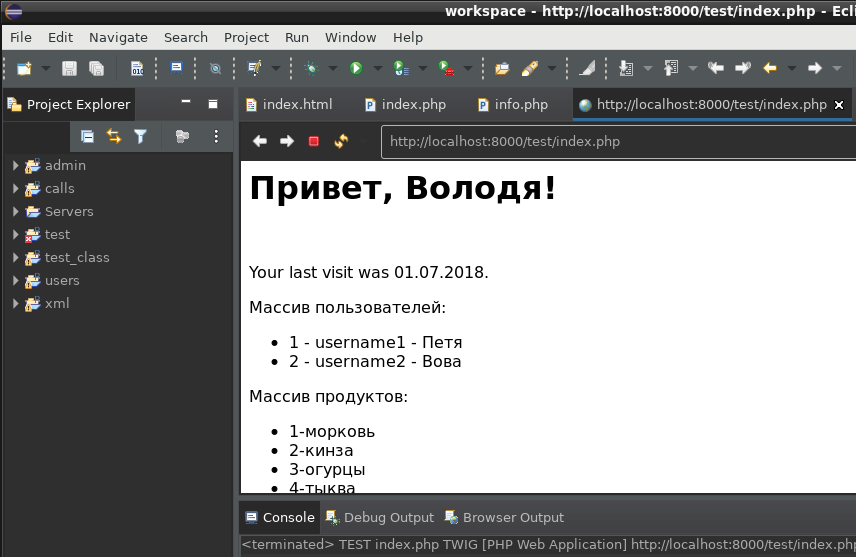
or, when running the index.php file with a twig template (shown at the end of the article):

result

If the page does not appear, look for errors in the terminal window in which php -S is running.

Possible errors

PHP Warning: Unknown: Failed to open stream: No such file or directory in Unknown on line 0 PHP Fatal error: Failed opening required
Solution: remove the Path mapping server from the settings.

[::1]:45720 [500]: GET /test/index.php - Unparenthesized a ? b : c ? d : e is not supported. Use either (a ? b : c) ? d : e or a ? b : (c ? d : e) in /home/vladimir/workspace/test/vendor/twig/twig/lib/Twig/Node.php on line 42

Solution:update Composer 1 before version 2.5.5 and Twig v2.4.8 before version v2.15.4, which are compatible with PHP 8.1.2:

cd ~/workspace
sudo composer self-update --2
composer require "twig/twig:^2.0" 

In the future, we launch index.php for viewing by clicking the green “Run” button.

Setting up code debugging in Eclipse using XDebug

1) Install the xdebug package from the command line

sudo apt-get install php-xdebug

2) Find out where the php.ini file is located:

<?php phpinfo();

3) Go to the folder (which is displayed in the previous paragraph)

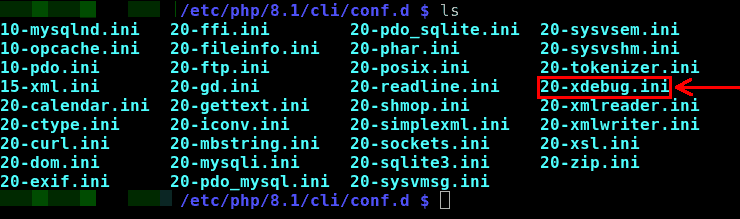
cd /etc/php/8.1/cli/conf.d

there should be a symbolic link in the conf.d folder 20-xdebug.ini per file
xdebug1

If not, create it (the path to the folder is displayed by the echo php_info() function:
sudo ln -s /etc/php/8.1/mods-available/xdebug.ini 20-xdebug.ini

Thus, to configure xdebug you need to edit the file with the command nano /etc/php/8.1/cli/conf.d/20-xdebug.ini, but the file /etc/php/8.1/mods-available/xdebug.ini is actually edited.

4) Open for editing 20-xdebug.ini

sudo nano 20-xdebug.ini

5) Add the following text to the 20-xdebug.ini file:

zend_extension=xdebug
xdebug.mode = debug
xdebug.start_with_request=yes

ДопRelease dated June 15, 2023. Extended version of the 20-xdebug.ini file (xdebug.ini):

zend_extension=xdebug
;zend_extension=xdebug.so
;zend_extension=/usr/lib/php/20210902/xdebug.so
xdebug.mode=debug
;xdebug.remote_enable=1
xdebug.idekey="codeliteide"
xdebug.remote_host=127.0.0.1
xdebug.remote_port=9000
xdebug.client_port=9000
xdebug.start_with_request = yes
xdebug.discover_client_host=1

Note: if after running the web server php -S localhost:8000 the message Cannot load Xdebug - it was already loaded is displayed - ignore the warning.

Note #2: If execution does not stop during debugging and goes past the breakpoint, as in the case of "Run", check the file "/etc/php/8.1/mods-available/xdebug.ini" - it should contain the line zend_extension=xdebug or zend_extension=xdebug.so , because Without it, debugging will not work.

(Addition: to disable xdebug debugging, you need to remove these lines (or comment out) and write the following text in the /etc/php/8.1/mods-available/xdebug.ini file:xdebug.mode = none)

6) In the development environment Eclipse add the following text to the index.php file:

<?php echo xdebug_info();

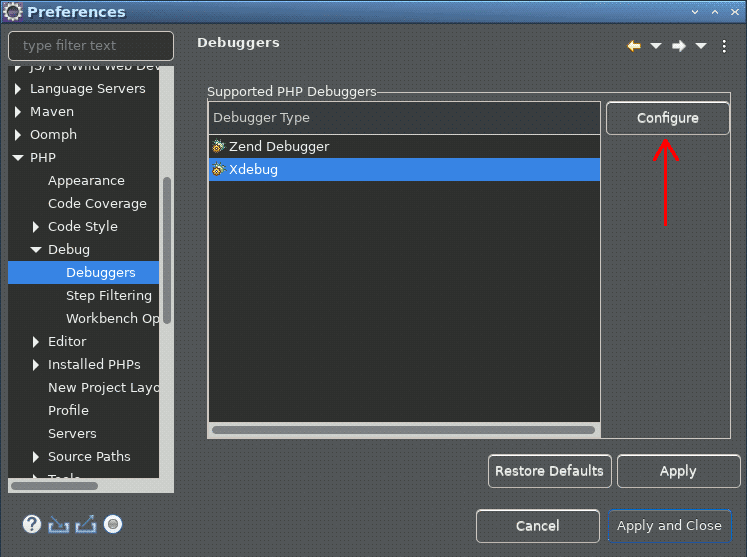
7) In settings Window - Preferences - PHP - Debug click on the line Xdebug- button "Configure"
Eclipse Xdebug Configure

8) Correct the port from 9000 to 9003.
XDebug Configure port 900

9) Apply - Apply and Close

10) Turn on the "Debug" perspective:

Window - Perspective - Debug

(Or click the corresponding button in the upper right part of the screen).

11) In the "Run" menu, check the item "Debug configurations..." the settings of which on the first tab "Server" coincide with "Run configurations...".
Here is a PHP file for debugging, which will open in the browser after running "Debug".

You can also change the Debugger settings in the "Global Settings"

  • Run - Debug configurations - Debugger - Configure - Global settings - Debug port.

На In the second tab "Debugger" XDebug should be selected, port 9003 must be specified. Which was specified above in the ini file 20-xdebug.ini.

If the program complains that port 9003 is busy "Port is already in use. Please select a different port for debugger in corresponding PHP server configuration (localhost:8000)",
you need to complete php -S and close Eclipse. Then in the terminal go to the cd workspace folder and run php -S localhost:8000 and run Eclipse, in which repeat Run - Debug (F11).

11) Start debugging in the menu "Run - Debug".

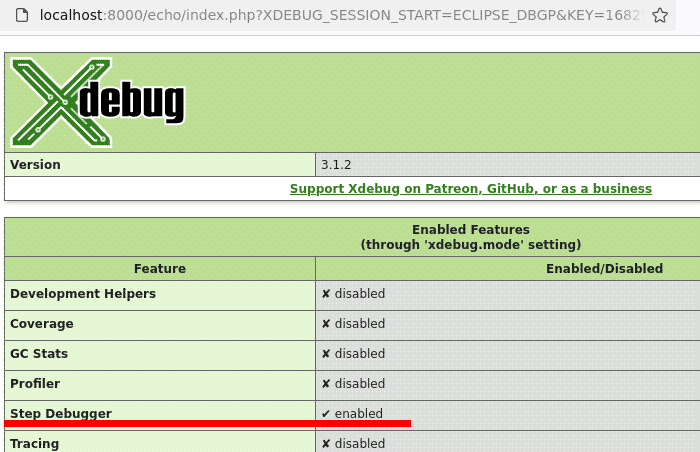
Since we previously added the echo xdebug_info() function to the source text in paragraph 6;
information about Xdebug should be displayed with the item enabled Step Debugging.

12) We try to set a breakpoint and restart the application by clicking on the “stop” button, then start debugging using the menu item "Run" - "Debug (F11)". Debugging will stop at the breakpoint. Press the key F6("Step over")**. The web browser will display the result:
result echo xdebug_info();

Basic hotkeys for debugging (Debugging):
F11- Debug (start debugging)
F5- Step into (enter a method or function)
F6- Step over (execute a method or function without entering a subroutine)
F7- Step return (exit method, function)
Ctrl+F11 run (run without debugging)
Ctrl+F2 terminate

Addition from 06/13/2023: to run the project without debugging - Run - Run (Ctrl+F11).
So that every time you start it does not stop at the first line, in
Window - Preferences - Debug -Break at First Line uncheck the box. See picture below

Break at First Line - OFF

Tip: to display information about the installed version of the xdebug extension, run a page with PHP code using a web server in Run or Debug mode:echo xdebug_info();


Test file index.php for the Twig template engine

<?php
require_once './vendor/autoload.php';

$loader = new Twig_Loader_Filesystem ( './templates' );

$twig = new Twig_Environment ( $loader, array (
'cache' => './cache',
'auto_reload' => 'true',
'debug' => true
) );

$twig->addExtension ( new Twig_Extension_Debug () );

$data = array (
'username1' => 'Petya',
'username2' => 'Vova'
);

$mas = [
'1-carrot',
'2-cilantro',
'3-cucumbers',
'4-pumpkin',
'5-horseradish'
];

echo $twig->render ( 'index.html', array (
'name' => 'Volodya',
'visit' => '07/01/2018',
'data' => $data,
'mas' => $mas
) );

?>

Template

piece of template

2020 test project for Eclipse 2020-09:

(including php file and twig template (for Composer 1.0 and Twig 2.4):
test.zip

2023 test project for Eclipse 2023-03:

(including php file and twig template (for Composer 2.0 and Twig 2.15):
test2023.zip