




17
May
2024
E-Mail client MailSpring
15:28

E-Mail client MailSpring

17 May 2024 15:28

Free mail program for Linux and Windows - Postal Client Mailspring.

Introduction

About the mail program mailspring I found out by accident: an employee contacted me with a request - Yandex mail stopped opening, instead of which a window with an advertisement for corporate mailboxes "Yandex 360" appeared. Then I started looking for applications for accessing mail not through the web interface. Thunderbird did not start for her, because it is 64-bit, and the OS is 32-bit. So I found this program among all the alternatives - Mailspring mail client. As it turned out, it is not only free and open source, but also works in Windows and Linux, is actively developing. Home page -https://github.com/Foundry376/Mailspring.

Mailspring can be installed from the Snap store

1) install the Snapd service according to the instructions for your OS
(If SNAP has not been installed earlier) .

For example, for Linux Mint "Vera" or Russian Linux Green:
https://snapcraft.io/docs/installing-snap-on-linux-mint

For any Linux OS:Snapd installation instructions

sudo apt update
sudo apt install snapd
sudo snap install hello-world

2) Installation of a postal client MailSpring из Snap

sudo snap install mailspring

3) Launch of a mail clientMailspring

Launching the postal program in the Start menu in the Internet application section - " Mailspring ".

Installing the Maispring email client from Flatpak

1) Installing the Flatpak App Store - https://flathub.org/setup
2) Installing the Flathub package com.getmailspring.Mailspring from Flathub.

The first launch mailSpring

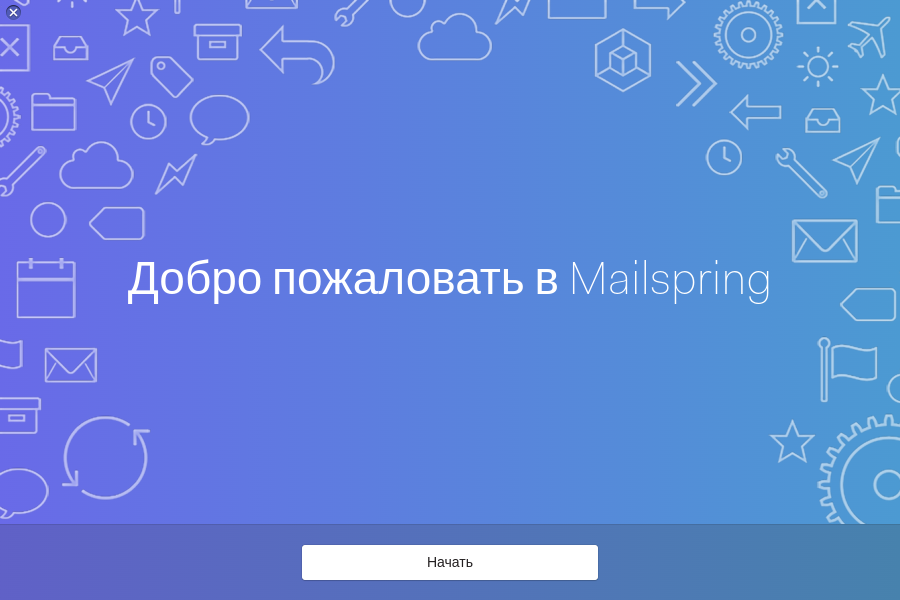
Mailspring1
Click "Start".
Mailspring2
Click "Next".
Mailspring3
On the last screen of the master, there is a “Start” button, when pressing which the program will propose to create a new mailspring ID. Этот пункт пропустил - нажал "Just need the basics? Skip for now":
Mailspring4
On the next screen confirmed that cloud capabilities associated with mailsprID is not required:
Mailspring5

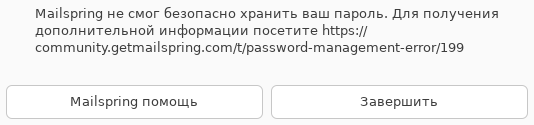
Notice: in some, but not in all distributions (for example, in Linux Mint "Vera") You may receive a message that Mailspring cannot securely save your password: "Mailspring was unable to securely save your password. For more information, visit https://community.getmailspring.com/t/password-management-error/199"
Mailspring6

Password storage certificate is located at:https: // community.getmailspring.com/t/password-management-error/199. It writes a way to solve:

You need to install gnome-keyring package with libsecret and launch Mailspring with parameter:

mailspring --password-store="gnome-libsecret" 

In such distributions, you will need to add this parameter to the Desktop application call file:

sudo nano /var/lib/snapd/desktop/applications/mailspring_mailspring.deskTop.

It is necessary to fix the last line by adding to the line "exec =" key: -password-store="gnome-libsecret"

Exec=env BAMF_DESKTOP_FILE_HINT=/var/lib/snapd/desktop/applications/mailspring_mailspring.desktop /snap/bin/mailspring --password-store="gnome-libsecret" mailto:

And keep changes: ctrl+O, Ctrl+x

In other distributions (Linux Green) there is no password saving error and editing of file "mailspring_mailspring.desktop" is not required.

In both cases, you need to reach the window with the link ""Just the Basics? Skip for now"", after clicking on which the setup wizard will offer to connect to one of the known mail services, for example, Yandex mail, or to an arbitrary IMAP/SMTP server.

This screen "Add the mail account" is the beginning of email settings in Mailspring:
Mailspring7

Description of postal services for which in mailspring there is a quick settings

  Icon of service Service description Free e-mail
BTN_GmaIL Gmail - free email from Google (USA), also: Android OS email. You can create a mail account in advance on this page -> "For personal use". 15 GB free
BTN_YAHOO Yahoo mail - бесплатный почтовый ящик электронной почты от Yahoo. Регистрация на номер мобильного телефона. safely? No. 😄
BTN_Icloud https://www.icloud.com/ - служба для эл.почты и хранения фотографий от Apple. Требуется действующий Apple ID (но при привязке телефона с кодом +7 создание учётной записи не происходит - "В настоящий момент не удается выполнить Ваш запрос / В настоящее время невозможно создать учетную запись") нет данных
BTN_GMX Free mail GMX.com - создание почтового ящика с российского IP адреса невозможно "We're very sorry – we can't sign you up / Your IP address suggests you are trying to sign up in a country where GMX registration is no longer possible. Unfortunately, this means we can't create an account for you." не работает
BTN_OFFICE365 Account Office.com - вход осуществляется с учётной записью Microsoft вида username@outlook.com или username@hotmail.com или по логину Skype - возможность привязки через Skype почты mail.ru. Для функционирования OneDrIve and mail need paid subscription I need paid subscription
BTN_OUTLOOk_HotmaIL вход осуществляется с учётной записью Microsoft вида username@outlook.com , на сайте https: // outlook.live.com/mail/0/ , почта уходит с адреса вида outlook_9d413a6a2d5b893b@outlook.com почта только уходит, но не приходит. "MicrOsoft has stopped new sales of products and services in Belarus and Russia. " does not work
BTN_FastMaIL Платная служба почты https: //www.fastmail.com/ от $5/месяц - адреса вида username@fastmail.com или username@sent.com платная, бесплатный период 30 дней, не интересно
Btn_yandex https: //360.yandex.ru/ -> кнопка "Войти" -> "Создать ID". 10 ГБ бесплатно, есть реклама
btn_imap_smtp любой сервер IMAP/SMTP любой

Conclusion: in mailsprIn Russia, you can use at least four -paying postal services:

  1. 1.Gmail от Google (США, офис в 1600 Amphitheatre Parkway
    Mountain View, Ca 94043, USA). In Russia, the daughter of LLC "Google" recognized by the arbitration court bankrupt.
  2. 2.Yandex - бесплатно (владелец ООО «Яндекс», головной офис компании находится в Москве)
  3. IMAP/smtp - mail of your domain on web hosting (see paragraph 3).
  4. It is not documented that the setting automatic for the mail mail.ru => button IMAP/smtp (see <параграф 4)

1) Setting M.ailspring для электронной почты GMail from Google

In the "Start" menu - "Internet" we launch the program Mailspring

At the first launch, a dialog box will be opened for choosing a user of postal services, which he wants to add.

Mailspring7

If the window with a list of postal services is not displayed on the screen (for example, other mailboxes are configured) - select the menu item "File" - "Add the account".

In the service selection window, click the button
BTN_GmaIL

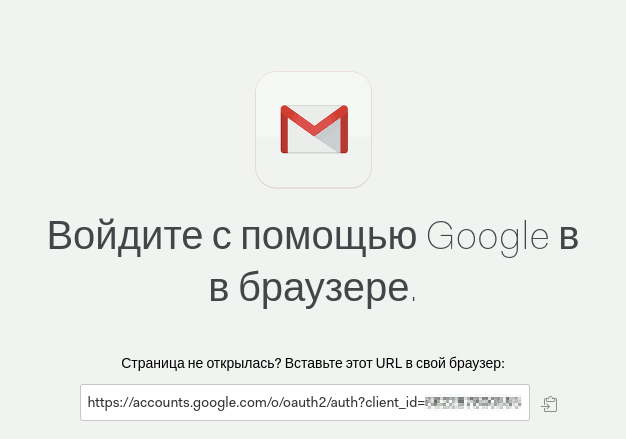
A window announcing the opening of the link for access to Gmail (binding)

Gmail-Mailspring-Init

In the browser confirmed the binding of GMail к Mailspring:

Gmail-Mailspring

I only allowed Mailspring to access my GMail inbox, and contacts and calendar were disabled.

Gmail-mailspring-comPlete

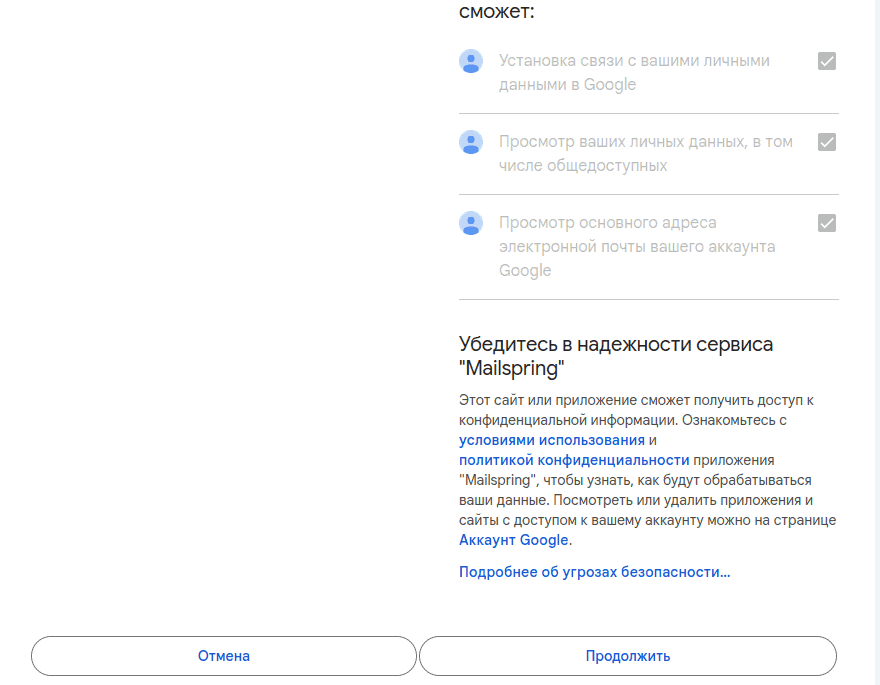
In the browser, I scrolled the web page and confirmed - the button "Continue":

Gmail-mailspring-comPlete-Down

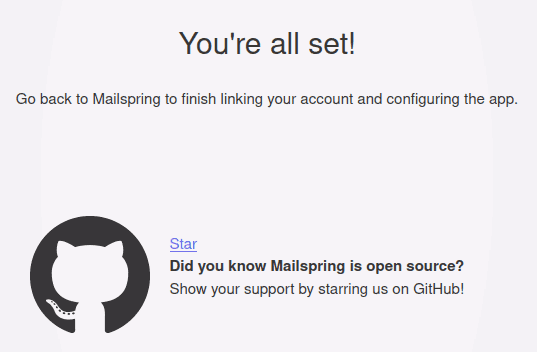
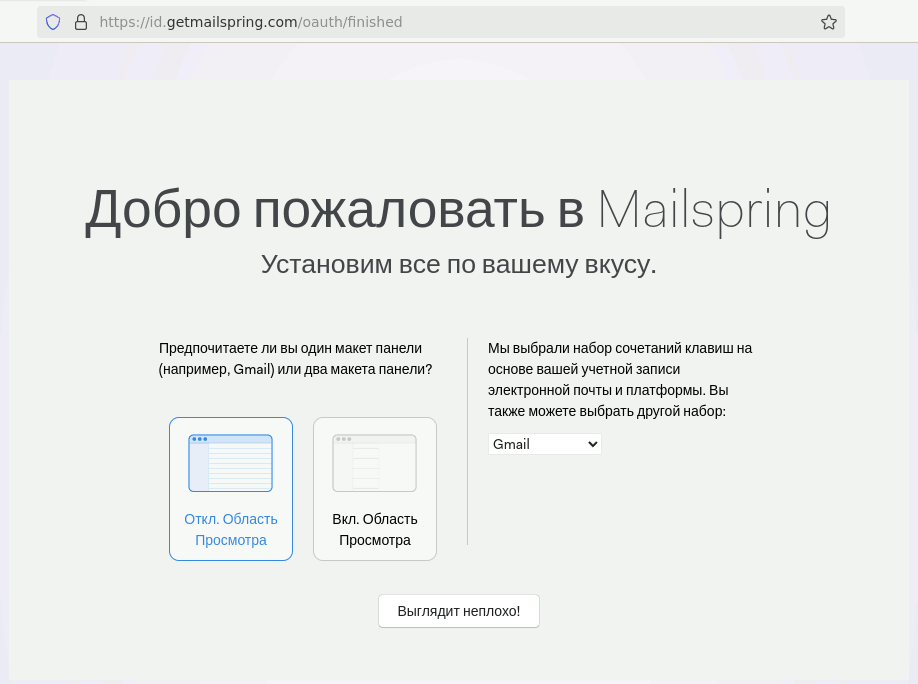
The browser "thought" a little and finally gave out a page for choosing an appearance mailspring, which I left the default settings (Disable Preview Pane, GMail Keyboard Shortcuts) and pressed the button "looks good".

Gmail-Mailspring-FINISHED

Settings are over:

Gmail-mailspring-prIce

Pressed "Finish setup":

Gmail-Mailspring-bye

The GMail mailbox has opened and is working in the Mailspring mail program!

mailspring-gmaIL-Window

2) Setting up MailSpring for Russian Yandex email (mail.Yandex.ru)

Dal work with Yandex mailbox must fulfill two conditions:
1) Enable access to Yandex mailbox via IMAP using mail programs
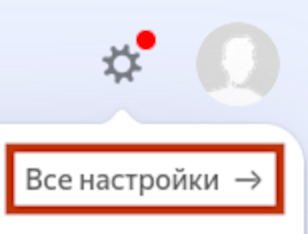
Access to IMAP is provided in the main mail of Yandex (or Yandex 360), in the application menu of the application "Settings - all settings" :

All-Settings

In the left menu select "Postal Programs" and turn on IMAP.

Or deliver at the next direct link: https: //mail.yandex.ru/?dpda=yes#setup/Client

Put a checkmark against "from the server mail.yandex.ru on the protocol IMAP"
yandex-imaP.

Press the "Save Changes" button.

2) Create an application password - can be enabled in the "Security" menu on the Yandex ID website.
(Source:Yandex instructions "Applications passwords").

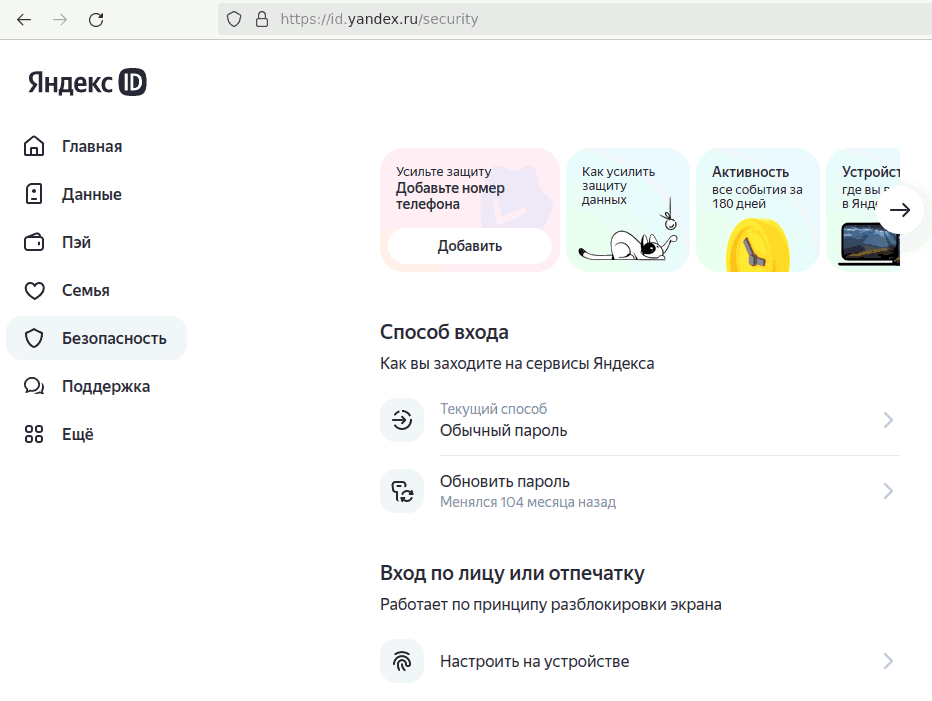
First of all, you need to go to Yandex ID through the web browser:
https: //id.yandex.ru/

Further - section "Security" in the menu on the left:
yandex_bezop

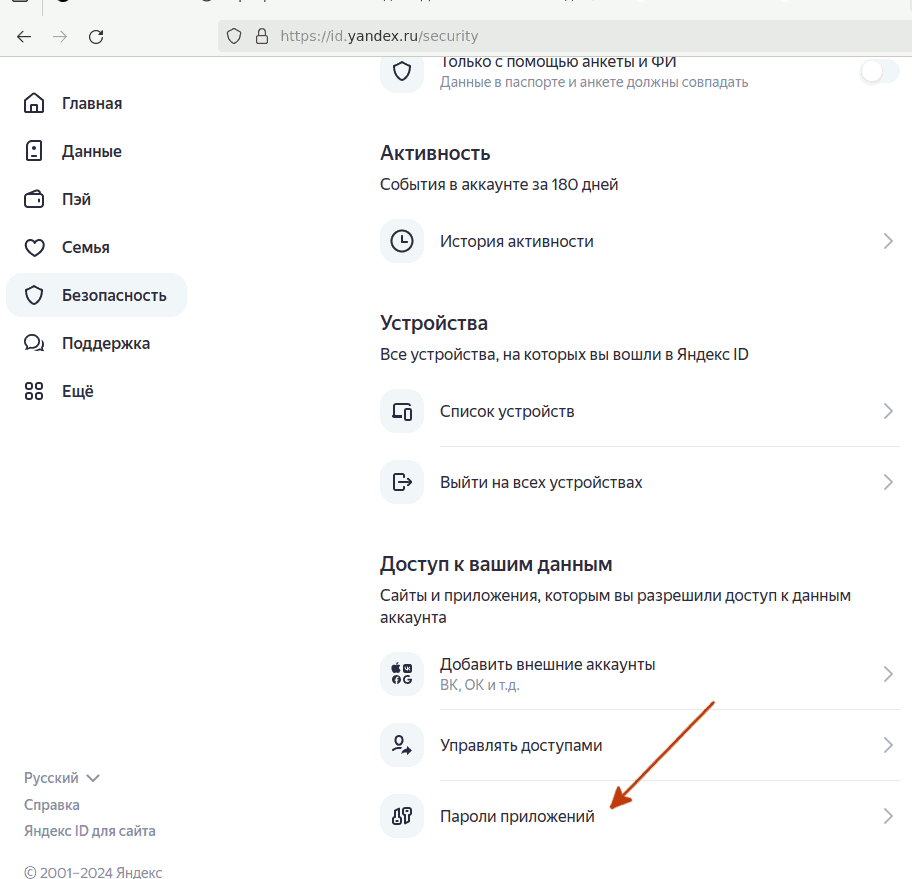
In the section access to your data select application passwords.
yandex-app-passworDS

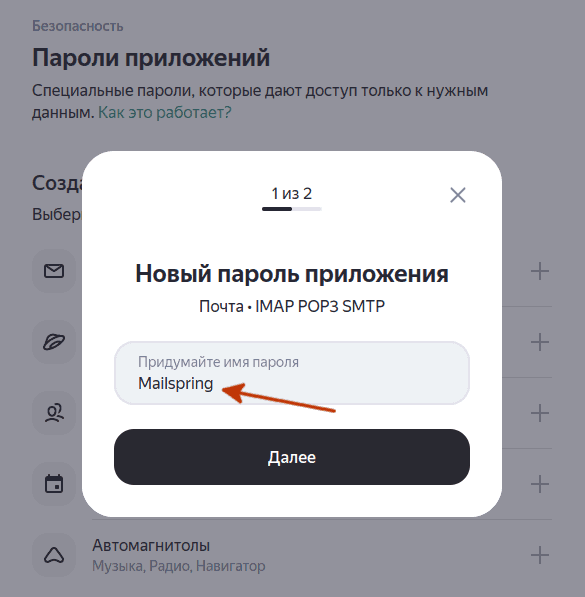
To create application password - Mail IMAP / POP3 / SMTP:

Step 1. Come up with the name - For example, introduced Mailspring"
Password_STEP1

and pressed "Next"

Step 2. Copy the generated password to the clipboard buffer:
P.assworD_STEP2

To copy the password in the clipboard, click on the “copy” icon.

Now everything is ready to connect them Mailspring to Yandex.

Launch Mailspring from the "Start" menu

Select the menu item:
File - Add account

Press Yandex button:
Btn_yandex

In the window "Add Yandex account" will be offered to enter

  • user
  • address of e-mail of the type USER@yandex.ru
  • Application password, which was copied to the clipboard buffer in the previous step.

yandex_Mailspring
In the window you need to enter your data and insert the application password from the clipboard (Ctrl+V).

When everything is true. Press the "Add account" button.
A window will arise for a second reporting that Mailspring is connected to Yandex mail and the mailbox of Yandex will open. Also on the left side in Inbox will appear Yandex Post.

mailspring-yaNDEX -Inbox

3) Setting up Mailspring client for the arbitrary iMAP/SMTP server

For example, in Mailspring you can configure the receipt of the mail of your domain, which is stored on the server of the hosting provider.

Launch Mailspring.

File - Add account - IMAP

btn_imap_smtp

The username, email and IMAP password used by your hosting provider:

ImaP1

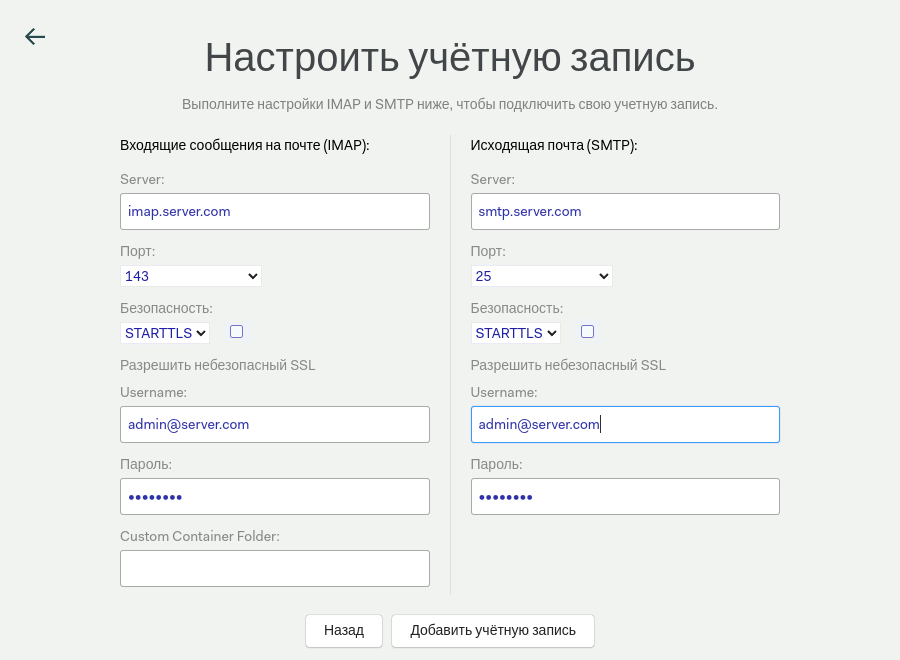
We specify the parameters of the mail server - IP addresses, connection protocols.

ImaP2

The settings can be obtained from the hosting provider, or in the configured program Evolution - in the left part of the window, select the account - Properties -

  • Receiving mail imap.server.com 143 Username admin@domain.com / encryption method STARTTLS
  • Sending email smtp.server.com 25 STARTTLS after connection

Note. Two checkboxes on the form must be unchecked, since they are signed just below "Allow insecure SSL" - disable SSL/TLS security checking based on certificates.

Imap3

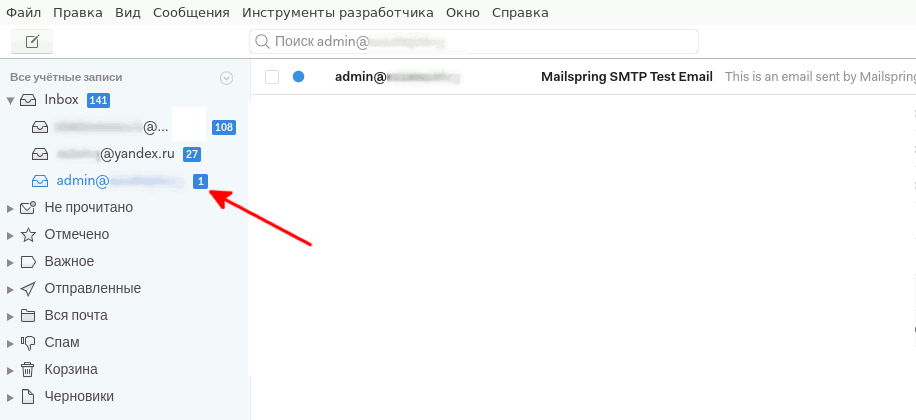
After clicking the "Add account" button, a connection to the server will be established and if a test letter is successfully sent and received via SMTP/IMAP, the new mailbox folder will appear in the Mailspring Inbox.

Custom-mailbox

Setting up mail from the IMAP/SMTP server is complete.

4) Setting up Mailspring for email from mail.ru

Go to your mail mail.ru through the web interface, in Settings - All settings - Safety - Passwords for external applications

maIL-PWDS

Add:

mailru-add-PWD

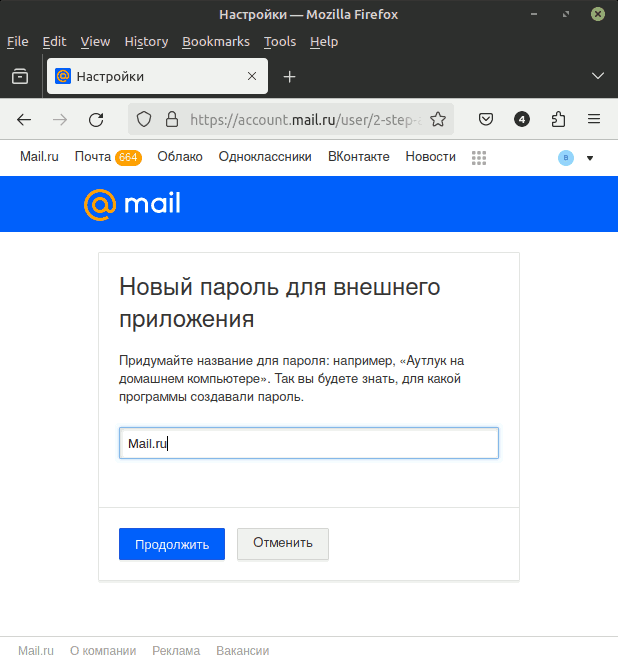
Create and enter a name for the external application password:

mailru-add-PWD2

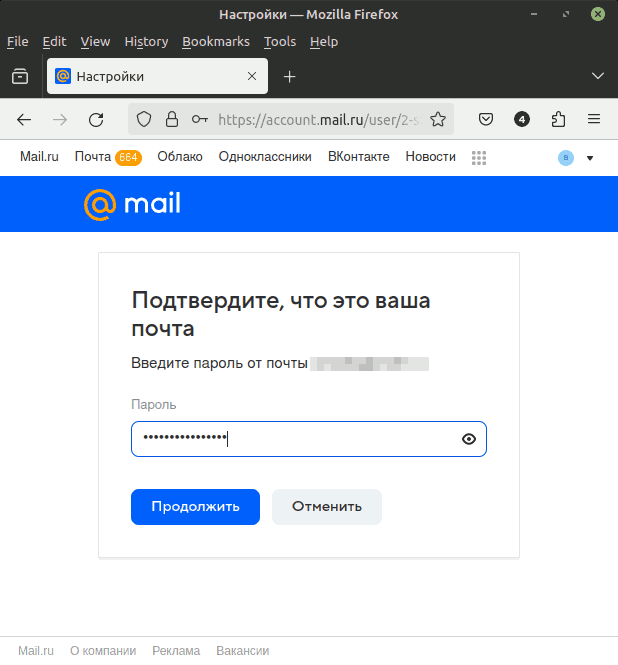
Continue. Pass the test - enter your email password.

confirm-emaIL

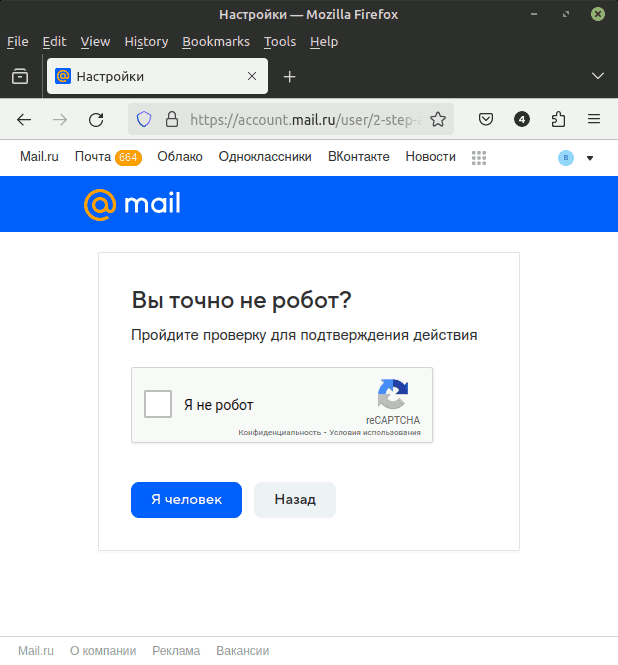
Continue. Please verify that you are a human and not a robot:

Robot

At the last step Mail.ru will show the application password that should be allocated with the mouse and copy to the Clipboard buffer:

PWD-CreaTed

We enter this password in the Mailspring window for any IMAP/SMTP server (see paragraph 3).

The_emaIL

Please enter the First Name / Last Name that will be displayed in emails, check the e-mail address, and click Next button.

In the next steps, you don’t need to enter or configure anything, the program will connect to Mail.ru and download mail.

4.1) Full description of the settings for mail.ru

Account settings are on the menu Mailspring - Edit - Settings - Account - update the connection settings.

mailrU_Settings

Incoming posts by mail (IMAP):
Server: imap.mail.ru
Port: 143
Safety: Startls
Nearby, the checkpoint "Allow the unsafe SSL" is removed
Username: username@mail.ru
Password: Password_of_the_Application_mail_ru

Outgoing mail (SMTP):
Server: smtp.mail.ru
Port: 465
Safety: SSL / TLS
Nearby, the checkpoint "Allow the unsafe SSL" is removed
Username: username@mail.ru
Password: Password_of_the_Application_mail_ru

Other connection parameters are given in the article in English "Access to mail.rU via IMAP and SMTP ".

Similar articles

Evolution
SYLPHEED


Related publications

